---
title: "Employee Basic Information"
description: "Manage personal details, access, teams, contract terms, working time, salary, banking, and insurance data."
search:
tags: ["employees", "basic information"]
---
Open **Your Company → Employees**, select an employee, then open **Basic Information** on the right.
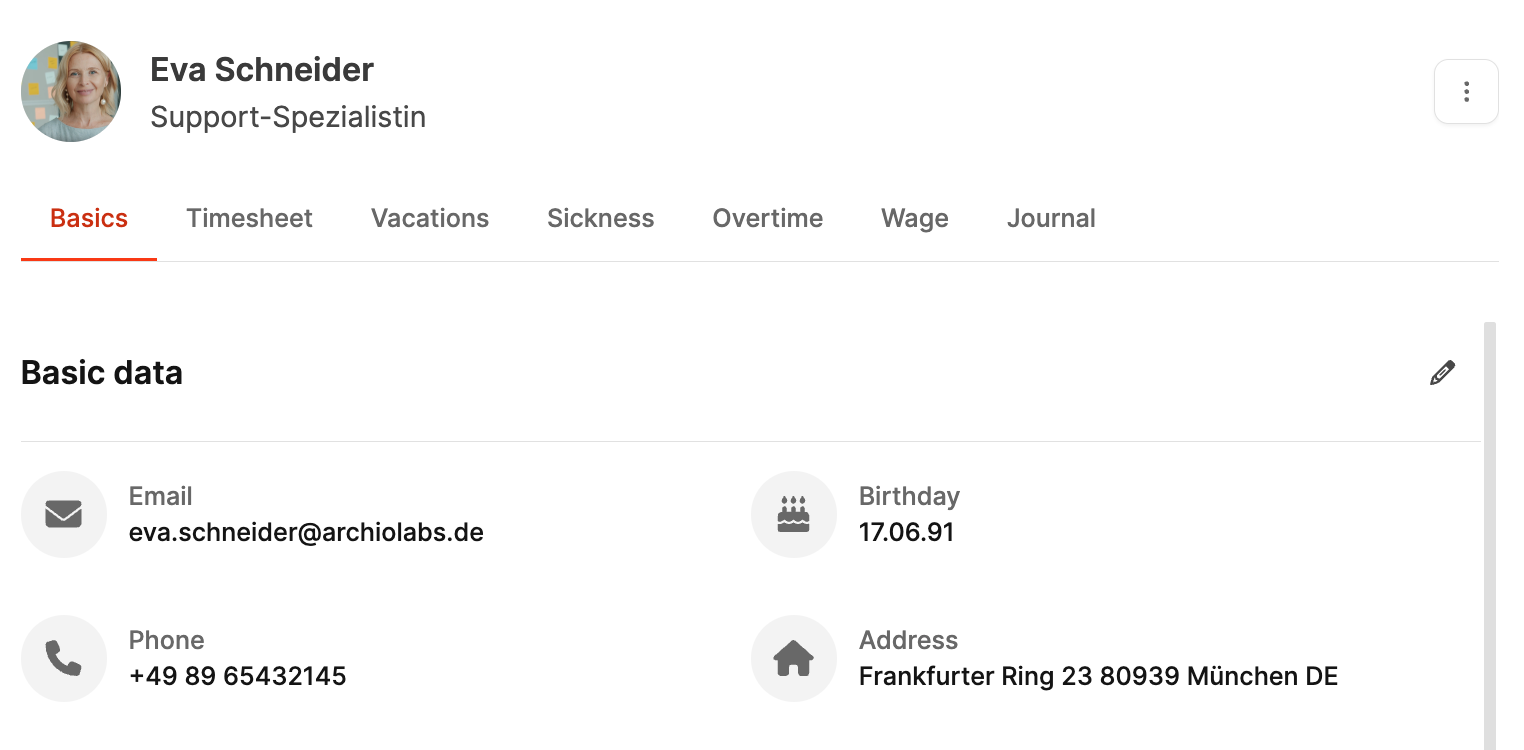
This tab manages the employee's master data and work-related information, including personal details, Leadtime access, working-time rules, salary, and insurance. Its sections keep the most important employee information organized in one place.
Select the profile picture to enlarge it.
 To **delete** an employee, open the three-dot menu on the right. We recommend deactivating former employees instead of deleting them.
## Master data
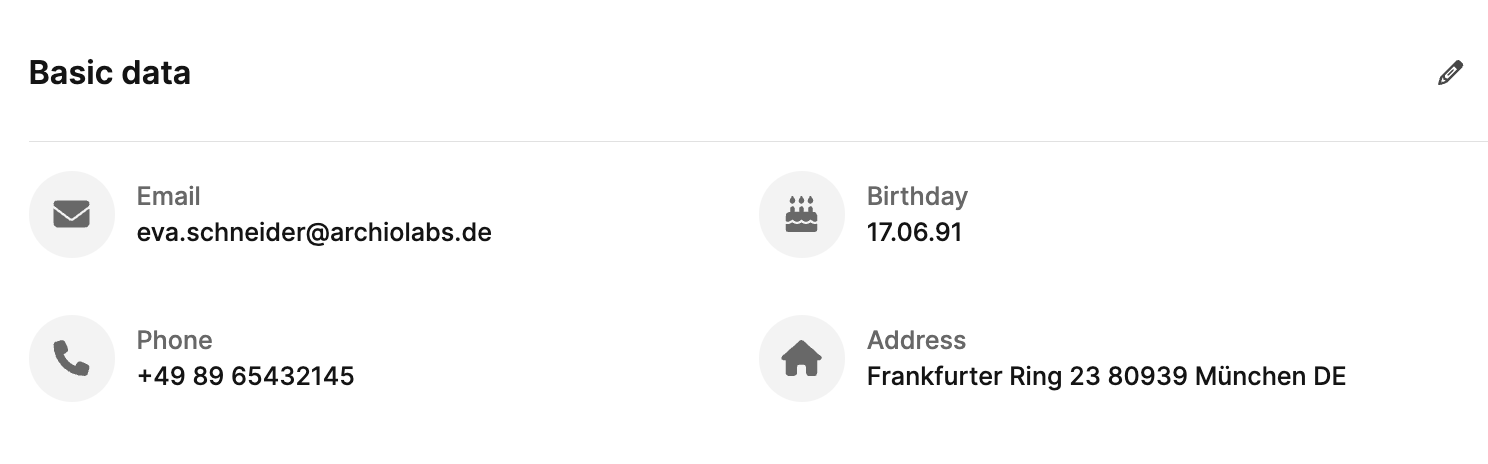
Master data contains the employee's personal and contact information. Select the **pencil icon** in the top-right corner of *Basic data* to edit it.
---
### Edit personal data
To **delete** an employee, open the three-dot menu on the right. We recommend deactivating former employees instead of deleting them.
## Master data

Master data contains the employee's personal and contact information. Select the **pencil icon** in the top-right corner of *Basic data* to edit it.
---
### Edit personal data
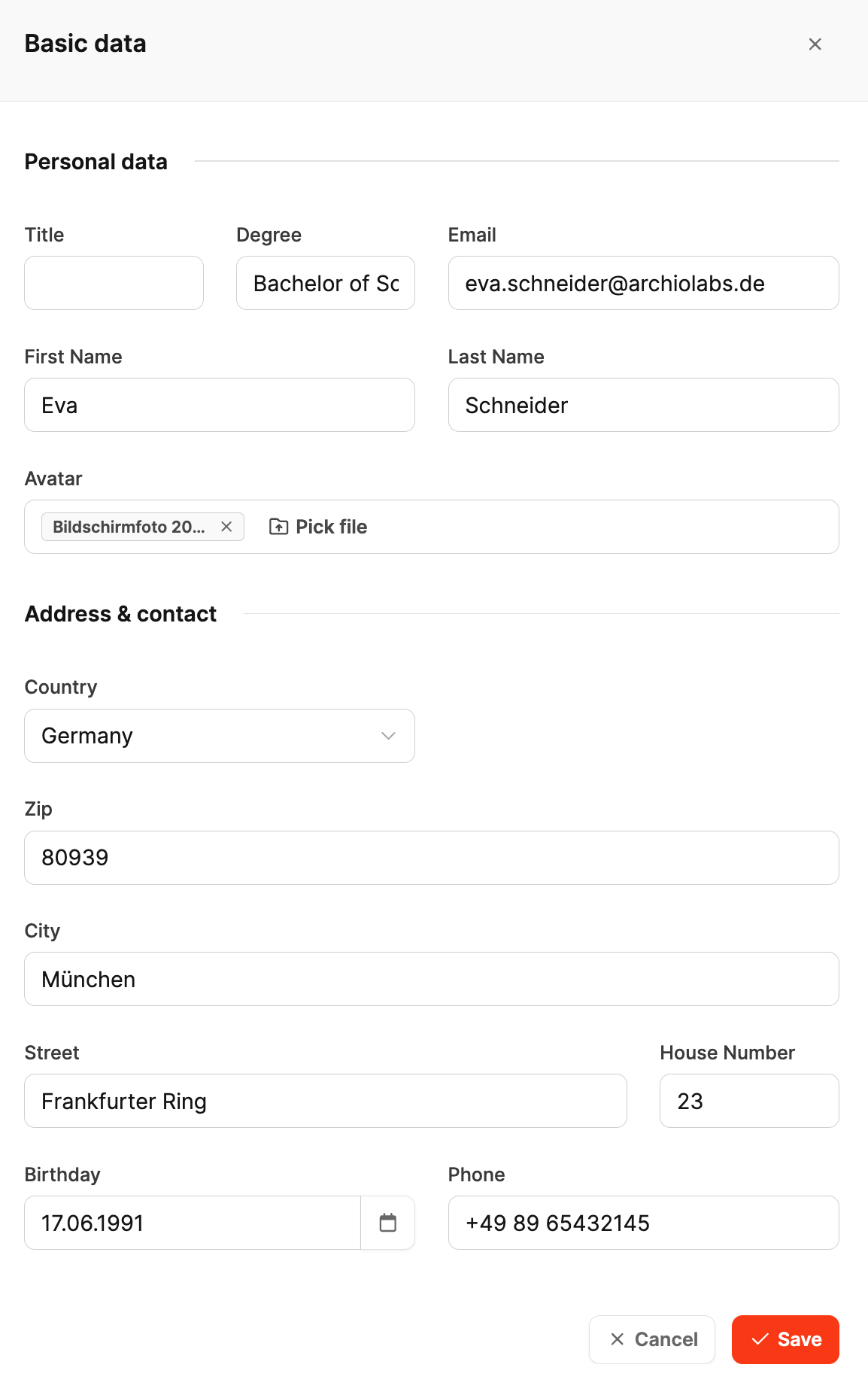 - **Title:** Optional academic or professional title, such as Dr. or MBA.
- **Degree:** Optional highest educational qualification.
- **Email:** Primary address used for internal communication and system access.
- **First name / last name:** The employee's full name.
- **Profile picture (avatar):** Select *Pick file* to upload or replace the picture.
---
### Address and contact
- **Country:** Select from the dropdown.
- **Postal code, city, street, house number:** The complete home address.
- **Date of birth:** Select from the calendar.
- **Phone number:** The employee's direct number.
---
### Actions
- **Save:** Apply the changes.
- **Cancel:** Close without saving.
Employees can access this data from their [Profile](/profile/account).
## Leadtime Access

This section controls whether the employee can use Leadtime and which permissions apply. Select the **pencil icon** to edit it.
---
### Fields and options
- **Title:** Optional academic or professional title, such as Dr. or MBA.
- **Degree:** Optional highest educational qualification.
- **Email:** Primary address used for internal communication and system access.
- **First name / last name:** The employee's full name.
- **Profile picture (avatar):** Select *Pick file* to upload or replace the picture.
---
### Address and contact
- **Country:** Select from the dropdown.
- **Postal code, city, street, house number:** The complete home address.
- **Date of birth:** Select from the calendar.
- **Phone number:** The employee's direct number.
---
### Actions
- **Save:** Apply the changes.
- **Cancel:** Close without saving.
Employees can access this data from their [Profile](/profile/account).
## Leadtime Access

This section controls whether the employee can use Leadtime and which permissions apply. Select the **pencil icon** to edit it.
---
### Fields and options
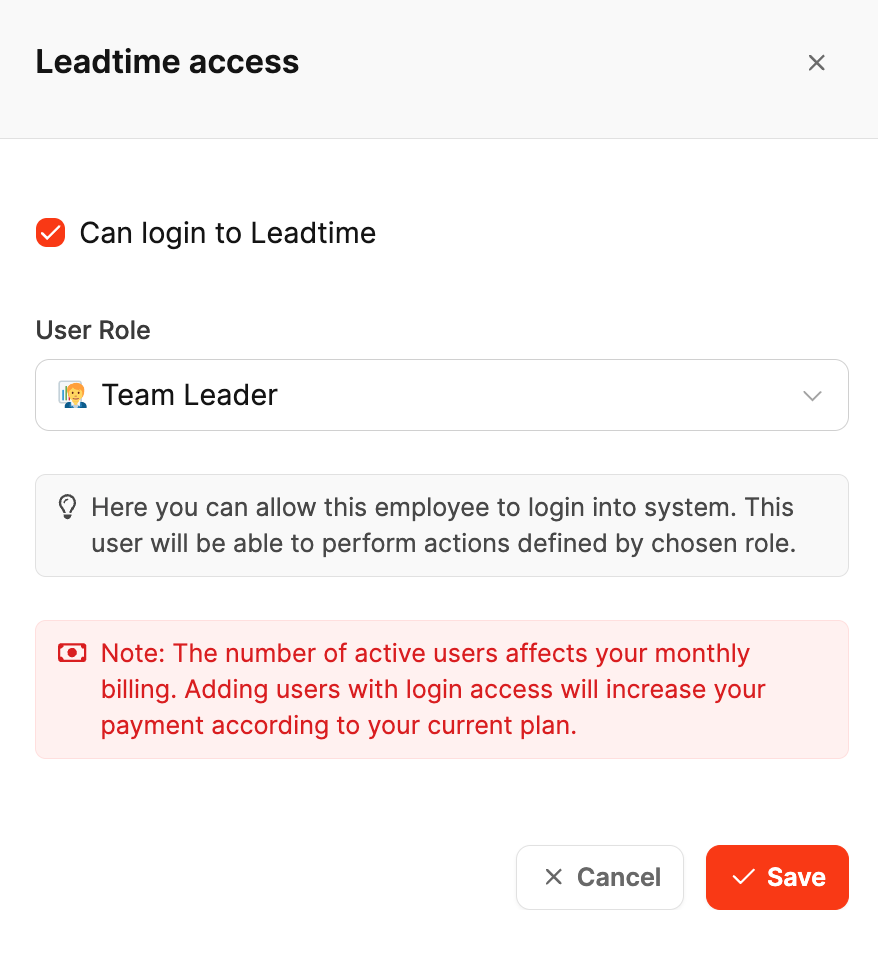 - **Can log in to Leadtime:**
Enable this option to allow the employee to sign in. Disable it to prevent access.
- **User role:**
Choose the employee's system role. The role defines the functions and data they can access.
### Billing notice
A red notice explains that active users with login access affect monthly billing. Adding users can increase the total cost under your current plan.
- **Save:** Apply the changes.
- **Cancel:** Close without saving.
Inviting employees to the Workspace affects your [subscription](/administration/workspace-settings/subscription).
---
## Teams

Assign the employee to one or more teams. Teams organize collaboration and simplify project, task, and responsibility assignments. A person can belong to several teams, such as a project team and a support team.
Select the **pencil icon** to edit the assignment. Configure teams under [Teams](/company/teams).
---
### Fields and options
- **Can log in to Leadtime:**
Enable this option to allow the employee to sign in. Disable it to prevent access.
- **User role:**
Choose the employee's system role. The role defines the functions and data they can access.
### Billing notice
A red notice explains that active users with login access affect monthly billing. Adding users can increase the total cost under your current plan.
- **Save:** Apply the changes.
- **Cancel:** Close without saving.
Inviting employees to the Workspace affects your [subscription](/administration/workspace-settings/subscription).
---
## Teams

Assign the employee to one or more teams. Teams organize collaboration and simplify project, task, and responsibility assignments. A person can belong to several teams, such as a project team and a support team.
Select the **pencil icon** to edit the assignment. Configure teams under [Teams](/company/teams).
---
### Fields and options
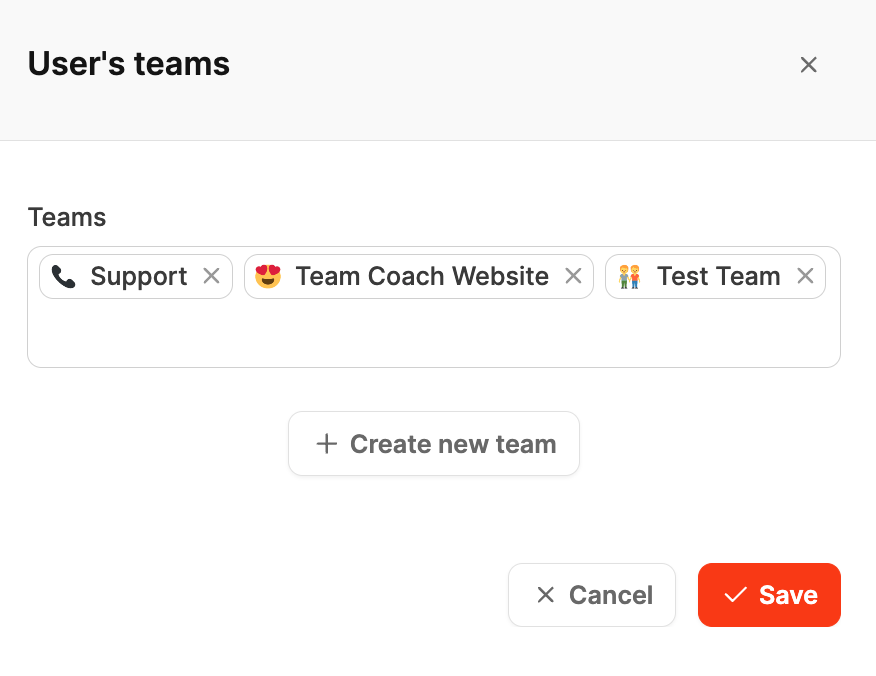 - **Teams:** Select one or more existing teams. Selected teams appear as chips with their names and icons.
- **+ Create new team:** Create a missing team directly and add it to the selection.
- **Save:** Assign the selected teams.
- **Cancel:** Close without saving.
## Terms of employment
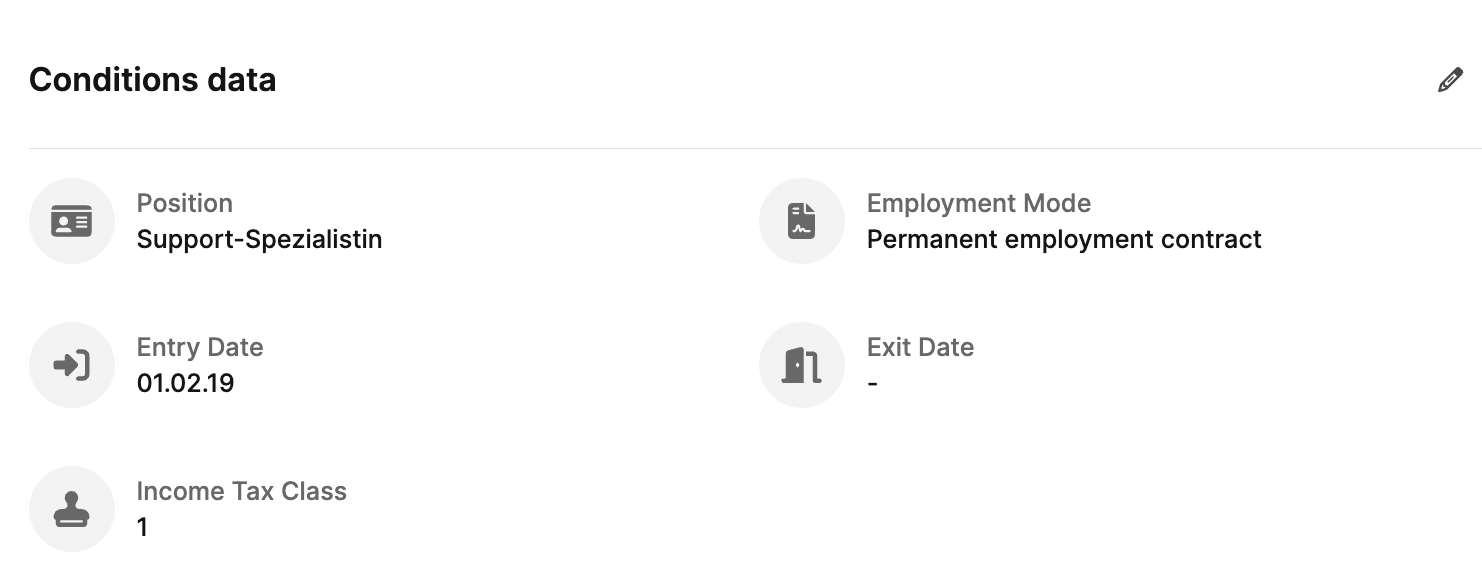
Record core contractual information such as position, employment type, start and leaving dates, and tax details. These details support HR and payroll. Select the **pencil icon** to edit them.
---
### Fields and options
- **Teams:** Select one or more existing teams. Selected teams appear as chips with their names and icons.
- **+ Create new team:** Create a missing team directly and add it to the selection.
- **Save:** Assign the selected teams.
- **Cancel:** Close without saving.
## Terms of employment

Record core contractual information such as position, employment type, start and leaving dates, and tax details. These details support HR and payroll. Select the **pencil icon** to edit them.
---
### Fields and options
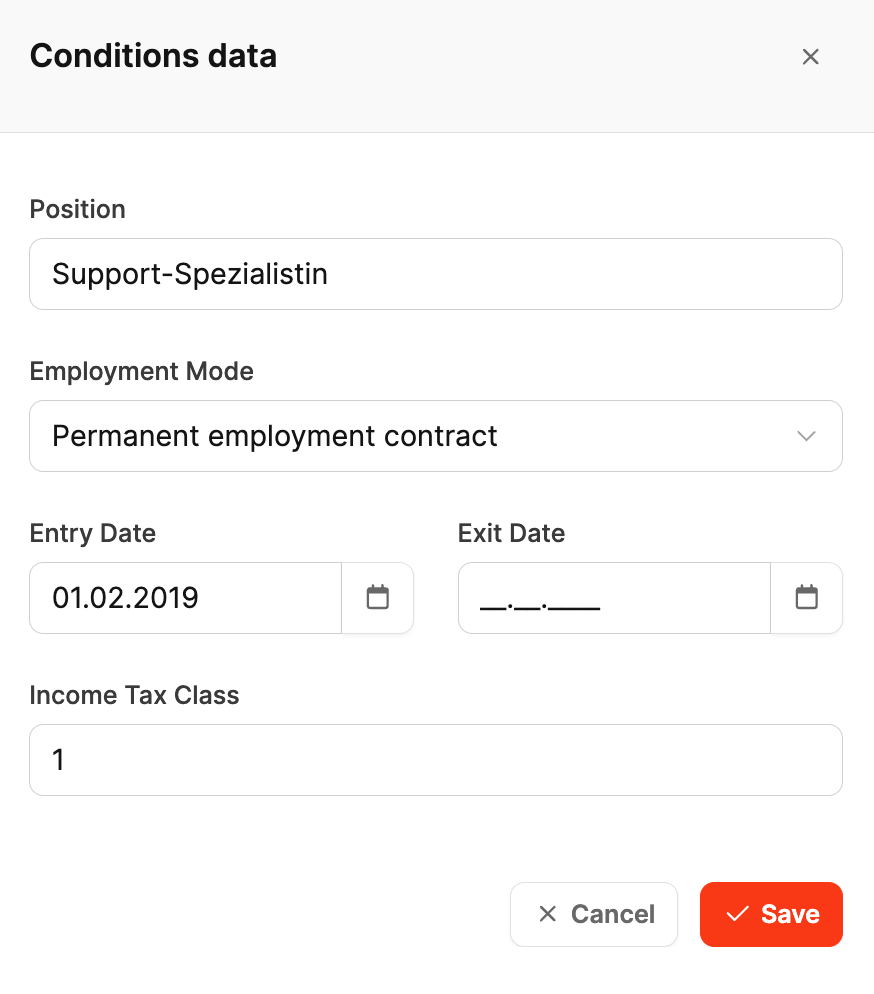 - **Position:** The employee's current role, such as managing director, project lead, or support specialist.
- **Employment type:** Choose a permanent contract, fixed-term contract, freelancer, or another available type.
- **Start date:** The date employment began.
- **Leaving date:** Optional end date. Without one, the employment remains active.
- **Income-tax class:** The tax class relevant to payroll.
- **Save:** Apply the data.
- **Cancel:** Close without saving.
## Working time and salary
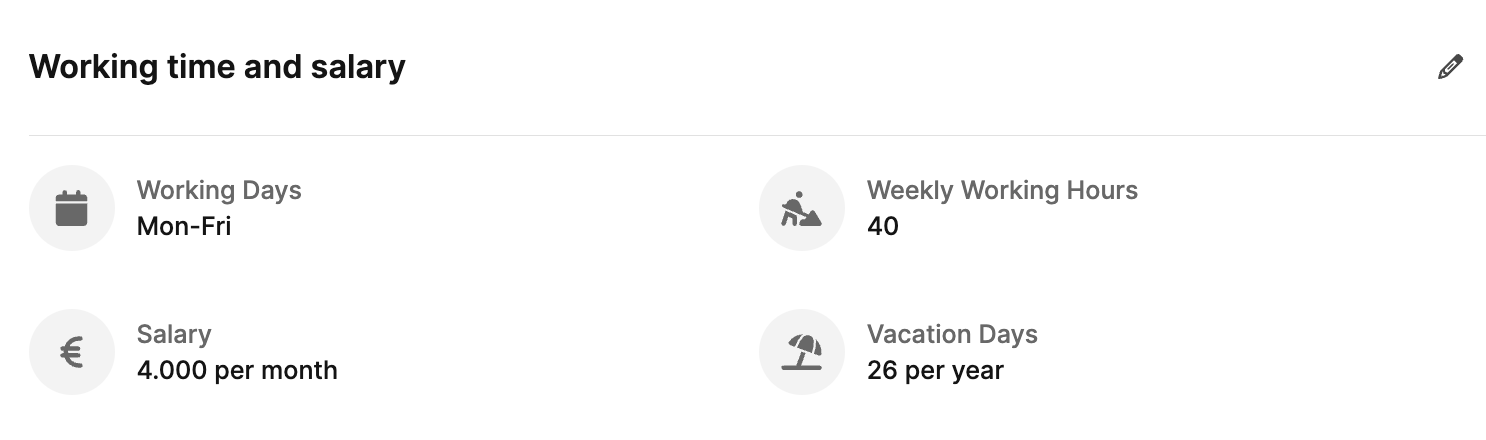
This area combines working conditions and compensation details in two tabs: **Working conditions** and **Salary settings**.
---
### Working conditions
- **Position:** The employee's current role, such as managing director, project lead, or support specialist.
- **Employment type:** Choose a permanent contract, fixed-term contract, freelancer, or another available type.
- **Start date:** The date employment began.
- **Leaving date:** Optional end date. Without one, the employment remains active.
- **Income-tax class:** The tax class relevant to payroll.
- **Save:** Apply the data.
- **Cancel:** Close without saving.
## Working time and salary

This area combines working conditions and compensation details in two tabs: **Working conditions** and **Salary settings**.
---
### Working conditions
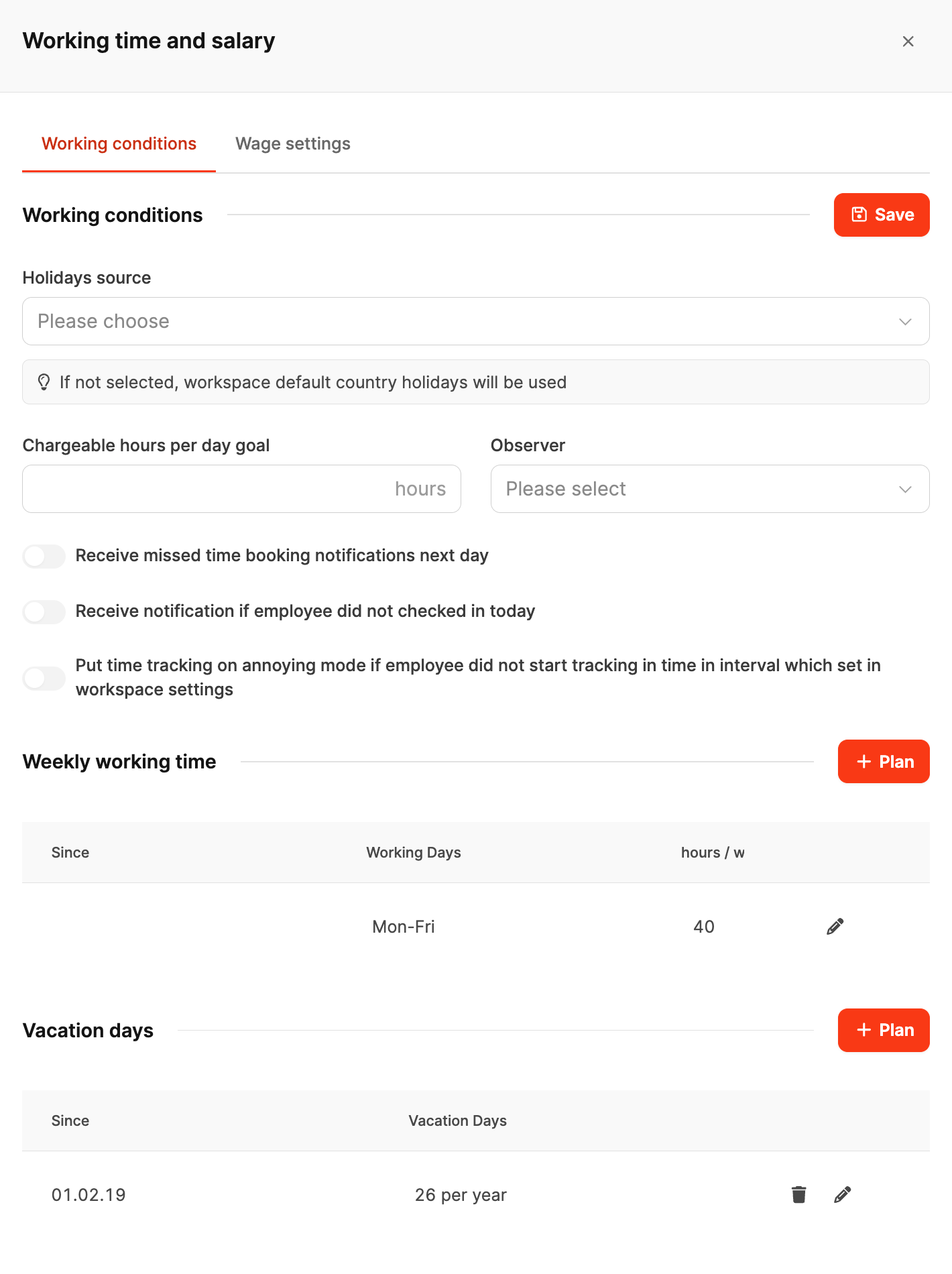 Manage working time, vacation entitlement, and time-tracking reminders.
#### Fields and options

**Holiday source:**
Choose the country or region whose public holidays and leave rules apply to this employee. Learn more under [Public holidays](/administration/workspace-settings/holidays).
If you do not choose a source, Leadtime uses the holidays for the Workspace's country. Select another source for employees who live abroad and are unavailable on different days from the rest of the team.
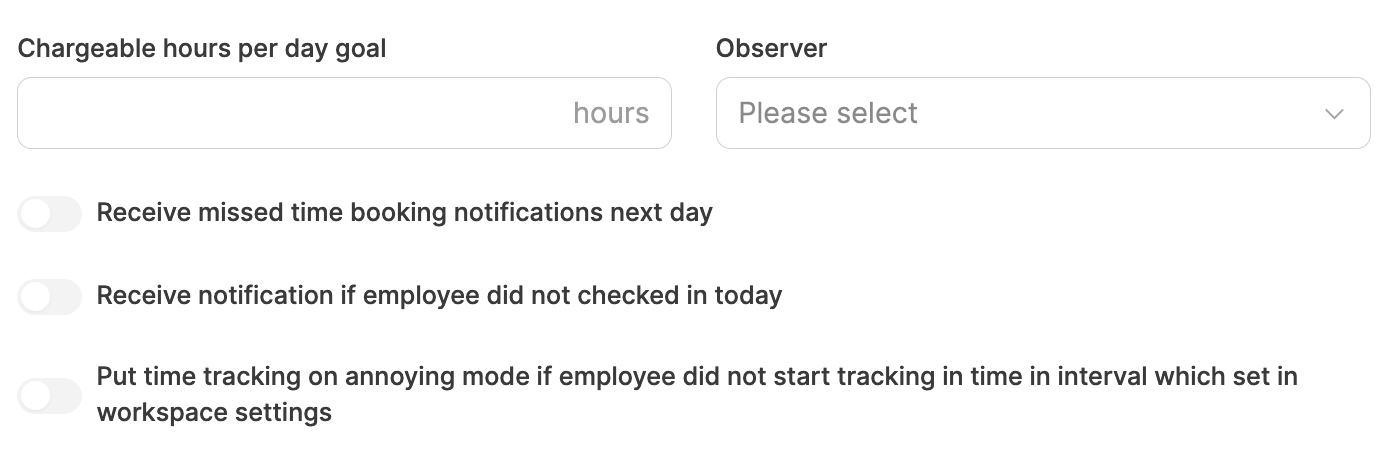
**Billable hours per day:**
Set the employee's [time-booking target](/time-tracking/time-booking-goals). This is the expected billable time per day and supports productivity monitoring.
**Observer:**
Optionally assign a person, such as a team lead, to monitor the employee's time tracking.
**Notifications:**
- Remind the employee when no time was recorded on the previous day.
- Remind them when they did not clock in.
- Automatically activate the intrusive mode when time tracking was not started on time.
#### Weekly working time
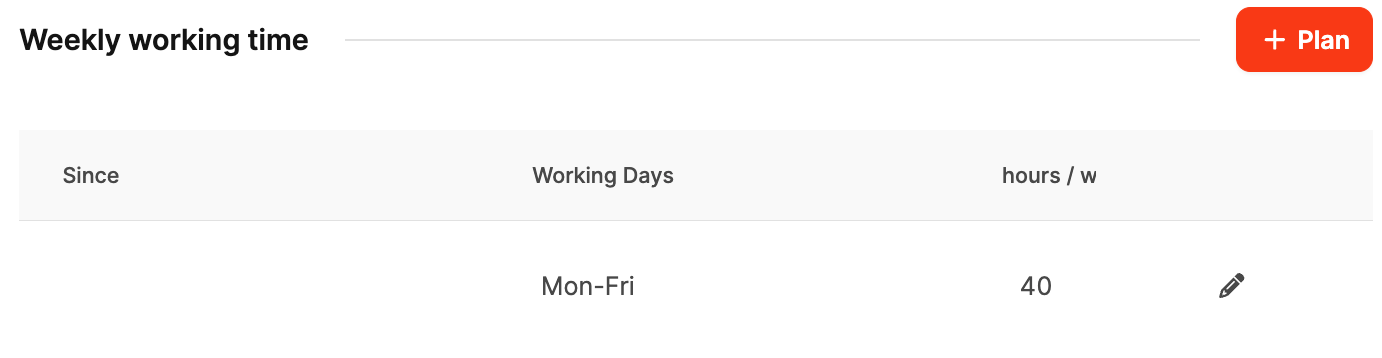
Select **+ Plan** to define or change weekly working time. Each period contains:
- **Since:** Start date of the rule
- **Working days:** Defined days of the week
- **Hours:** Working hours per week
Planning periods supports changes such as reduced hours, parental leave, or a new contract. Leadtime retains the history and applies each interval automatically to capacity planning, time tracking, and vacation calculations.
#### Vacation days
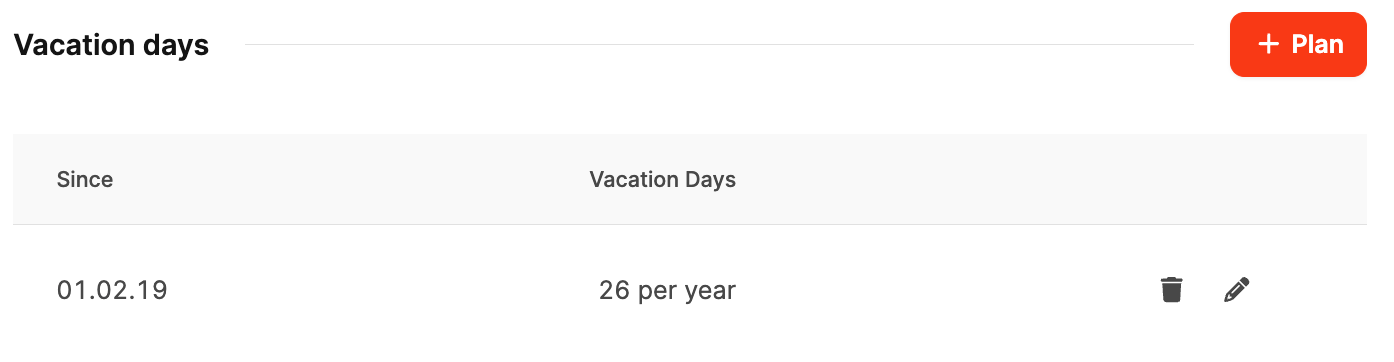
Use **+ Plan** to store annual vacation entitlement, optionally from a chosen start date. This also represents future changes, such as additional leave after longer service.
For example, if an employee moves to 20 hours per week in 2025, create a new rule from that date. Leadtime applies it automatically.
Learn more under [Leave Management](/company/leave-management).
---
### Salary settings
Manage working time, vacation entitlement, and time-tracking reminders.
#### Fields and options

**Holiday source:**
Choose the country or region whose public holidays and leave rules apply to this employee. Learn more under [Public holidays](/administration/workspace-settings/holidays).
If you do not choose a source, Leadtime uses the holidays for the Workspace's country. Select another source for employees who live abroad and are unavailable on different days from the rest of the team.

**Billable hours per day:**
Set the employee's [time-booking target](/time-tracking/time-booking-goals). This is the expected billable time per day and supports productivity monitoring.
**Observer:**
Optionally assign a person, such as a team lead, to monitor the employee's time tracking.
**Notifications:**
- Remind the employee when no time was recorded on the previous day.
- Remind them when they did not clock in.
- Automatically activate the intrusive mode when time tracking was not started on time.
#### Weekly working time

Select **+ Plan** to define or change weekly working time. Each period contains:
- **Since:** Start date of the rule
- **Working days:** Defined days of the week
- **Hours:** Working hours per week
Planning periods supports changes such as reduced hours, parental leave, or a new contract. Leadtime retains the history and applies each interval automatically to capacity planning, time tracking, and vacation calculations.
#### Vacation days

Use **+ Plan** to store annual vacation entitlement, optionally from a chosen start date. This also represents future changes, such as additional leave after longer service.
For example, if an employee moves to 20 hours per week in 2025, create a new rule from that date. Leadtime applies it automatically.
Learn more under [Leave Management](/company/leave-management).
---
### Salary settings
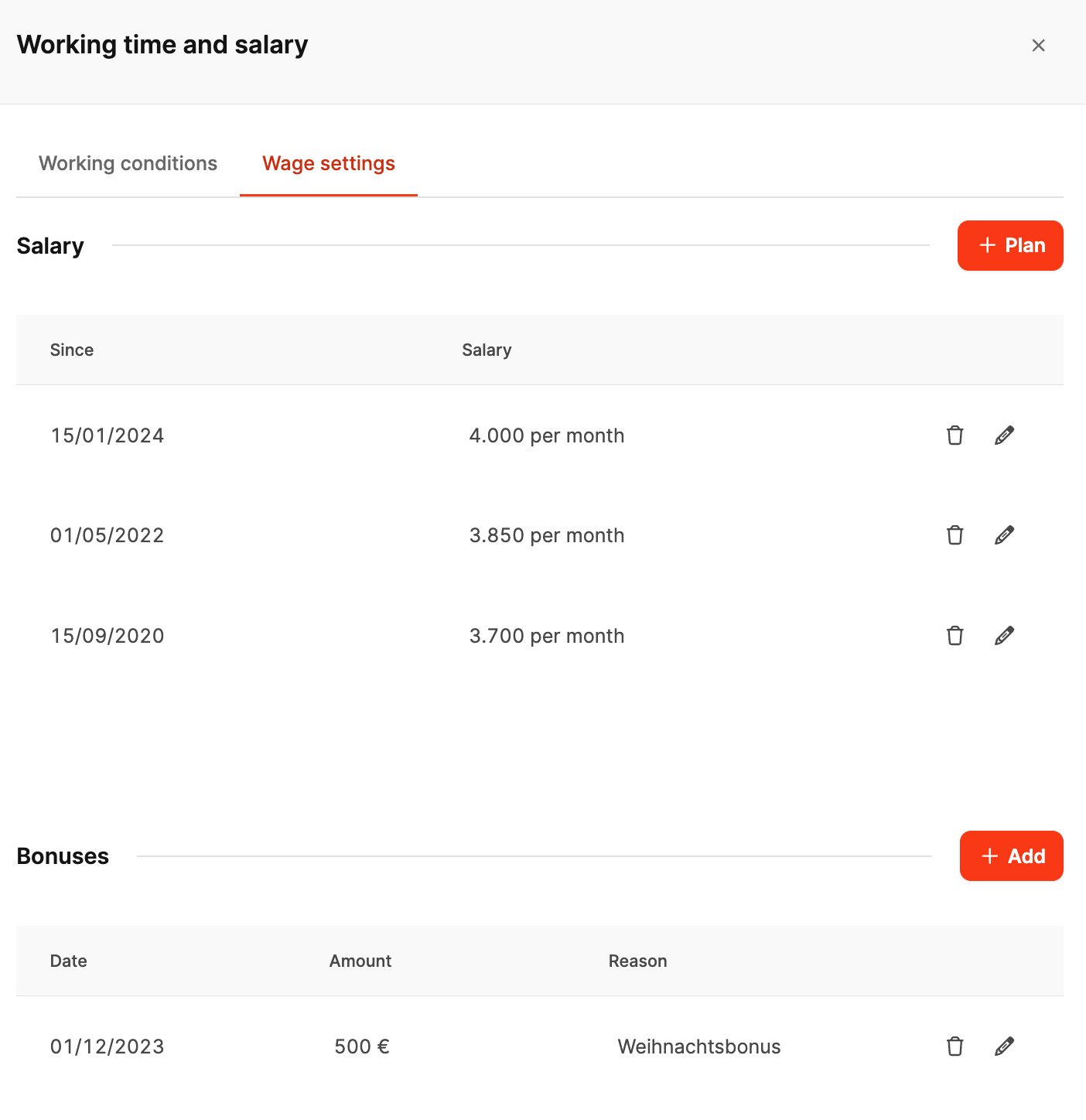 This tab contains salary data and bonuses.
#### Fields and options
**Salary:**
This tab contains salary data and bonuses.
#### Fields and options
**Salary:**
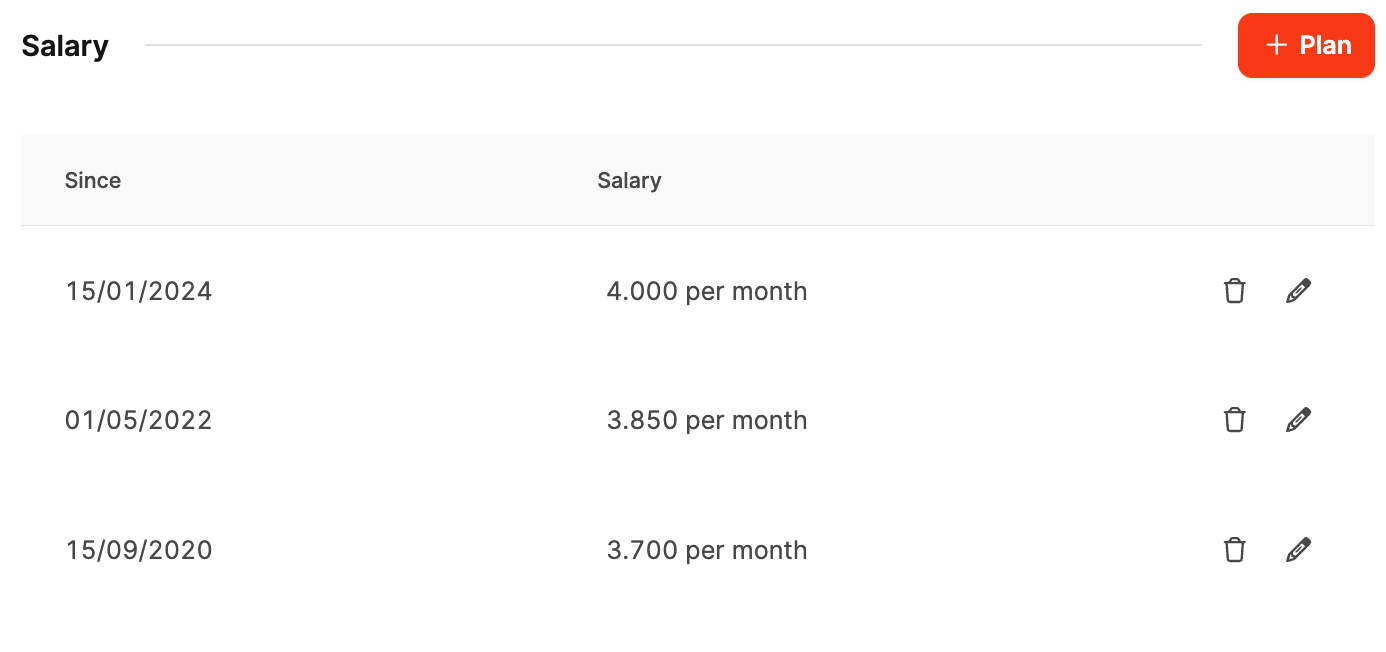 Plan agreed salary adjustments in advance. Leadtime applies each change automatically on its start date, ensuring that raises, promotions, and contractual adjustments take effect on time.
Select **+ Plan** to add a salary interval:
- **Since:** Date the salary becomes effective
- **Salary:** Gross monthly amount
**Bonus payments:**
Plan agreed salary adjustments in advance. Leadtime applies each change automatically on its start date, ensuring that raises, promotions, and contractual adjustments take effect on time.
Select **+ Plan** to add a salary interval:
- **Since:** Date the salary becomes effective
- **Salary:** Gross monthly amount
**Bonus payments:**
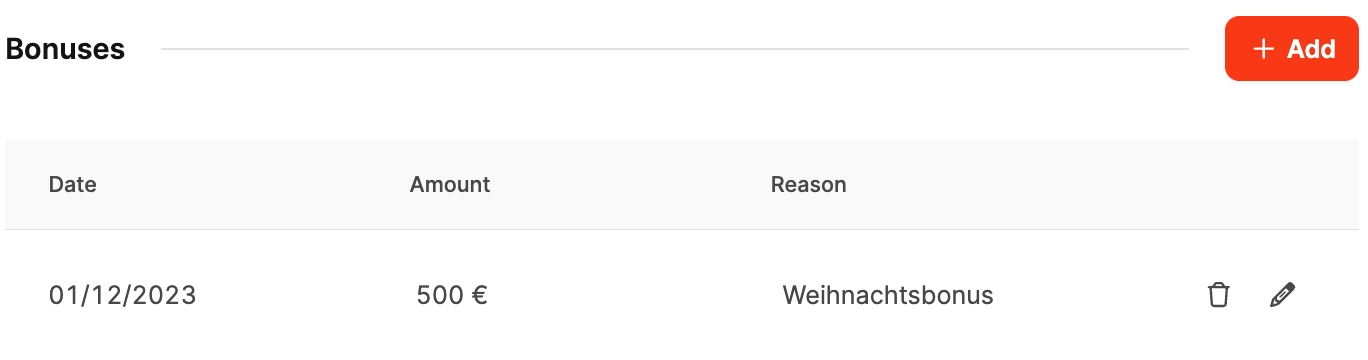 Select **+ Add** to record a one-time payment such as a bonus or holiday payment:
- **Date:** Due date
- **Amount:** Payment amount
- **Reason:** Purpose or description
Learn more under [Employee – Salary](/company/employees/salary).
---
## Bank details
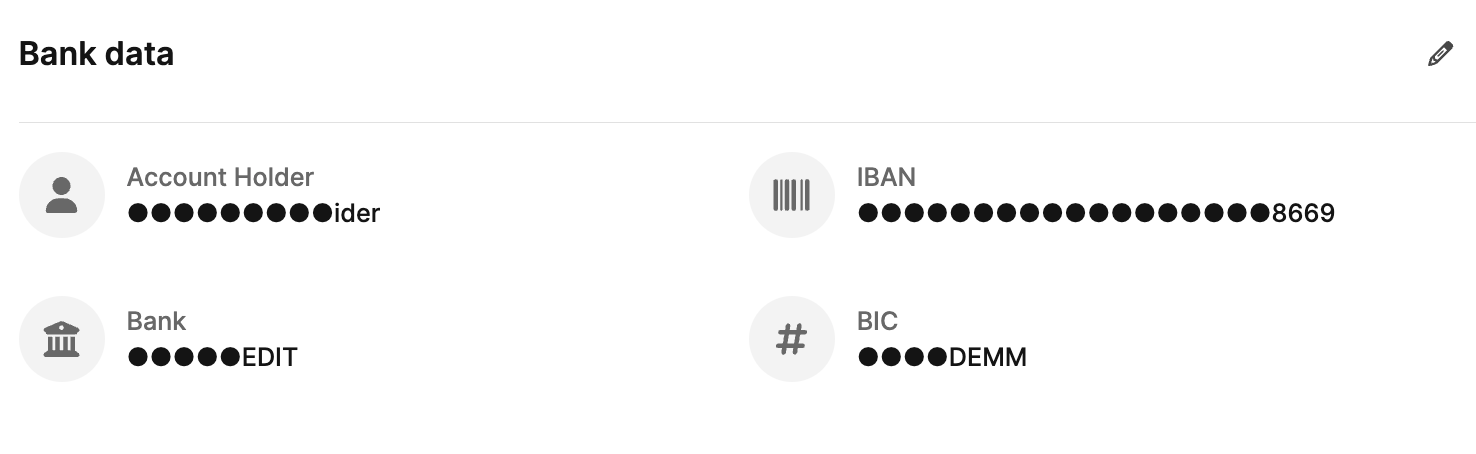
This section contains the information required for salary transfers and other financial transactions:
- **Account holder:** The name on the account.
- **IBAN:** The employee's international bank account number.
- **Bank and BIC:** Bank name and Bank Identifier Code.
Select **+ Add** to record a one-time payment such as a bonus or holiday payment:
- **Date:** Due date
- **Amount:** Payment amount
- **Reason:** Purpose or description
Learn more under [Employee – Salary](/company/employees/salary).
---
## Bank details

This section contains the information required for salary transfers and other financial transactions:
- **Account holder:** The name on the account.
- **IBAN:** The employee's international bank account number.
- **Bank and BIC:** Bank name and Bank Identifier Code.
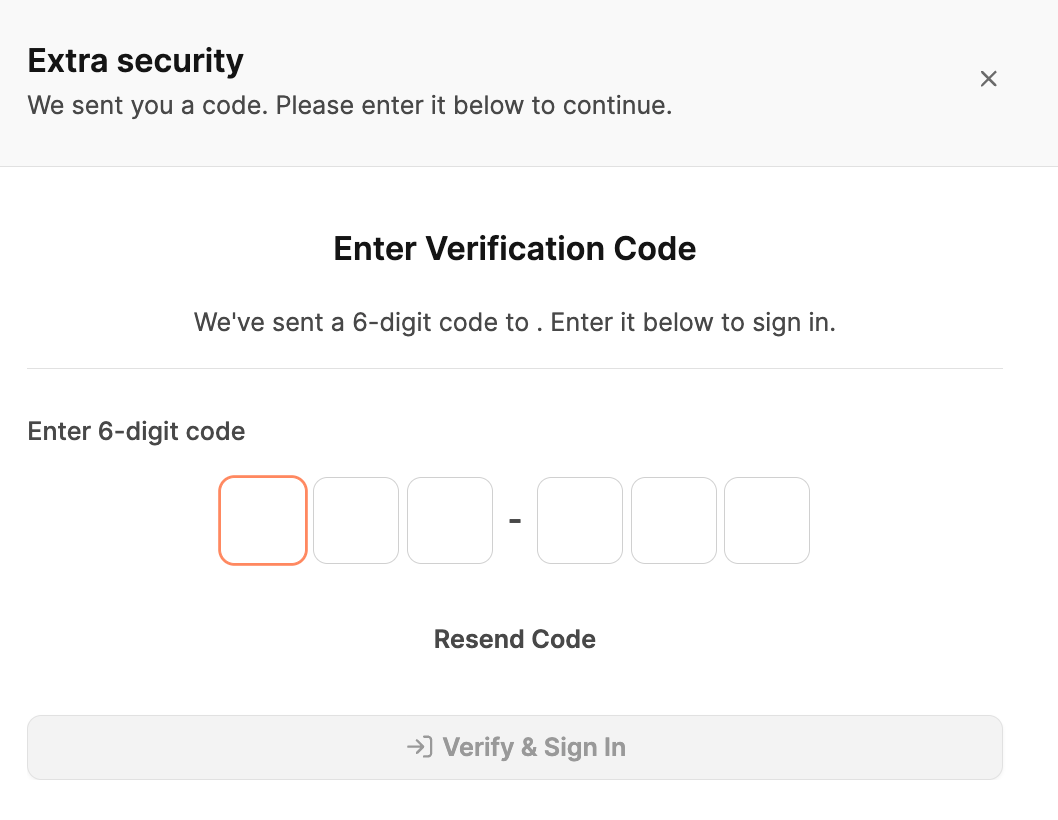 Changing bank details requires additional **verification**. Enter the one-time six-digit code sent by email before editing and saving the information. This protects sensitive payment data from unauthorized changes.
## Insurance data
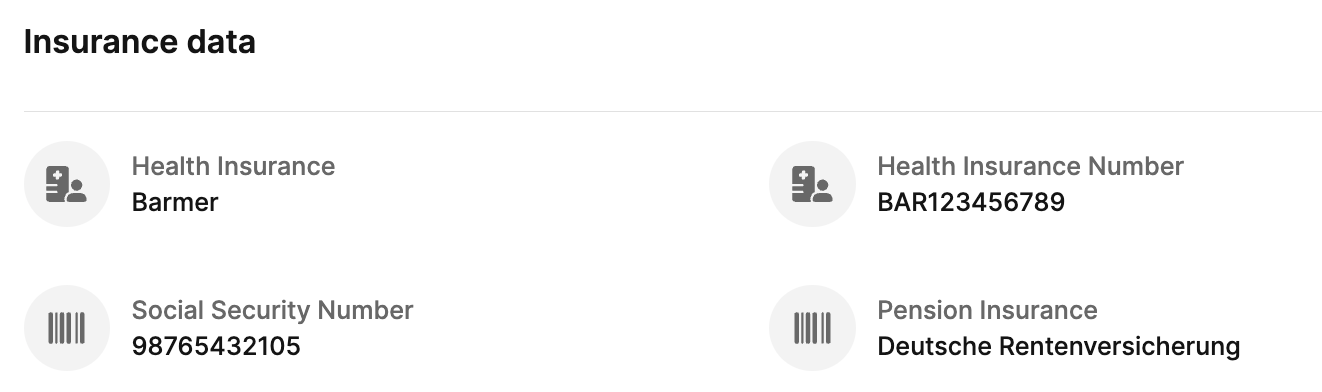
Store the employee's important social-insurance details.
### Fields
- **Health insurer:** Name of the employee's health-insurance provider.
- **Health-insurance number:** The employee's policy number.
- **Social-security number:** The employee's social-security identifier.
- **Pension insurance:** The employee's pension-insurance number.
Changing bank details requires additional **verification**. Enter the one-time six-digit code sent by email before editing and saving the information. This protects sensitive payment data from unauthorized changes.
## Insurance data

Store the employee's important social-insurance details.
### Fields
- **Health insurer:** Name of the employee's health-insurance provider.
- **Health-insurance number:** The employee's policy number.
- **Social-security number:** The employee's social-security identifier.
- **Pension insurance:** The employee's pension-insurance number.