---
title: "Account"
description: "Manage the fundamental settings of your user account."
search:
tags: ["profile", "account"]
---
Open **My Profile** by selecting your profile picture in the top-right corner and choosing **My Profile**, or select **Profile** at the bottom of the main menu.
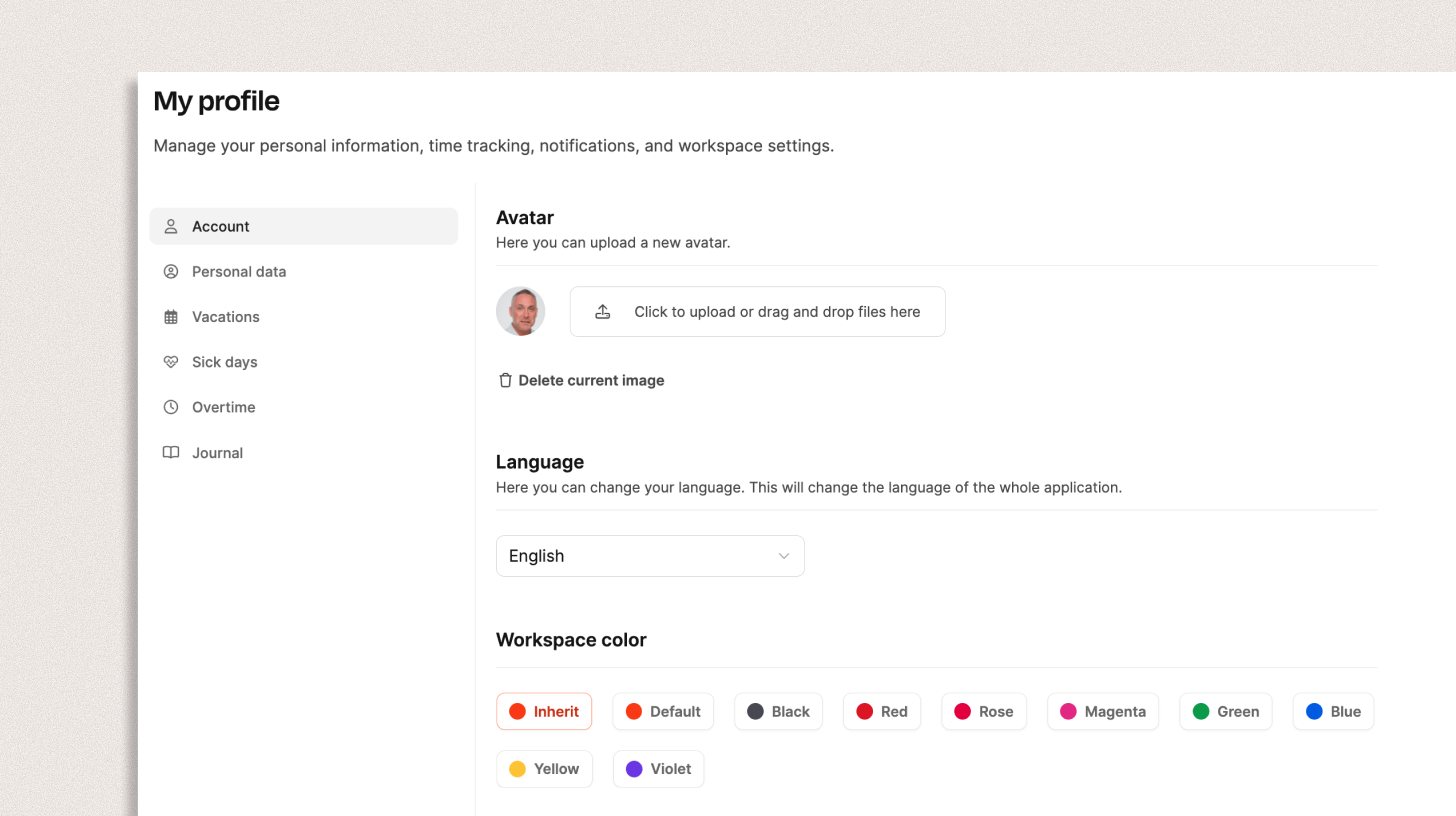
My Profile lets employees manage their own personal and work-related data, absences, and settings.
---
## Account
Use the **Account** tab for fundamental user settings.
### Avatar
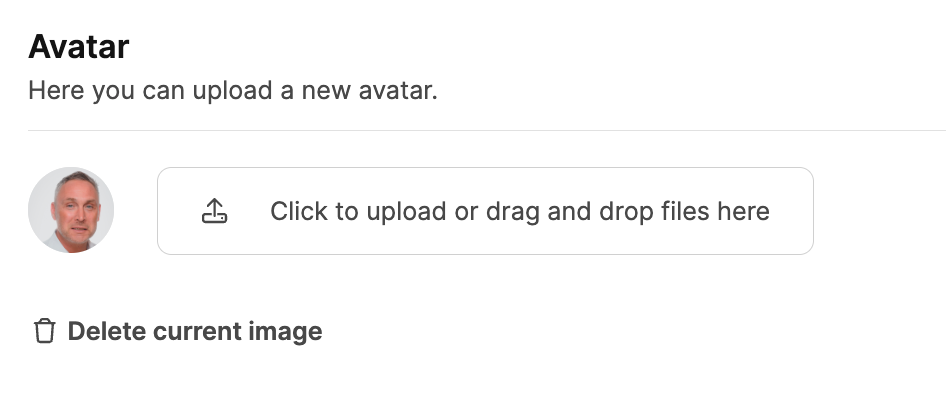 Upload a profile picture with **Upload file** or drag and drop an image. It appears throughout Leadtime in places such as projects, comments, and time entries.
---
### Language
Upload a profile picture with **Upload file** or drag and drop an image. It appears throughout Leadtime in places such as projects, comments, and time entries.
---
### Language
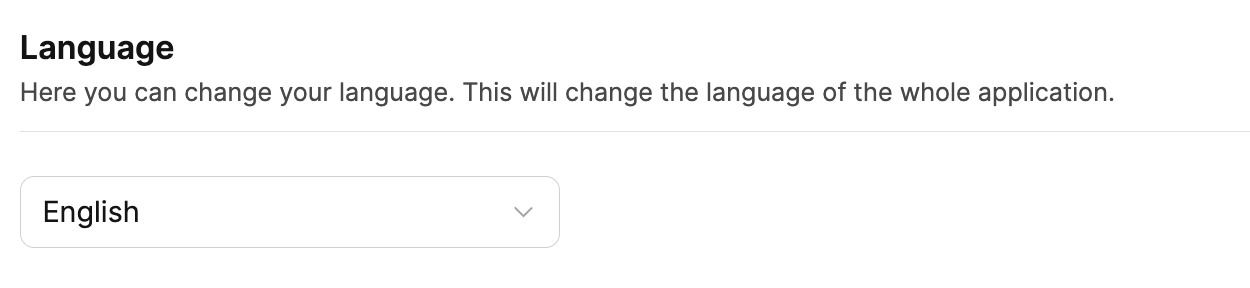 Choose **German** or **English** under **Language**. This changes all menus and system copy for your account and overrides the Workspace's [General Settings](/administration/workspace-settings/general-settings).
---
### Workspace Color
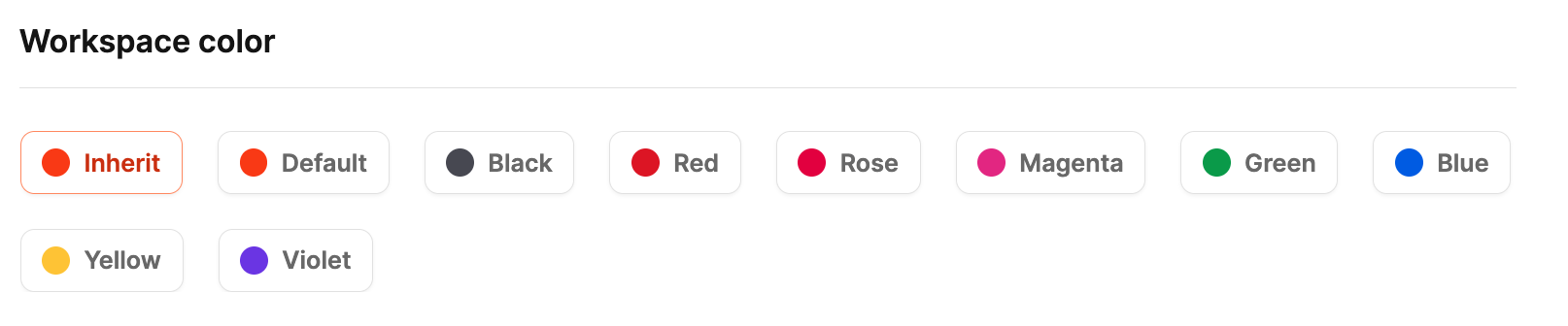
Choose a personal Workspace color even when it overrides the company's general setting. Nine schemes support Light and Dark Mode:
- Default (Leadtime Orange)
- Black
- Red
- Pink
- Magenta
- Green
- Blue
- Yellow
- Purple
Without a personal choice, Leadtime uses the default from Workspace [Appearance](/administration/workspace-settings/appearance).
---
### Navigation animations
Choose whether pages slide left and right when you move between screens. This does not stop other motion in the app, such as opening a group in the left menu.
- **Use workspace default:** Follows the setting in Workspace [Appearance](/administration/workspace-settings/appearance). New accounts start here, and the workspace default is **Disabled**.
- **Enabled:** Always play the slide, even if the workspace has it disabled.
- **Disabled:** Never play the slide, even if the workspace has it enabled.
---
### Notifications
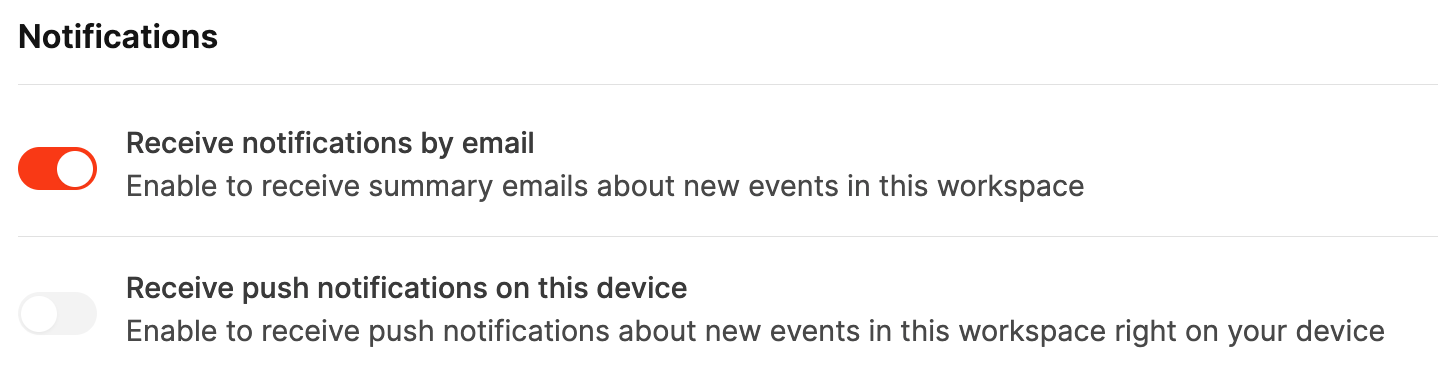
Choose how Leadtime informs you about Workspace events.
- **Email notifications:** Receive regular summaries of new tasks, project activity, or status changes.
- **Push notifications:** Receive alerts directly on your device after granting notification permission in the browser.
Learn more about the [messaging system](/interface/messaging).
Choose **German** or **English** under **Language**. This changes all menus and system copy for your account and overrides the Workspace's [General Settings](/administration/workspace-settings/general-settings).
---
### Workspace Color

Choose a personal Workspace color even when it overrides the company's general setting. Nine schemes support Light and Dark Mode:
- Default (Leadtime Orange)
- Black
- Red
- Pink
- Magenta
- Green
- Blue
- Yellow
- Purple
Without a personal choice, Leadtime uses the default from Workspace [Appearance](/administration/workspace-settings/appearance).
---
### Navigation animations
Choose whether pages slide left and right when you move between screens. This does not stop other motion in the app, such as opening a group in the left menu.
- **Use workspace default:** Follows the setting in Workspace [Appearance](/administration/workspace-settings/appearance). New accounts start here, and the workspace default is **Disabled**.
- **Enabled:** Always play the slide, even if the workspace has it disabled.
- **Disabled:** Never play the slide, even if the workspace has it enabled.
---
### Notifications

Choose how Leadtime informs you about Workspace events.
- **Email notifications:** Receive regular summaries of new tasks, project activity, or status changes.
- **Push notifications:** Receive alerts directly on your device after granting notification permission in the browser.
Learn more about the [messaging system](/interface/messaging).