
Custom Fields
Custom fields capture project-specific data and add structured, multilingual input fields to tasks.
The Administration → Workspace settings → Task settings → Custom fields section lets you add individually defined data inputs to tasks.
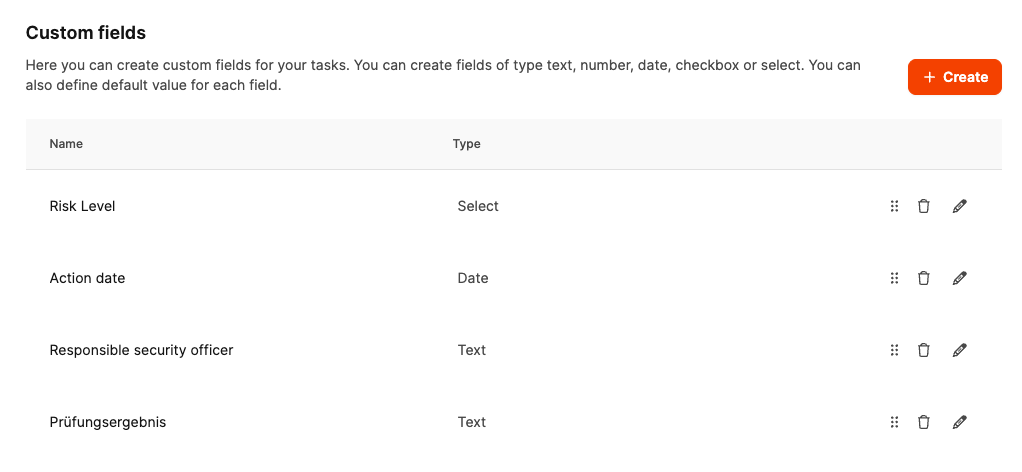
This allows you to capture project-specific information beyond the standard fields, such as risk assessments, test results, or responsibilities.
How custom fields work
Custom fields are assigned to individual task types and then appear in the ticket form.
They provide structured inputs for data required by specific processes, such as compliance, quality assurance, or safety.
The available field types are:
- Text – for short entries, for example, “Responsible reviewer”.
- Text area – for longer entries, for example, “Audit result”.
- Number – for numeric values.
- Date – for recording dates such as an “Implementation date”.
- Checkbox – for Yes/No values.
- Dropdown field (Select) – for predefined options such as “High / Medium / Low”.
Create a custom field
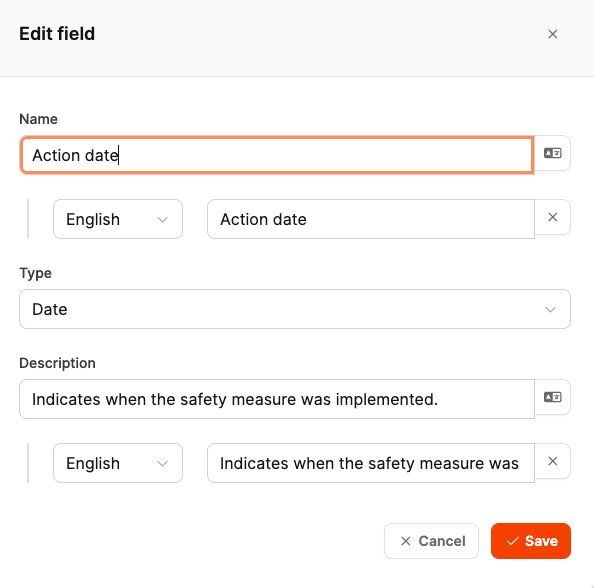
- Open Administration → Workspace settings → Task settings → Custom fields.
- Click + Create to add a new field.
- Enter a name (for example, Risk Level).
- Select the field type (for example, Select).
- Add a description that explains the purpose of the field.
- If the field will be used in multiple languages, add a translation for each language version.
Multilingual fields
Custom fields can be configured in multiple languages.
You can provide an appropriate label in each language for names, descriptions, and select options.
Leadtime automatically displays the appropriate text for the user’s language.
Learn more about ticket system configuration