
Rider Journal
The journal documents important project events, feedback, and moods in chronological order for transparent progress tracking.
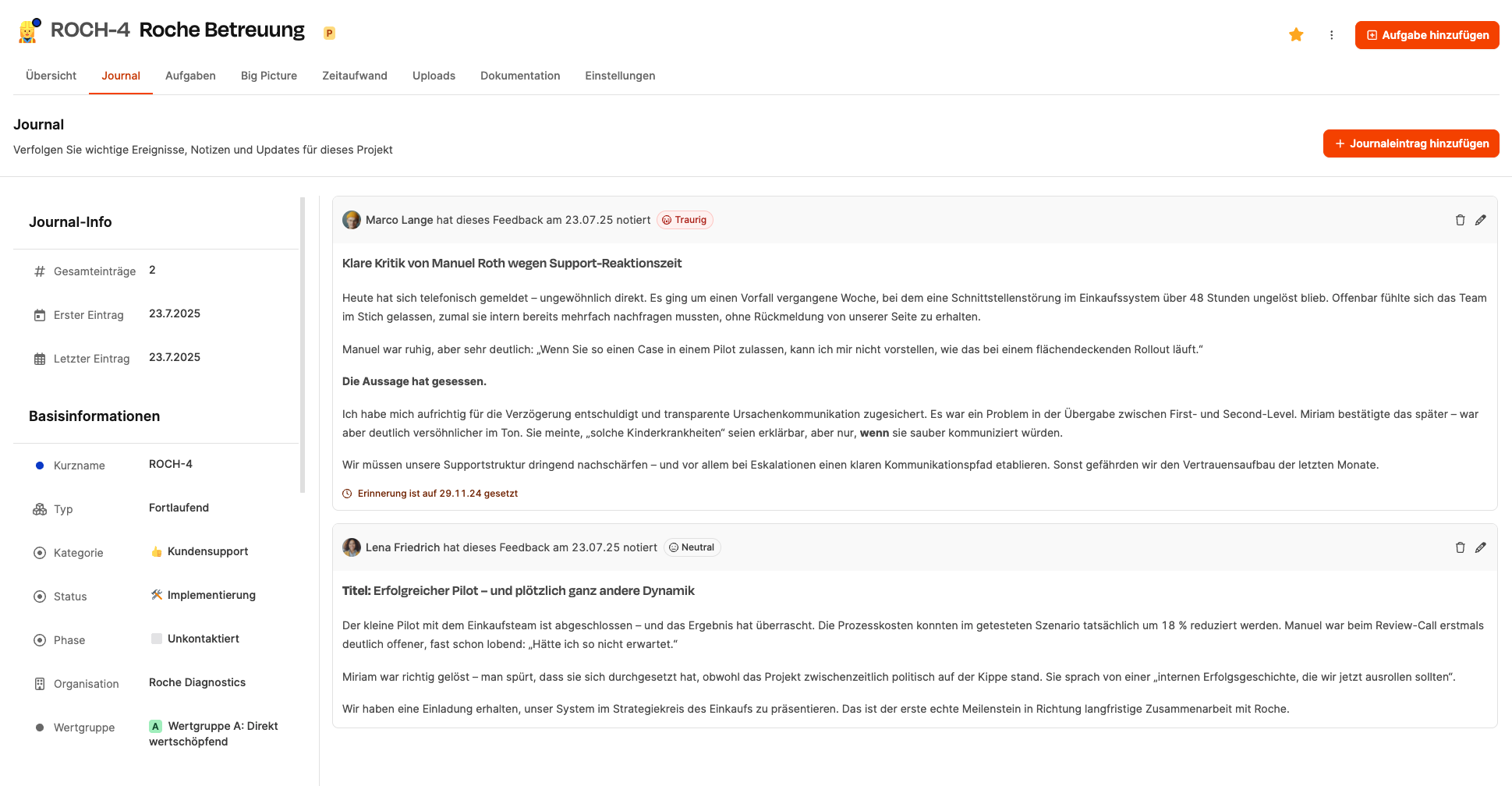
The Journal area is located within a project in the tab menu. It’s there to chronologically record important events, observations, risks, customer moods, and internal notes. The Journal acts as a timeline-based memory for a project and helps stakeholders track developments and assess communication.
Everything about Projects
How it works
In the Journal, entries are recorded in chronological order. Every entry includes:
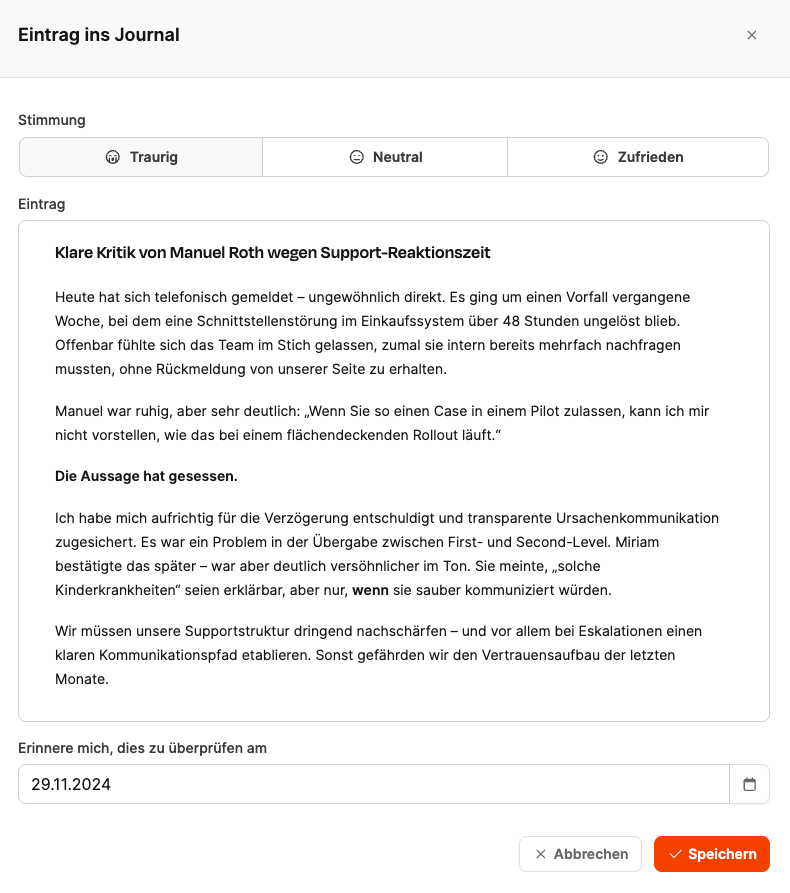
Mood selection
There are three mood indicators available:
- cry Sad: Negative reactions, escalations, problems.
- neutral Neutral: Factual or open-ended observations.
- slightlysmiling_face _Satisfied: Positive feedback, wins, progress.
Free-entry field
This is where you write the entry content. Typical use cases:
- Feedback or complaints from customers
- internal findings and observations
- documented conversations
- notes about risks or opportunities
- political developments in the project environment
The text field supports paragraph formatting, highlighting and structuring.
Reminder function
Optionally, you can set a date to get a reminder about the entry later. That works well for follow-ups, escalation checks, or review points.
Besides the entry view, the journal overview shows these elements:
Total entries
How many journal notes there are in the project.
First / last entry
Helps you stay oriented in time.
Entries as cards
Every journal entry is shown as a card with:
- Author
- Date
- Mood
- Content
- Edit and delete functions
These cards make escalation communication transparent and traceable. They prevent loss of knowledge and help onboard new team members.
Elements on the interface
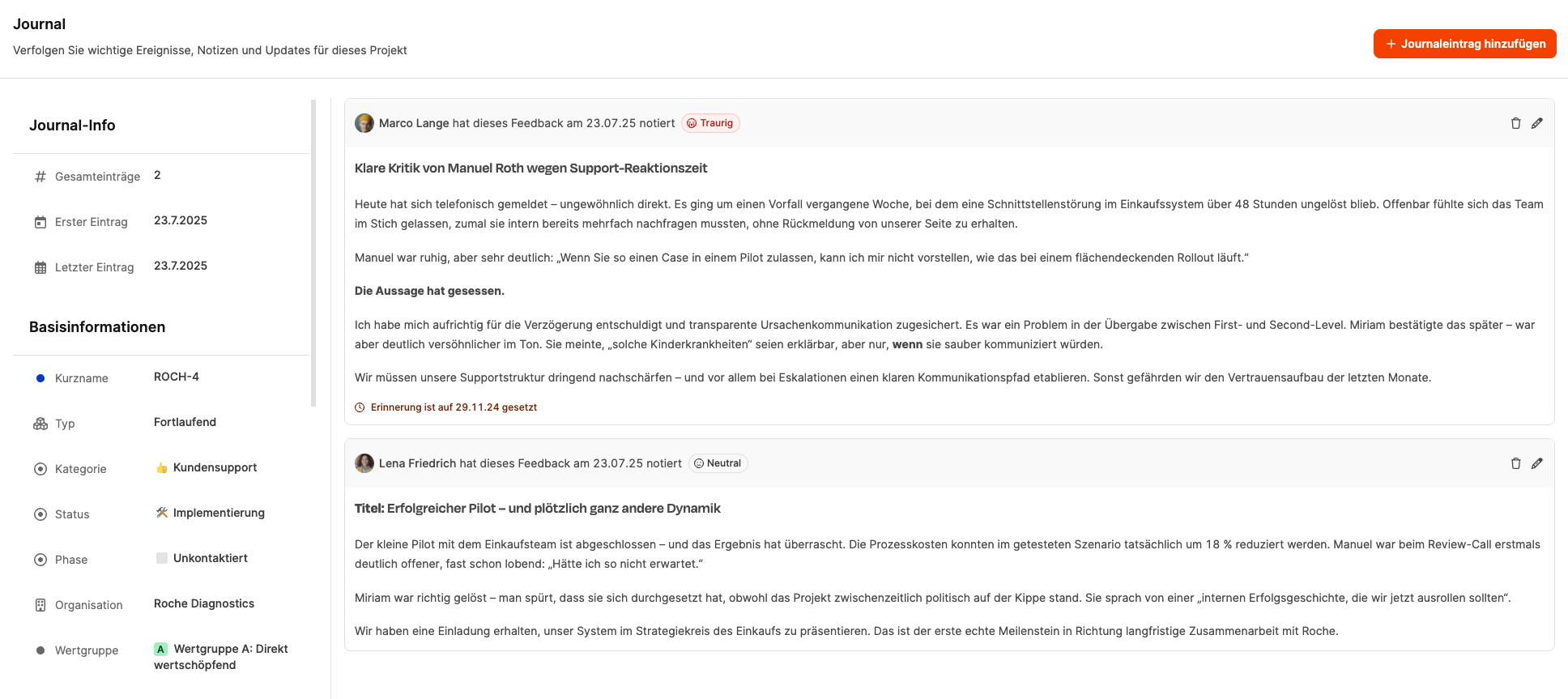
- Button “Add journal entry” Opens the dialog to create a new entry.
- Edit icon Lets you make later corrections or changes.
- Delete icon Removes the entry from the journal.
- Mood icons Show the project mood and help with retrospective reviews.
- Reminder status A note below the entry shows when a follow-up was set for.