
General Settings
Configure basic project settings for status, types, access, task options and optional additional fields.
You can find this area in a project under Projects → [Select project] → Settings tab → Basic settings. Here you configure basic project properties, control available task options, manage member access, and maintain additional fields for documentation and billing. The settings affect status, categorization, time booking and roles in the project.
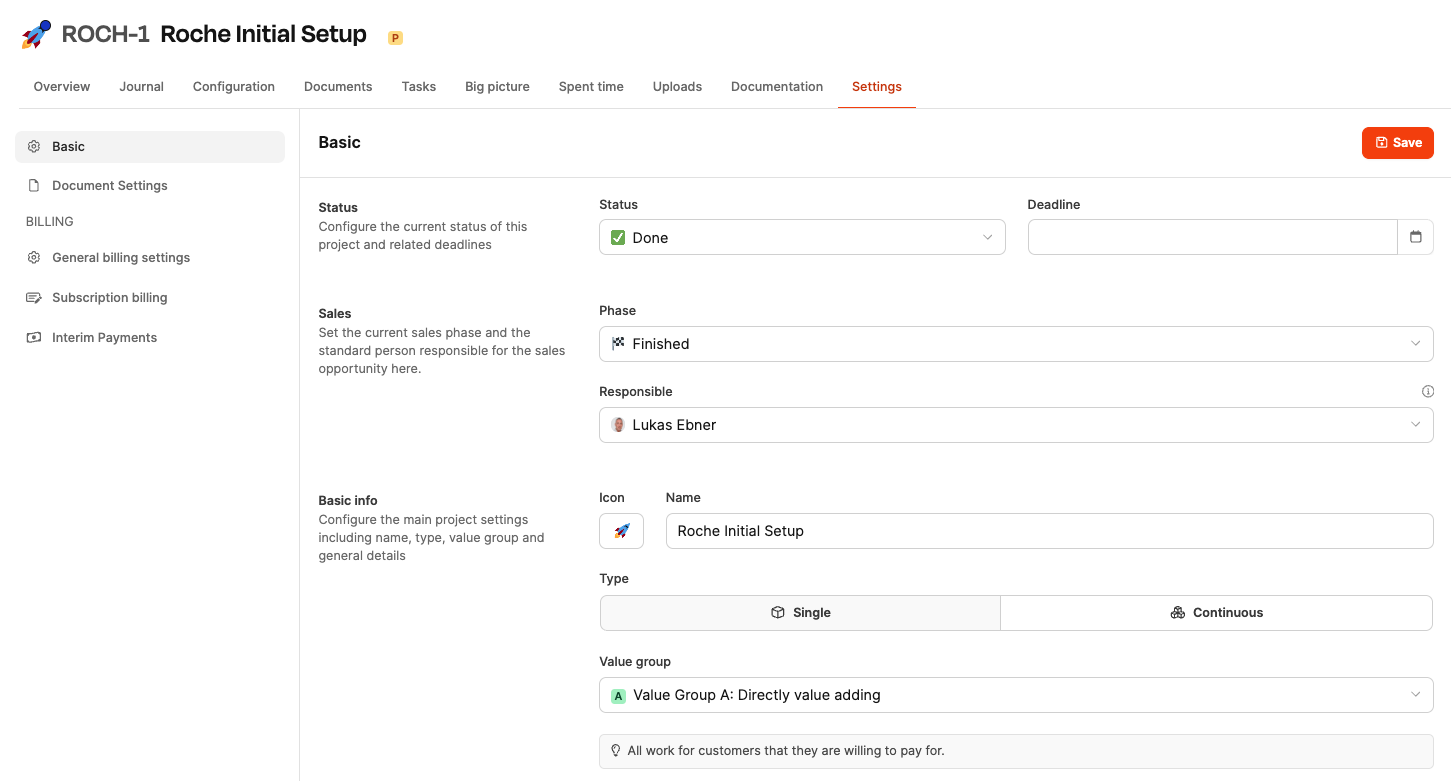
Elements
Status and deadline

status: Determines the current phase of the project (e.g. active, completed). The status affects evaluations and visibility in overviews. Projects that have reached “Billing” status appear as a new item in the system’s invoice verification.
deadline: Defines the deadline date of the project. The selection is made via a calendar dialog. The deadline is particularly relevant for individual projects
Project phases are defined here: Project settings
Sales
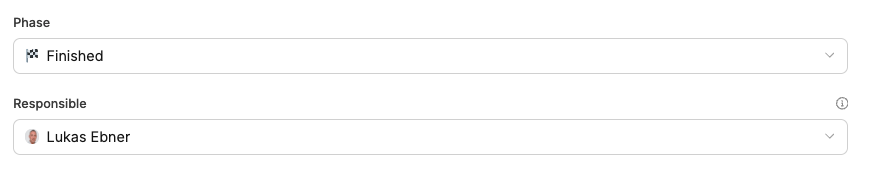
Here you determine in which Sales phase the sales opportunity for the project is located and who is registered as the person responsible for the standard for sales queries. The information is used system-wide for classification and evaluations.
Sales phase:
Typical values can e.g. E.g.: receipt/request, qualification, offer, etc. The selection is used for overview in the portfolio, for prioritization and in reporting dashboards.
Create sales phases: Project settings
Sales Manager: Defines which person is responsible for sales communication by default. This assignment makes it easier to answer questions in customer dialogue and internally.
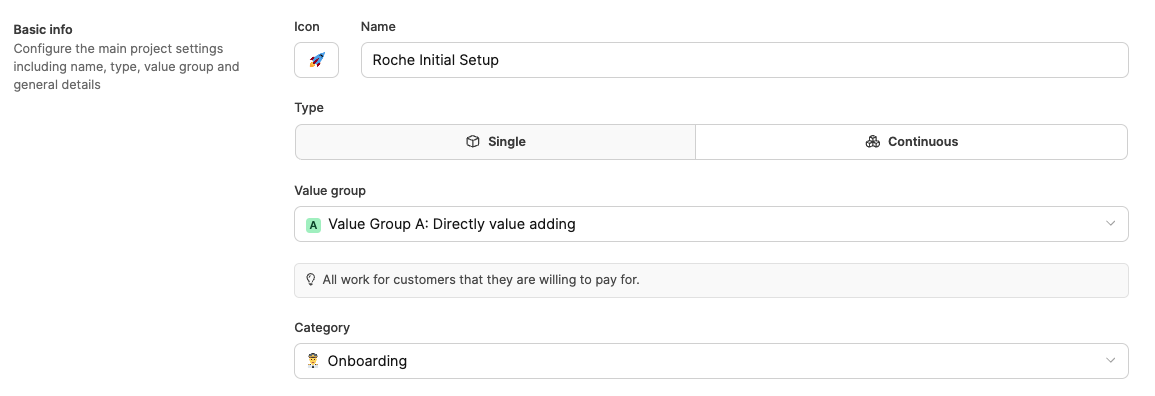
Basic information
-
Icon: Visual differentiation in overviews.
-
name: Official project name.
-
Type:
- Individual project: One-off project with a defined duration.
- Ongoing: Ongoing support without a fixed deadline.
-
value group: Classifies economic importance. External projects are always considered value group A – Immediately adding value.
-
Category: Groups similar projects. Categories are maintained in the workspace administration.
-
Project description: Free text field to explain the purpose, scope and context.
See Value groups
tags

Tags provide additional structure to projects. New values can be created directly as you enter them. The input creates chips that can be removed and added to.
Task options
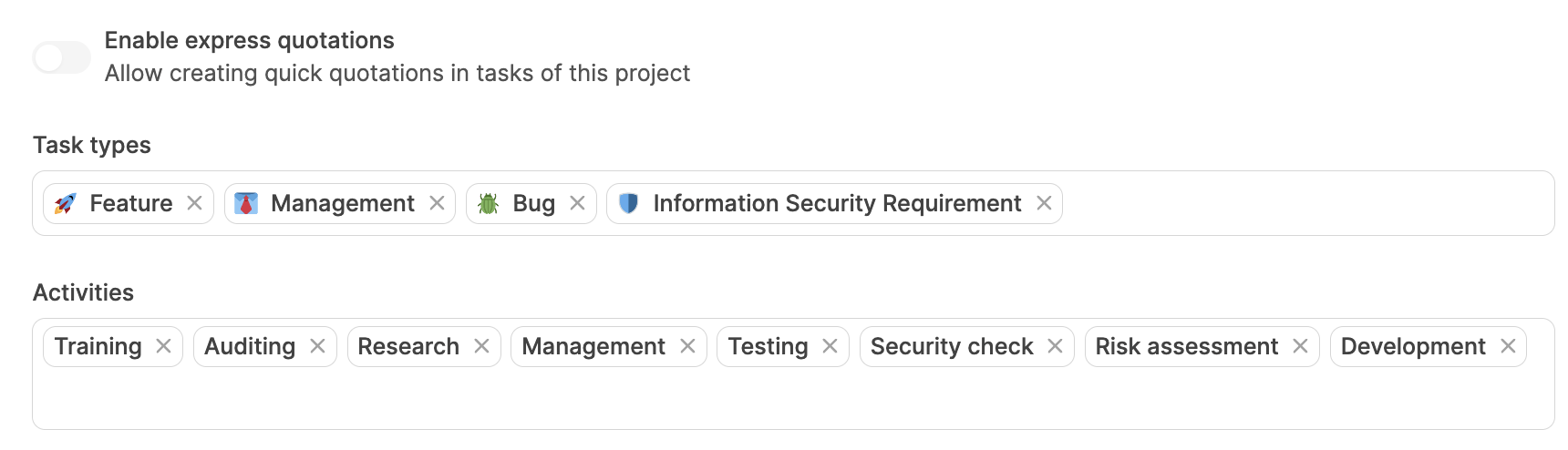
Express offers: Unlocks the ability to instantly create a quote document within a task. See Express offers
Task types: Determines which task types are available in this project. New values can also be created at runtime. Create task types: Individual task types
Work activities: Defines bookable work activities for time spent. These values can be activated or supplemented on a project-specific basis. Manage activities: Individual work activities
Default task owner

Standard responsible person: Automatically entered into new tasks. This person is generally responsible for completing a task. So it’s about the field not about who is currently assigned a ticket.
Members and access rights
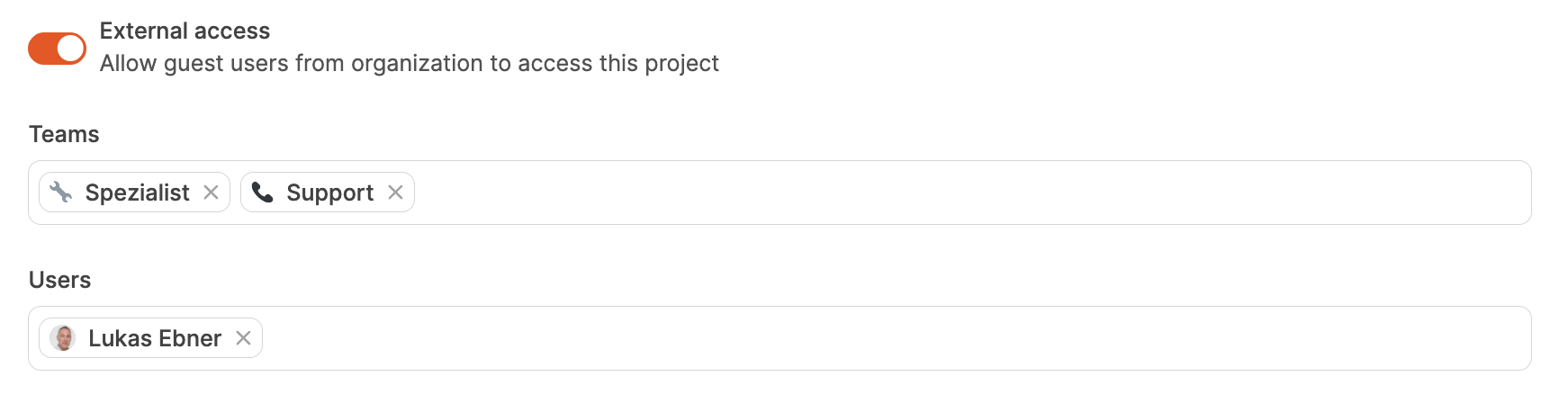
External access: Allows guest access for selected external users. See Guest user
teams: Assigns teams to collectively control access. See teams
User: Lists internal project members. Users with advanced privileges can access independently.