
Support conversations
Contact the Leadtime team, share useful context, and follow every reply in one private conversation.
Use Support when you need help from the Leadtime team with Leadtime itself. Each conversation keeps your question, the team’s replies, and any attachments together. It belongs to you: other members of your workspace cannot open it.
Open Support where you’re working
You can reach the same conversations in two places:
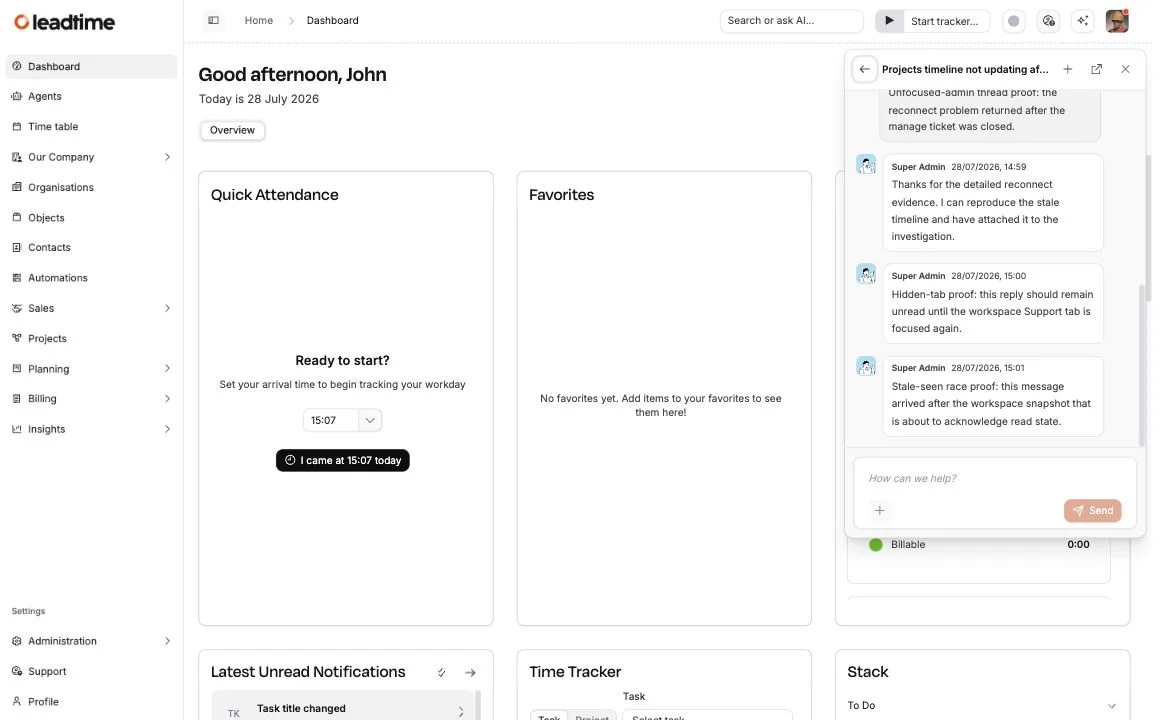
- Select the Support icon near your avatar in the top toolbar to open the popup. Use it for a quick question or reply without leaving the page you’re working on. If a conversation has an unread reply, the popup opens it directly. Otherwise, it opens a New support conversation when you have no open conversations, your conversation when exactly one is open, or the conversation list when several are open.
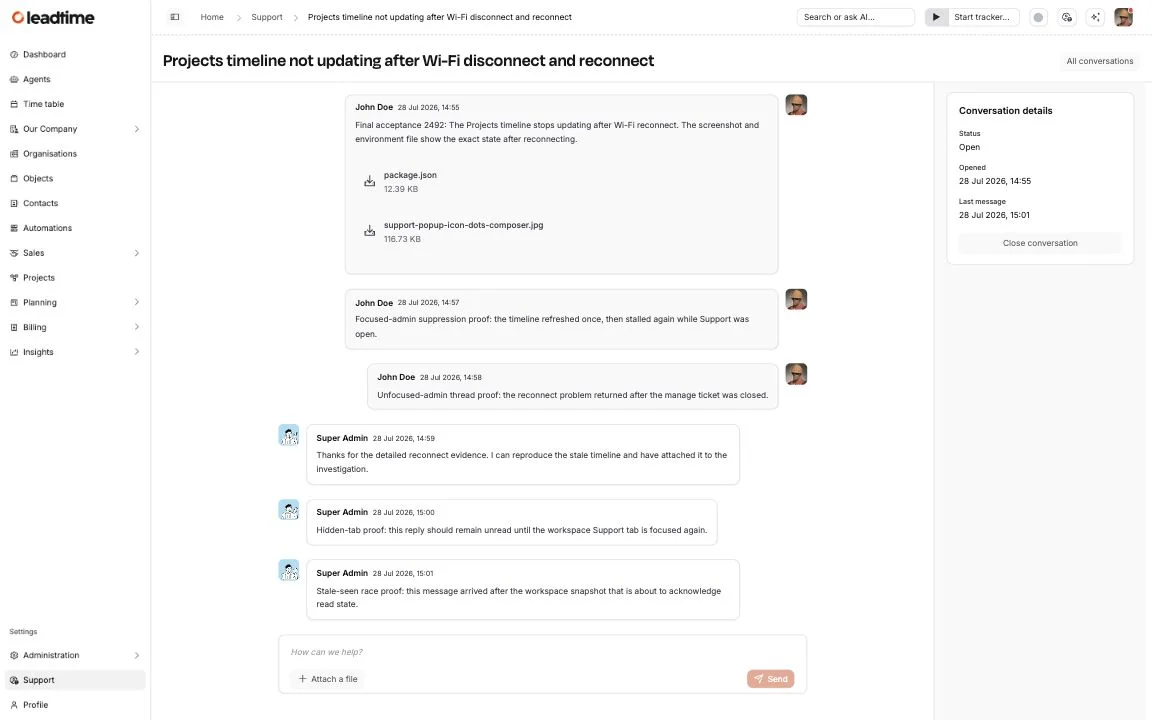
- Select Support in the side navigation for the full page. Use the Open and Closed tabs to review your complete history, or open a conversation when you need more room for a longer exchange.
In the popup header, select Back to conversations to return to the popup list or Open the Support page to open the full Support list. When a conversation is displayed, Open the Support page opens that conversation on the full page instead. The popup stays available while you move between workspace pages.
Start a conversation
- Select New conversation.
- Describe what you were trying to do, what happened instead, and what you expected.
- Add the affected page, project, or Ticket and any exact error message that helps identify the problem.
- Paste a screenshot into the editor or select Attach a file below it to add a relevant image or file. In a narrow composer, the attachment action appears as a + button whose tooltip and accessible label are Attach a file.
- Select Send.
Leadtime creates the conversation immediately and prepares a short title from your first message. You may briefly see Generating a title… in the list while that title is prepared.
Format messages and add evidence
The Support composer uses Leadtime’s text editor. You can format text with bold, italic, links, code, and lists. On wider composers, Attach a file appears beside Send; on smaller composers, the same action is the + button. See The Text Editor for the common editing controls.
For attachments, keep these limits in mind:
- each image or file can be up to 25 MB;
- a conversation can contain up to 20 attachments;
- all attachments in one conversation can total up to 100 MB.
Crop screenshots to the relevant area and include the action immediately before the problem. For large logs, attach a text file and point out the useful timestamp or error. Don’t include passwords, access tokens, private keys, payment data, or unrelated personal information.
Your attachments use the same privacy boundary as the conversation: only you and the Leadtime team can access them.
What Leadtime shares with Support
When you create a conversation in the Leadtime browser app, Leadtime automatically adds a diagnostic snapshot from that moment. It helps the team investigate without first asking you for basic technical details.
The snapshot can include:
- the current Leadtime page and workspace route;
- browser, app, language, timezone, screen, and connection information;
- recent browser console messages;
- recent network request metadata such as method, URL path, status, and duration.
Leadtime doesn’t include request or response bodies, HTTP headers, session replay, a click trail, or an automatic screenshot. URL query values and common credential fields are removed, and Support requests themselves are excluded. The diagnostic snapshot is visible only to the Leadtime team; it doesn’t appear in the conversation or the Public API.
Automatic filtering reduces accidental exposure, but it can’t know the meaning of every console message. Keep secrets out of anything you type, paste, or upload.
Follow replies
The toolbar icon and the Support item in the side navigation show the number of conversations with an unread team reply. The full page shows the title, latest message preview, time, and unread marker for each conversation:
- Open contains active conversations.
- Closed keeps resolved conversations available for reference.
Replies appear in an open conversation without a page refresh. A conversation is marked as read only while it is visible in a focused browser window. If a badge remains, open that conversation and bring the window into focus.
Support replies show the team member’s name and avatar, so you can see who answered. Support notifications stay inside Leadtime: there is no Support email, browser push, or notification-bell entry. Return to Support to check for replies if you have been away from the app.
How the Leadtime team drafts replies
The Leadtime team can use an AI writing assistant inside its Support reply editor. The assistant can read the current conversation and its attachment details, then create or improve a draft. A team member can accept the suggested text, decline it, retry, continue, or stop generation.
The assistant cannot send a message, change the conversation, or act in your workspace. Sending remains a separate, explicit action by a Leadtime team member. Your Support conversation and its attachments remain subject to the same privacy boundary described above.
When the Leadtime team starts a conversation
The Leadtime team may proactively start a private conversation to share an important update or ask you a question. On desktop, Leadtime can open that new conversation in the Support popup once. On a smaller screen, or after you dismiss the popup, the unread badge still leads you to it.
Closing an automatically opened popup does not mark the conversation as read. Open or interact with the conversation when you’re ready to review it.
Close or continue a conversation
Select Close conversation on the full page when your question is resolved. Conversation closed appears in its history, but closing does not delete messages or attachments.
If you or the Leadtime team sends another message in a closed conversation, Leadtime moves it back to Open automatically. Continue the same topic there instead of creating a duplicate conversation.
Ask Leadtime Agent to contact Support
When Leadtime Agent can’t resolve a product problem confidently, it can offer to create a Support conversation for you. The Agent must explain the escalation and get your explicit confirmation before sending anything; it won’t create a conversation merely because a tool failed or it became stuck.
Before creating anything, the Agent shows you the summary it proposes to share and checks your recent open conversations to avoid reporting the same problem twice. After you agree, it creates the conversation with that verified context.
An inline Support card then shows the live status, latest message, and last activity. Select Open full page to review the conversation, add attachments, or continue with the Leadtime team. You can also ask the Agent to list, read, or reply to your own Support conversations; the card refreshes when the conversation changes.
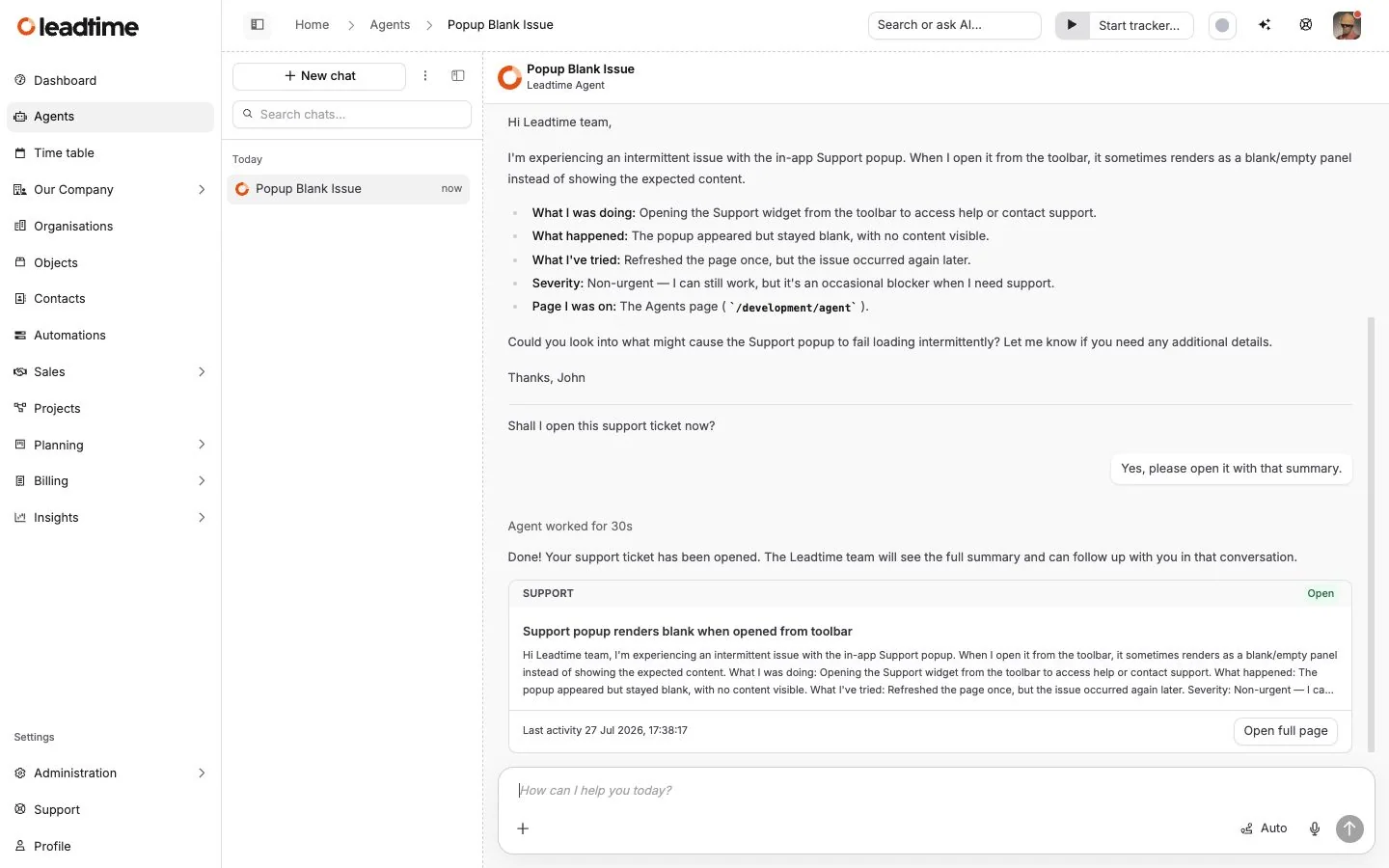
A conversation created by the Agent doesn’t include the browser diagnostic snapshot described above. In a task assignment or automation, the Agent creates one only when your instructions explicitly request it.
Troubleshooting
- An older conversation is missing from the popup: Open the full Support page and select Closed. The popup focuses on active and unread conversations.
- An unread badge doesn’t clear: Keep the conversation visible and focus the browser window. Simply viewing the list, or dismissing a proactive popup, doesn’t mark it as read.
- An attachment won’t upload: Choose a smaller file or remove attachments that exceed the per-file, file-count, or total limits above. A clear upload error doesn’t remove the text you’ve written.
- The first message was sent but its attachments failed: Retry from the existing conversation when Leadtime prompts you; don’t immediately create a duplicate conversation.
- You expected an email: Support replies are currently shown only inside Leadtime. Support is an ongoing conversation channel, not a guaranteed live-chat response.
Developers building an acting-user integration can find the same private ticket and message workflow in the Public API reference. An integration can access only the authenticated user’s conversations.