
Stacks
The stack view shows each specialist's personal weekly plan. It automatically follows the order from the pipeline planning and supports focused, trouble-free processing of tasks.
The Stack view shows a specialist’s personal weekly plan and serves as an individual task overview.
It visualizes the order in which tasks from the pipeline planning should be processed.
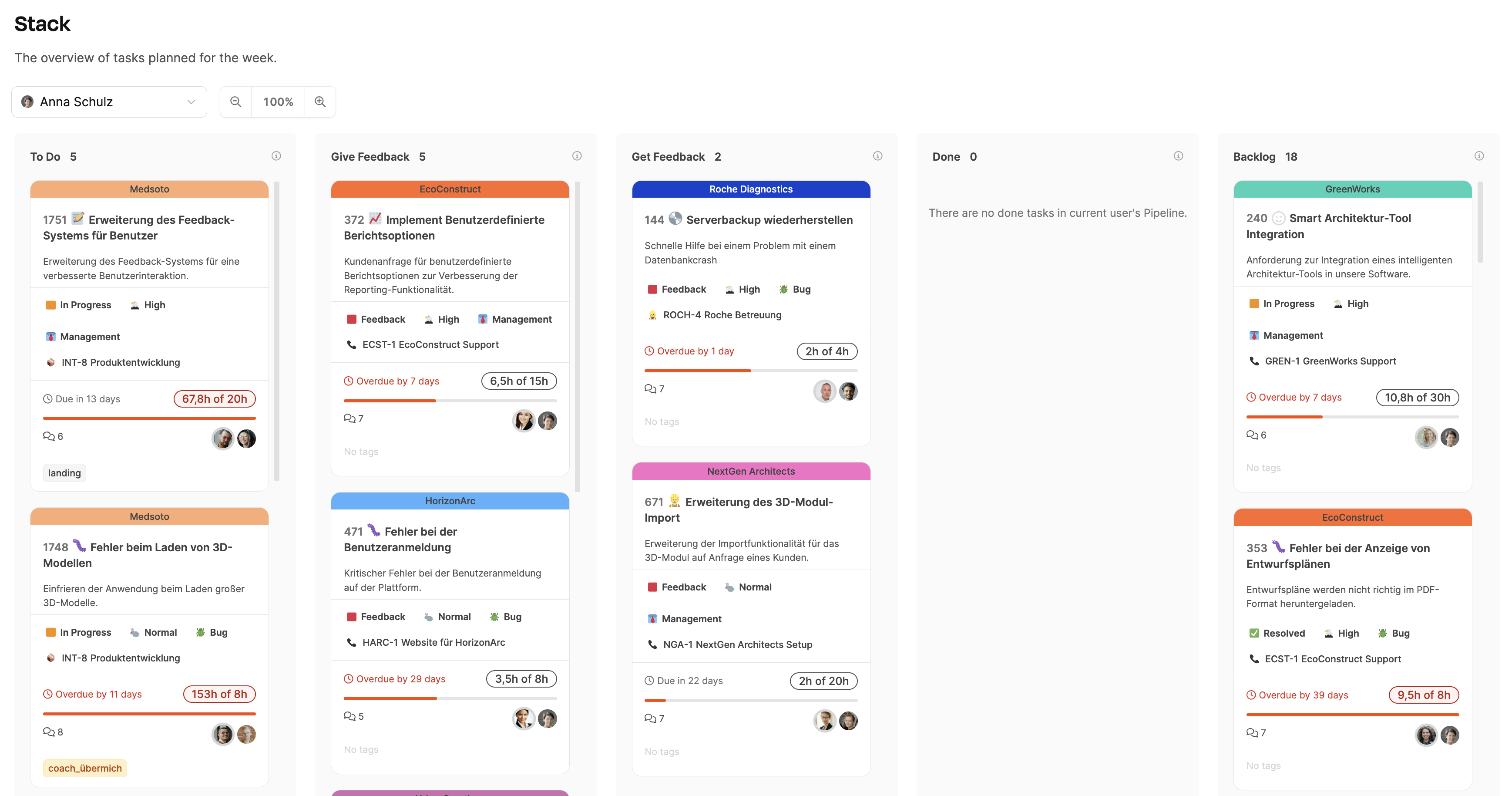
You can find it under Planning → Stack.
How it works
The stack acts as a personal kanban board for every specialist. In principle, the specialist or developer should be kept supplied with an uninterrupted flow of work at all times, ideally without any follow-up questions.
It shows all the tasks scheduled for the current week in the pipeline – sorted in the specified order.
Each task appears as a card with the most important information: project, ticket number, status, time required and participants.
The view is divided into several columns that reflect the tasks’ progress through the workflow:
- To Do – Tasks to be handled this week.
- Give Feedback – Tasks where the specialist is meant to give feedback to others.
- Get Feedback – Tasks that are waiting for feedback from others.
- Done – Completed tasks.
- Backlog – Tasks that are not part of the current week but can be scheduled in future weeks.
Working in the stack
-
Processing the tasks
The specialist starts with the top task in the To Do column and works through it step by step.
The order corresponds to the priority set in the pipeline planning.
-
Getting or giving feedback
-
If a task cannot be completed because there are open questions, it is moved to Get Feedback.
The responsible account manager is informed automatically.
-
If the specialist is meant to give feedback themselves, the task is shown in Give Feedback.
These tasks should be handled with priority, since they are usually short and affect the progress of other team members.
-
-
Completing tasks
Once a task is done, it is moved to Done.
This keeps the stack tidy and shows at all times which tasks are still open.
Practical example
At the start of the week, Anna Schulz opens her stack.
She sees five tasks in the To Do column that were set for her in the pipeline planning.
Anna starts with the first task at the top.
While working on a task, she runs into an unclear requirement and moves the ticket to Get Feedback.
As soon as the feedback from the project manager comes in, she moves the task back to To Do and continues the work.
By the end of the week, three tasks are completed and move to Done – so the stack always shows progress transparently.
Connection to the pipeline
The order of the tasks in the stack is taken over automatically from the pipeline.
The stack therefore shows exactly the tasks that were planned there for the employee – in the same order.
This keeps the workflow clearly structured:
- The most important tasks are at the top.
- The specialist does not have to prioritize themselves.
- Questions about the order are eliminated entirely.