
Planning Tools
An overview of the various tools for capacity planning and prioritization in the system.
In Leadtime, alongside a general list and kanban view for tasks, the system provides four tools that build on one another for structured planning and prioritization of tasks: Big Picture, Pools, Pipelines and Stacks.
They help you clearly manage customer projects, internal resources and team activities – from joint prioritization with the customer to individual task planning for every team member.
You can find the planning tools in the Projects → Planning menu.
Overview of Planning
Big Picture – Customer-oriented project overview
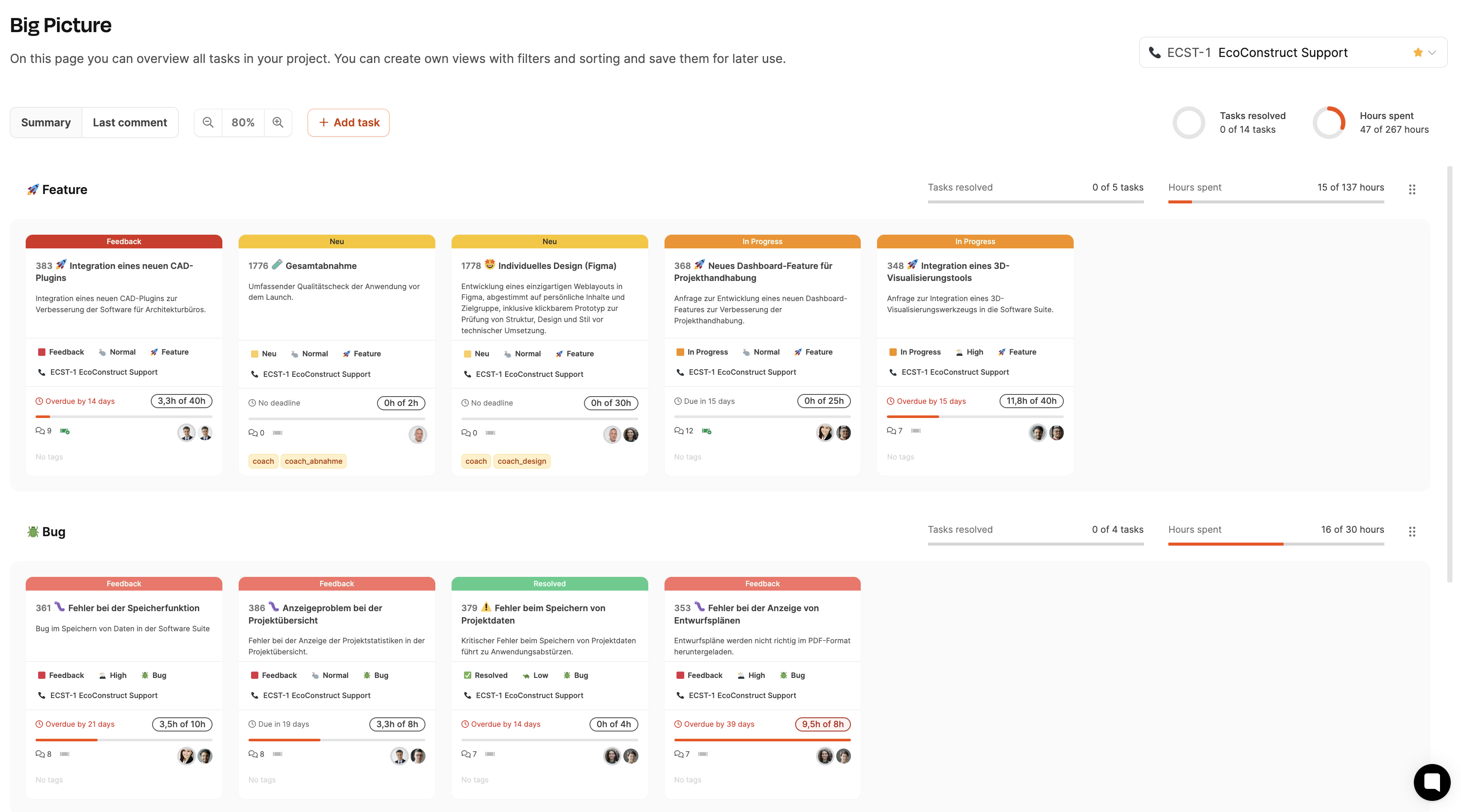
The Big Picture tool is the first step in the planning chain and provides a project overview at the level of individual customers. It presents all of a project’s tasks as visually organized cards, grouped by task type – for example Features and Bugs. Within these categories, tasks can be prioritized by importance.
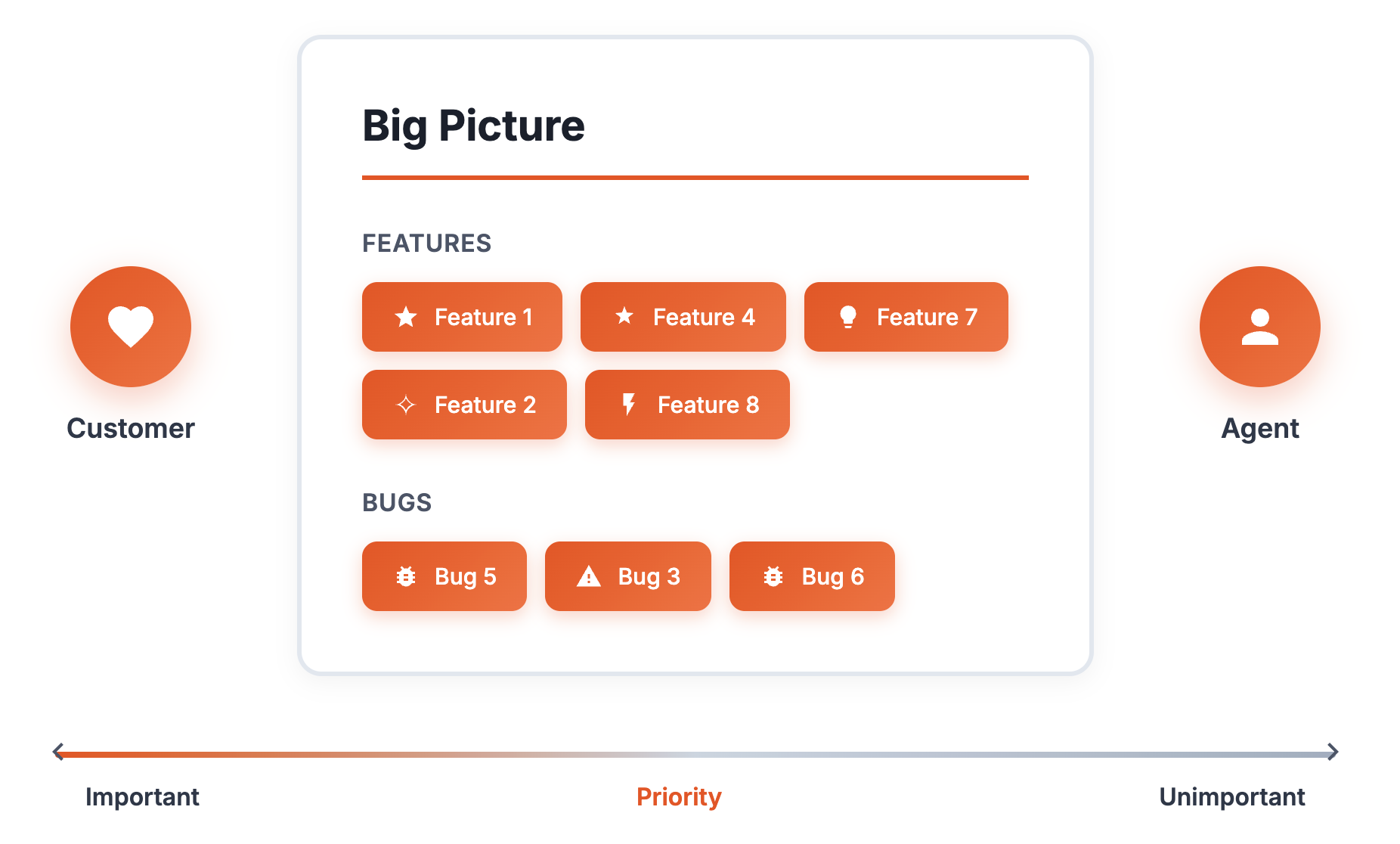
Example use: An account manager coordinates with the customer and discusses which features or bugs currently have the highest priority for them. This helps the customer put their requests in a clear order and focus on the most urgent tasks.
Goal: Big Picture provides a structured, visual overview of the tasks within a project and makes coordination between customers and account managers easier.
To Big Picture
Pools – Cross-project prioritization
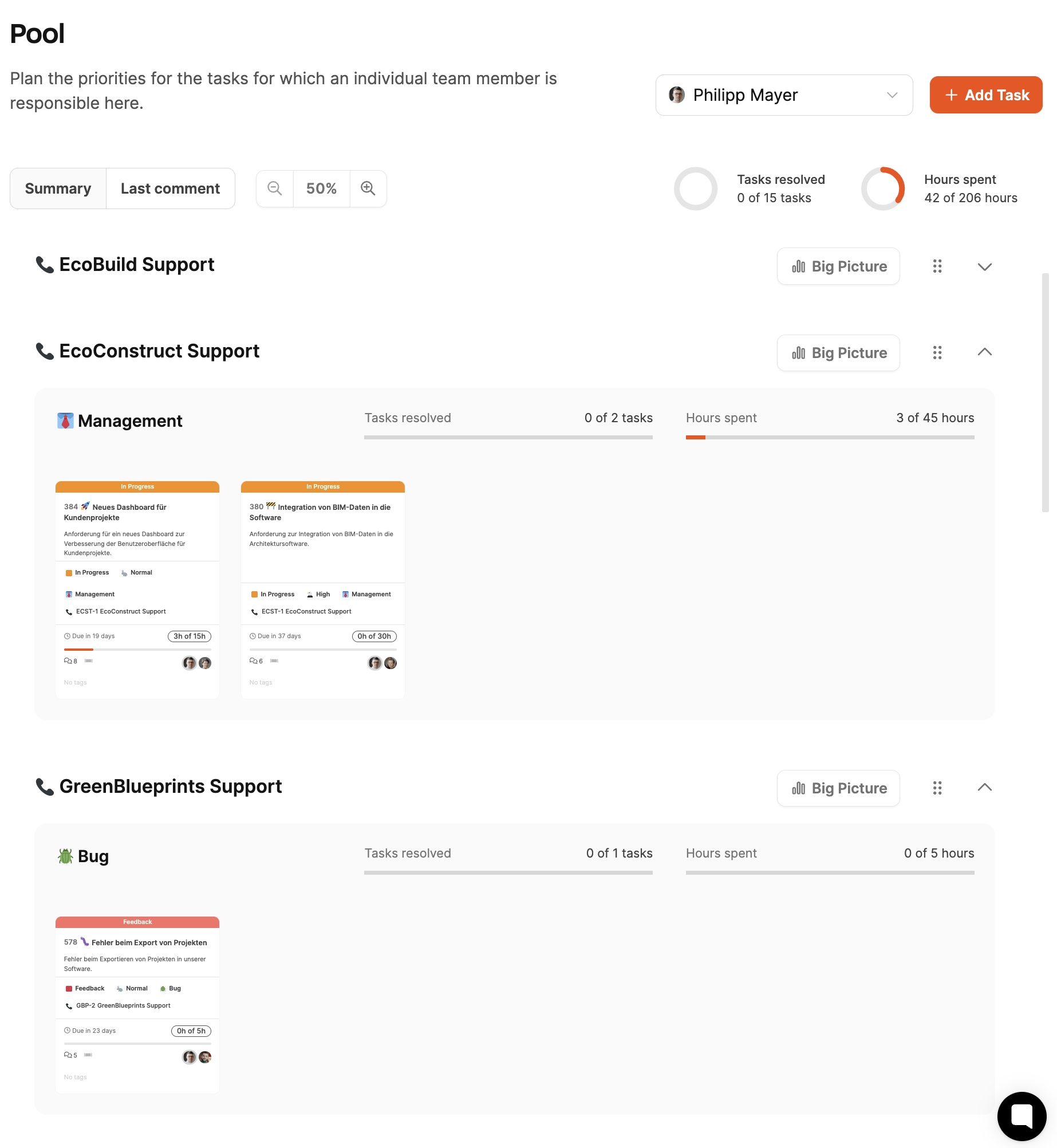
The Pools extend the Big Picture to the multi-project level. Account managers typically look after several customers at the same time and have to balance priorities across these projects. The pool is therefore a multi-project dashboard in which the tasks of all the customers being served are presented together. This way, the account manager keeps an overview of every ticket relevant to them.
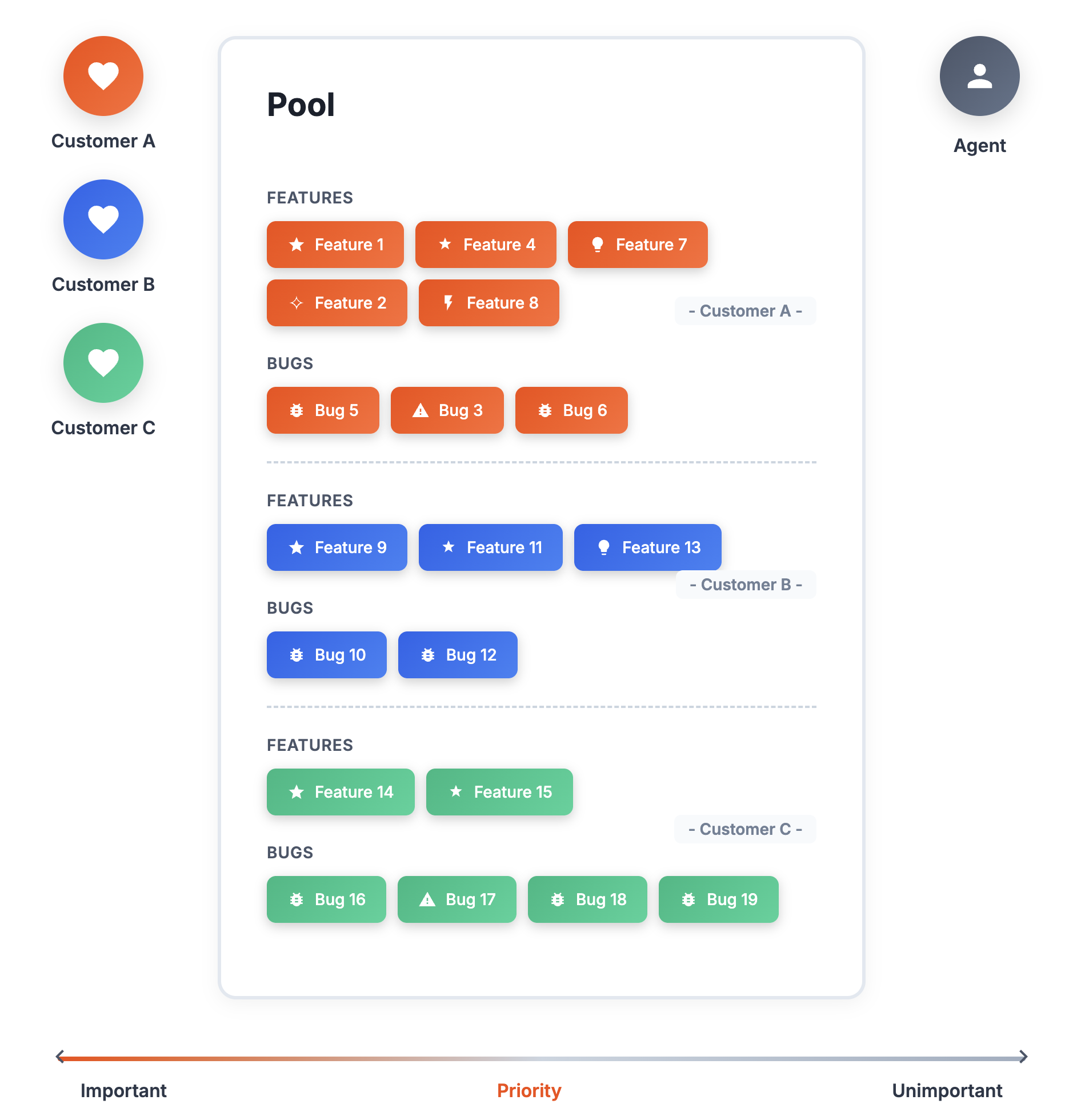
Example use: An account manager who looks after several customers sees the prioritized tickets from different projects and customers side by side in their pool. This lets them decide which tasks will bring the company the greatest benefit in the coming days.
In addition: The team leader can step into the pools and set strategic priorities, e.g. by highlighting particularly revenue-generating tasks.
Goal: The pools let the account manager prioritize across projects and ensure that the most important tasks are addressed first, maximizing customer satisfaction and value for the company.
To the Pools
Pipelines – Resource planning within the team
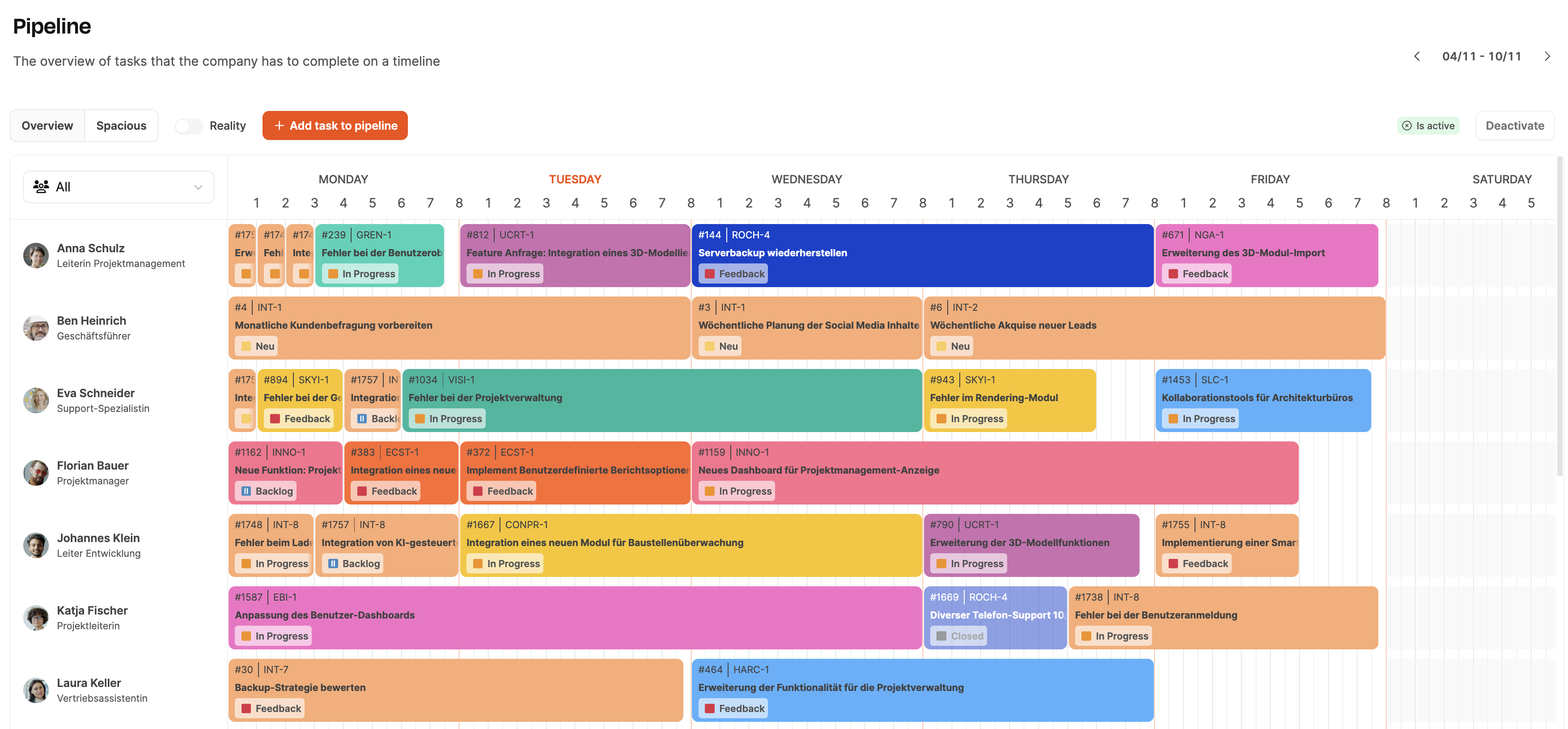
Pipeline planning is used for the weekly assignment of tasks to team members, especially developers or specialized professionals. The point is to use the team members’ capacity efficiently and to set a sensible order for completing tasks. The pipeline distributes tasks across projects and customers over the week and shows how much working time each developer has available.
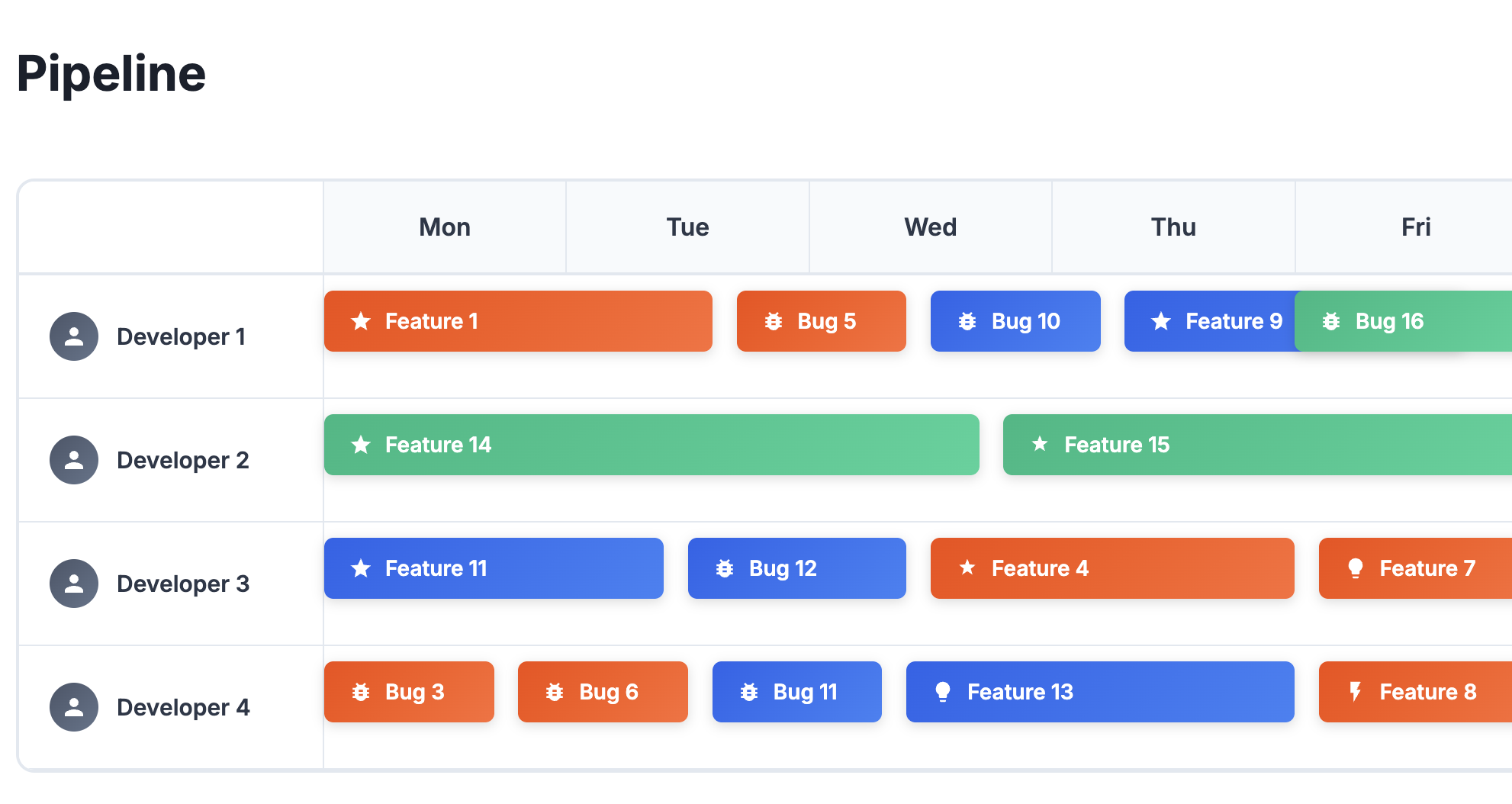
Example use: In a weekly meeting, each account manager brings in the prioritized tickets from their pool. The team leader moderates and decides together with the team which tasks should be handled in which order and with which resource allocation.
Visualization: The pipeline divides each day into 15-minute segments and gives an overview of how much capacity is available and how the work is distributed across the week.
Goal: The pipeline serves as a planning tool for distributing tasks among the specialists in a sensible order and making optimal use of the available resources.
To the Pipeline
Stacks – Individual work plan
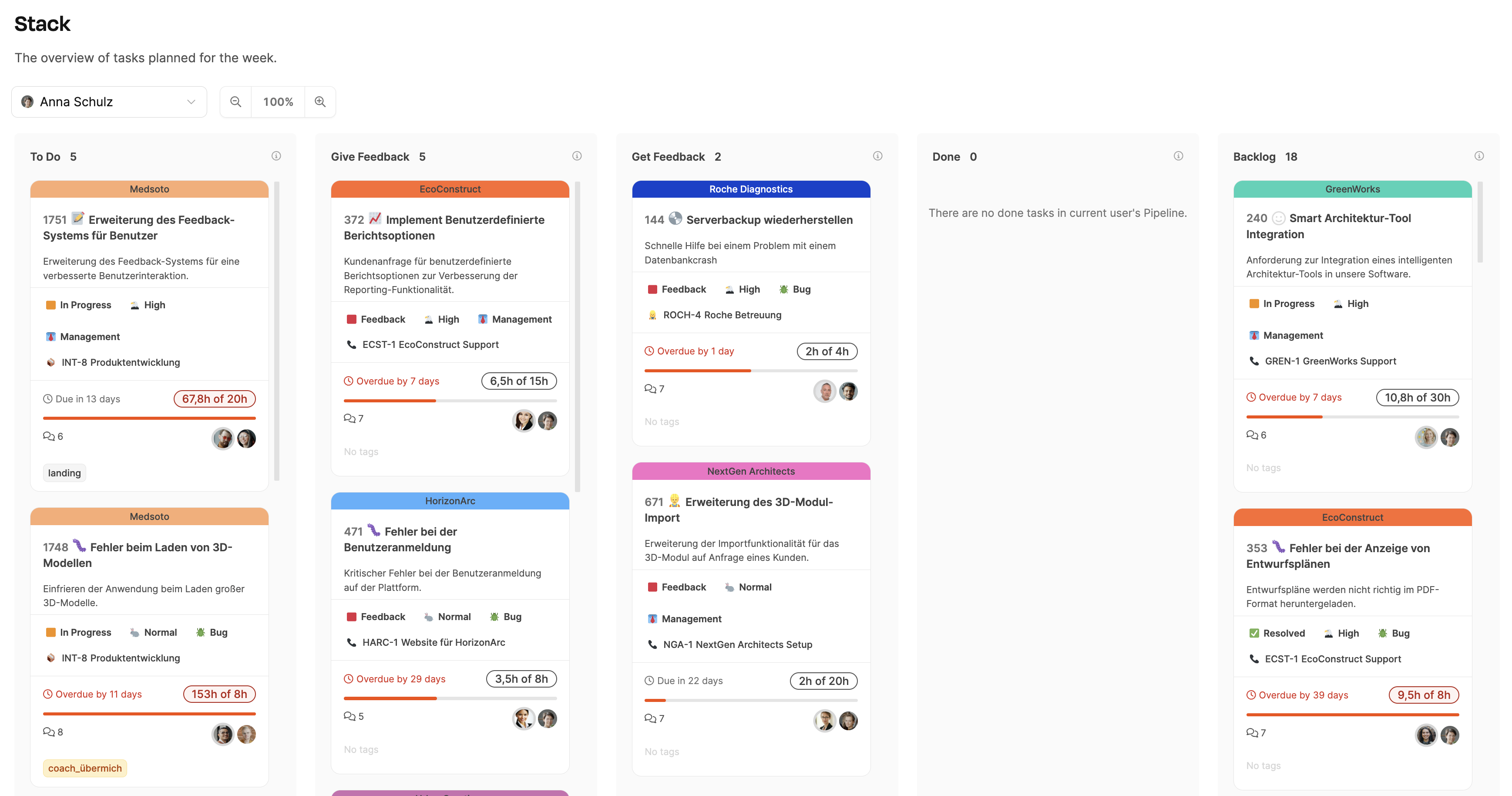
The Stack is the final tool in the planning chain and provides the individual task list for each specialist. The tasks set for an employee in the pipeline appear in their stack in the specified order. The stack acts as a personalized kanban board that clearly structures the workflow and encourages the productive completion of tasks.
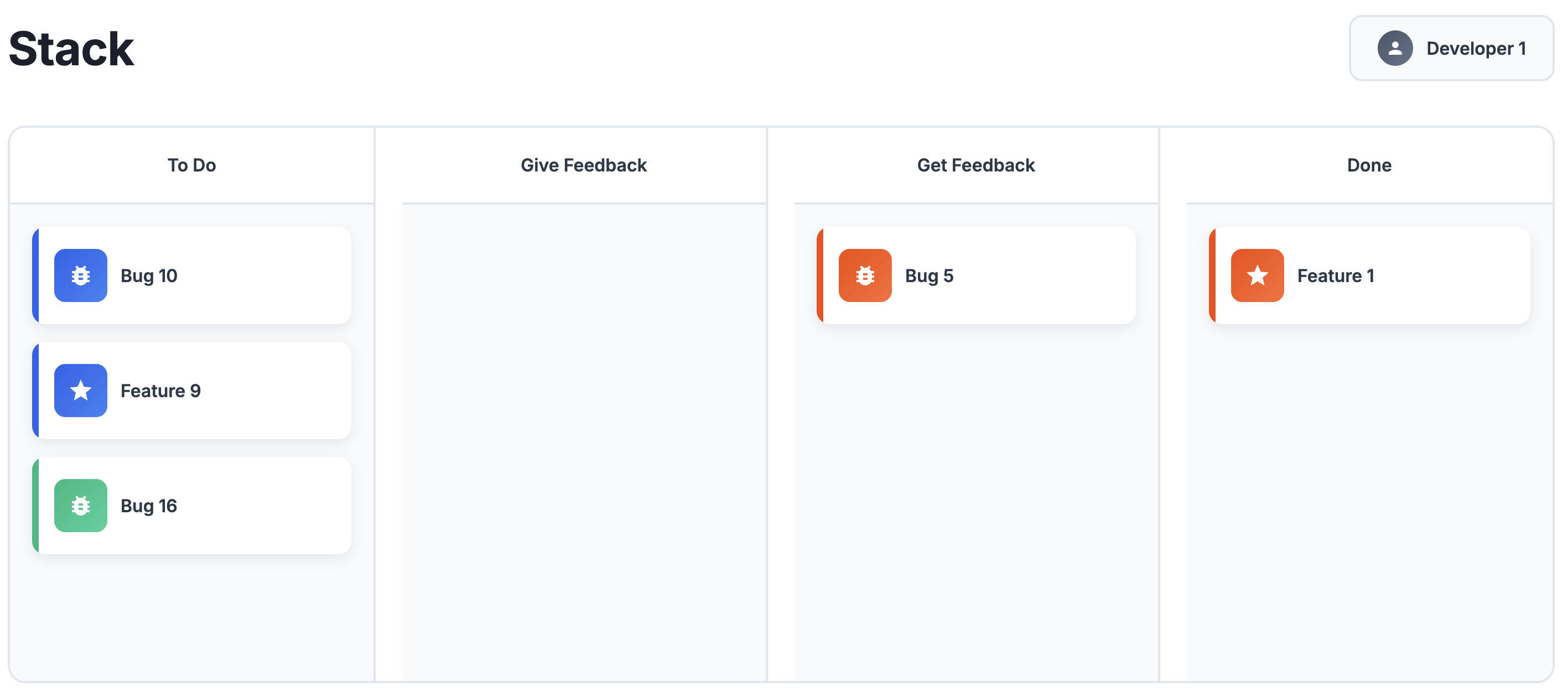
Example use: At the start of the week, a developer sees all the tasks assigned to them in the “To Do” column of their stack. They work through the tasks one after another. If they run into a problem or need feedback, they can move the ticket to the “Get feedback” column and assign it to the responsible account manager. This pauses work on the task and lets them turn to the next one.
Goal: The stacks reduce the need for follow-up questions and let developers do their work in a focused, undisturbed way.
To the Stacks
Cross-project list view
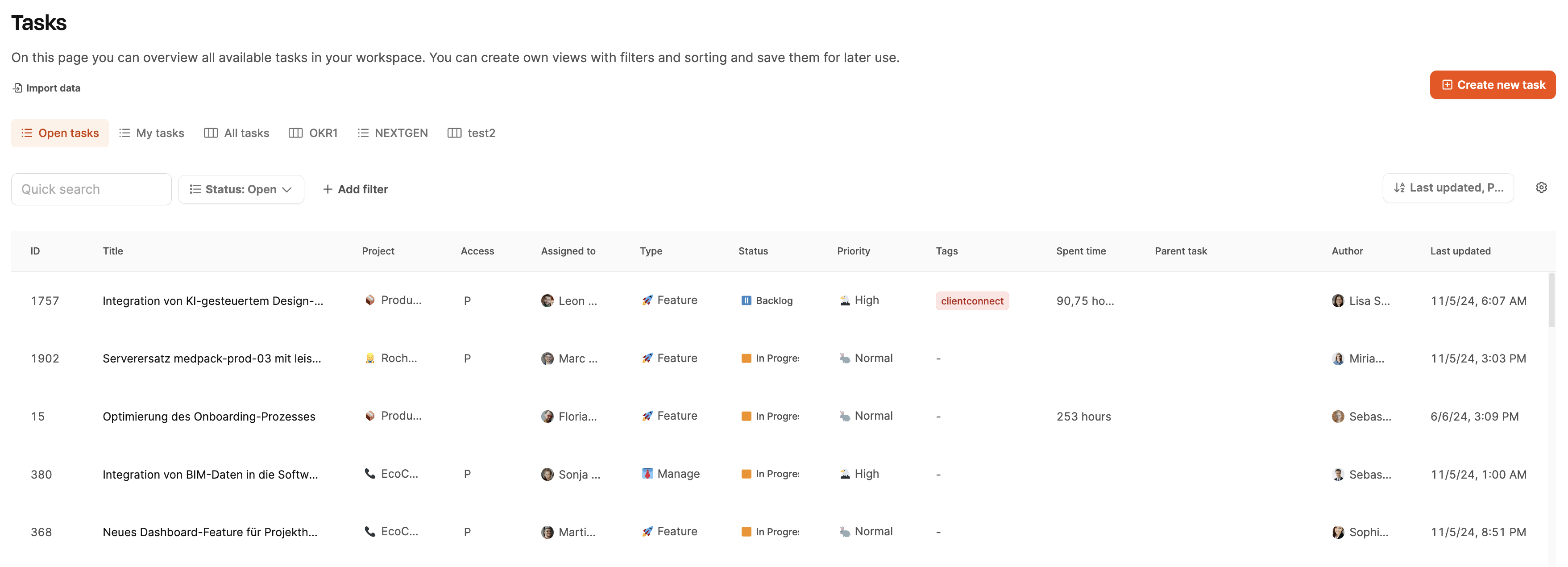
The list view under Planning → All Tasks offers a central overview of all tickets in the system – regardless of project, customer or assignee.
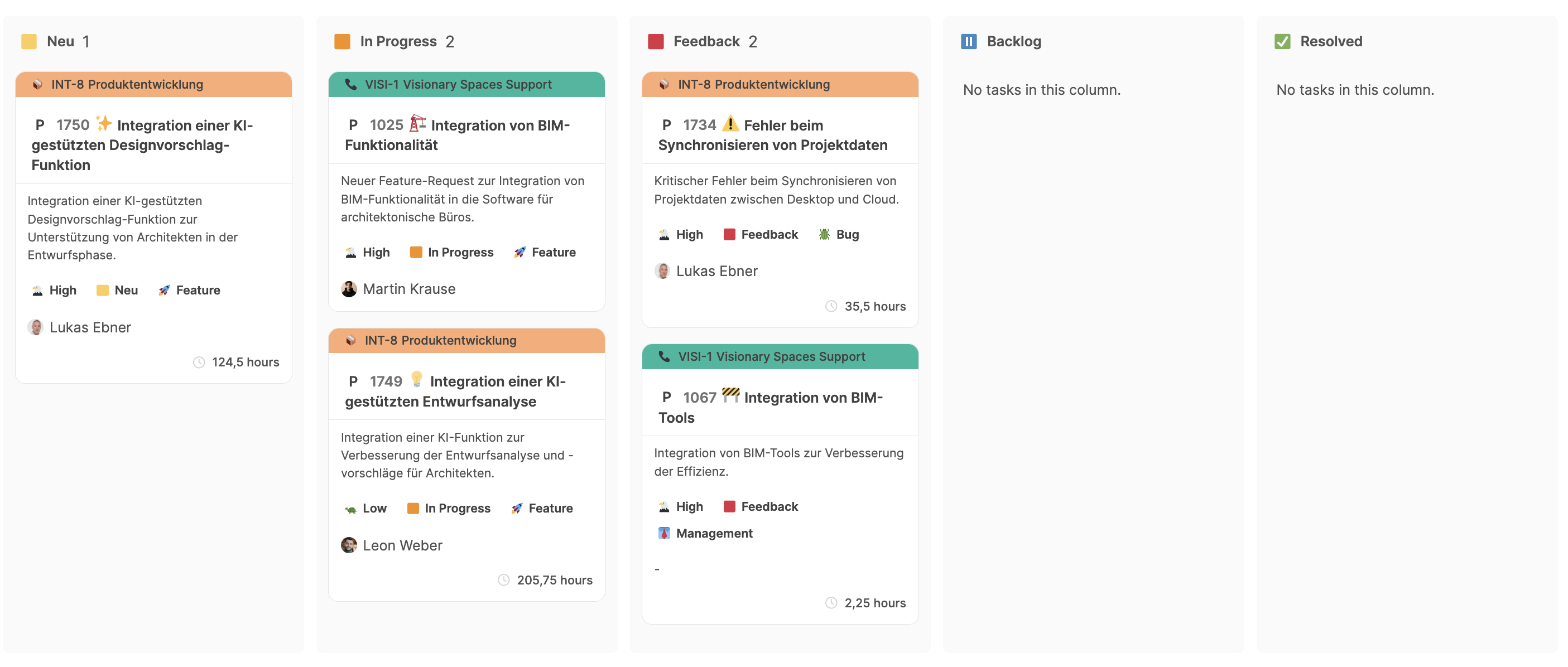
Besides the tabular display, the task overview can also be shown as a kanban board. This view offers a visual alternative for organizing tasks by status and quickly keeping track of progress.
-
Filtering and sorting:
Tasks can be filtered, grouped and sorted by any criteria (e.g. Project, Status, Priority).
You can save your own views and call them up again at any time.
-
Benefit:
This view enables efficient prioritization and planning at the organizational level.
Project managers can quickly identify bottlenecks, reassign tickets and track progress in real time.
To All Tasks