
Work Packages, Tasks, and Operational Implementation (Workshop Part 12)
Convert work packages into tickets, assign tasks and control progress centrally in the implementation overview.
You can find this area in Leadtime at Project → Configuration → Project Tree as well as Configuration → Implementation overview. It describes how work packages are converted into executable tasks (tickets) and how they are operationally controlled in the project. The aim is to derive real, implementable work steps from the structured specifications.
In the workshop project, Web4Coach begins implementation after the specifications have been approved. Tickets are now created from all relevant work packages so that tasks can be assigned to people, prioritized, planned and booked.
Step-by-step in the workshop
- Web4Coach completes the customer preparation.
- Work packages are opened individually.
- “Create task” generates tickets.
- AI generates concrete work instructions.
- Responsible people are assigned.
- Tags help with an overview of the big picture.
- Project progress is monitored in the implementation overview.
The connection between work packages and tickets
While the work package is aimed at the customer, specifically the creation of the requirements specification, the associated ticket should be formulated in such a way that an employee can process it effectively.
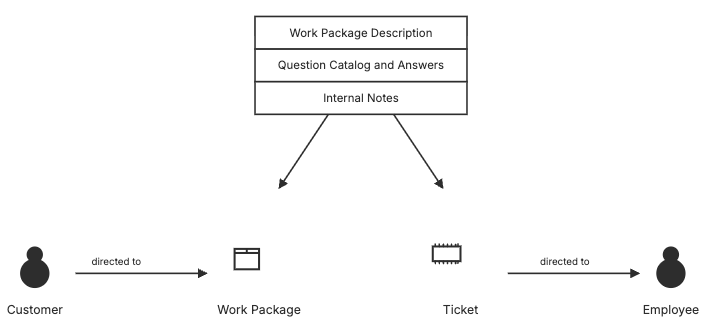
The work package and ticket use the same pool of information. However, the information in the ticket is prepared differently. At the top is all available information, but especially the customer’s answers to the questions in the question package via AI a concrete task description for the responsible employee generated.
Different perspectives
- This Work package is aimed at the customer and the specifications.
- This ticket is aimed at implementation in the team.
This means documentation and operational details remain cleanly separated.
-
Work package = planning level
- describes scope of services, questions, goals
- is documented in the specifications
-
Ticket = implementation task
- is processed by employees
- contains specific work instructions
- is trackable and billable
An operational task plan is created from the project model.
Create tickets from work packages
About the project tree: Project Planning – Project Tree
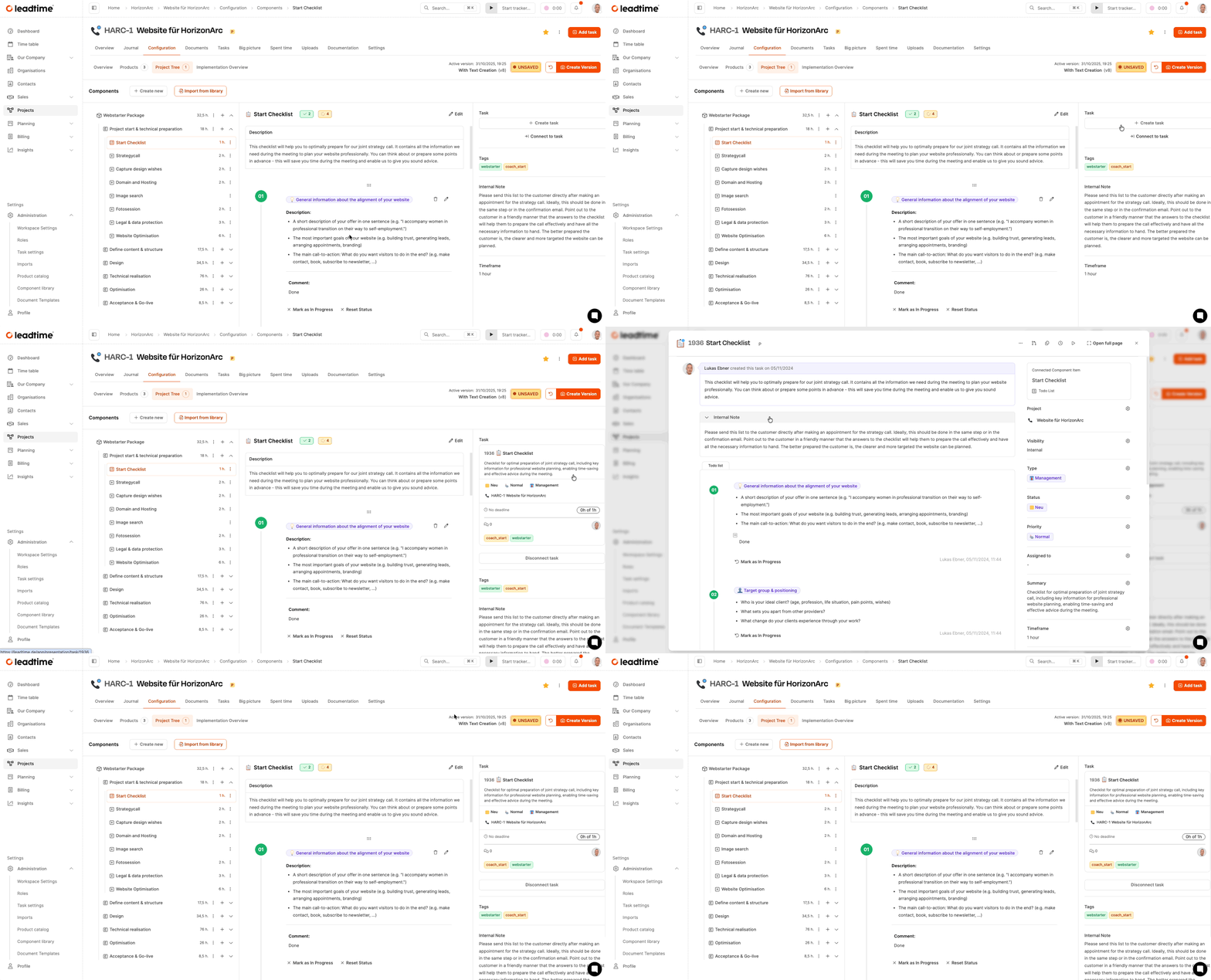
You have three options to create a ticket:
-
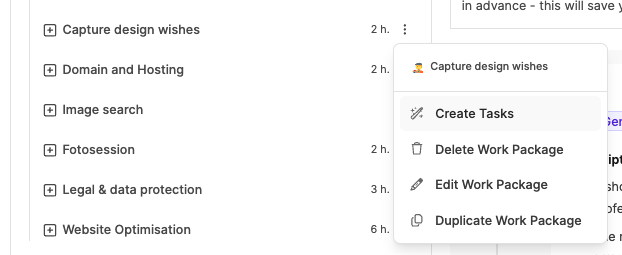
Via the context menu
- Click on the three-dot menu of an element in the project tree
- Select “Create tasks”.
- creates one or more tickets depending on the level
-
Directly from the work package
- Open work package
- Click on “Create task” on the right
- creates a single ticket
-
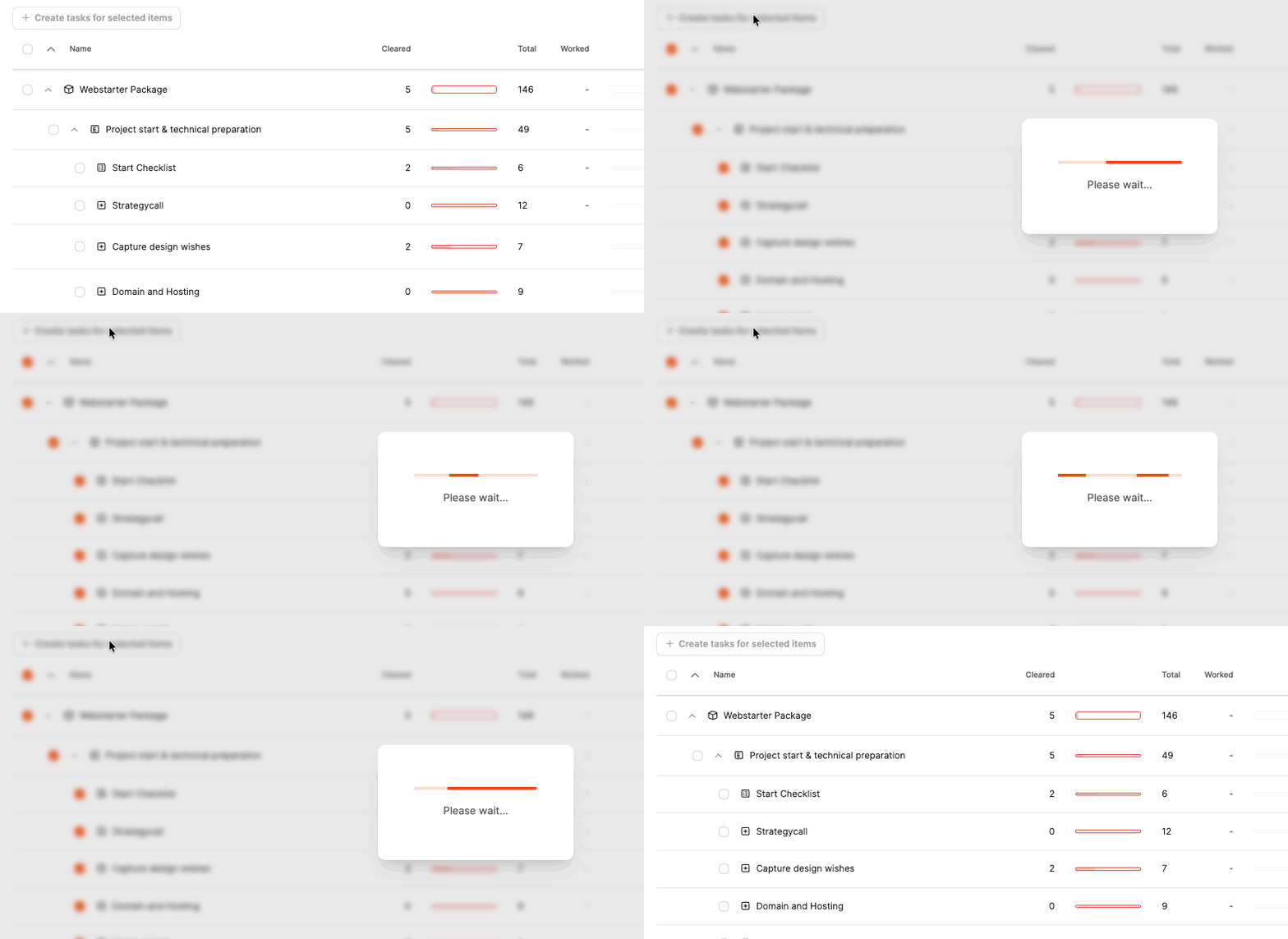
About the implementation overview
- Configuration → Implementation overview
- “+ Create task” buttons appear in the last column if no ticket exists
- ideal for closing gaps
For the implementation overview: Project planning - project progress
Contents of automatically generated tickets
About the ticket system: Projects – Tasks tab (ticket system)
When created, the ticket automatically takes care of:
- Title, description
- Effort (if defined)
- internal notes (only visible internally)
- Component and Epic tags
In addition, Leadtime generates automatically an AI-based task description, which derives from questions, answers and context, what exactly needs to be done.
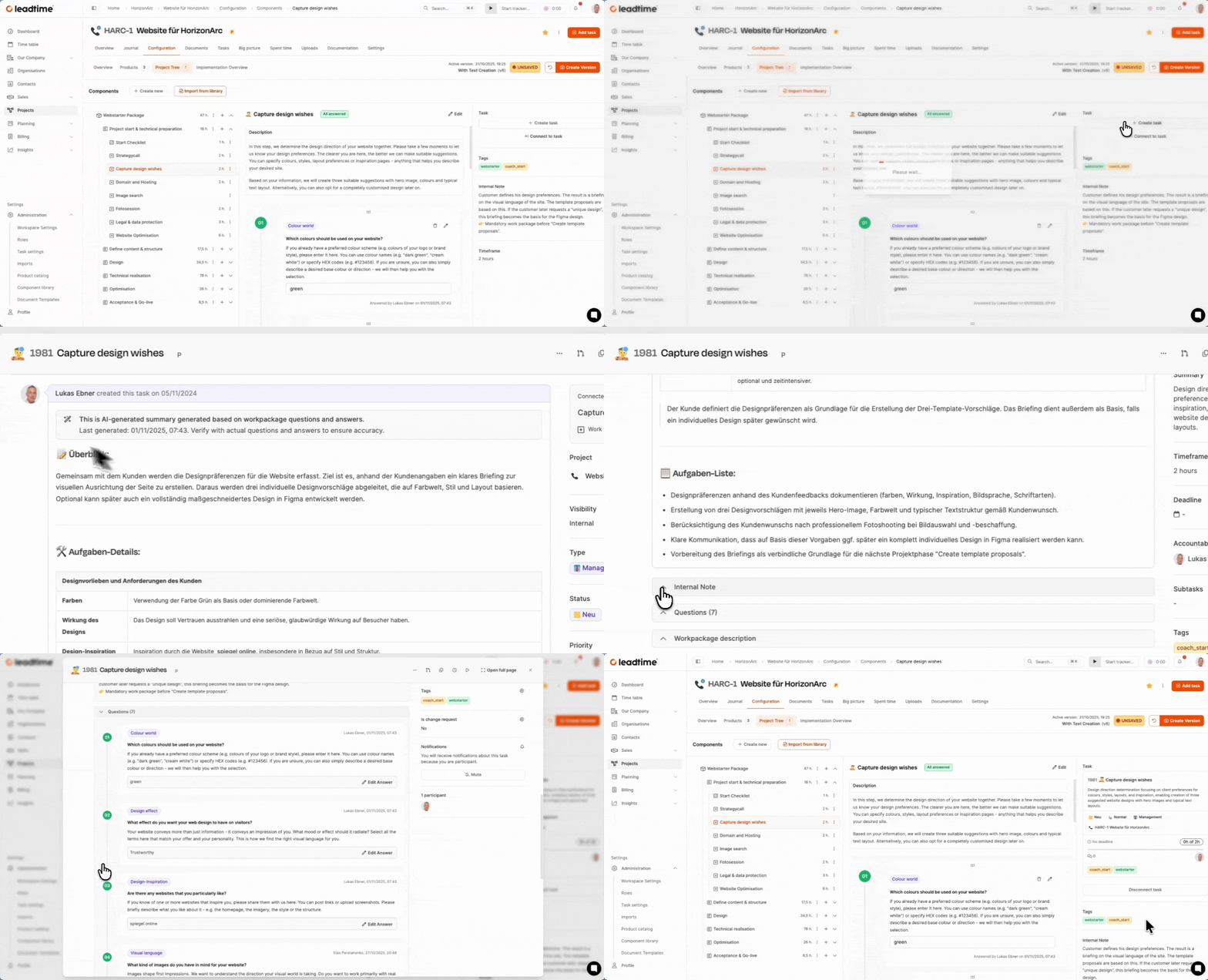
Note: The description should be checked before starting and adjusted if necessary.
For traceability, the ticket also contains:
- the questionnaire,
- the package description
- internal implementation notes.
Tags as a structural feature
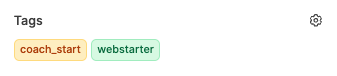
When a ticket is created from a work package in the project tree, it automatically:
- Den Day of the componentto which the work package belongs (e.g. coach)
- Den Epic Day, under which the work package is classified (e.g. coach_start)
These tags appear directly in the ticket and are also visible in the various planning tools - for example in the pipeline or in the big picture.
Why are tags important?
Create tags Context, without having to constantly open the project tree:
- They show, too which project component the ticket belongs
- They enable one targeted filtering by subject areas, customers or modules
- They help in Multi-project managementto quickly assign tasks to the right project
Example
A ticket with the coach and coach_start tags belongs to the Coach component and the Start epic. This is how you can immediately see:
This ticket comes from the preparation phase of the Coach Performance package.
External collaboration on tickets
Customers can also receive tasks: As soon as they are Guest user If you have access to the project, tickets can be assigned to them. This is particularly useful for preparatory tasks such as a checklist.
- Enable guest access
- Assign ticket
- Customer marks to-dos as completed and comments on answers
- Progress appears live in the project tree
This eliminates the need for external email traffic to obtain information.
Link tasks
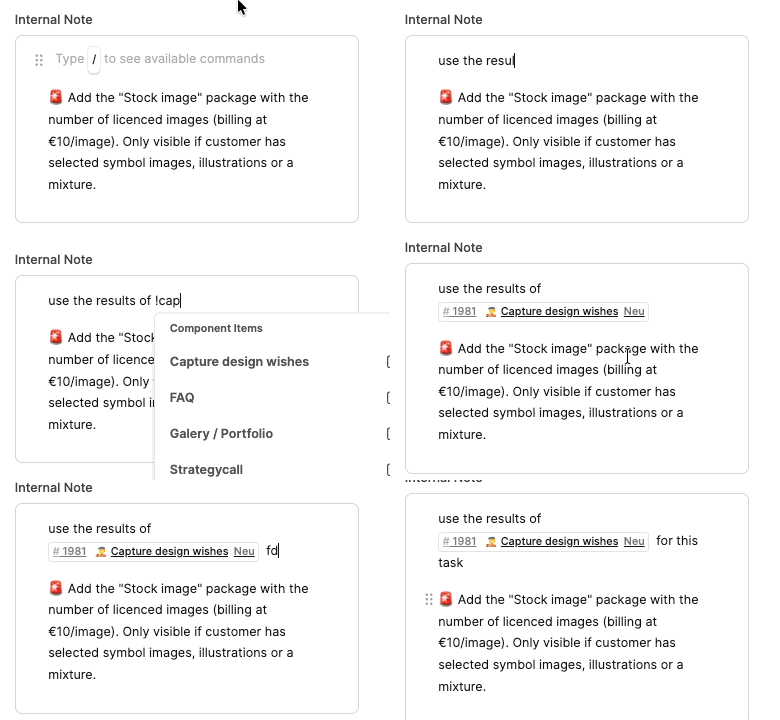
Especially in projects that build on one another in terms of content, it is important that tasks are not processed in isolation. In Leadtime you can therefore reference another work package within one work package - e.g. B. when a task requires the result of a previous one.
A typical example: The “Create Design” work package builds on the content from “Create Content”. In the description of “Create design” you can insert a direct link to the upstream work package. To do this, simply enter !Create content in the text or select the desired package using the slash menu. Leadtime automatically inserts a reference.
If a ticket is later generated from the work package, this reference appears directly in the ticket description. This provides context, avoids questions and improves handover between team members.
This means that important connections are retained - even if tasks are completed in a different project module, team or time slot.
Implementation overview
Under Project → Project planning → Implementation overview you receive operational control of your project. The table shows:
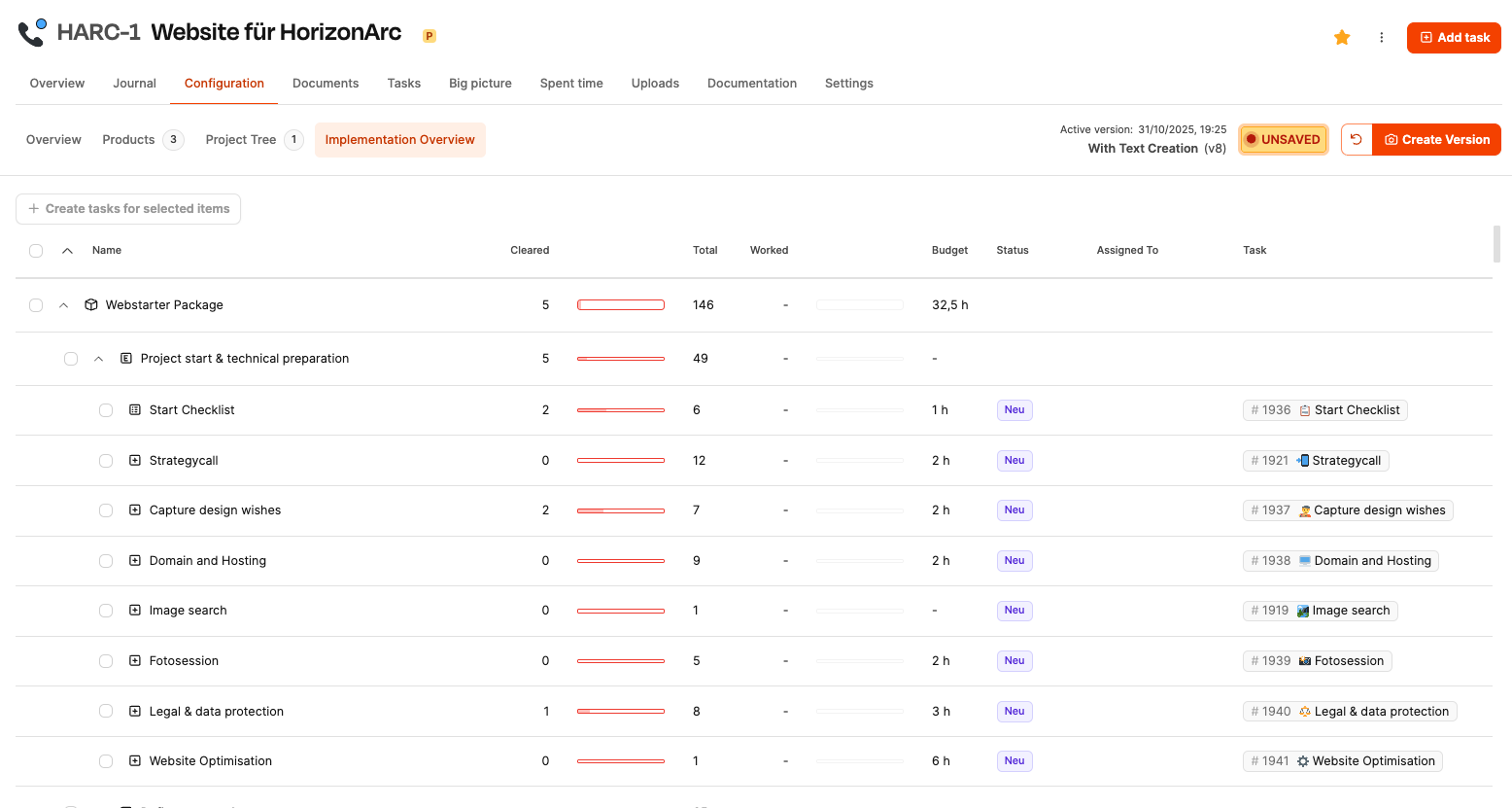
| Column | Meaning |
|---|---|
| name | Structure of the project tree |
| Done / Total | Progress from checklists/questions/tests |
| Worked / Budget | Comparison of booked time vs. effort |
| status | Workflow status of the ticket |
| Assigned to | Responsible person |
| task | Link or creation button |
Project managers use this overview to:
- to check progress,
- detect overloads,
- Identify bottlenecks early on.
For the implementation overview: Project planning - project progress
For part 13 of the workshop: Distribute the tasks to the team (workshop part 13)