
Ticket System Configuration
This article gives an overview of all customization options in task customizing.
The Administration → Workspace settings → Task settings section lets you adapt the ticket system to your company’s individual workflows. Configure task types, statuses, activities, and fields to reflect internal processes precisely and bring greater clarity, efficiency, and flexibility to day-to-day project work.
This article provides a topic-by-topic overview of all customization options.
Each topic introduced here—task types, statuses, work activities, custom fields, and task templates—has a dedicated, detailed article with specific instructions and examples.
To the ticket system
Task types
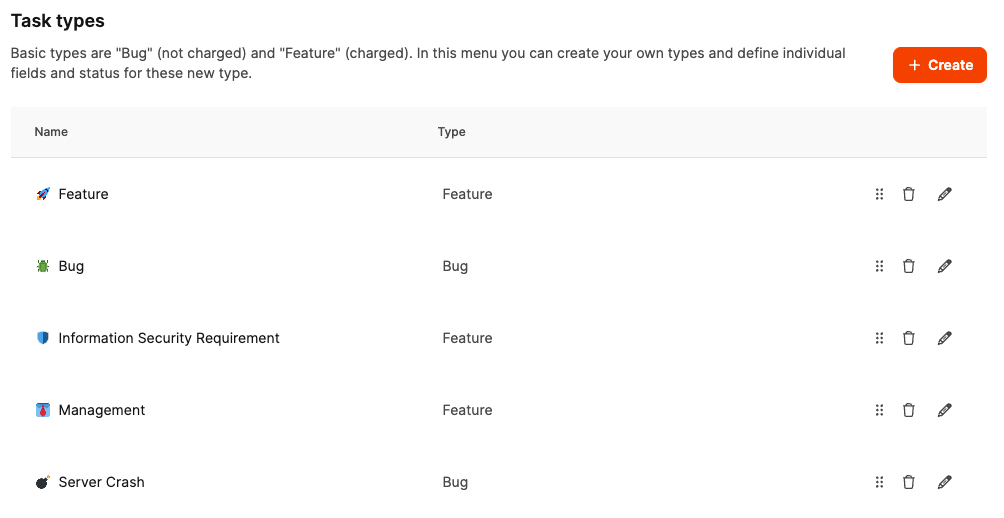
Task types define which kinds of tickets exist in the system, such as feature, bug, or support case.
Each type can have its own properties:
- Individual statuses (for example, “In review” or “Approval required”)
- Custom work activities (for example, “Development” or “Testing”)
- Custom fields to capture specific information
This structure lets you adapt ticket types to different departments or teams.
Learn more about custom task types
Task status
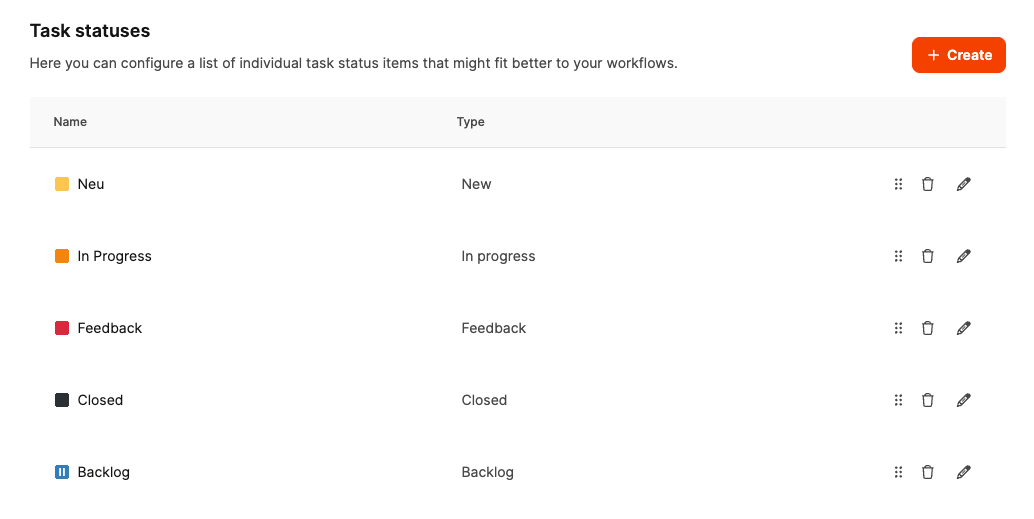
Statuses represent the progress of a task or ticket. By default, statuses such as
- New,
- In progress,
- Feedback,
- Done and
- Closed
are predefined.
Companies can extend or adapt this list to represent their own workflows, for example, by adding review steps or intermediate phases.
Learn more about custom task statuses
Work activities
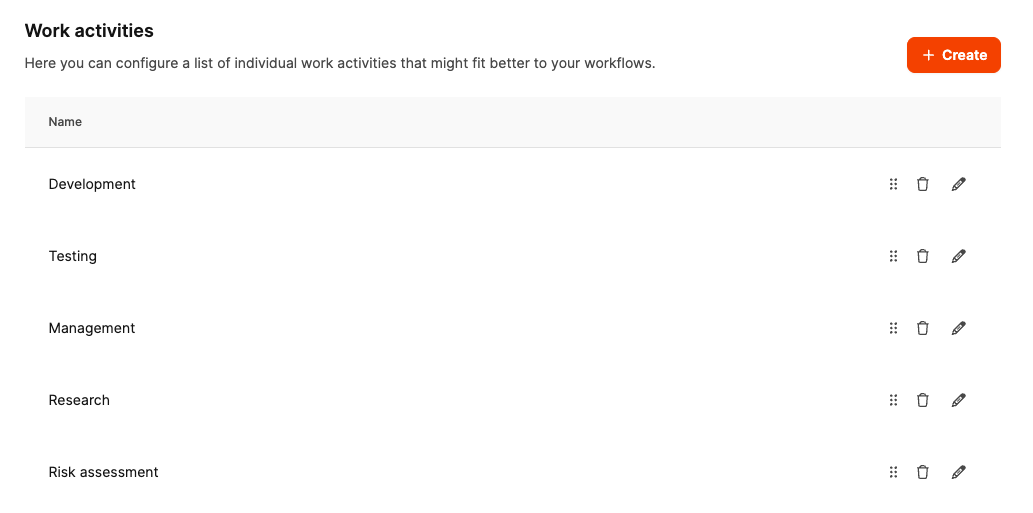
Work activities are used for time entries. They show which type of work was performed on a ticket.
Examples:
- Development (for developers)
- Management (for project leads)
- Design or Testing (for specialist teams)
You can add activities that represent company-specific work and make time tracking more precise.
Learn more about custom work activities
Custom fields
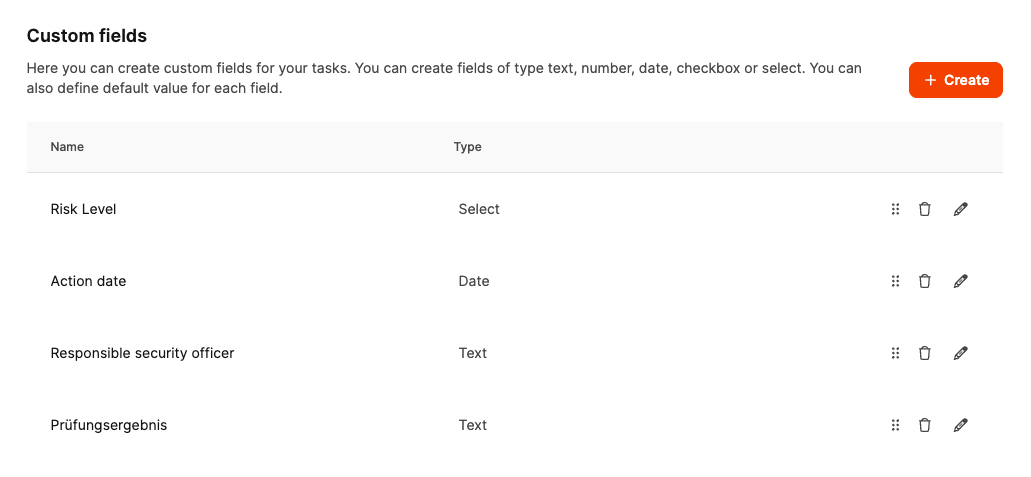
You can add special fields to tickets of particular task types beyond the standard fields. These custom fields support the structured capture and analysis of information relevant to specific processes or departments.
Examples of such fields include:
- Priority by customer group or contract type
- Reference numbers from external systems
- Technical parameters or version details
- Checkboxes for internal approvals
- Dropdowns for classifications, responsibilities, or error categories
Each field can have an individual name and configuration, such as a text field, selection field, or number input.
Custom fields make it possible to capture and analyze tickets systematically instead of storing information only as free text in the description. As a result, data is more consistent, reports are more meaningful, and processes are easier to automate.
Learn more about custom fields
Task templates
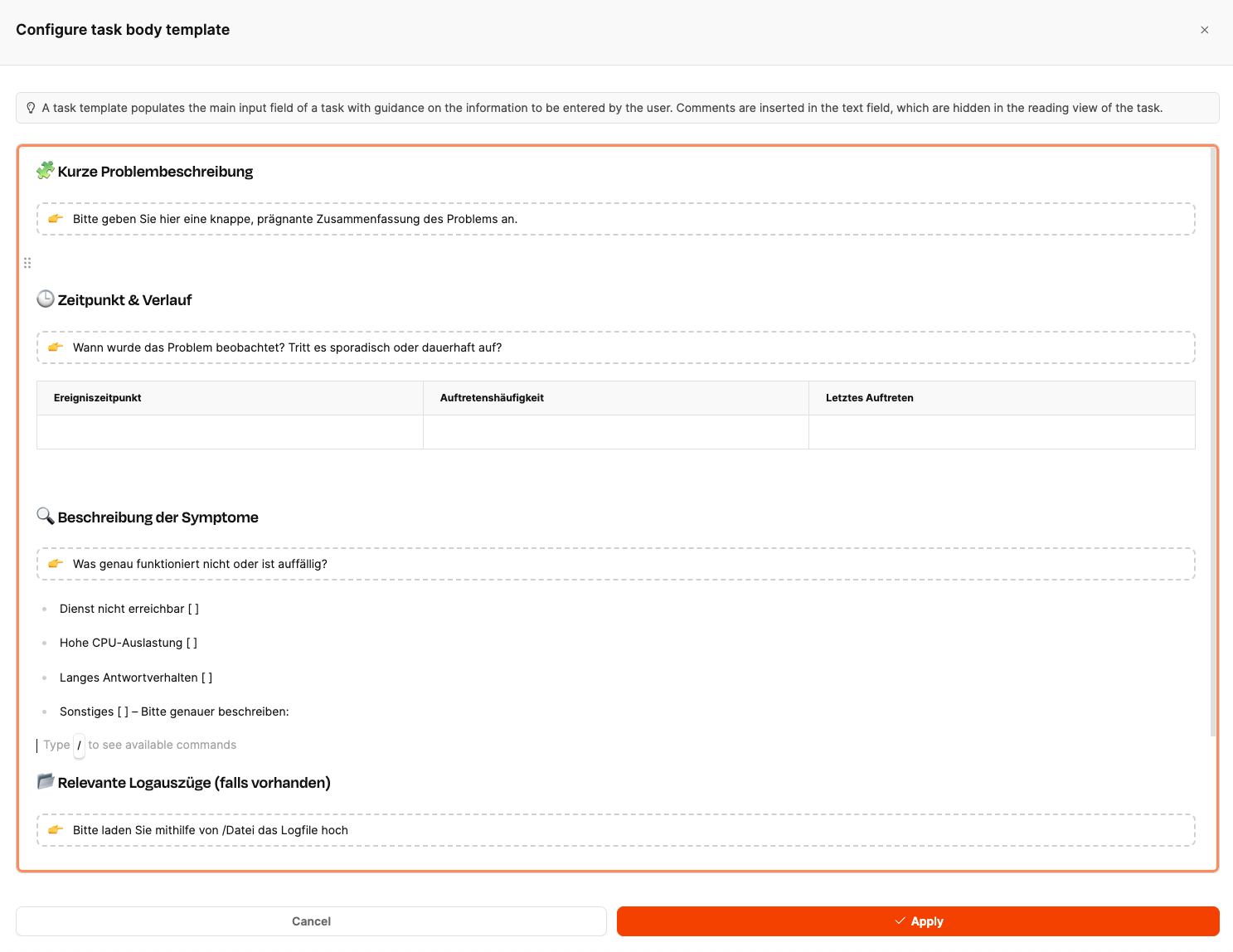
Templates let you create recurring tasks quickly and consistently. They contain all important fields, descriptions, and selection options.
This saves time, promotes complete entries, and makes tasks easier for external users.
Learn more about task templates
AI support for ticket creation
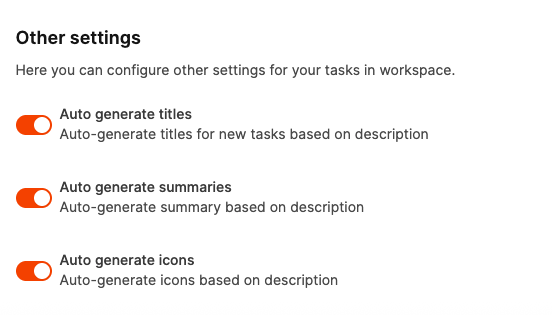
Additional settings at the bottom of the page let you enable or disable AI support for ticket creation.
When enabled, Leadtime automatically generates:
- a task title based on the description,
- a short description (summary) based on the entered text,
- a matching icon that visually represents the task’s content.
These automations save time and keep tickets consistent, clear, and well structured.
Learn more about the AI Text Assistant