
Creating a Project (Workshop Part 3)
A new customer project is created, structured and prepared with responsibilities, options and access rights for later configuration.
In this area you create a new customer project in Leadtime, define basic properties and prepare further configuration. The project then serves as a container for requirements, quotation preparation, task distribution, planning and billing. You can find this view in Leadtime at Projects → Create Project. The data collected here determines how the project is structured, administered and controlled internally.
Create project
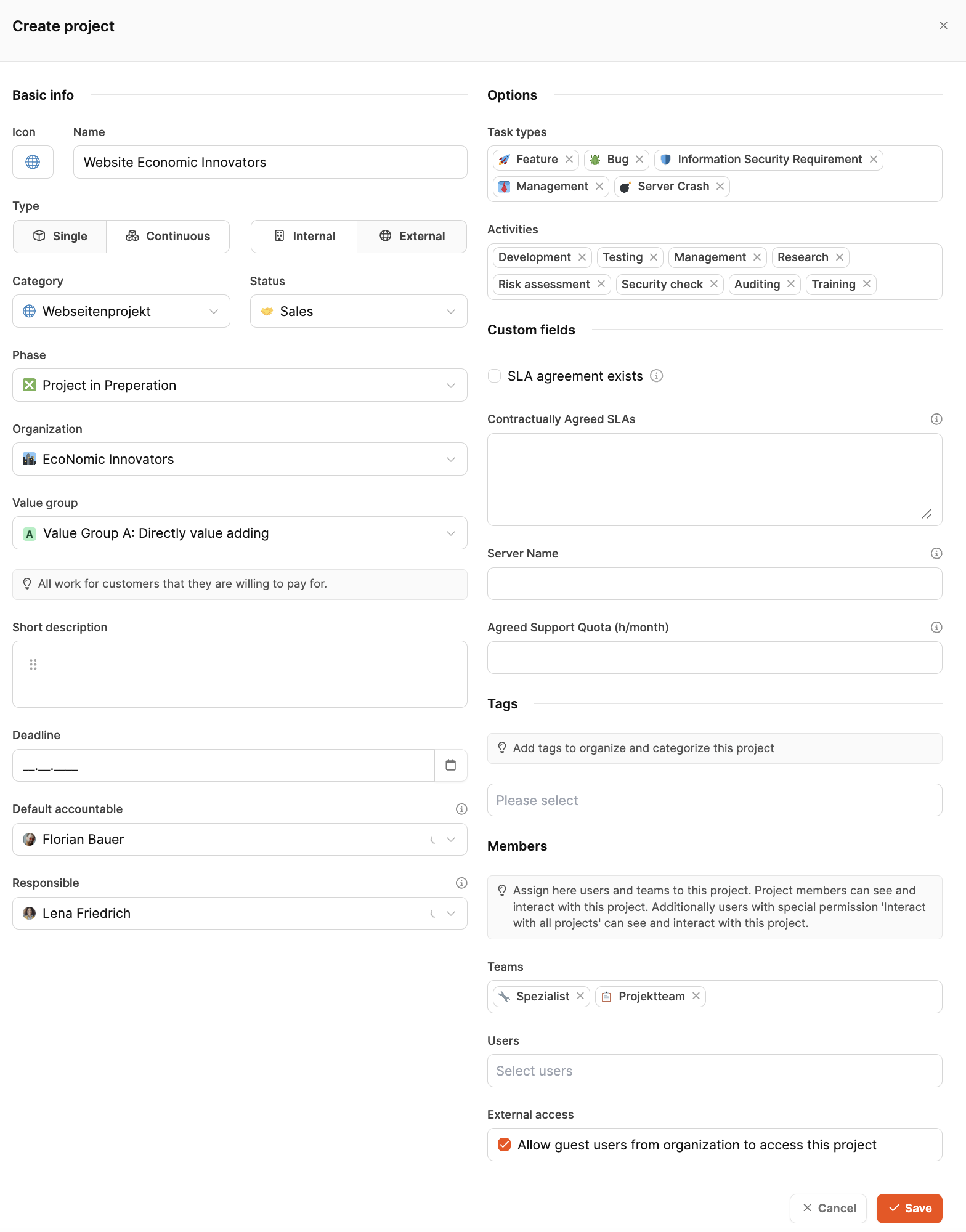
About the button “Create project” A dialog opens for entering all relevant master data. This information determines the project type, organizational assignment and later filter and reporting options. The project will be as Individual project created because there is a one-off customer order.
Basic information
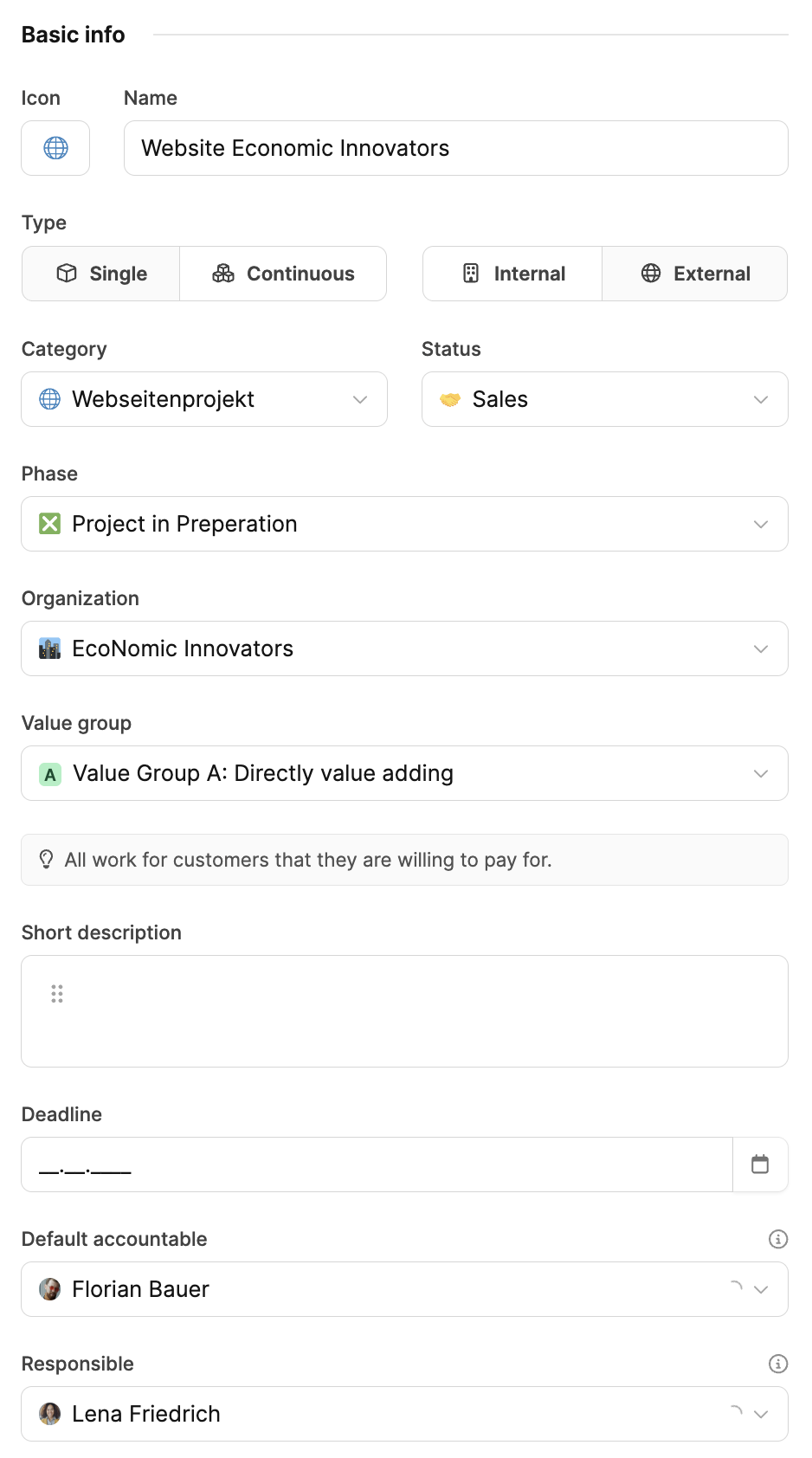
Basic attributes are set in the left input column:
- Icon: ensures easier visual recognition in the project portfolio.
- Project name: here “Website EcoNomic Innovators”.
- Type: “Individual project” for one-off, clearly defined projects.
- Affiliation: “External” because it is a customer order.
- Category: e.g. “Website project” (can be defined in the workspace settings).
- Status: “Sales”, as long as the offer and start have not yet been confirmed.
- Organization: “EcoNomic Innovators”, previously created in the CRM area.
- Value group: helps with the later evaluation of the added value.
- Short description: Define the goal and context in one or two sentences.
- Deadline: planned end date, here February 28, 2025.
- Standard person responsible: The person who is responsible for solving a task in this project by default. It is not necessarily the person to whom the ticket is currently assigned.
- Sales Manager / Responsible: The sales representative responsible for the project
These attributes influence filters, automations, reports and the presentation in the “big picture”.
Options
You can define additional framework conditions using project-related options:
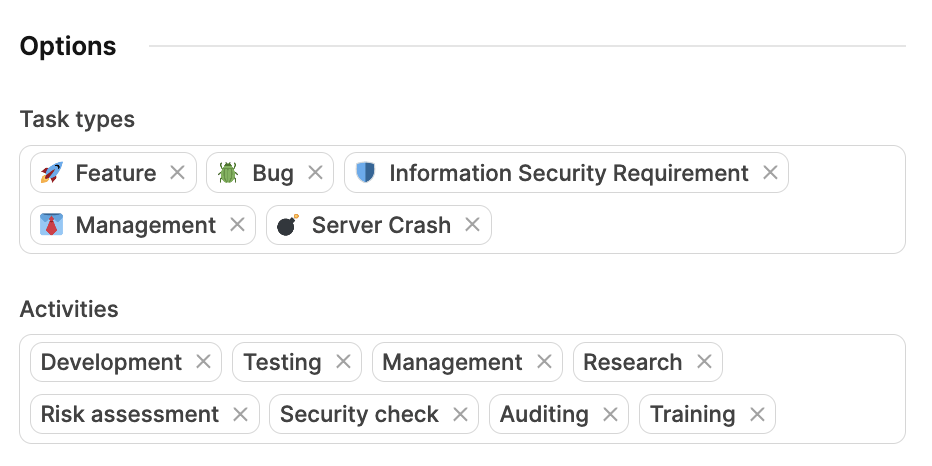
- Task types: e.g. Feature, Bug, Task.
- Activities: e.g. Development, testing, management.
These specifications control the subsequent expense booking and enable structured evaluations.
Project teams and users
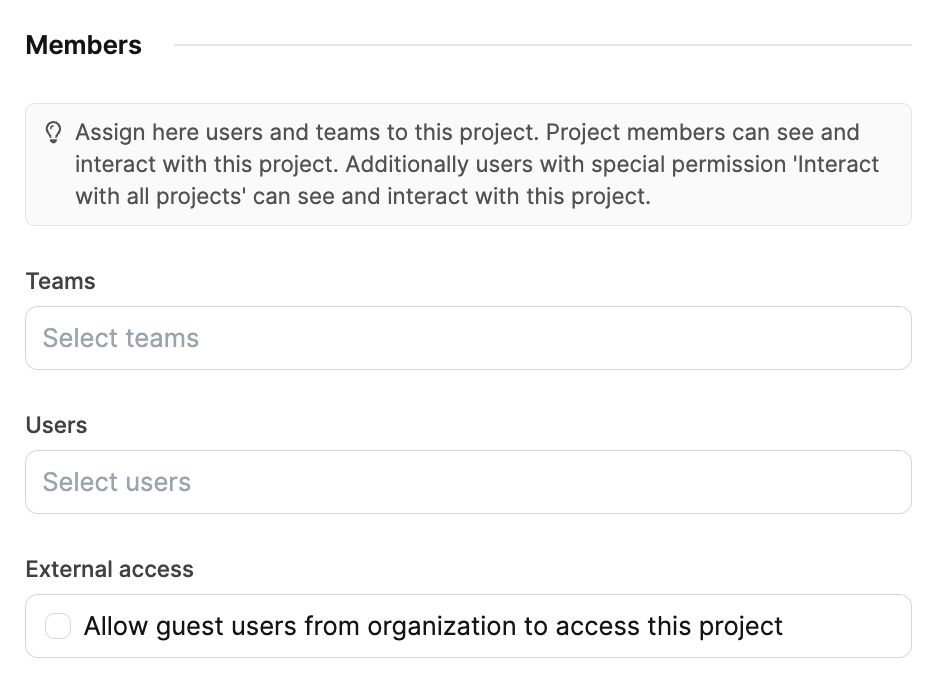
The internal project organization is determined:
- Teams: e.g. Project team, specialists.
- User: internal people with access rights.
- External access: optional for guest users of the customer.
Guest users can see goals, tasks and progress without exposing internal data.
Save and share
With “Save” The project is created and then appears in the project overview. From this point on, components can be imported, requirements collected and tasks generated.