Task Templates
Task templates structure descriptions and make ticket creation consistent, complete, and save you time.
Under Administration → Workspace settings → Task settings → Task Types, you can define a task template for each type.
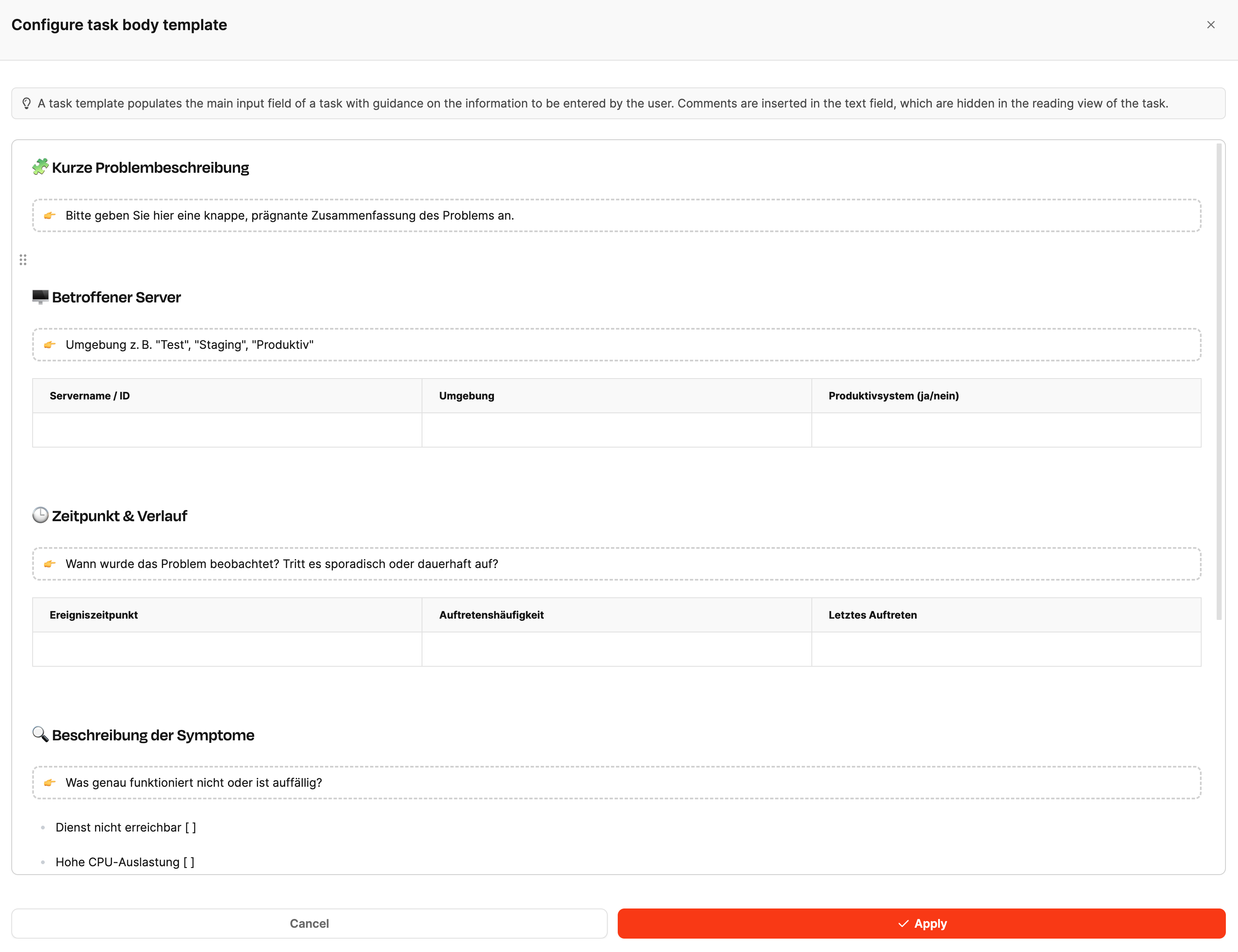
Task templates provide a structured framework for a task’s description field.
They help users record all relevant information completely, consistently, and clearly, especially for recurring ticket types.
How task templates work
A task template defines how the description text of a task is structured.
It can contain formatting, such as headings, tables, and checklists, as well as Editor Placeholders. These placeholder texts guide users as they fill in the template but disappear after saving.
The result is a standardized structure that captures all important information without cluttering the final ticket content.
Benefits of task templates
- Consistency: All tasks of the same type follow the same description structure.
- Time savings: Users no longer need to create the structure manually.
- Completeness: Placeholders and table fields prompt users to provide important details.
Create a task template
-
Open the desired task type under Administration → Workspace settings → Task settings.
-
Scroll down to the Task Body Template section.
-
Create the desired structure in the editor, for example, with headings, tables, or checklists.
-
Use the “/” command to open the context menu and insert an Editor Placeholder.
These instructions appear only during entry, not in the finished ticket.
-
Click Apply to save the template.
Editor Placeholder

An Editor Placeholder is a text element that assists users as they complete a task template.
It acts as an invisible guide in the input field:
- It appears only while the task is being edited and disappears automatically when the ticket is saved.
- It contains instructions, questions, or examples explaining which information belongs in a particular place.
- It is not permanent content; it is used solely for user guidance during data entry.
Example:
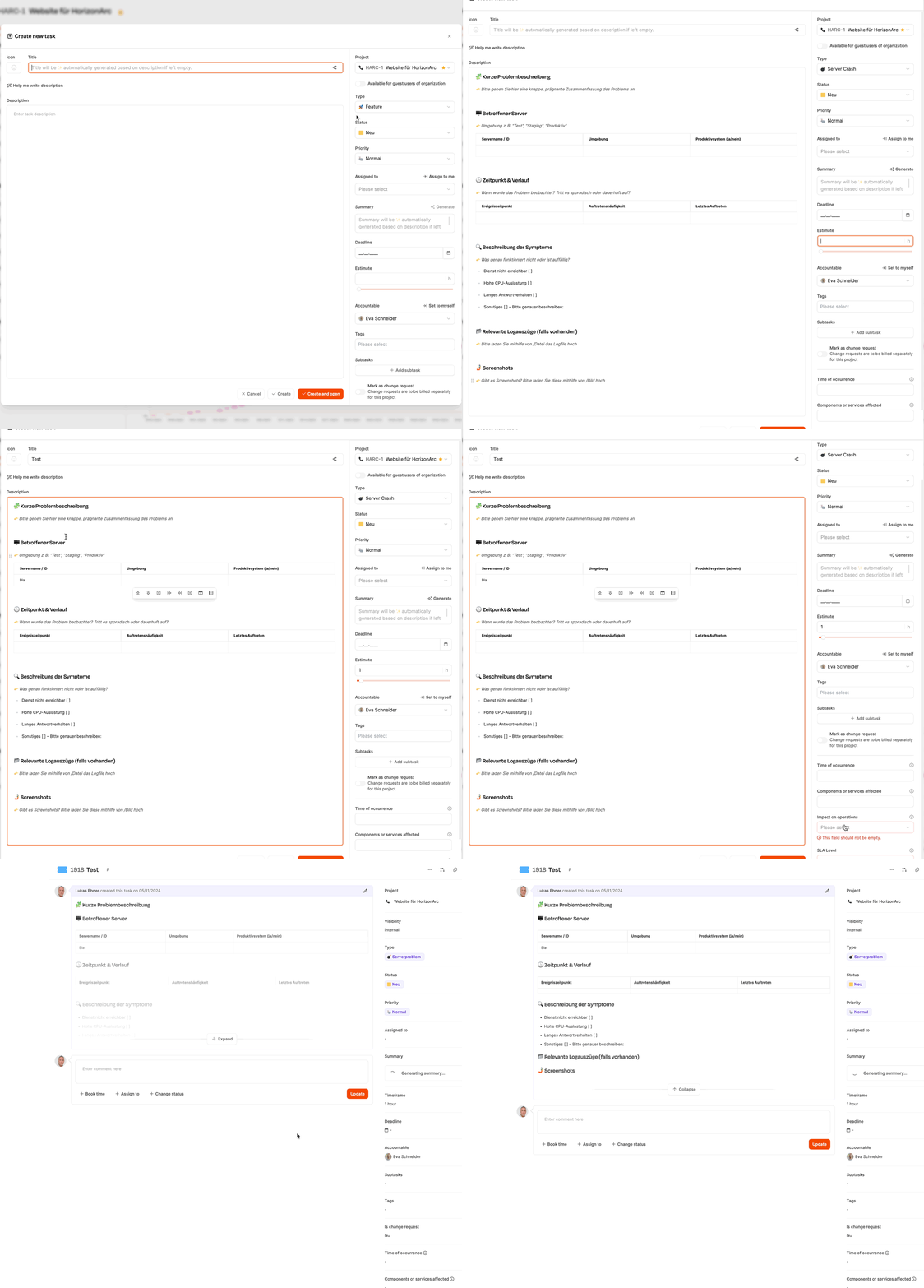
In a template for a server crash, an Editor Placeholder could look like this:
point_right Please describe here when the server went down and which systems were affected.
The user sees this instruction in the ticket editor. After saving, it is no longer displayed, leaving the final ticket text clear and uncluttered.
Create a ticket from a ticket template