
Project documentation
Keep project knowledge in pages and folders, export it as PDF, or ask Leadtime Agent to help maintain it.
Project documentation is the knowledge base for a project: decisions, runbooks, access notes, handoffs, and answers you would otherwise repeat. Open it from Projects → [Select project] → Documentation.
Everyone who can open the project can read it. Manage project documentation is required to create, edit, move, tag, restore, or delete it.
Organization members also need guest publication. The organization default and the project override decide whether they see no pages, all pages, or selected pages. Internal users always see the complete tree. See Guest access.
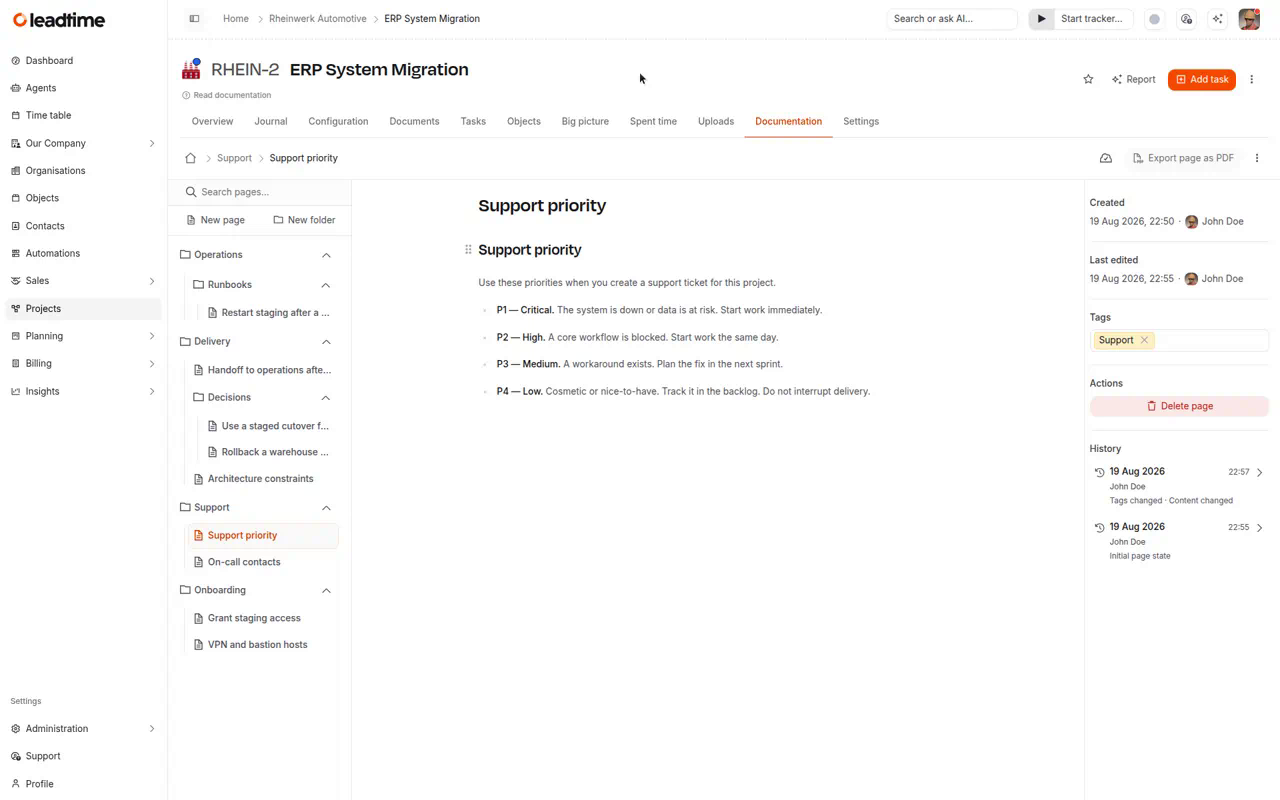
This is not the Documents tab. Documents create quotes, specifications, and contracts from templates.
Create pages and folders
New page and New folder sit under search in the tree. The new item opens in the center with the title selected. Hover a folder and use plus to add a page inside it, or use the folder menu to add a nested folder. Pages cannot contain other items.
Drag to reorder, or drop an item onto a folder. Search finds pages by title and content in this project.
Write in the same editor as tasks: type / for blocks, @ to mention someone, and ! to link a ticket. See The Text Editor for every block type. Leadtime saves as you type. A cloud icon in the header shows when a page is saved. If a save fails, select the icon to Retry or Discard.
Several people can edit the same page at once. Readers see the live page but cannot change it.
Delete from Actions in the details panel (Delete page or Delete folder), not from the tree. Confirm the folder and page counts. You cannot restore a deleted item from the tree.
Pages without a title show Untitled. Folders without a title show Untitled folder.
Guest publication
Internal users see a compact Guests: label in the documentation header. It shows whether guest access is off, hidden, all pages, or how many selected pages are visible. The label links to project Guest access settings when you can edit the project.
In Selected pages, guest-access marks sit on the folder or page icon. Hidden pages have no mark. A mixed folder uses a hollow mark. Guests never see these marks.
The page details panel has Visible to guests with Yes and No. Folder details show how many pages are visible and the actions Make all pages visible and Make all pages hidden. Confirm the affected item count before a bulk update.
A guest who opens a hidden page sees This page is not available. Hidden pages stay out of the tree, search, and PDF exports.
Tags and history
The right panel shows who created the item, who last edited it, and when.
Tags are labels on a page, such as Runbook or Decision. They are not the same as task tags. Use the tag field to add, create, recolor, or remove them. Search and Leadtime Agent use tags to find pages.
History keeps earlier versions of the title, tags, and content. Select an entry to preview it, then Restore this checkpoint if you need that version back. Leadtime keeps the current page in history. Organization members do not see History, even on pages that are visible to guests.
Workspace-wide edits also appear under Administration → Documentation activity if you have View workspace audit history. Restore a page from History on the page itself.
Export as PDF
Anyone who can read the project can export documentation:
- Export page as PDF in the header when a page is open
- Export folder as PDF in the folder actions menu, including nested pages
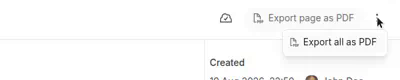
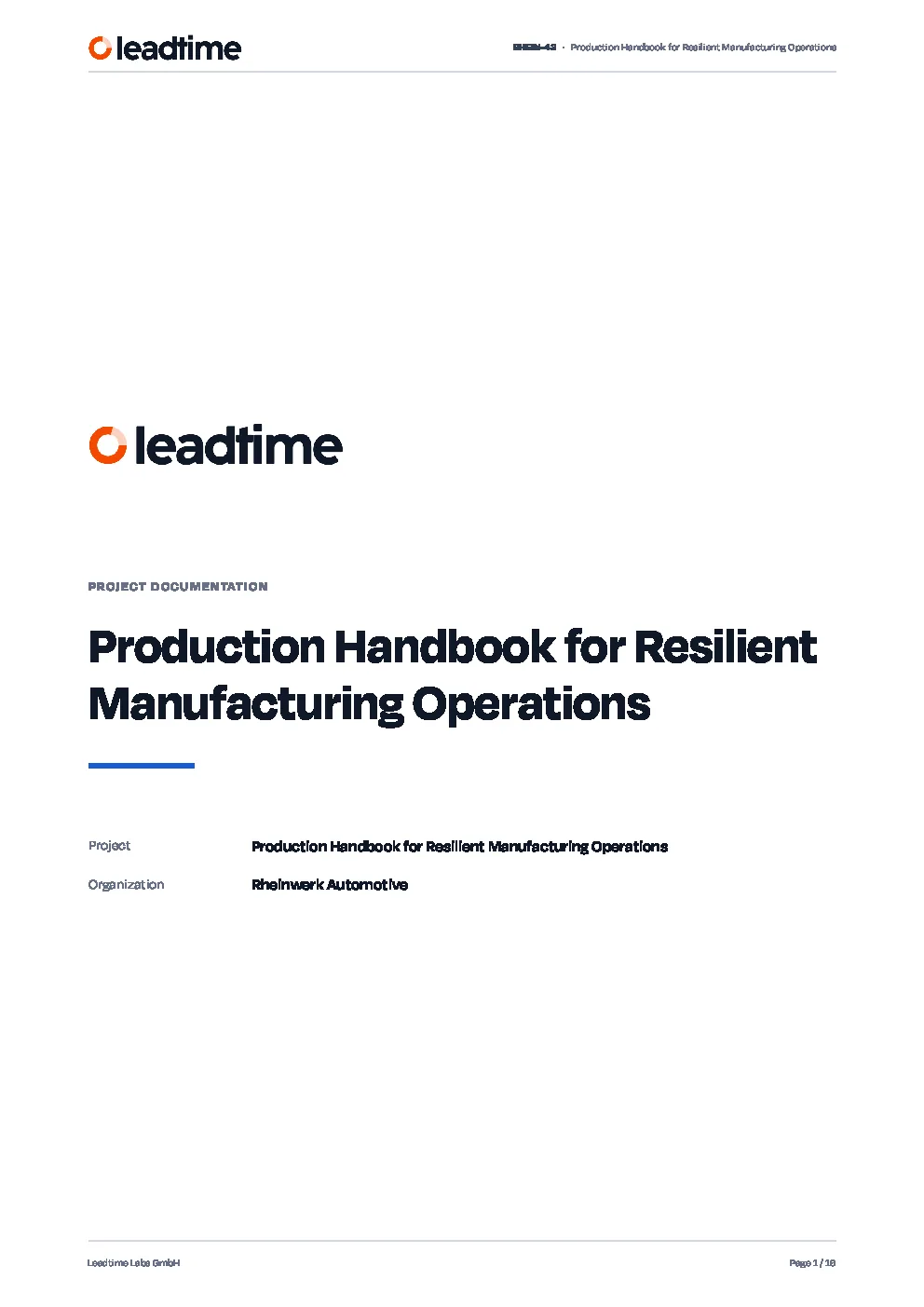
- Export all as PDF in the header for the complete tree
The action shows Preparing PDF… while Leadtime builds the file. Folder and full-tree exports follow Document settings for cover, contents, and heading numbering. A page export stays concise: no title page or table of contents.
Ask Leadtime Agent
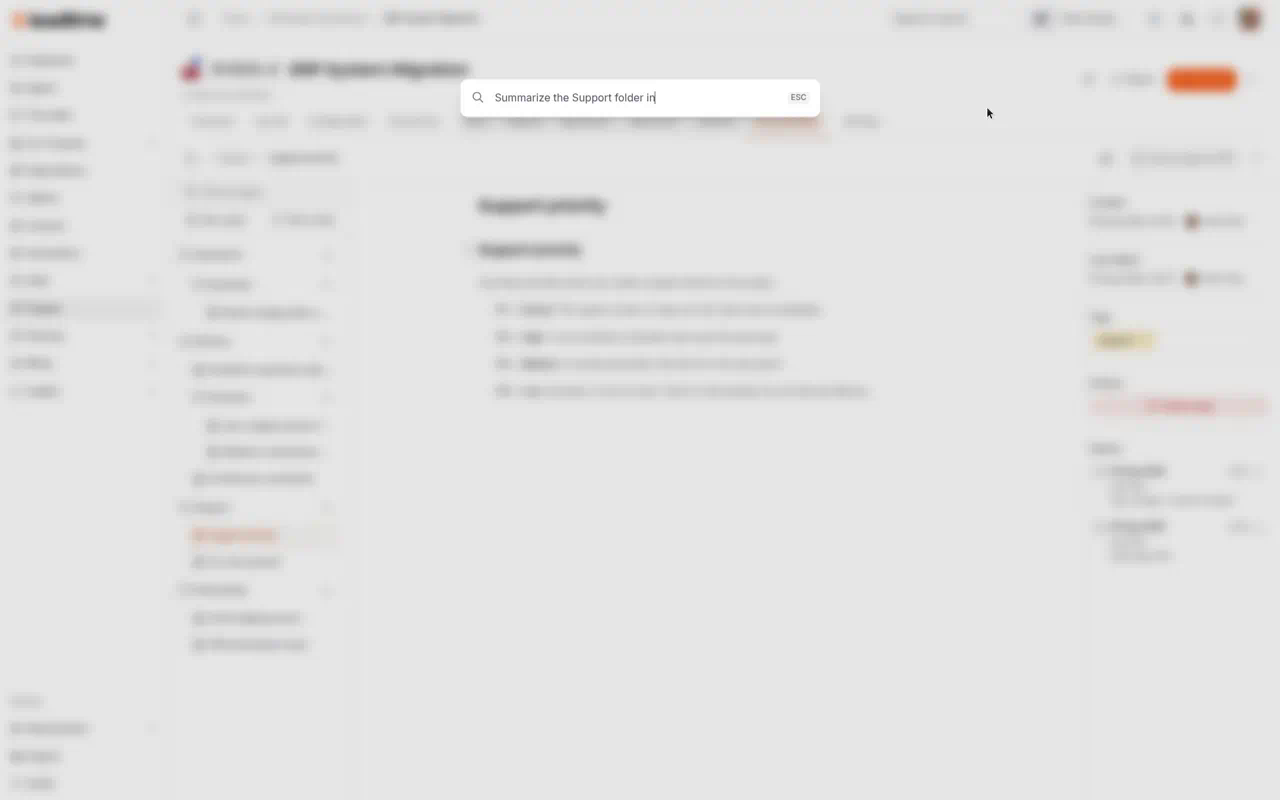
Open Agent and ask it to find, draft, update, tag, or reorganize documentation in this project. You still need Manage project documentation for the agent to change pages. Anyone who can open the project can ask it to read and summarize.
Give a project, a goal, and a place—for example, “Create a runbook under Operations for restarting staging,” or “Update the support priority page with these P1 examples.” Prefer updating an existing page when one already covers the topic.
Do not store passwords, tokens, or unnecessary personal data in documentation.