
Booking Time on Projects and Tasks
Retroactive booking of working time on projects and tasks
Time tracking serves to assign working times precisely to projects or specific tasks. This makes it possible to understand how much time was invested in which activities - whether in general activities or specific tasks within a project.
How it works
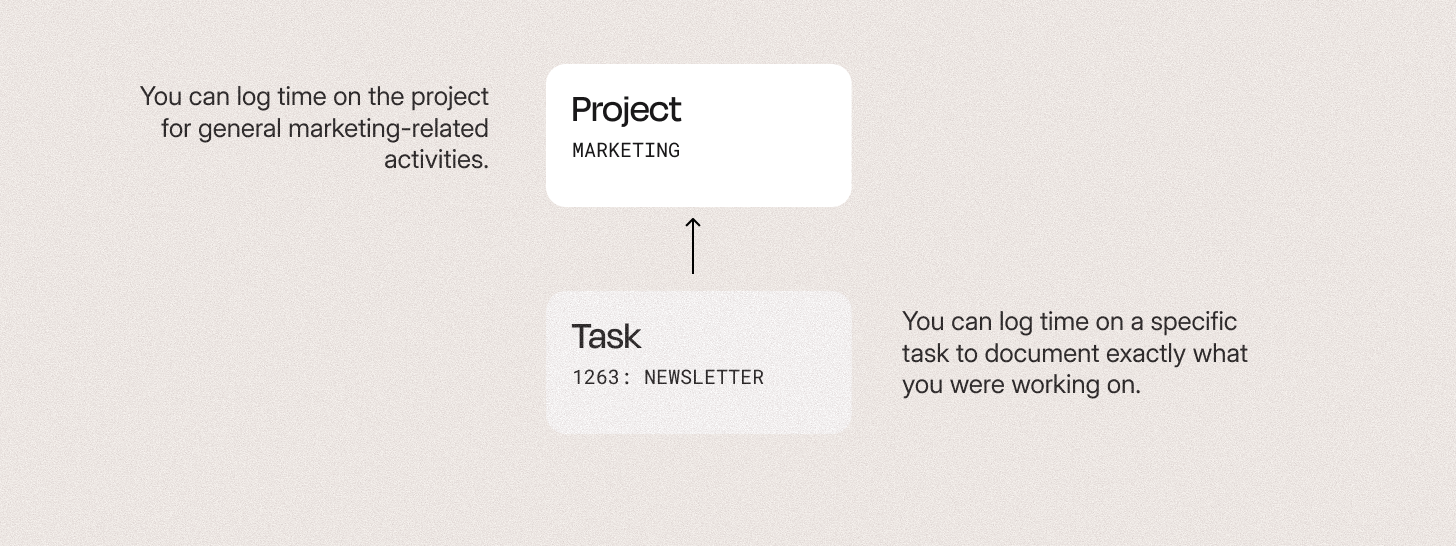
In Leadtime, users can track their time on two levels:
- Project related – for general activities not limited to a single task
- Task related – for concrete, clearly defined work steps within a project. Time bookings at task level are always allocated to the associated project, which means both levels remain visible in the time evaluation.
This distinction enables both a rough overview of the use of resources and a detailed analysis of the work performed.
→ See Projects
→ About that Ticket system
Retroactive time recording
The booking methods described here apply retroactively (retroactive). This means:
The respective task or activity has already been completed and the working time is entered afterwards - for example, to subsequently document the work done or to complete reports.
This method is useful when tasks have already been completed or when capturing in real time was not possible. However, it can naturally lead to inaccuracies, as remembering the actual duration is often imprecise.
For more precise time recording, we recommend Real-time capture with the integrated Time tracker.
The time tracker is the time tracking widget built into the Leadtime header, and it allows you to clock working time while a task is being carried out.
It therefore provides the most accurate and reliable data.
This topic is covered in detail in a separate article, “The Time Tracker”.
To Time tracker
Book time on projects
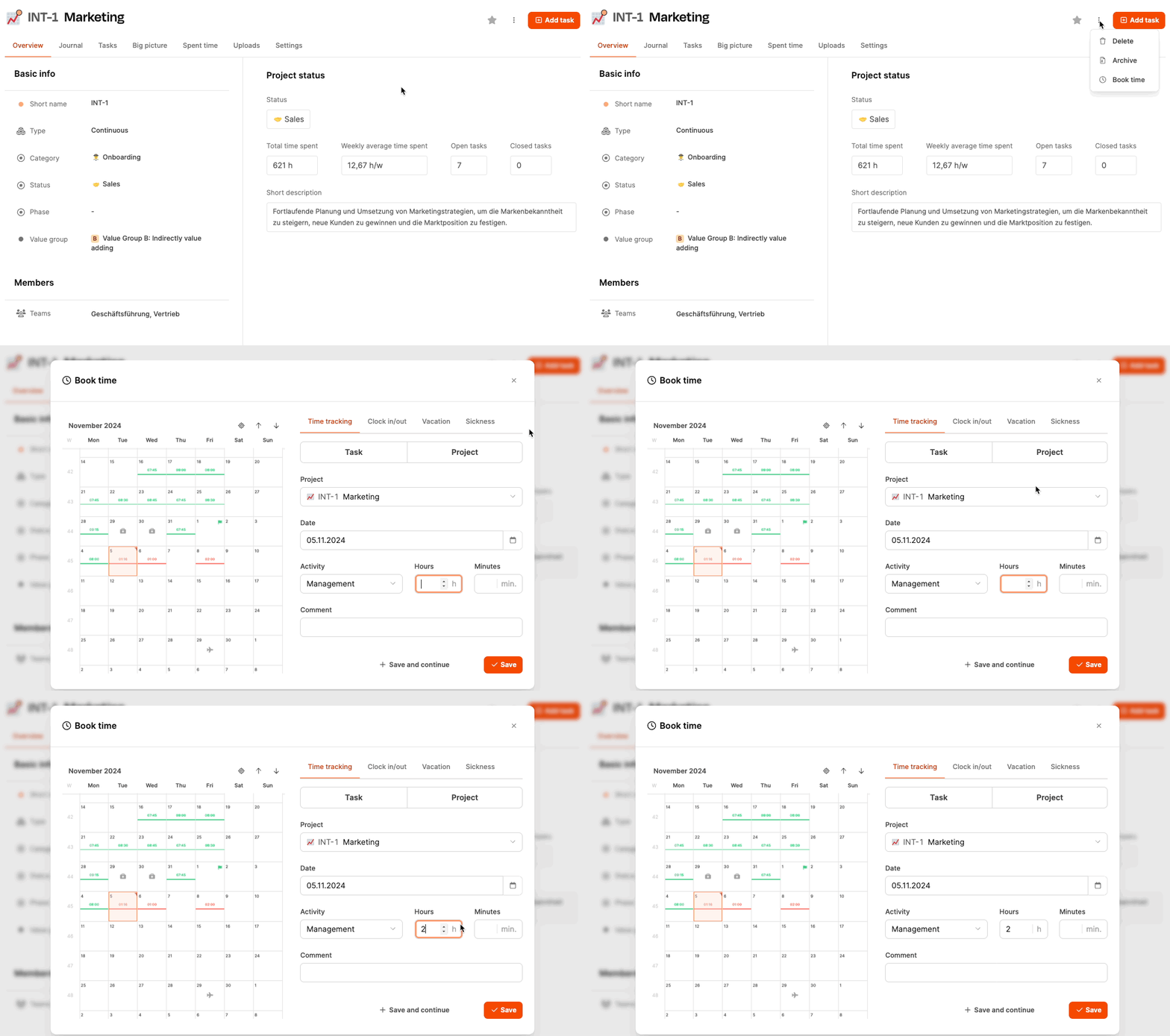
Tracking time at the project level is suitable for activities that are not associated with a specific ticket or task. For example, all marketing activities can be posted collectively to the “Marketing” project without having to create a task for each individual measure.
Example:
An employee creates general social media posts. This work is part of the “Marketing” project, but is not assigned to a specific task.
→ The time is booked directly to the project.
Procedure:

- Navigate to the desired project.
- Open the tab “Time Spent” or click on the icon with the three dots on the right next to the “Add task” button in the header.
- Click on “Book time”.
- In the dialog, select the “Time recording” tab.
- Enter duration, activity and optionally a comment.
- Save the booking.
The project is already preset, so all you have to do is add the details.
Book time on tasks
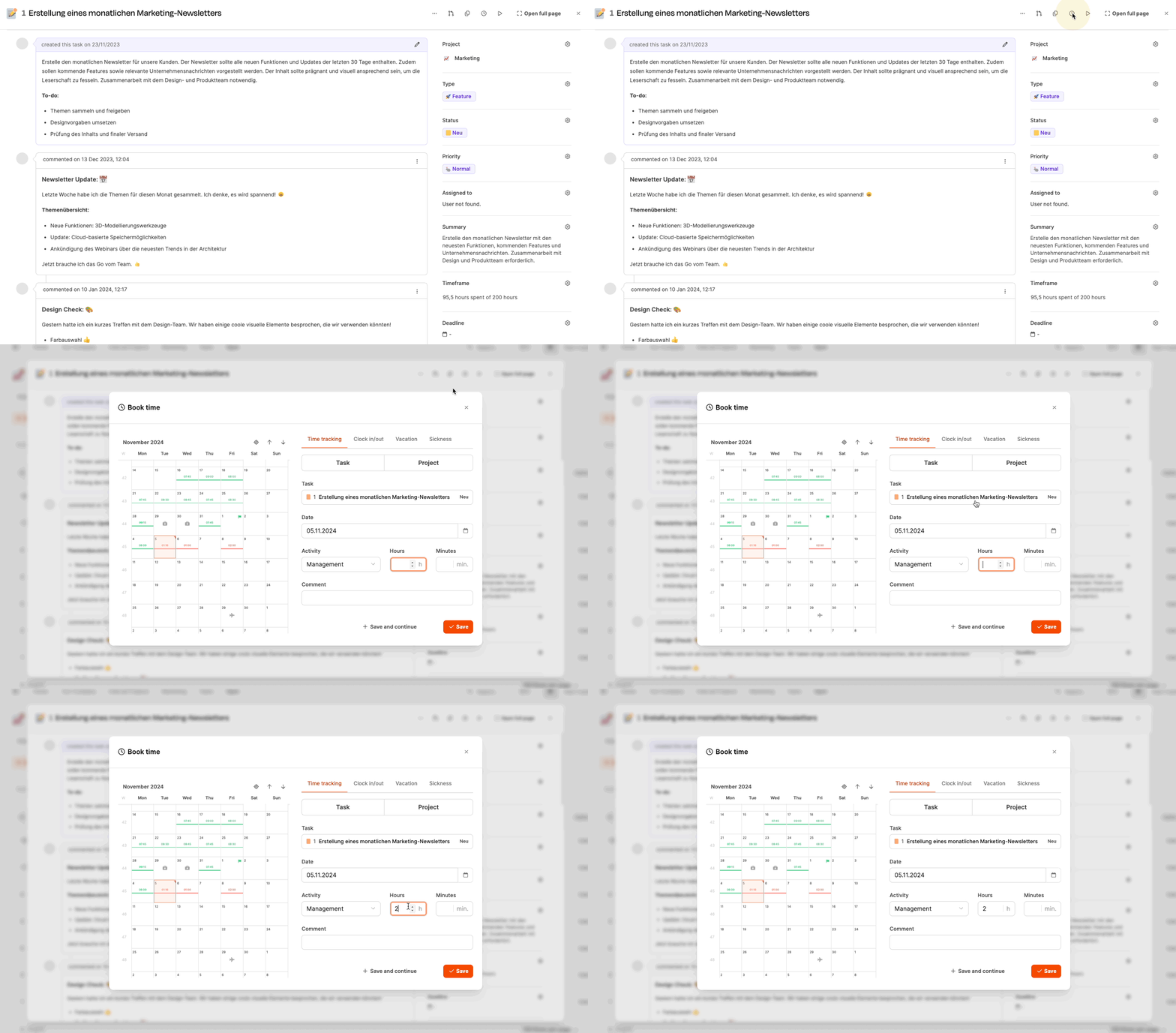
Posting at the task level allows for more granular tracking and is particularly useful for tasks that are split or processed multiple times.
Example:
The “Create newsletter” task exists within the “Marketing” project.
→ The time is booked directly to this task in order to precisely document the activity.
Procedure:
- Open the desired task in the project.
- Click on the clock icon.
- In the “Book time” dialog, select the “Time recording” tab.
- Enter start and end time or duration.
- Select the activity and add a comment if necessary.
- Save the booking.
This means that the booked time is automatically assigned to the higher-level project, but at the same time remains assigned to the specific task.