
Checking Time Tracked on a Ticket
The ticket time statistics in Leadtime shows all booked hours in relation to planning, including filter and correction options.
In Leadtime, times can be booked directly on individual tickets in order to precisely understand the actual effort in relation to the planning. This transparency enables precise project control: Managers recognize deviations early on, and teams can reflect on their work steps based on data.
How it works
In many projects, several people work on the same ticket one after the other - for example for development, testing or management. Each person books their working time on the ticket, so that the total effort is automatically added up. Leadtime compares this booked time with the originally planned time, so that it is immediately visible if a ticket is running over.
View time frame in ticket
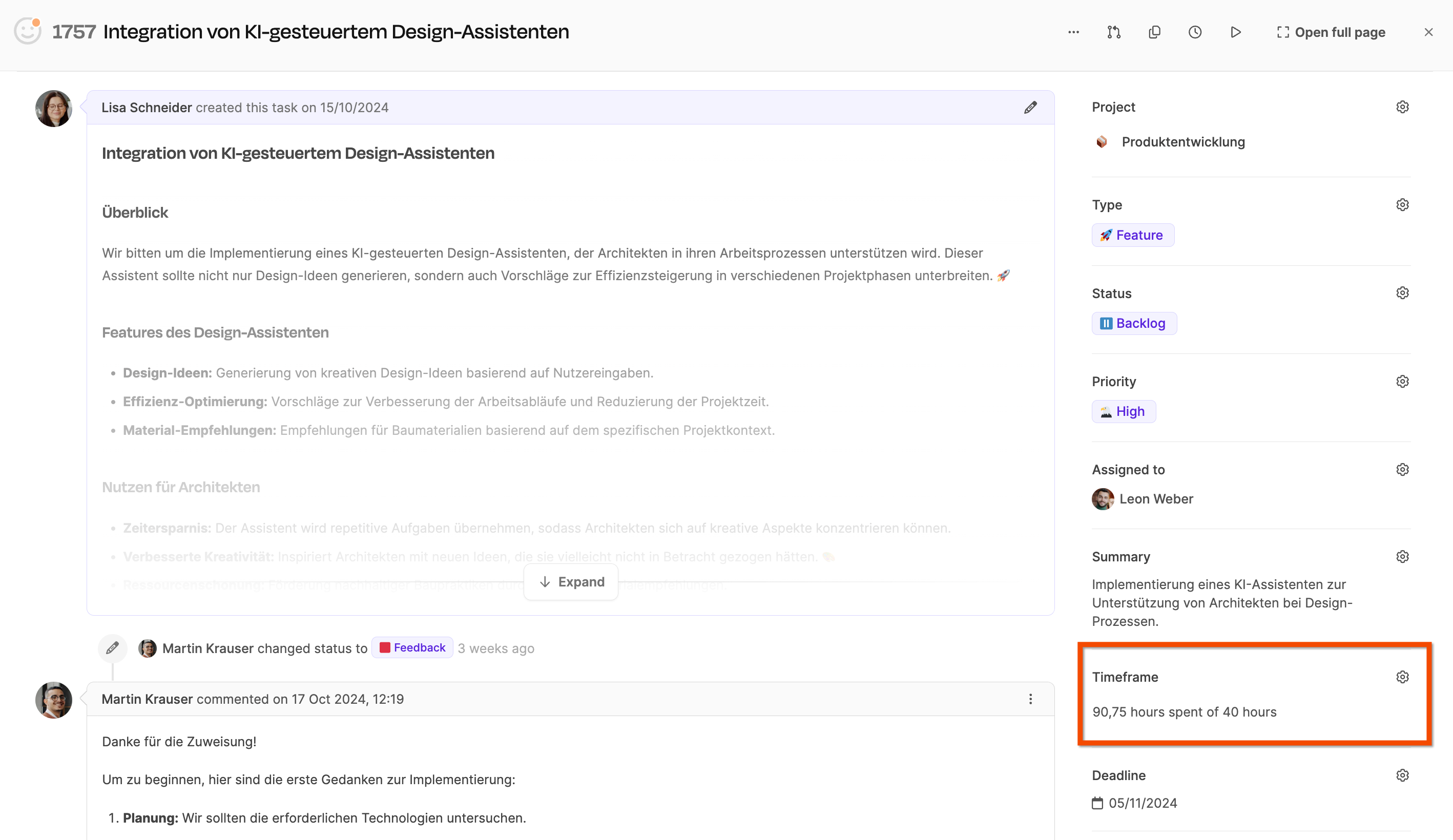
In the right-hand column of a ticket, you’ll find the Time frame area.
It shows how many hours have already been booked - e.g. 90.75 hours out of 40 planned – and how much the actual effort deviates from the plan.
When you hover over the display, a tooltip shows the exact total of all bookings.
Open detailed time statistics
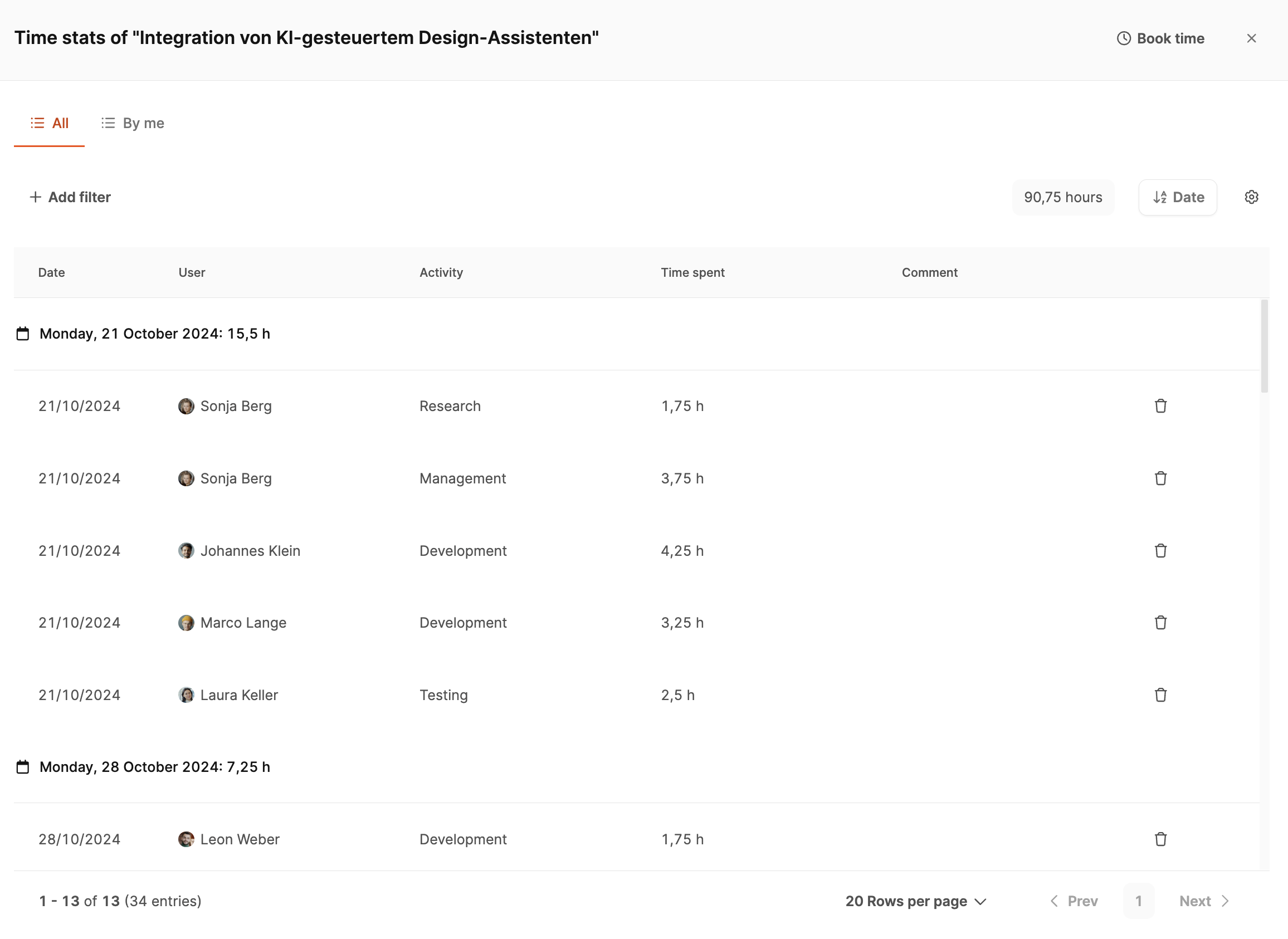
Clicking on the time frame opens the ticket’s Time statistics.
Here you can see all of the team members’ individual bookings – including date, activity, time spent and comments.
The view lists chronologically who has booked how much time for which activity, when. This allows you to see exactly how the total time is made up.
Filters and evaluations
In order to specifically examine the data, several filter options are available:
- Date: sorted by days or weeks
- User: only shows bookings of specific team members
- Activity: differentiated according to activities such as Development, Testing or management
- Comment: displays accompanying notes
This analysis helps to identify time distributions – for example, if testing has caused a disproportionate amount of effort.
Edit time bookings
Each line can be adjusted via the Edit icon or removed via the Delete icon.
In addition, new entries can be added via “Book time” – for example, subsequent bookings that specify:
- Date
- Activity
- Duration
- Comment
These functions ensure data quality and enable complete documentation.