
Members
The members section in Leadtime is used to manage external contacts, including access rights, contact details, and personality traits. You can also quickly generate a letter for a contact from the system.
The Members section in Leadtime is for recording and managing an organization’s contacts. Here you can document names, roles, contact info, and personal traits. You can also control who gets access to Leadtime – for example, as external guest users.
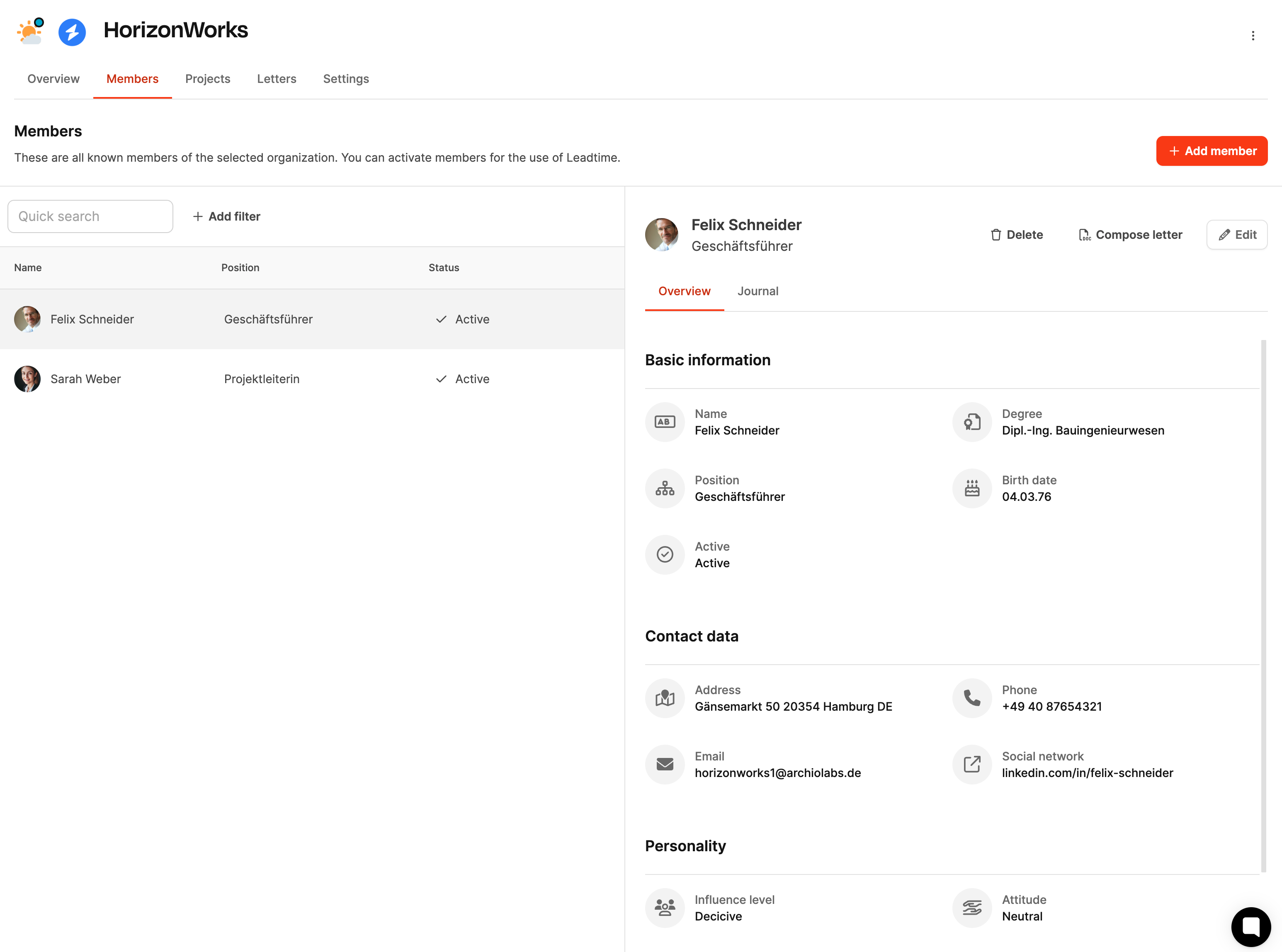
Access the members area
- On the left sidebar, open the Organizations section.
- Select the organization you want from the list.
- Switch to the Members tab in the top menu of the detail view.
Here you’ll see a list of everyone assigned to the organization.
Note: You can add organization members by import: Data imports
Show members
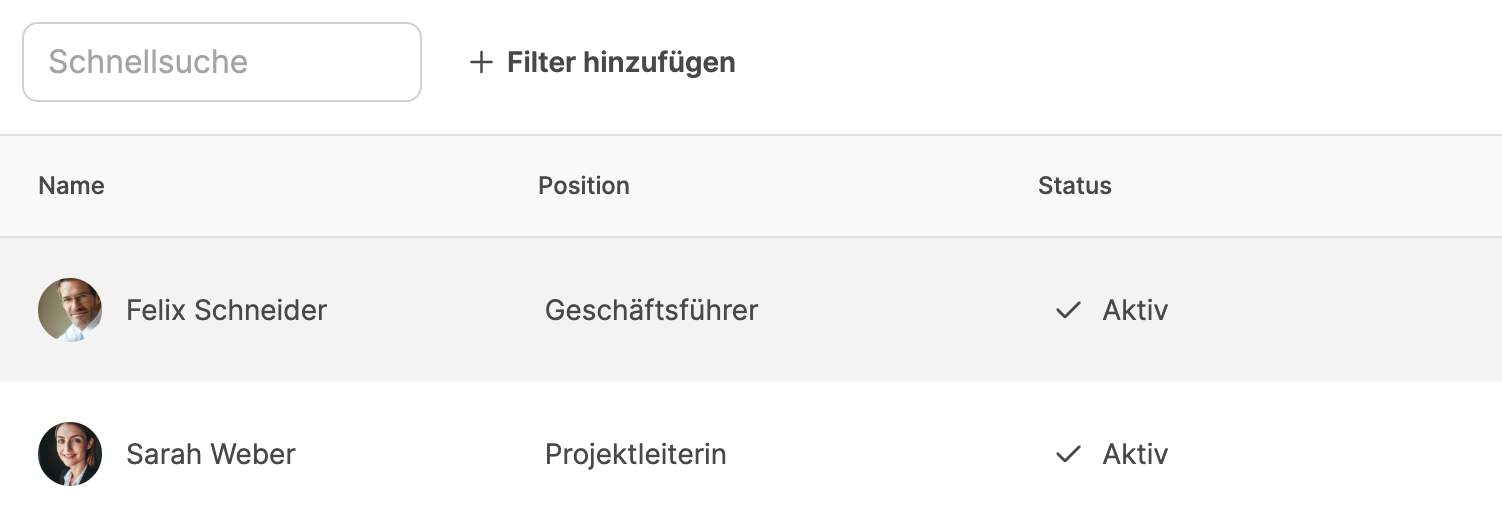
In the overview, you’ll see all current members with the most important details:
- Name – full first and last name, possibly with a profile picture
- Position – function or role within the organization (e.g. managing director, project manager)
- Status – shows whether the member is active and allowed to log in to Leadtime
With the Quick search you can search for people directly. With Add filter you can narrow down results by status, position, or user role.
Member details view
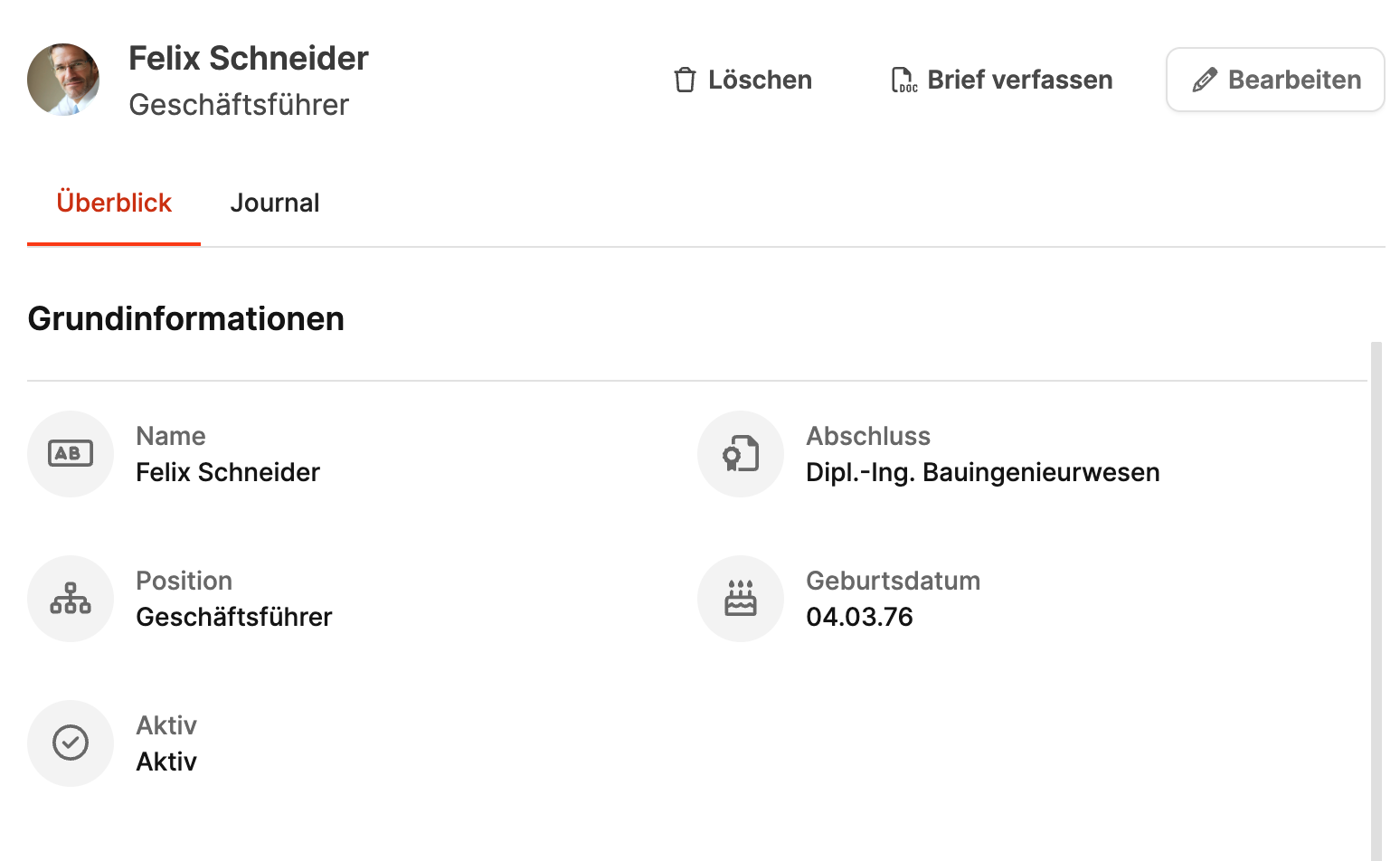
Clicking a member opens the details view. It’s split into two tabs: Overview and Journal.
Overview
This tab shows all relevant data about the member:
- Basic info: Name, position, academic degree, date of birth, active status
- Access to Leadtime: Whether the member is allowed to log in and what role they have (for example, Guest or External)
- Contact details: Address, email, phone number, and optional social media links
- Personality: Level of influence, attitude towards your company and personality profile (for example, initiative, steady, dominant)
Log in as a member
If the member can log in and you have the Log in as organization members permission, you can open their guest session. That is the fastest way to check roles, project visibility, and guest-only behavior.
- Open the member detail page.
- Open the overflow menu next to Edit.
- Choose Log in as member.
- Leadtime signs you in as that guest and opens the Dashboard. An alert confirms who you are logged in as.
- Test the guest view.
- When you are done, open the account menu in the top bar and switch back to your own user.
Actions you take in the guest session are real and recorded in the journal. Do not change live data unless you intend to.
You can also choose Copy login link from the same menu if you need the guest session in another browser. Your current session stays active.
Journal
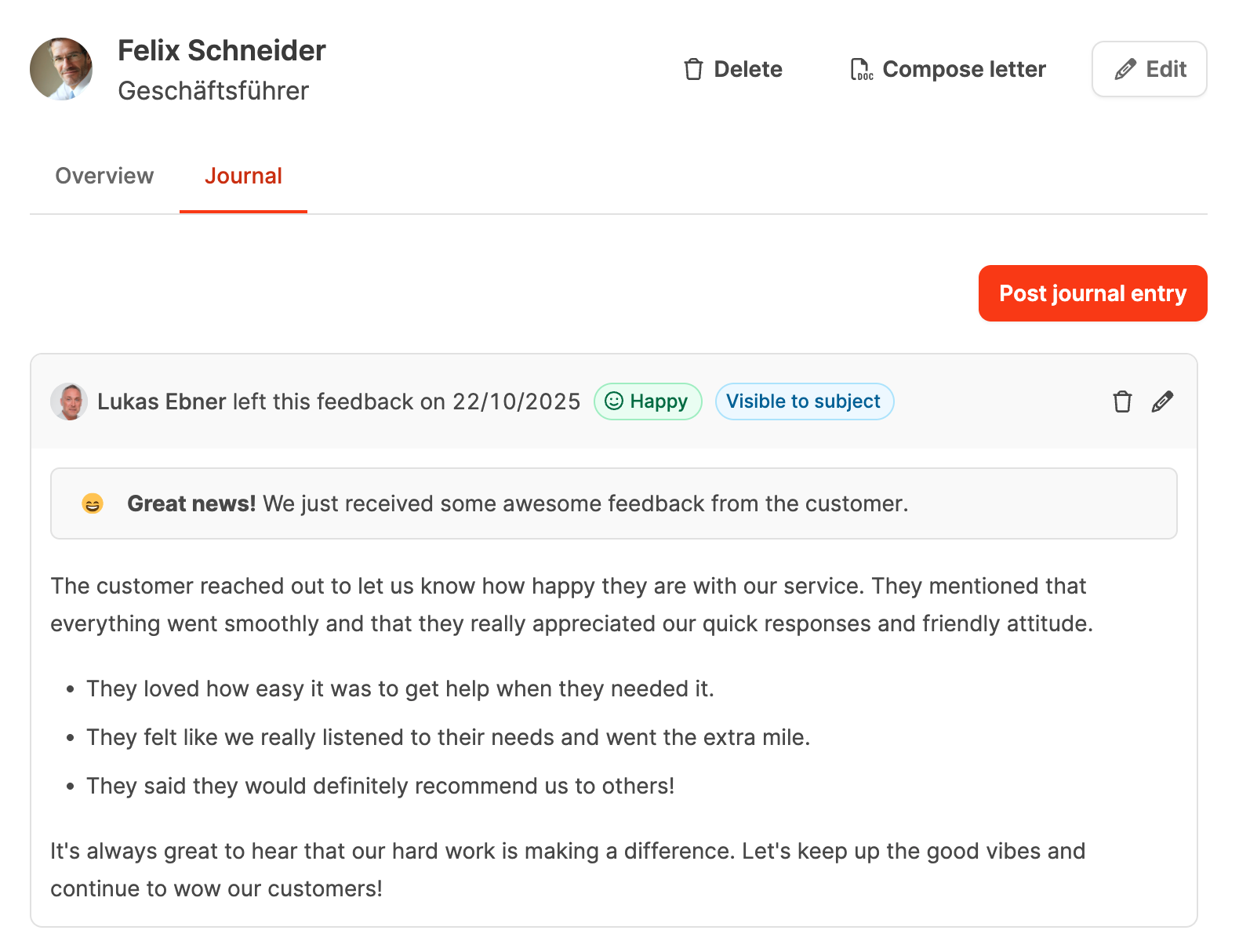
The journal is for documenting notes and observations about individual people.
You can do the following there:
- Add entries and reminders
- Record a member’s mood
- Save internal notes for future chats or follow-ups
Compose letter
With the Compose Letter button, you can create formal letters for the selected contact right from the member area.
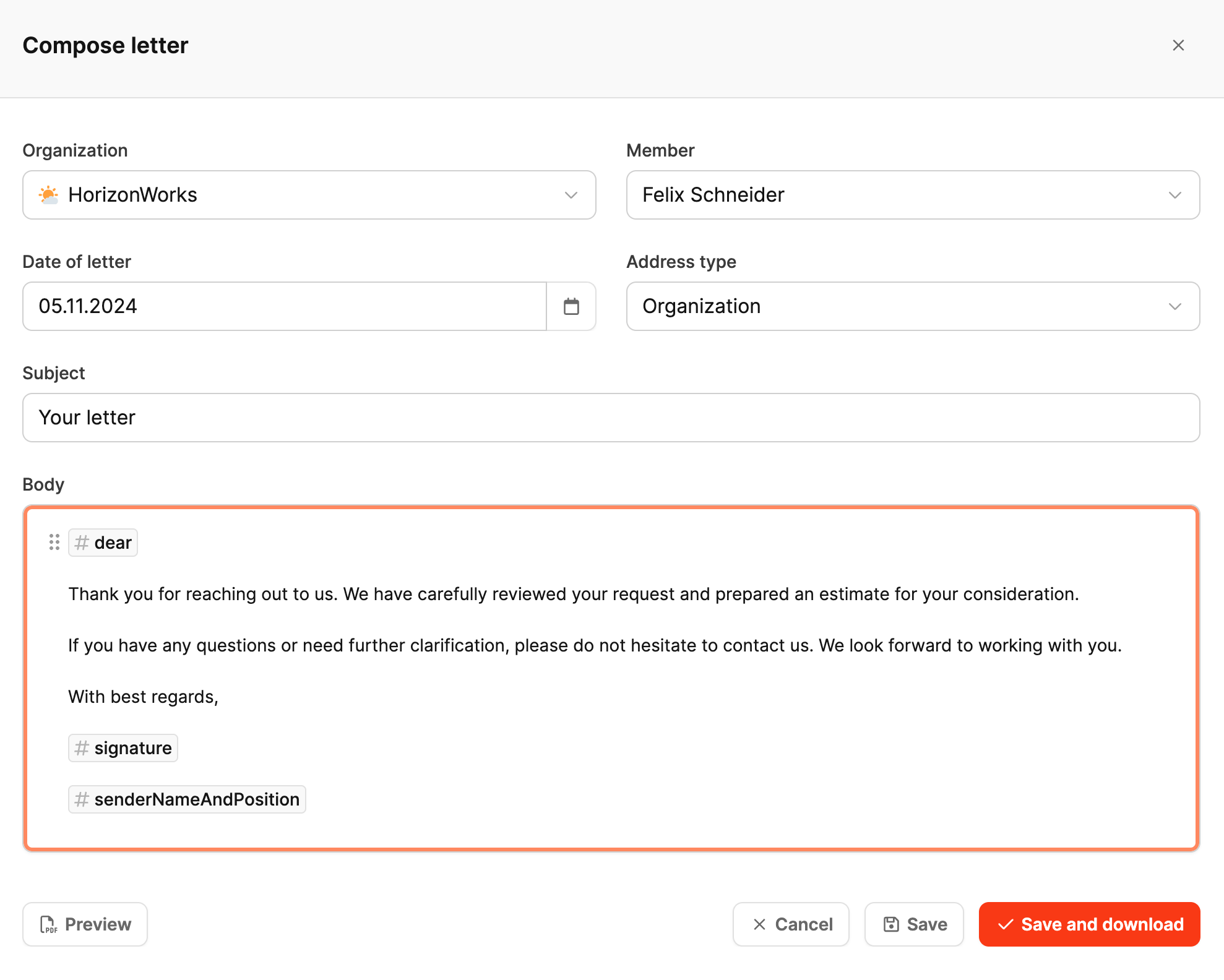
After clicking, a dialog with these fields will pop up:
- Organisation – automatically pre-selected
- Member – recipient of the letter
- Date – preset to the current date, can be changed
- Address type – organisation or personal address
- Subject – title of the letter
- Content – freely editable text area with macros
More about letters here: Organisations – Letters
Available macros:
Macros can be used to personalize letters and automatically fill in the relevant data. Here’s the full overview of all available macros in German and English version:
| German macro name | English macro name | Description |
|---|---|---|
| #KundenUnternehmensName | #clientCompanyName | Inserts the name of the client’s organization. |
| #Ansprechpartner | #contactPerson | Inserts the primary contact person of the organization the letter is addressed to. |
| #NameUndPositionDesAbsenders | #senderNameAndPosition | Inserts the sender’s name and position (for example, “Thomas Tester, Managing Director”). |
| #NameDesAbsenders | #senderName | Inserts only the sender’s name. |
| #PositionDesAbsenders | #senderPosition | Inserts only the sender’s position. |
| #HeutigesDatum | #todayDate | Inserts the current date. |
| #SehrGeehrterKunde | #dear | Inserts a personalized greeting, automatically using “Dear Sir/Madam” depending on the recipient’s gender. |
| #Signature | #signature | Inserts the current user’s digital signature (saved in the profile settings). |
Below you’ll find action buttons:
- Preview: PDF preview without saving
- Save: files the letter in the organization
- Save and Download: saves and instantly downloads the PDF
- Cancel: closes the dialog
Letters get saved automatically in the Letters tab of the organization and stay linked to each member.
Add Member
With Add Member you create new contacts inside an organization.
The following info is collected in the dialog that pops up:
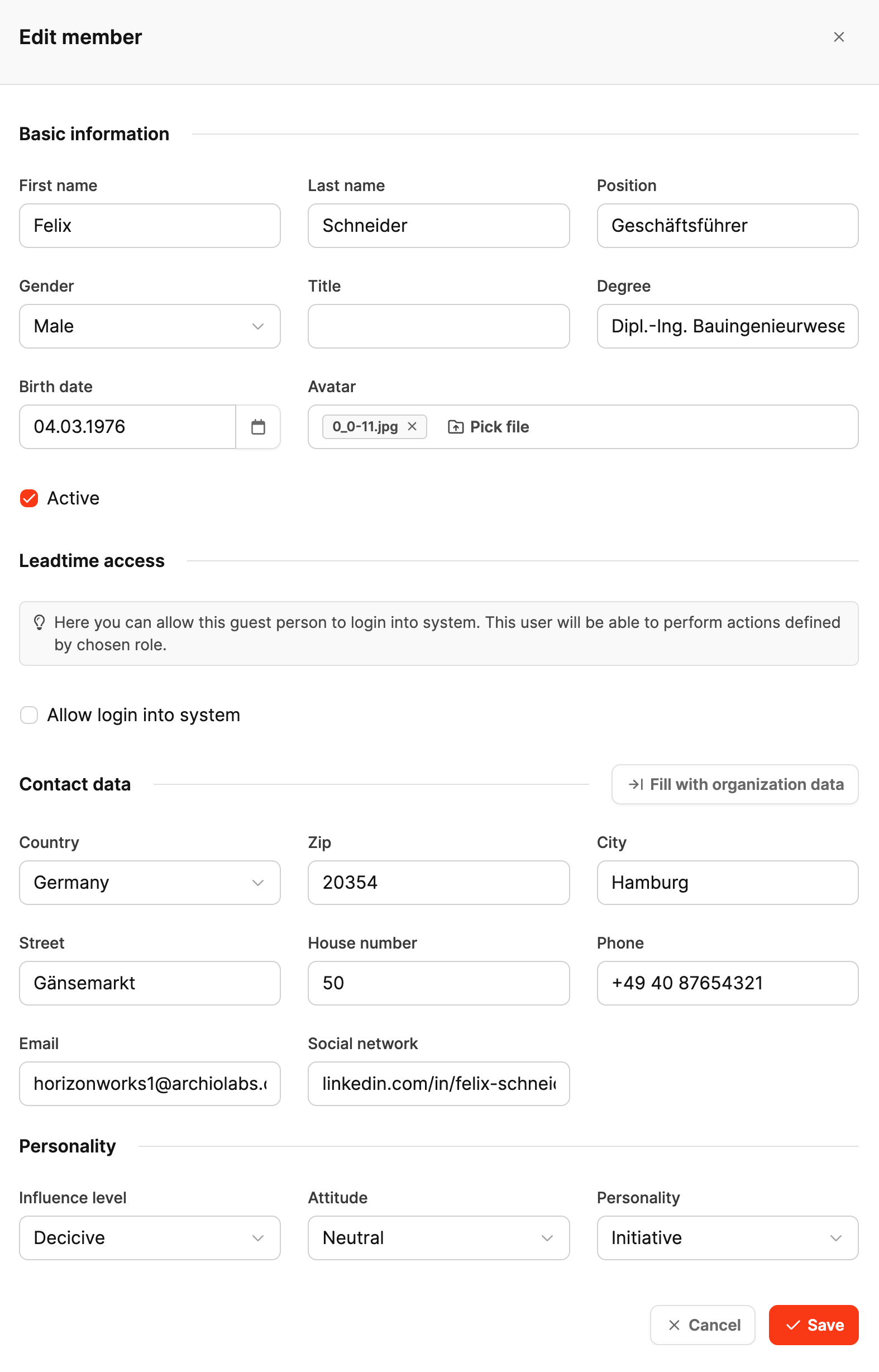
Basic Information
- First name, Last name
- Gender (optional)
- Title and academic degree (optional)
- Date of birth
- Avatar (profile picture)
Access to Leadtime
- Active: defines if the member is listed in the system
- Allow login: gives the member access to Leadtime (e.g. as guest user)
Contact details
- Country, postal code, city, street, house number
- Phone number, email
- Link to social media profiles (optional)
Personality
- Level of influence (high, medium, low)
- Attitude (enthusiastic, neutral, rejecting)
- Personality (dominant, steady, initiating, conscientious)
After saving, the member shows up in the overview and can be edited or deactivated if needed.
Guest user access
Members can be unlocked as guest users to get access to ongoing projects in their organization.
How it works:
- Add or edit member
- Allow login - turn on
- Choose the Guest role or a custom guest role
The invited user automatically receives an email with an invitation link and can then set a password. Guest users can access projects belonging to their organization only when guest access is enabled for the project. Within those projects, they can access only tasks that are also enabled for guests.
This feature enables transparent collaboration with customers and partners without exposing internal projects, tasks, or workspace administration.