
Configuring a Project with Components (Workshop Part 4)
Import a project component, answer form-based questions, and activate dynamic work packages to define the exact project scope and generate actionable tasks from it.
In this area you configure a previously created project step by step. You can use the project tree to activate structured work packages, answer form-based questions and create dynamic project structures from them. The project configuration can be found in Leadtime at Project → Configuration → Project Tree. The aim is to precisely determine the scope of the project based on one or more components, to derive tasks and to automatically calculate the effort.
About the project tree: Project Planning – Project Tree
Import components into the project tree
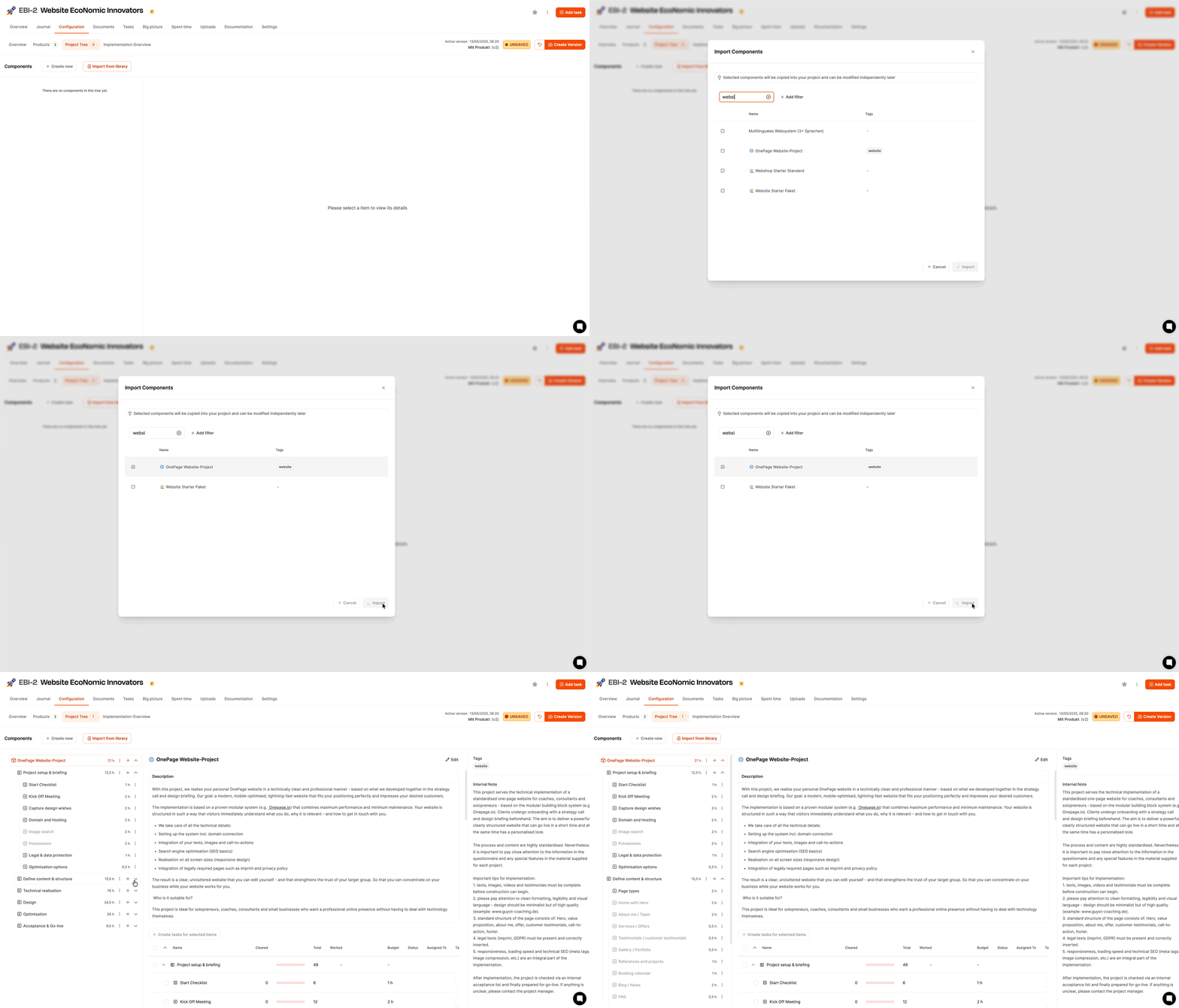
After opening the Project tree tab, the view is initially empty. Use Import from catalog to select a prepared component from the component library, e.g. One-page website. The selected component is then displayed including epics, work packages and forms. Several components can be combined.
The building blocks of project components
Structure of the project tree
The view is divided into three areas:
- Left: Hierarchical structure of the project tree
- Middle: Content and fields of the selected work package
- Right: Additional information (effort, internal note, linked ticket)
Starting phase: customer preparation using a checklist
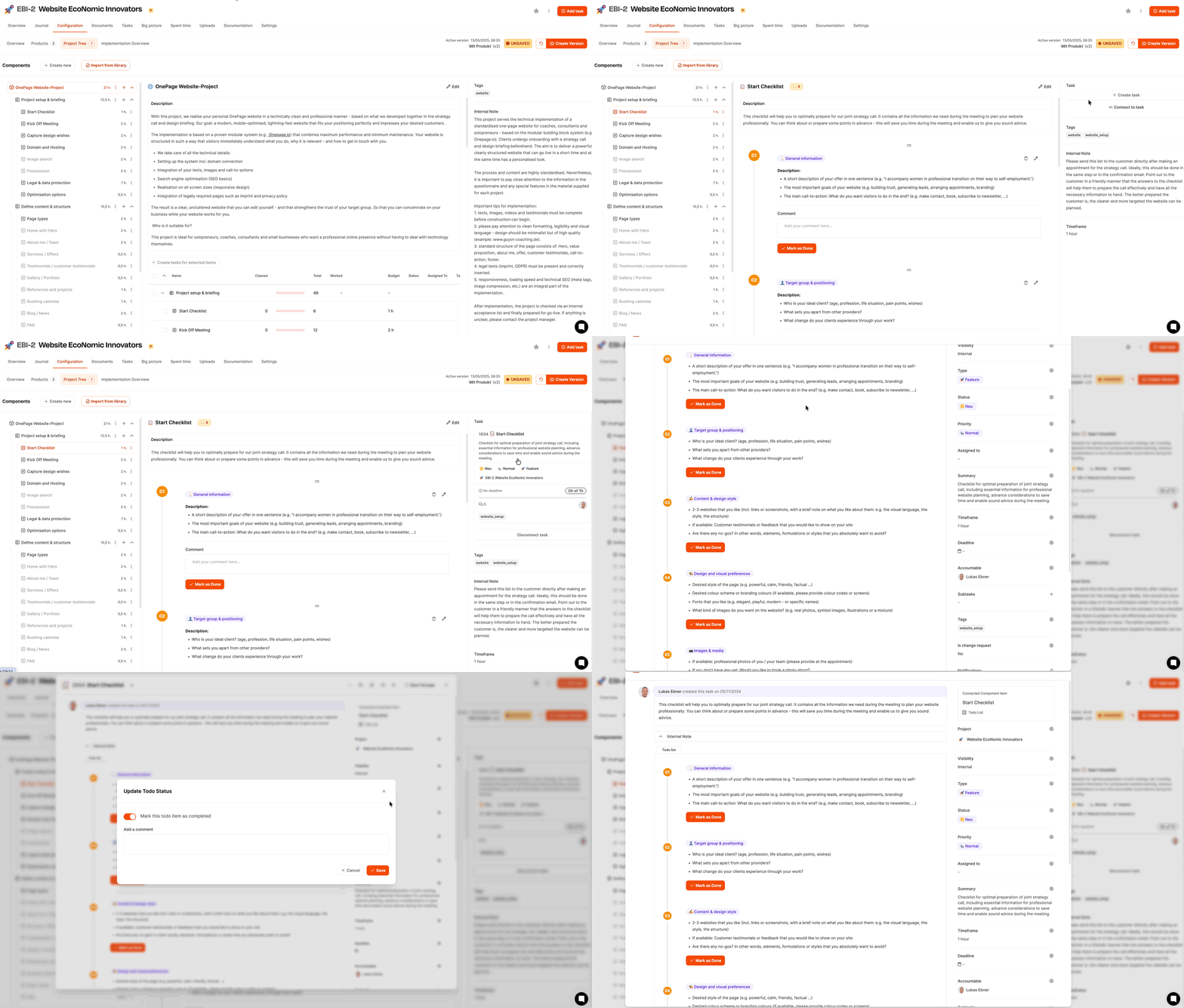
The agency usually sends its client an initial checklist with information right at the start, which they should prepare in preparation for a joint strategy call with the agency. The agency has so far completed this step with a Word document. With Leadtime it’s easier: Here the checklist is simply turned into a ticket and assigned to the customer for completion.
Using the “Create task” button, a type of special ticket can be generated from the checklist work package. If a ticket exists for a work package, it will be displayed as a card in the right column.
Why it makes sense to generate tickets from work packages:
- Tasks can be assigned, commented on and edited
- Time can be booked
- Progress is visible – both in the task and directly in the project tree
- The customer has access to the ticket system, but of course not to the project configuration.
The customer works through the checklist. Every question answered is visible live in the project tree. This means the project team can see at any time how far the customer is.
Dynamic adjustment of the project
Once the checklist is completed, the agency introduces it as standard with every new client Strategy discussion. When designing the project component, the agency also prepared a dedicated work package with an integrated questionnaire. This will be filled out by the project team during the discussion.
Conditional questions
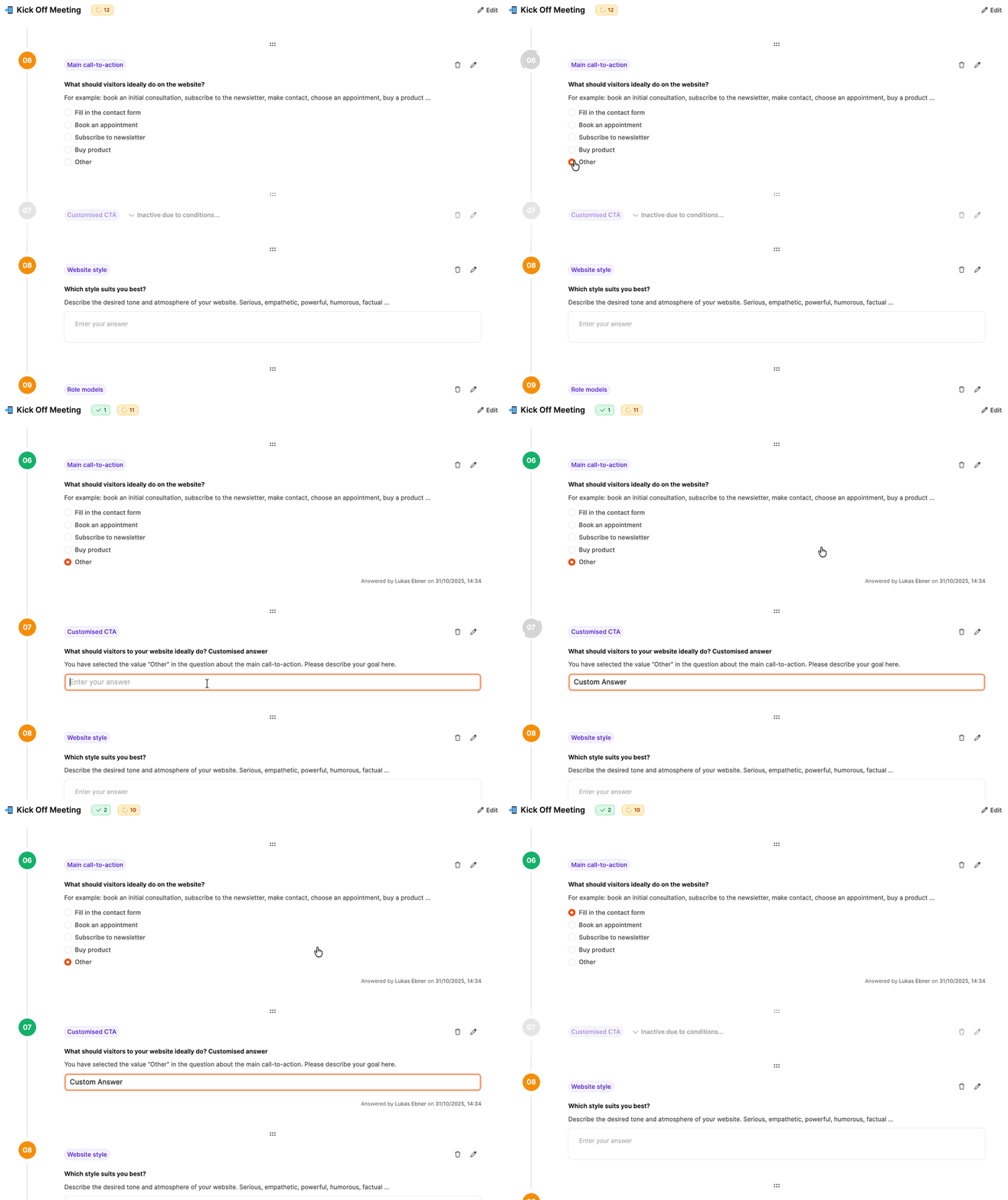
There are many questions logically linked – they trigger follow-up questions or optional work packages.
The sixth question is: “What should visitors ideally do on the website?”
If the customer selects “Other”, another, previously inactive question field is automatically displayed. The project adapts dynamically to the requirements.
See Conditions in work packages
Conditional work packages
The work package Photo session is a good example of a dynamically activated work package in Leadtime. It only becomes part of the project if the customer fills out the questionnaire “Capture design requests”, they state that they needs a photo shoot with one of the service provider’s photographers.
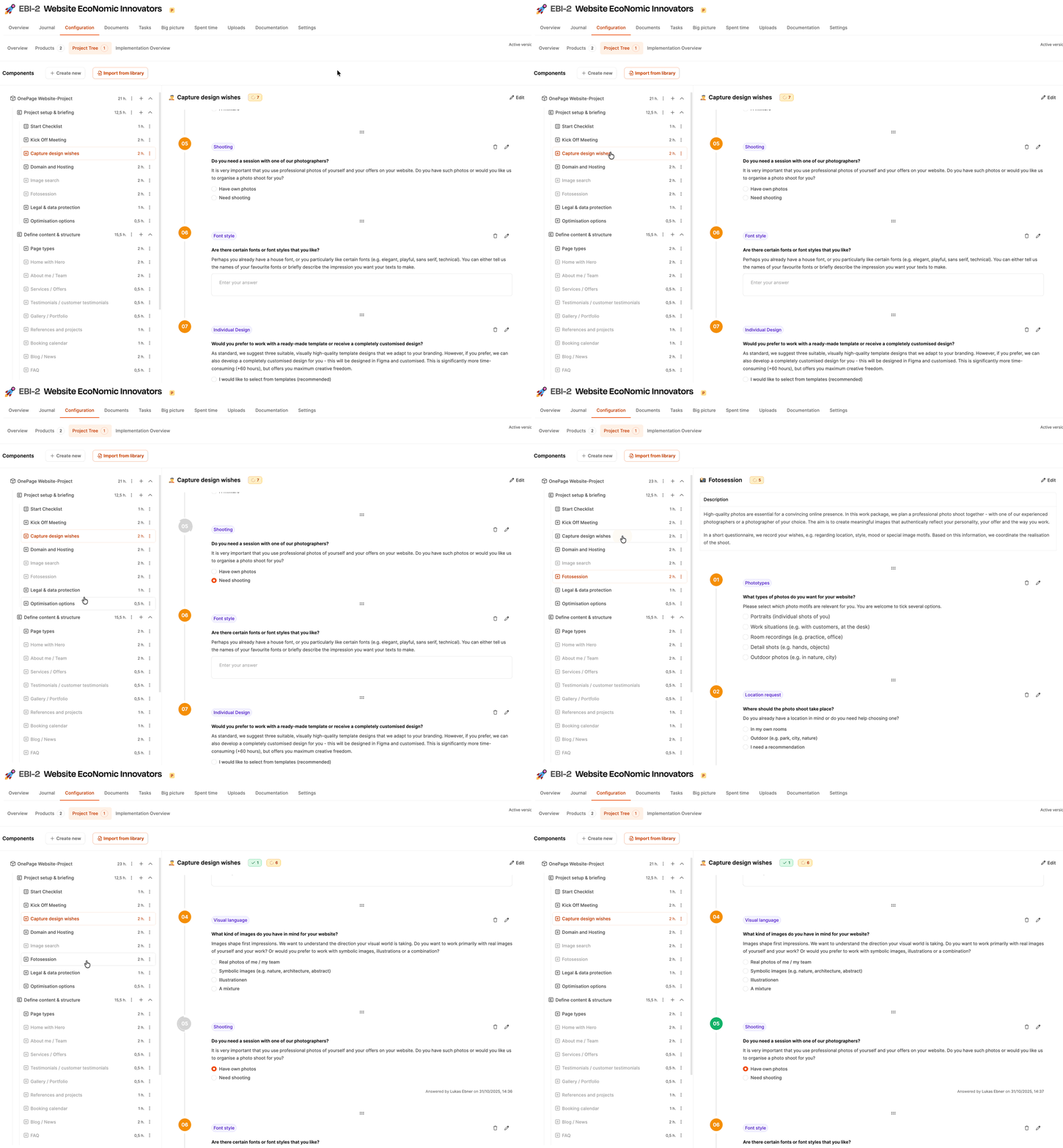
There is a decision question in the questionnaire:
Do you need a session with one of our photographers?
Depending on the answer, different paths are taken:
-
Answer: “I have my own photos”
→ The work package Photo session remains inactive, the associated work steps are skipped.
-
Answer: “Need shooting”
→ The work package Photo session is activated automatically and must be completed completely.
Import products into the project
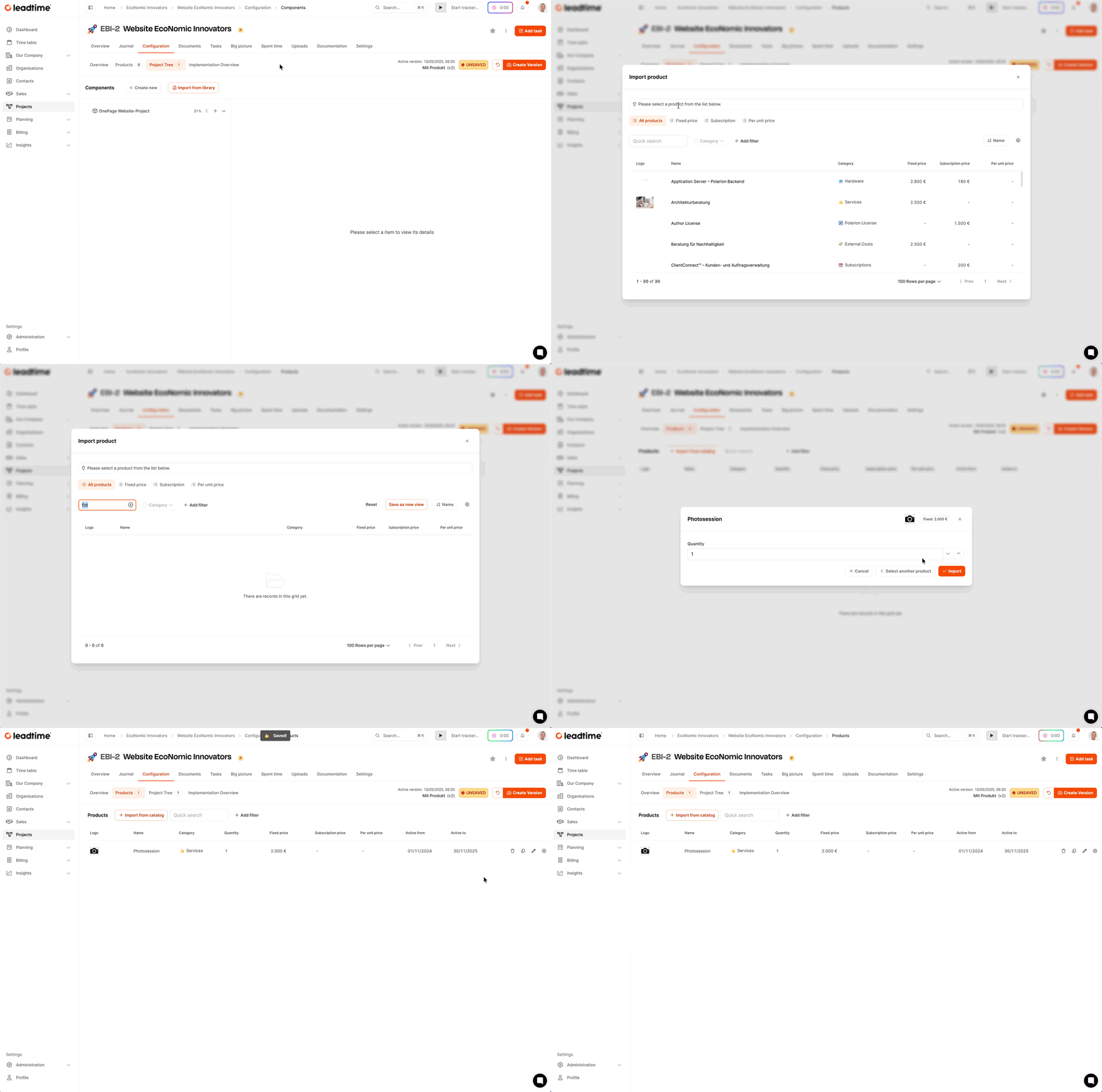
Since a professional photo shoot has a clearly defined scope of services and price, an additional product must be imported:
- Product name: Photo session 1 day
- Category: Service
- Fixed price: e.g. E.g. €2,000
This product must be added to the project manually from the product catalog. It will then automatically appear in the offer and will be invoiced.
About products in projects Project planning – products and the Product catalog
Content of the work package
The work package Photo session contains one Questionnaire, which is used to prepare the photo shoot.
- Photo types: Portraits, work situations, detailed shots, etc.
- Location request: Own office, outdoor location etc.
- Example photos: Links to websites that serve as stylistic models.
- Imagery: Warm, open, inviting?
Next step: create a task
As soon as the questionnaire is filled out, the user clicks “Create task”. Leadtime now creates a new task with:
- Clear task description
- Automatically generated briefing text (based on customer responses)
- Link to the project
- Assignment to the photographer (optional)
This turns a simple customer response into a fully prepared project module - including budget, description and operational task.
Dynamic project structure
A central part of the project configuration in Leadtime is the use of so-called dynamic work packages with conditional logic. These work packages contain form questions whose answers have a direct influence on the structure of the project - especially on the downstream work packages in the project tree.
See Conditions in work packages
Example: “Page Types” module
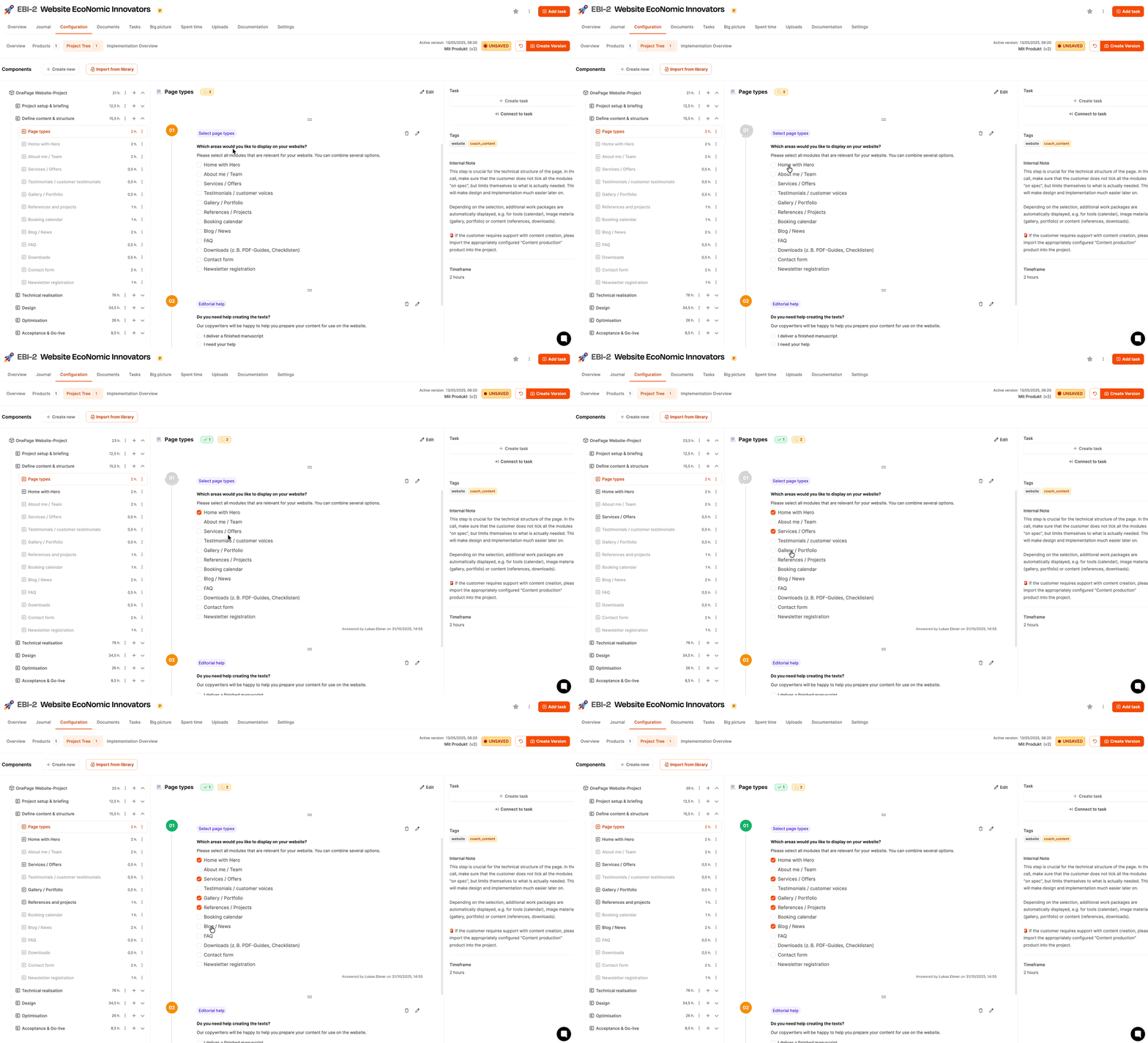
A typical example is the work package Page types, which asks the question:
“What areas do you want to display on your website?”
The customer has several options to choose from, such as:
- About me / team
- Services/Offers
- Gallery/Portfolio
- Blog/News
- Downloads
- Contact form
- Newsletter registration
This question is as Multiple selection (checkboxes) constructed. Depending on which answer options are chosen, additional, previously hidden work packages are automatically inserted into the project. For example, the customer chooses “Gallery / Portfolio”, an associated work package appears immediately with time required, description and internal note.
How it works
- The questions in the form are included visibility-controlled conditions linked.
- Individual work packages are “hidden” by default and are only displayed when certain conditions are met.
- Users’ answers to the questions trigger these visibility rules.
- This adjusts the project tree automatically and dynamically to the individual requirements of the customer.
Advantages of this structure
- Efficiency: Only relevant tasks are displayed - this reduces complexity.
- Scalability: Reusable components remain modular and flexible.
- Automation: The project management does not have to intervene manually to add or remove tasks.
- Transparency: The customer only sees what he really needs - nothing more, nothing less.
Purpose of this mechanism:
Enables a flexible, customizable and automatically controlled project structure that is based on the customer’s answers and thereby structures the entire project process.
Save project versions
As soon as a project in Leadtime contains the first content - such as components, tasks, answered questions or added products - it is time for the first one version. Versions are essential for creating project-based documents such as offers or specifications. These documents refer always to a specific, saved project version.
Project is “not saved”

As long as no version exists, the project status has a yellow warning in the top bar: Not saved. This means that the project is still in a draft state and changes can be made at any time - but without a binding reference point.
About that Version management
Create a version
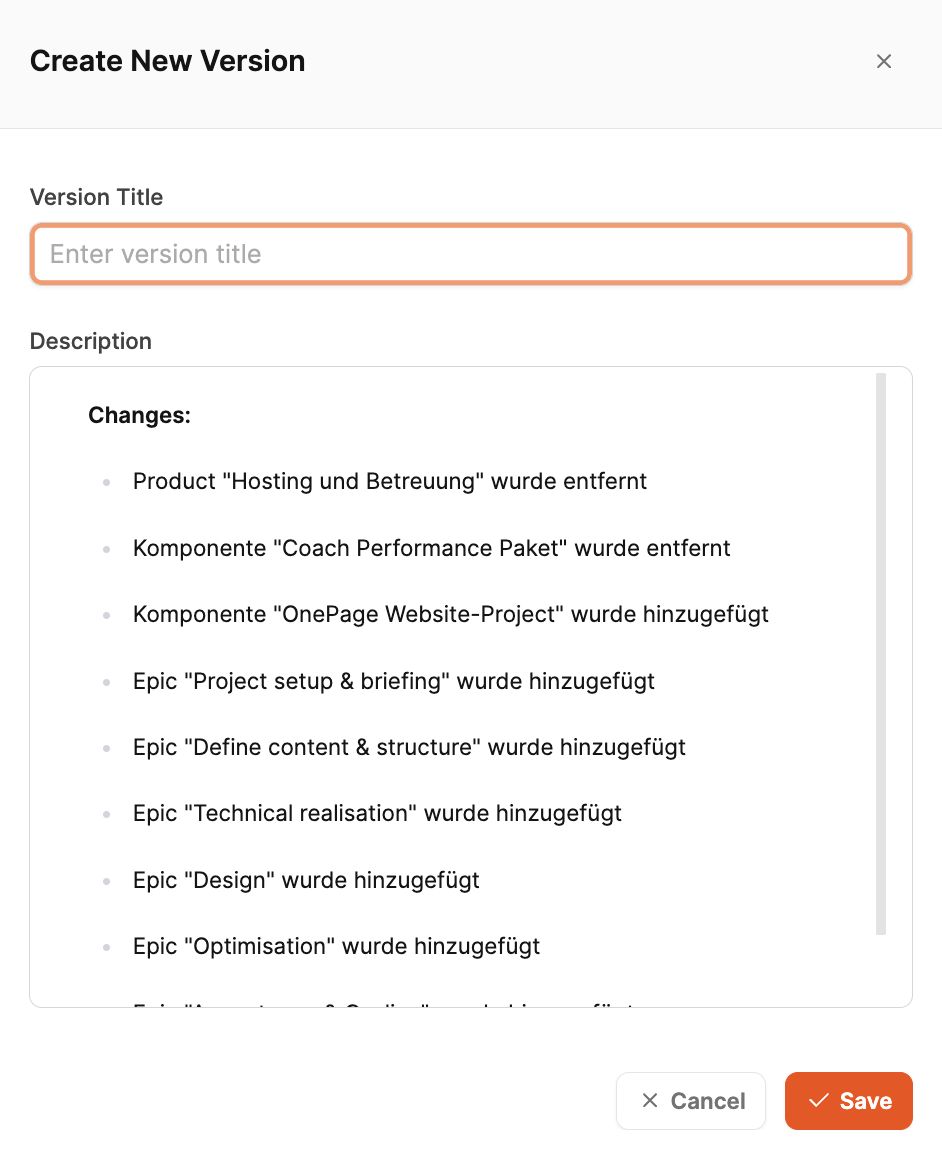
By clicking on the button Create version a dialog window opens. Here you give:
-
one Version title (e.g. “Project preparation”, “Offer basis”),
-
optionally provide a description.
The description is generated automatically: Leadtime compares the current status with the last saved version and lists the changes - such as new components, answered questions or completed tasks.
If it’s about the first version The description contains the most important key data of the project - such as which products or components are included.
Save & version
By clicking on Save the version is created. The “Not Saved” notice disappears and the current version and timestamp are displayed at the top. From now on, all documents relevant to the offer can be viewed clearly refer to this version – it forms, so to speak, the frozen starting point for all further communication with the customer.
Workshop part 5: Adding Products to Projects (Workshop Part 5)