
Request and Approve Vacation
Submit vacation requests and let managers approve or reject them with capacity context.
Use My Profile → Vacation to submit requests. Managers review and approve or reject them in a transparent workflow with capacity, utilization, and history visible.
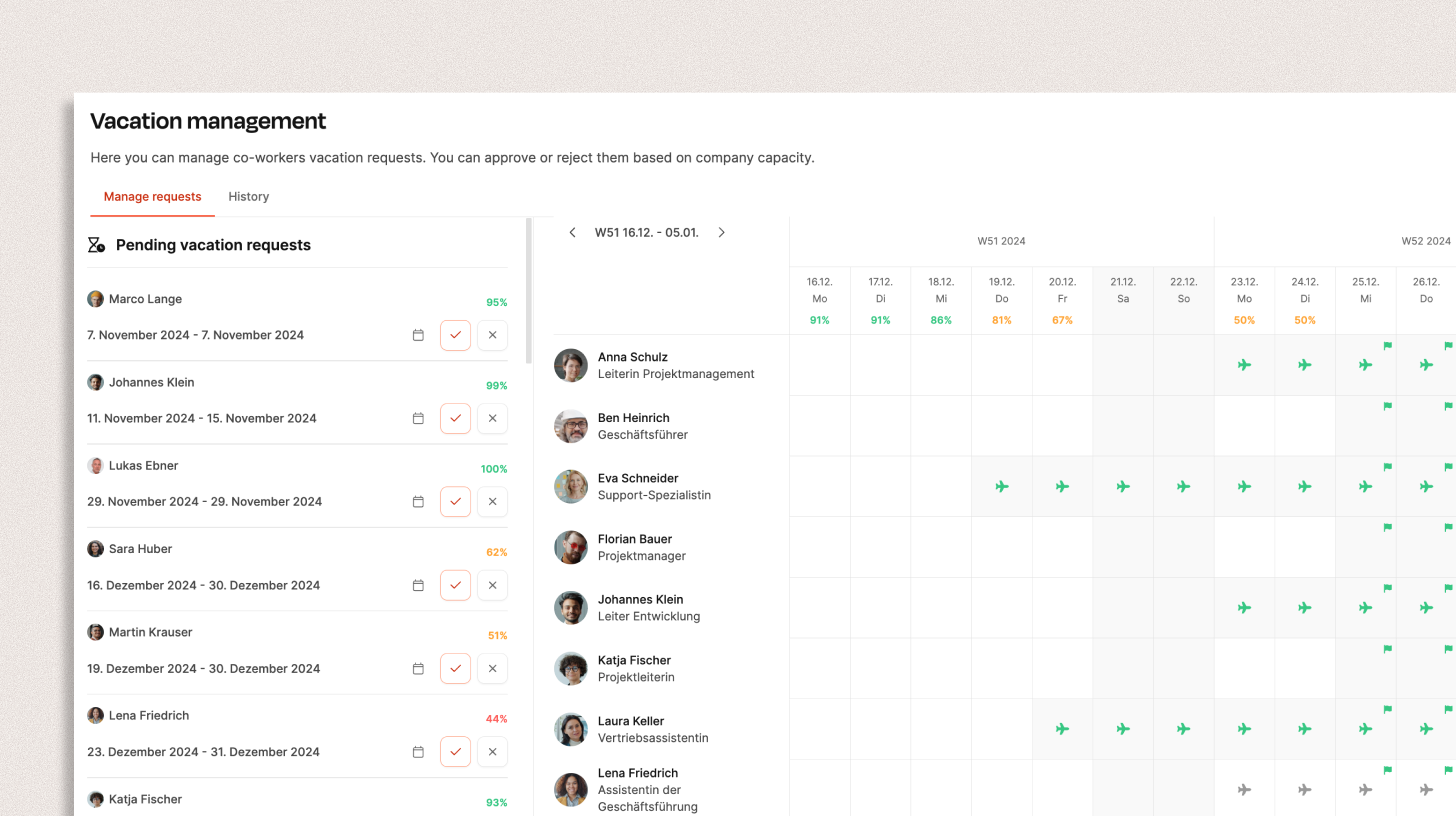
See Leave Management.
How employees request vacation
Employees have three options:
1. From their profile
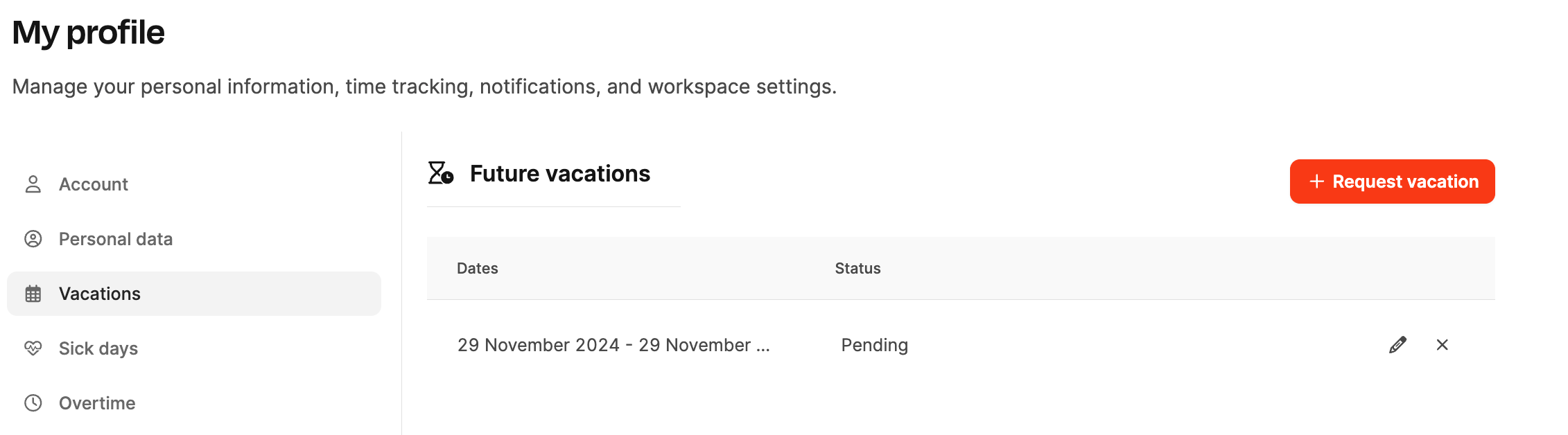
Under Profile → Vacation, employees see available, used, and planned days.
- Select Request vacation to open Book Time on the Vacation tab.
- Enter the start and end dates.
- Review used, requested (orange), and available (green) days.
- Select Request to submit.
See Profile – Vacation.
2. From the Team Calendar
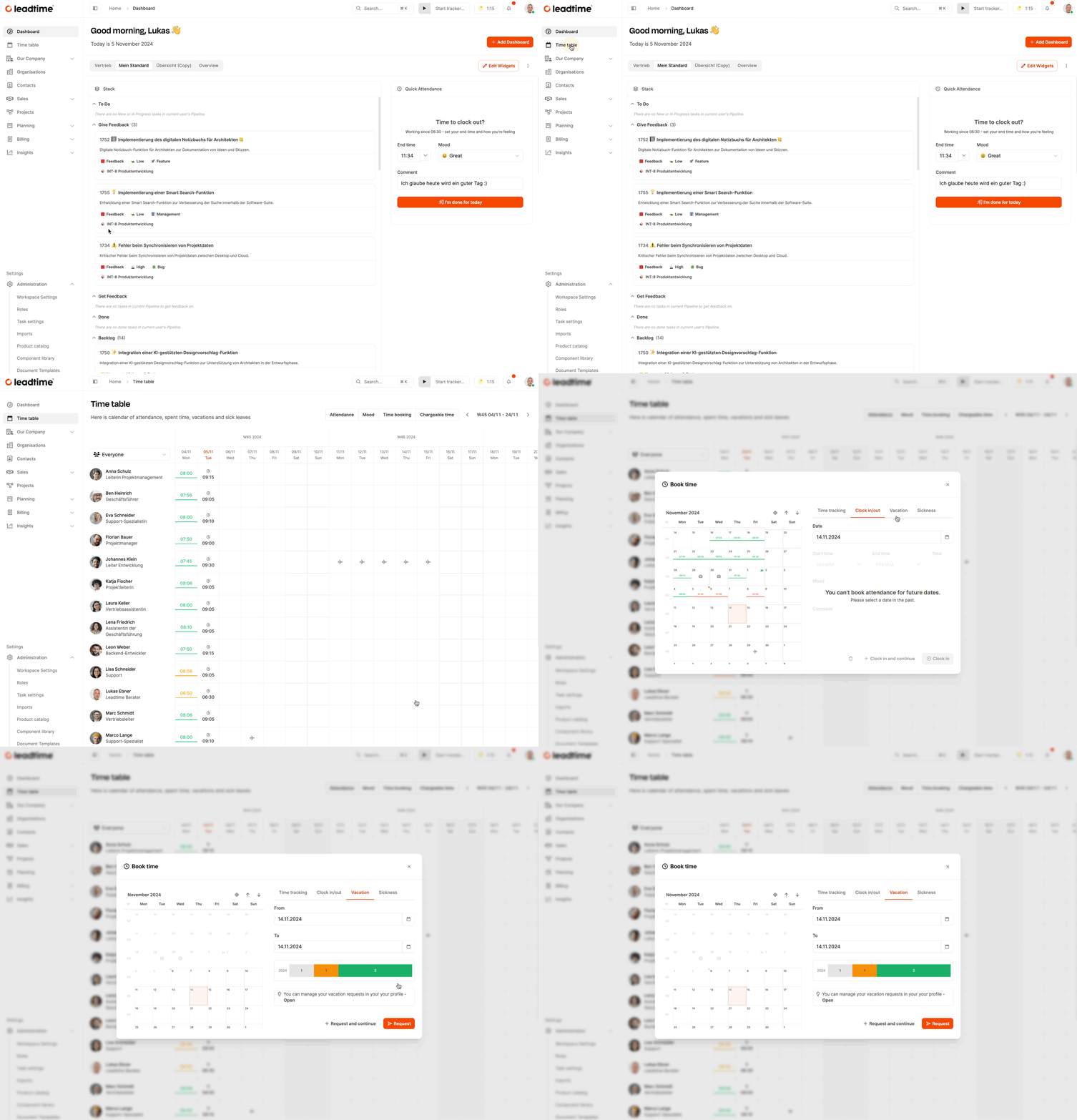
Select a date in your row in the Team Calendar. The Book Time dialog opens automatically. Choose the period on the Vacation tab and select Request.
This makes it easier to coordinate leave visually with the rest of the team.
Go to Team Calendar.
3. From time statistics
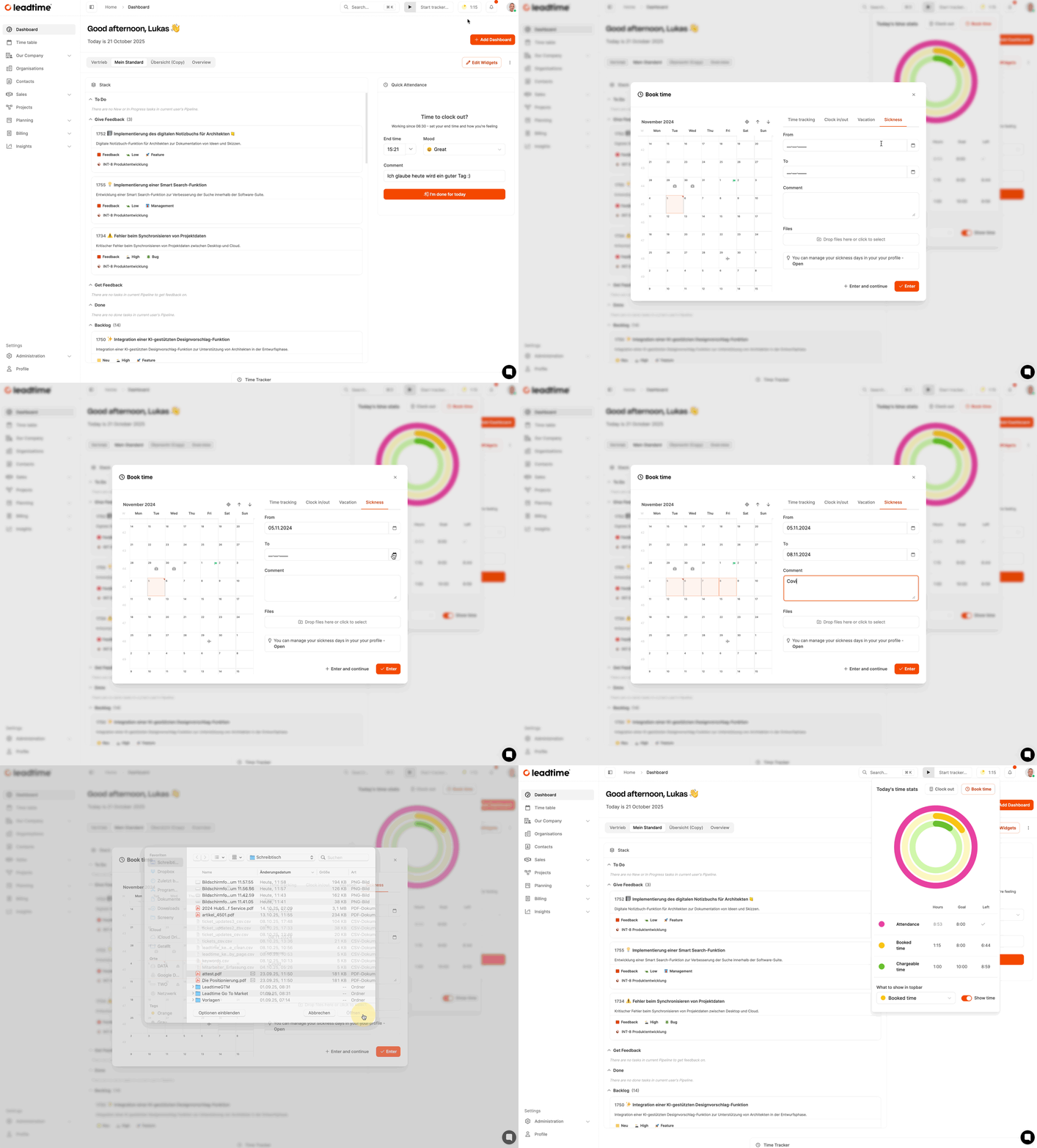
- Open My Profile → Time statistics.
- Select + Book time, then open Vacation.
- Enter the dates and select Request.
This is useful when planning leave alongside working time or overtime. See time-booking targets.
Approve or reject
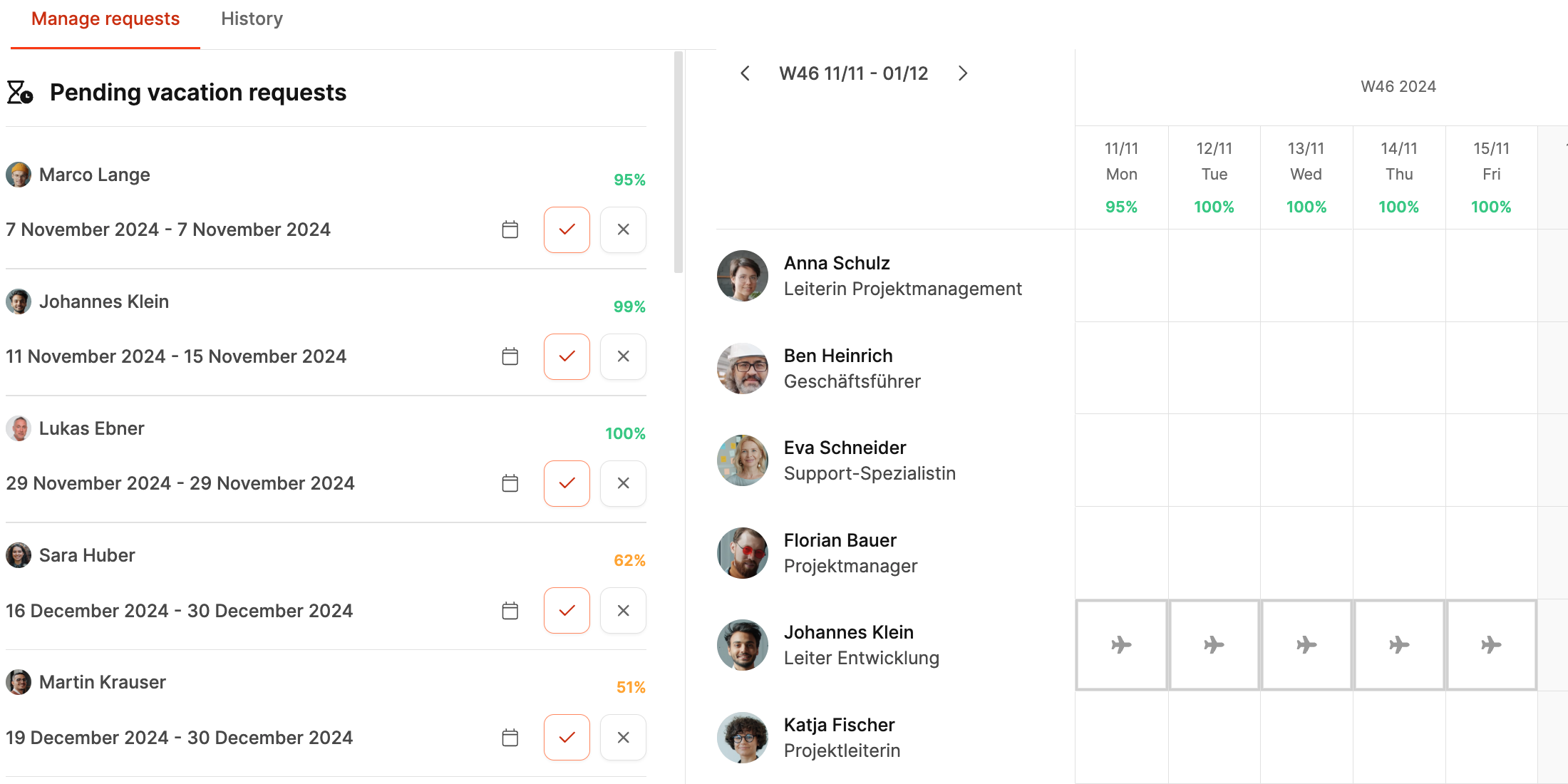
Managers handle requests under Your Company → Vacation in two tabs.
Manage requests
- Pending requests: Lists open requests with capacity utilization as a percentage.
- Calendar icon: Shows who else is absent during the period.
- Approve or reject: Decide directly from the list and add a reason.
- Approved vacation: Lists upcoming approved leave and provides a cancellation option.
The calendar uses:
- ✈️ Gray: Requested, not yet approved
- ✈️ Green: Approved
History
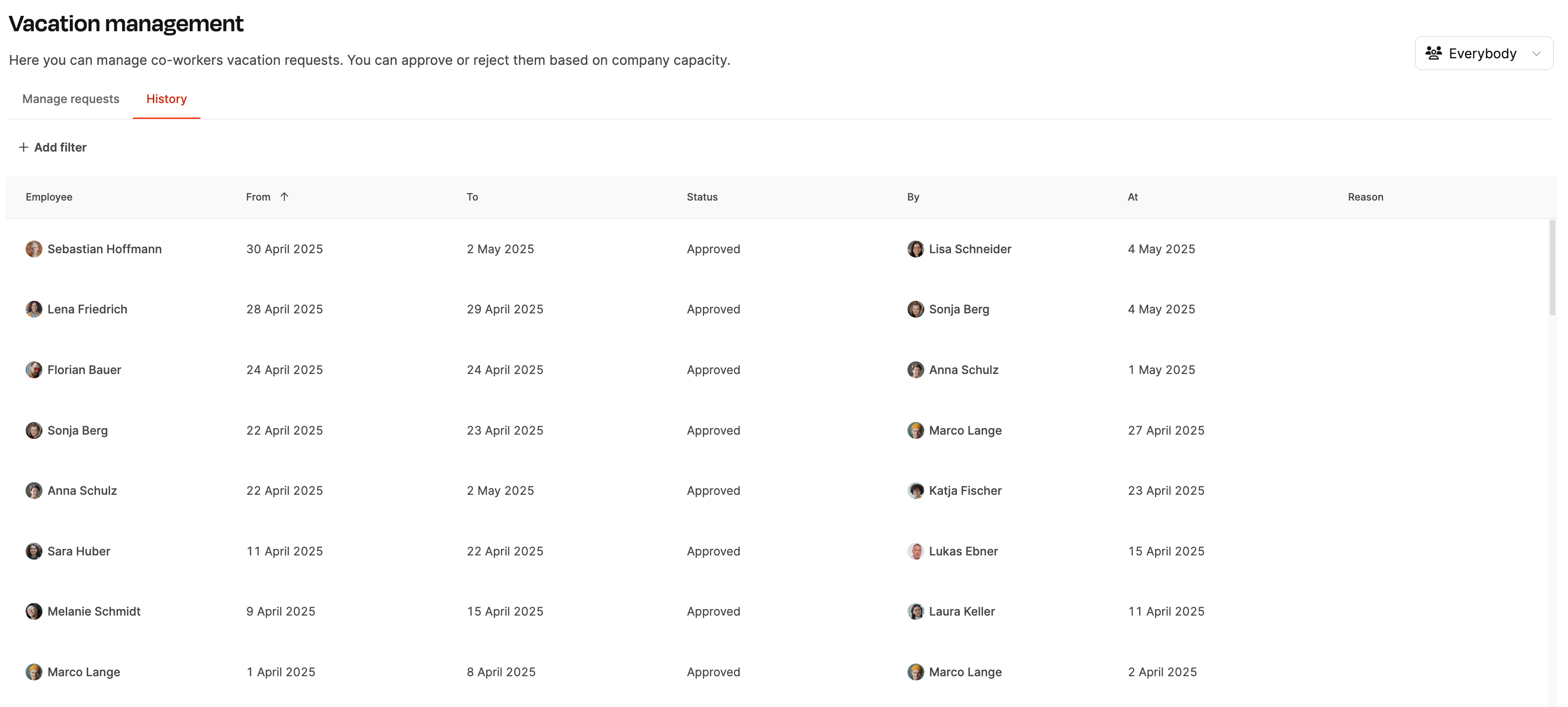
Lists previous requests with status, date, reason, and participants. Filter by period, employee, or status.