
Project settings
In the project settings, you define how projects are structured in Leadtime – from categories and phases all the way to statuses and custom fields. All elements can be created in two languages and individually tailored to your company’s processes.
Found under Administration → Workspace Settings → Project Settings
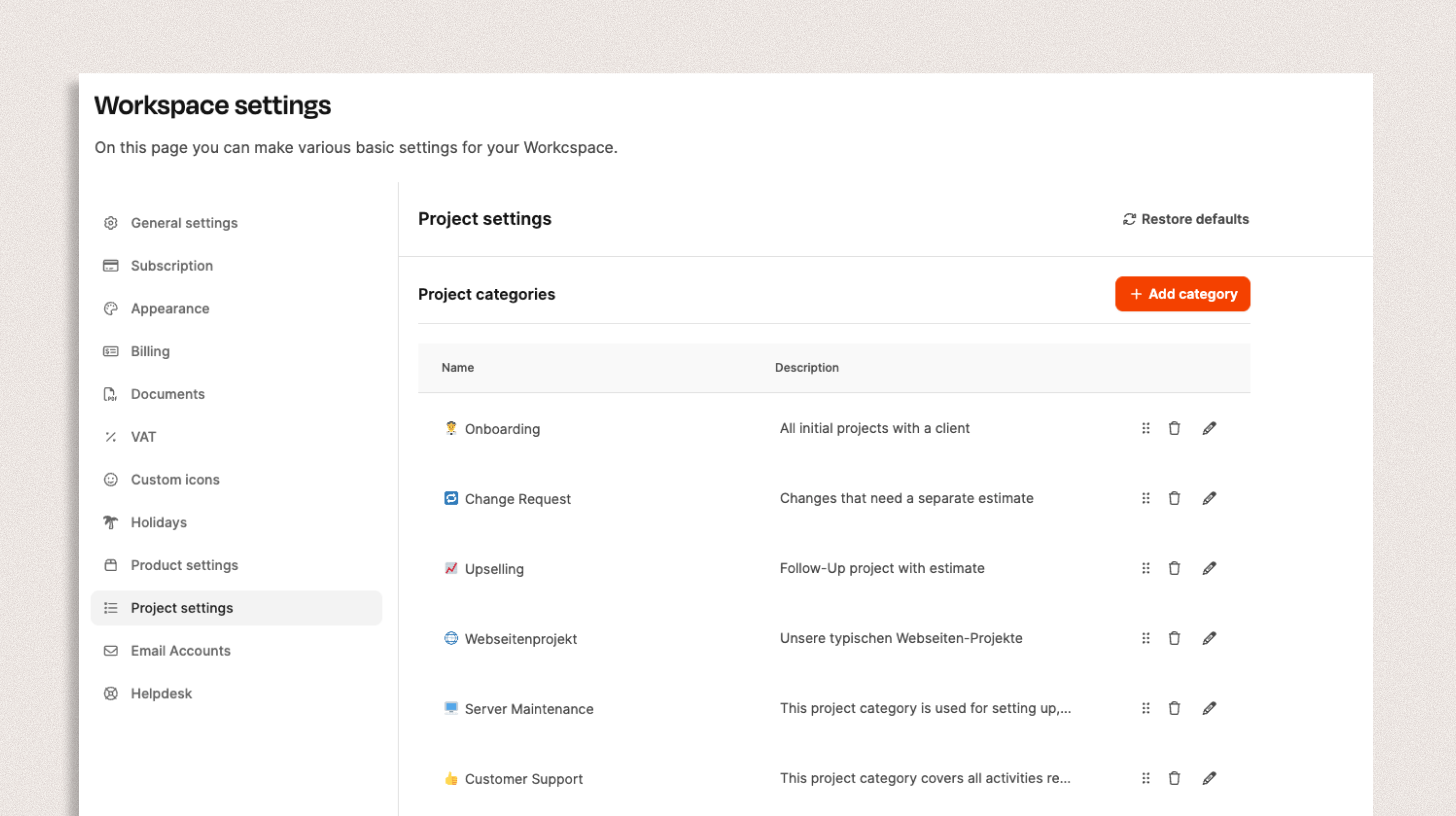
In the Project Settings section, you can customize the structure of your projects. Here you define the categories, phases, statuses, and custom fields that determine the behavior and organization of your projects in Leadtime.
What is affected by the settings on this page?
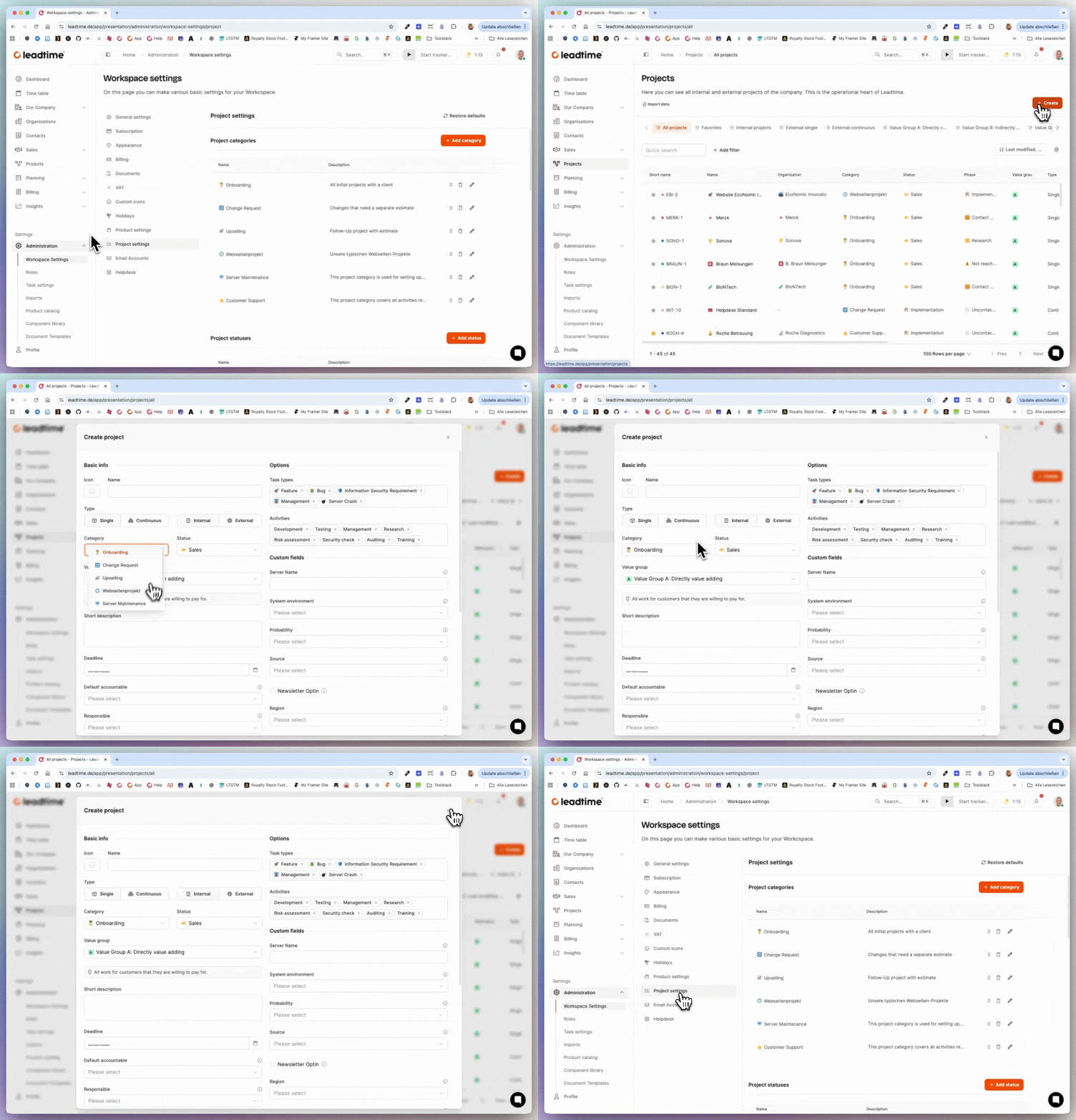
The settings configured here determine which options are available when you create new projects, such as which project categories, phases, statuses, or custom fields you can select.
Go to the settings tab at project level: Projects – Settings – Basic Settings
Project categories
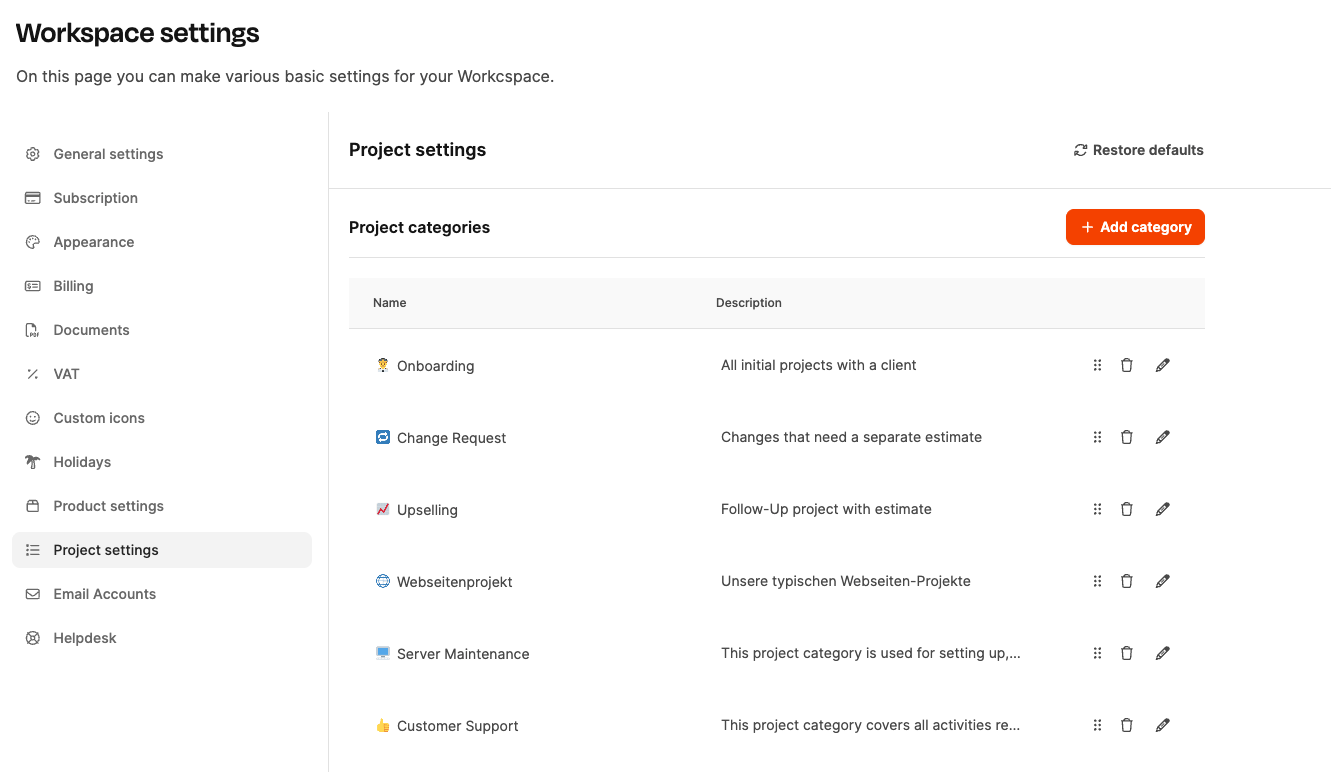
Project categories classify your projects by type or purpose, such as New Customer Project, Change Request, or Service Order. This categorization makes analysis easier, for example, when comparing revenue from existing customers with revenue from new customers.
To create a new category:
- Click + Add Category.
- Enter a name and description.
- Optional: Select a suitable icon.
- Save the category.
Multilingual labels
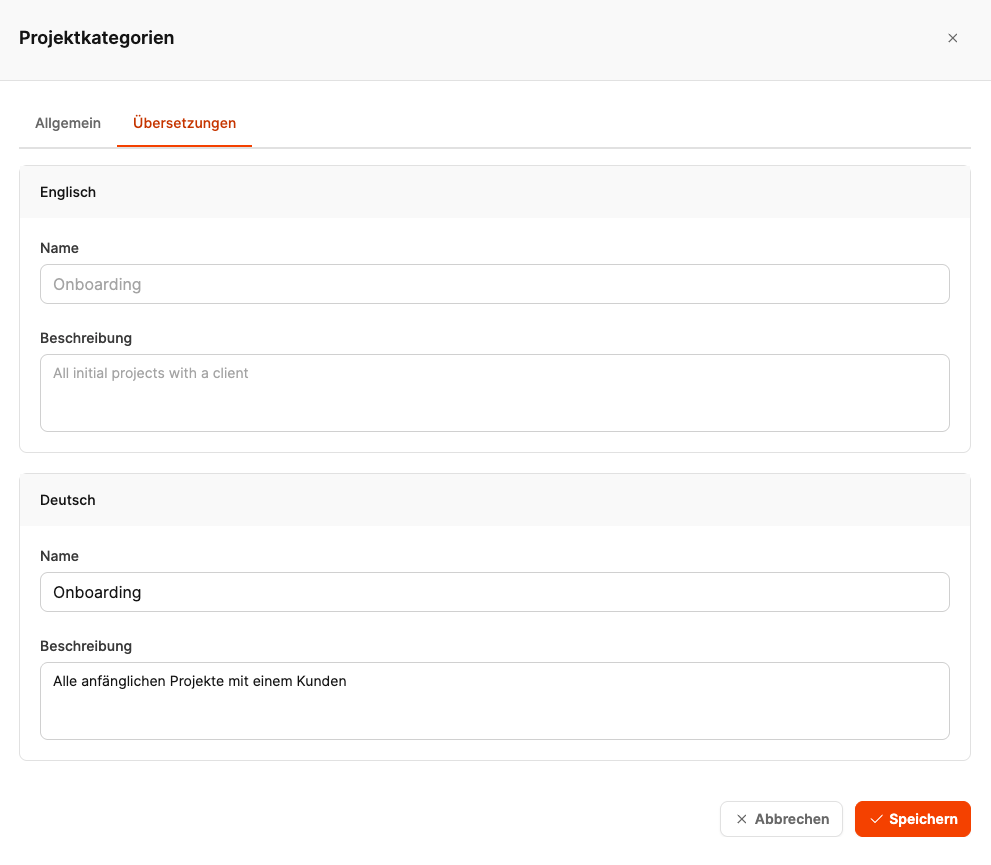
All elements on this page can be created in two languages.
In the “Translations” tab, enter labels and descriptions in multiple languages, such as English and German. Project types, phases, and fields are then displayed automatically in the correct language based on the interface language.
Project statuses
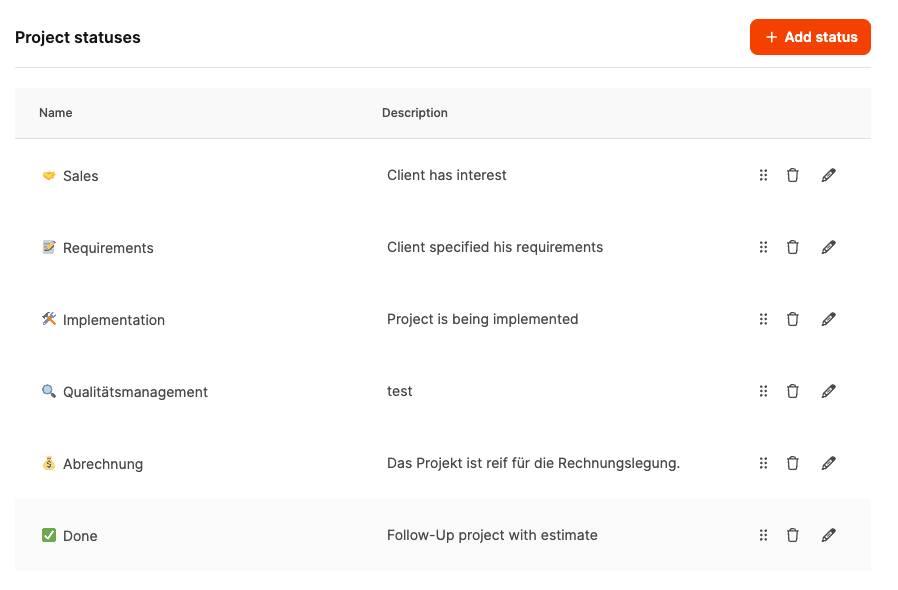
Project statuses describe the major stages a project typically passes through, from planning to completion.
Several typical statuses are provided by default, including:
- Sales – The customer is interested and wants a proposal.
- Requirements – The project is being specified and defined.
- Implementation – The project is being implemented technically or organizationally.
- Quality Management – The results are being reviewed.
- Billing – The project is being invoiced.
- Done – The order has been completed in full.
You can customize or delete existing phases or add new ones to align them more closely with your internal process.
Example: You could divide the Sales phase into subphases such as Pitch, Negotiation, and Contract Signing.
Project phases affect whether a project can be billed: Bill projects
Sales phases
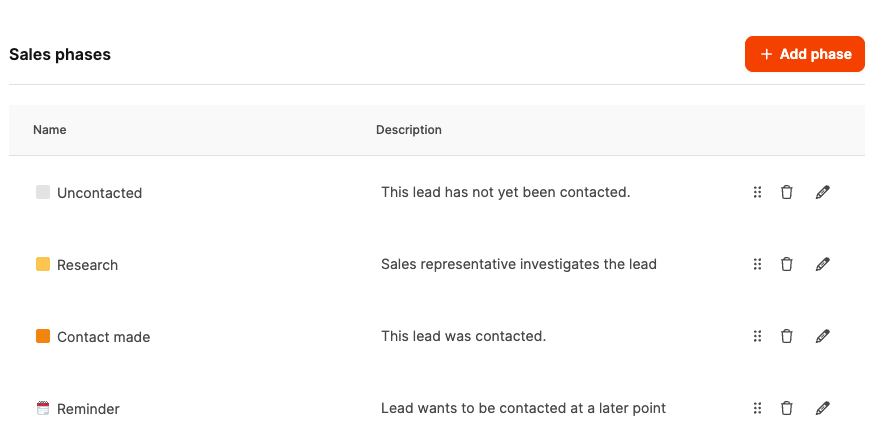
Sales phases (Sales Pipeline Stages) represent the steps a project or lead passes through in the sales process, from Not Contacted to Completed.
They are used in Leadtime’s integrated Sales CRM and can be customized individually.
Example phases:
- Not Contacted – The lead has not been approached yet.
- Research – Information about the lead is being collected.
- Contact Made – The lead has been reached.
- Reminder – Another contact attempt is planned.
- Not Reached – The lead could not be contacted.
- Implementation – The order has been confirmed and implemented.
The sales phases affect the lanes in the Sales Kanban under Sales Opportunities
Custom fields
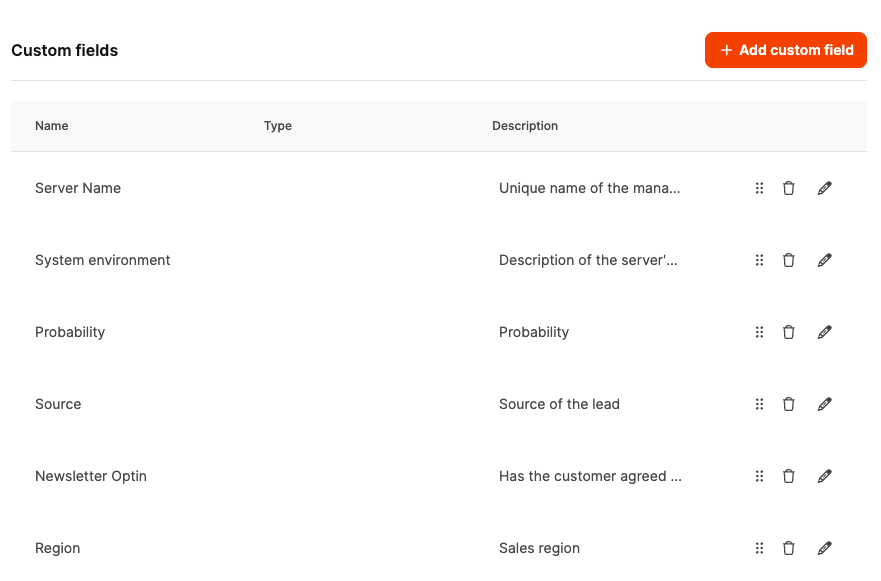
With Custom Fields, you can record additional project information that is relevant to your company. These fields are flexible and can contain text, numbers, select fields, or checkboxes.
Typical use cases:
- Technical details (e.g. Server Name, System Environment)
- Sales-related data (e.g. Lead Source, Probability, Region)
- Additional custom information for specific project types
Custom Fields are especially useful in the Sales CRM and extend your project management with specific data points tailored to your company.
Restore defaults
The Restore defaults option lets you reset all customizations to project categories, phases, statuses, or custom fields. This reactivates Leadtime’s original default structure.