
Document Settings
Controls layout and recipients of project documents per organization – independent of the global workspace defaults.
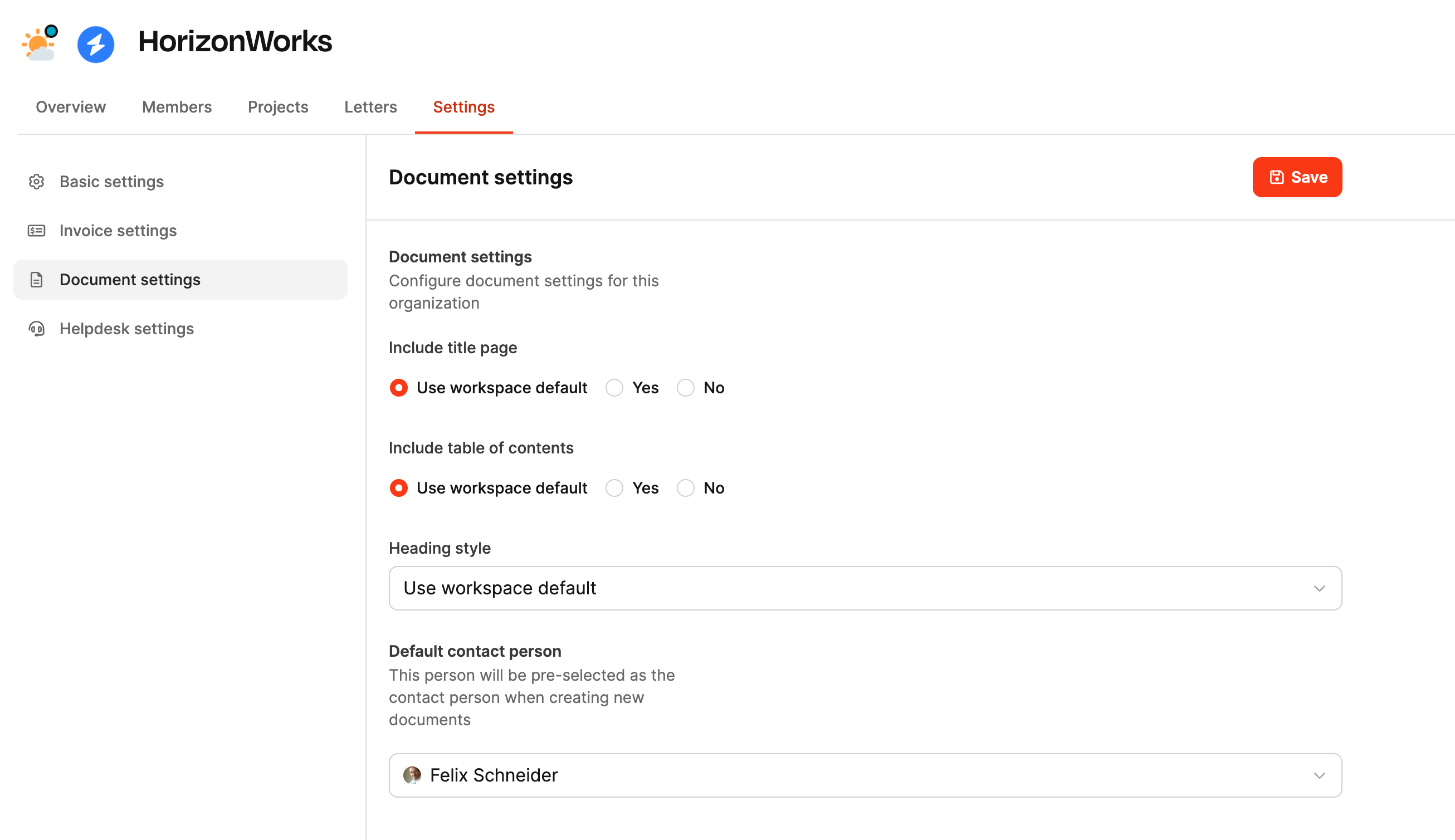
In the Settings → Document Settings area within an organization, you can decide how documents like quotes, requirement documents, or contracts are formatted for that organization. These options override the workspace’s general document settings and let you fine-tune things on a customer level.
Overrides the workspace settings for Documents
Settings in detail
The document settings control the appearance and structure of automatically generated project documents.
- Include cover page Specifies if a cover page is shown in documents. Options: As defined in workspace, Yes, No
- Include table of contents Determines if a table of contents is inserted automatically. Options: As defined in workspace, Yes, No
- Heading style Sets the formatting and hierarchy for your headings. You can tweak this to fit customer needs or your design guidelines.
- Default contact person Pick someone here to automatically be set as the recipient for new documents in this organization – like for quotes or order confirmations.
Show document settings
With the “Show document settings” button, you can download a test document to check the effects of the options you picked.
Use case
These organization-specific settings are super helpful when:
- single customers want different document layouts,
- a different corporate design is needed,
- or you want to create documents for external partners without internal formatting.