
Projects
In the "Projects" tab of an organization, you can see all linked projects with their key figures.
In the Projects tab inside an organization’s detail view, you can see all projects linked to that organization.
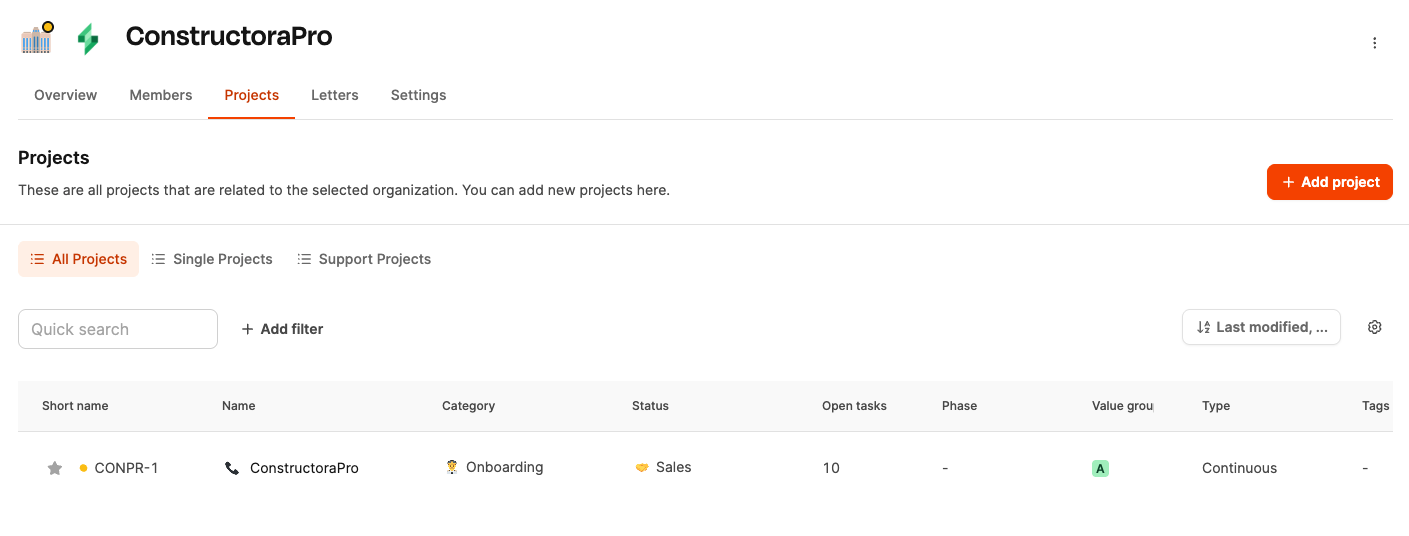
This view lets you centrally manage and analyze the projects of a customer or internal area.
You can find it under Organizations → [Organization] → Projects.
Main part about projects
How it works
The project list shows all ongoing, finished, and planned projects for an organization in a table.
Each row stands for a project with its most important metadata and lets you jump straight to its detail view.
Column overview
- Short name Unique project identifier, made up of an organization tag and a sequential number, e.g. CONPR-1. The color matches the organization’s color to make it easier to assign in other modules (like Pipeline or Dashboard).
- Name Full project name, with an optional icon or emoji for faster visual recognition.
- Category Thematic assignment, e.g. Onboarding, Support, Product development.
- Status Current processing state, like Sales, Active or Archived. Used for general classification in the project lifecycle.
- Open Tasks Shows the current number of open tasks within the project. Clicking opens the project’s task overview.
- Phase Optional field for internally structuring projects by processing phases.
Value group
Classification by economic relevance:
- A = directly revenue-effective
- B–D = internal or indirectly value-adding
All about value groups
-
Type Distinction between
- Ongoing / Continuous: ongoing projects with no fixed end date (e.g. support, retainer)
- Single project: one-off, completed projects with a defined goal and budget.
-
Tags Free text tags for further categorization (e.g. client, industry, region).
Features
- Add project With the button + Add project you can create a new project for the organization. Name, short name, type, category, status, and value group are set in the process.
- Quick Search The search box above the table lets you search specifically for projects within the organization. Perfect for lots of ongoing projects.
- Add filter With + Add filter you can filter projects by things like Status, Type, Category or Value group so you only see relevant projects.
Project detail view
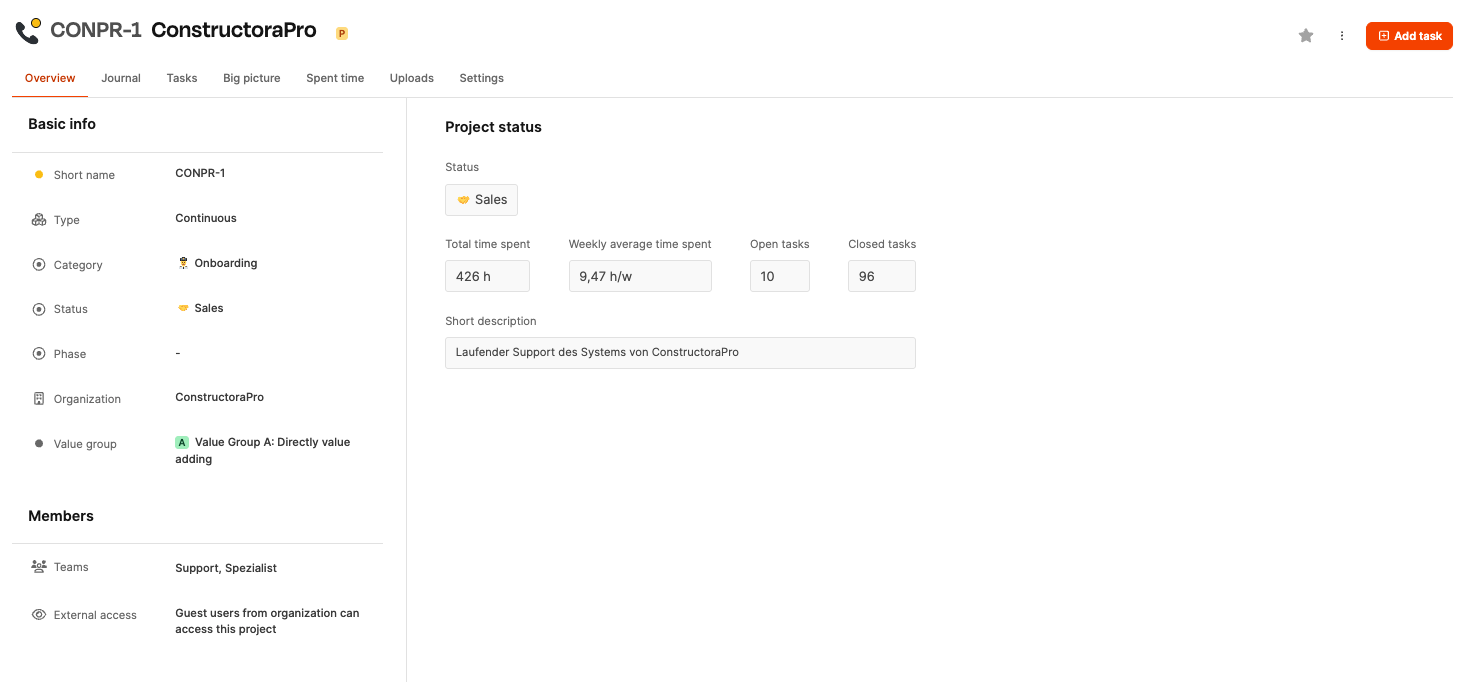
Clicking on a project opens its detailed view, which summarizes all key figures and metadata.
Sections of the detailed view:
-
Basic information Shows short name, type, category, status, phase, related organization, and value group.
-
Project status Includes key metrics like:
- Total time spent: hours used so far
- Weekly average time spent: average hours per week
- Open tasks / Closed tasks: ratio of open to completed tasks
- Short description: short summary of the project purpose
-
Members Shows which teams or users are involved in the project. Here you’ll see internal roles like Support or Specialist as well as external access for guest users.
Main part about projects