
Generating a Requirements Specification (Workshop Part 9)
With Leadtime, requirements specifications can be generated automatically from a saved project version. The entire content is generated from the project components, form responses and stored text modules - structured and formatted in a Word document that can be used immediately.
Here is the main area about the creation of project documents:
Projects – Documents tab (individual projects only)
Requirements
Before a specification can be created, one should Project version be saved. This contains:
- the complete one Project tree with all epics and work packages,
- all Answers to project-related questions,
- if necessary. Images or files, which should be included as an appendix in the specifications.
Step-by-step instructions
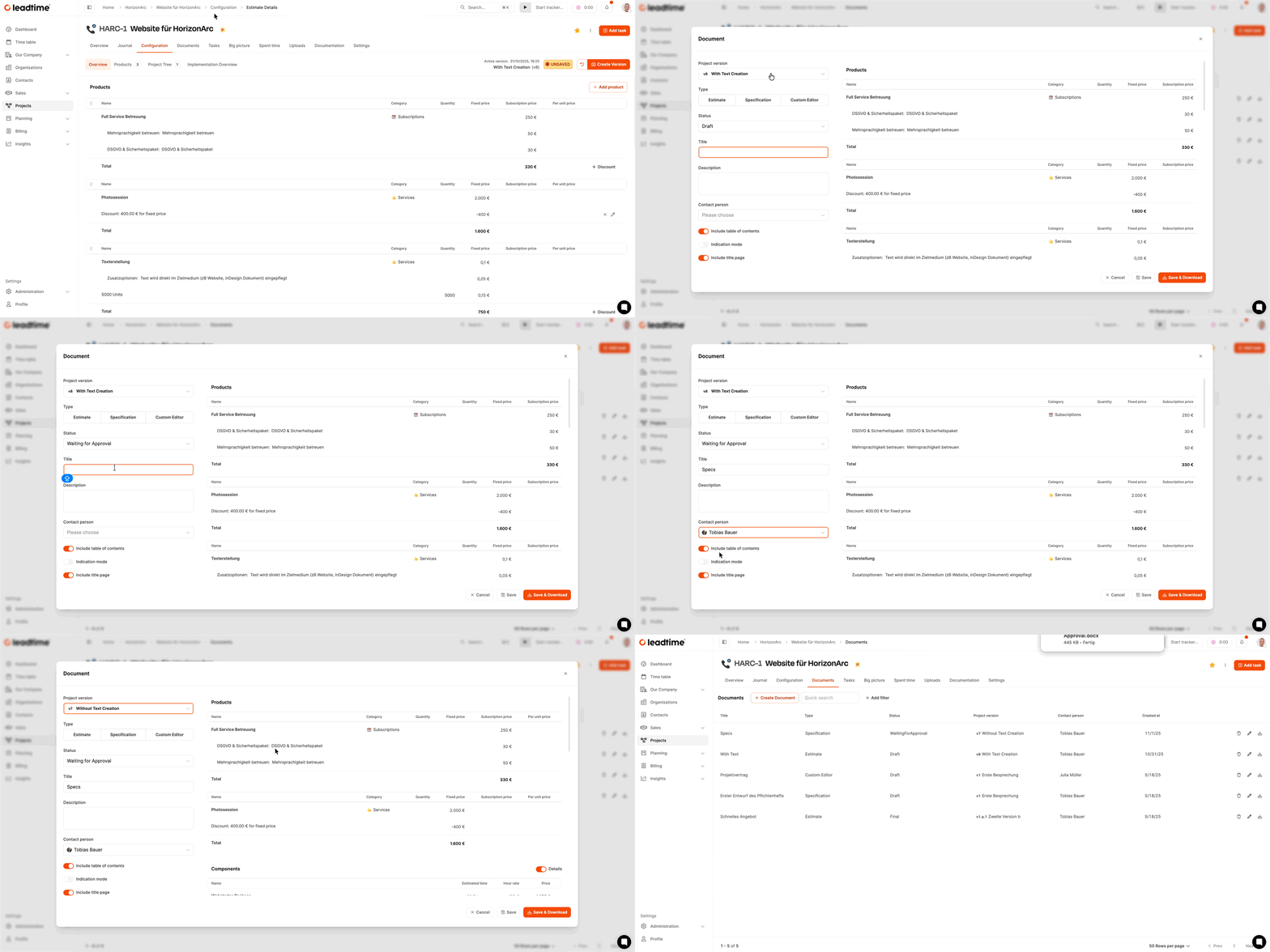
-
Navigate to the “Documents” tab within the project.
-
Click on “Create Document”.
-
Choose among Project version the version on which the specifications should be based.
-
Put that Document type on the specifications.
-
Put that status e.g. E.g. waiting for approval or final.
-
Give one Title a, e.g. b. Specifications NextGen Architects Setup.
-
Optional: Add one Description added.
-
Enable the following options:
- Include table of contents: Creates a clickable table of contents when the document is opened.
- Include title page: Adds an automatically generated front page with customer information, logo and project details.
-
Click on **“Save & Download”**to create the Word document.
Important when opening
When you open the Word file, a security query appears:
“This document contains fields that may reference other files. Would you like to update the fields in this document?”
Please include this question “Yes” answer – this will ensure that the table of contents is structured correctly.
Result
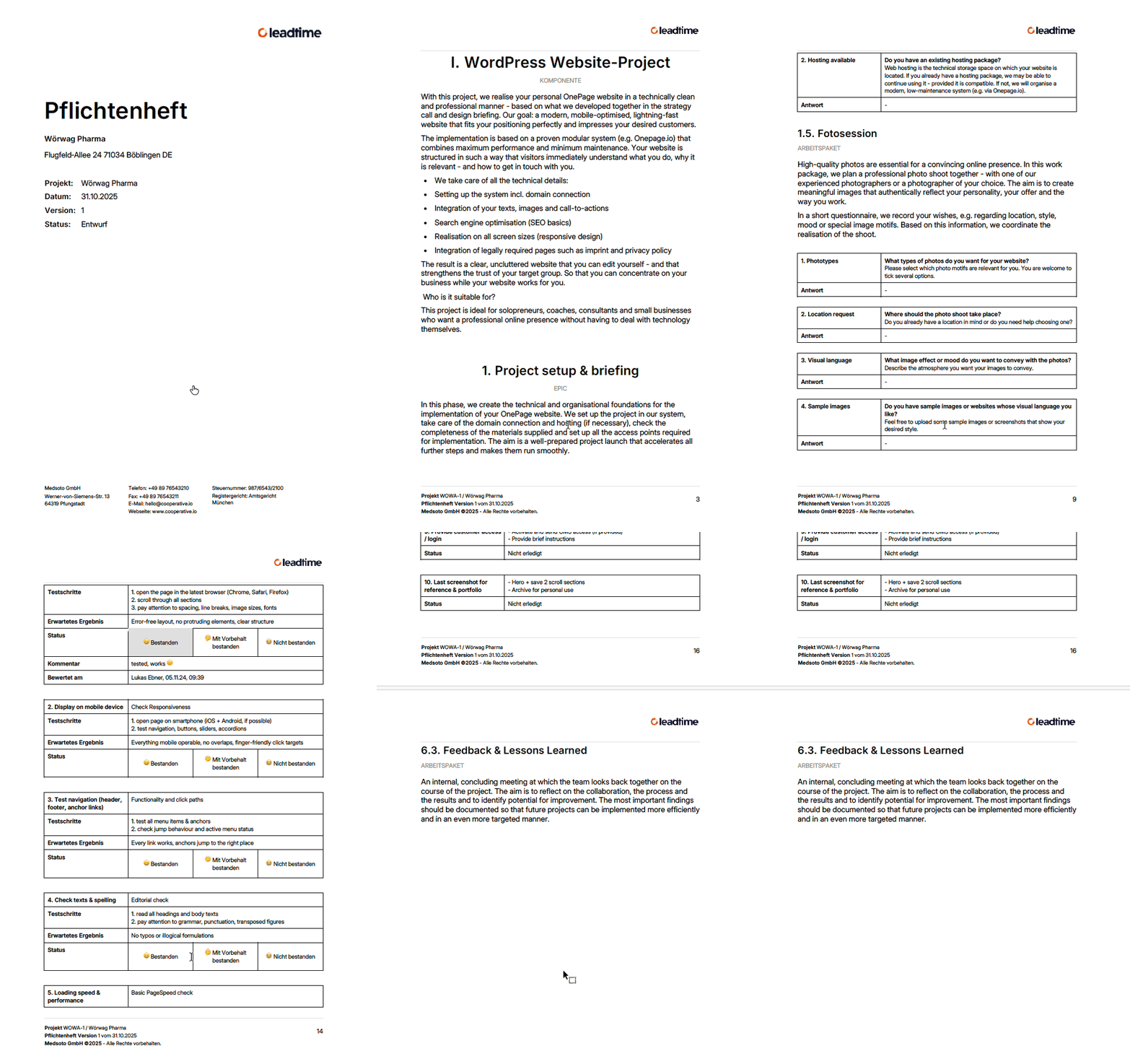
The specification is a well-structured Word document that follows the project tree in Leadtime exactly. It contains:
- a clearly numbered structure according to epics, work packages and questions,
- all customer answers clearly arranged in table form,
- stored images and files automatically in the Appendix,
- optionally a designed title page.
Individualization
Under Administration → Workspace Settings → Documents The layout of the requirements specification can be adapted to your own company appearance:
- Upload an individual Logos,
- Determination of one font (default is “Inter”),
- Upload one Front page background,
- Selecting one you want numbering format for headings.
Click here for part 10 of the workshop: Create project contract (workshop part 10)