
Helpdesk
With the organization-specific helpdesk settings, you can set different rules, projects, and mailboxes for individual customers or partners. This way, you get your own helpdesk structures that work independently from the central workspace helpdesk.
Helpdesk Settings
Found under Administration → Workspace Settings → Helpdesk
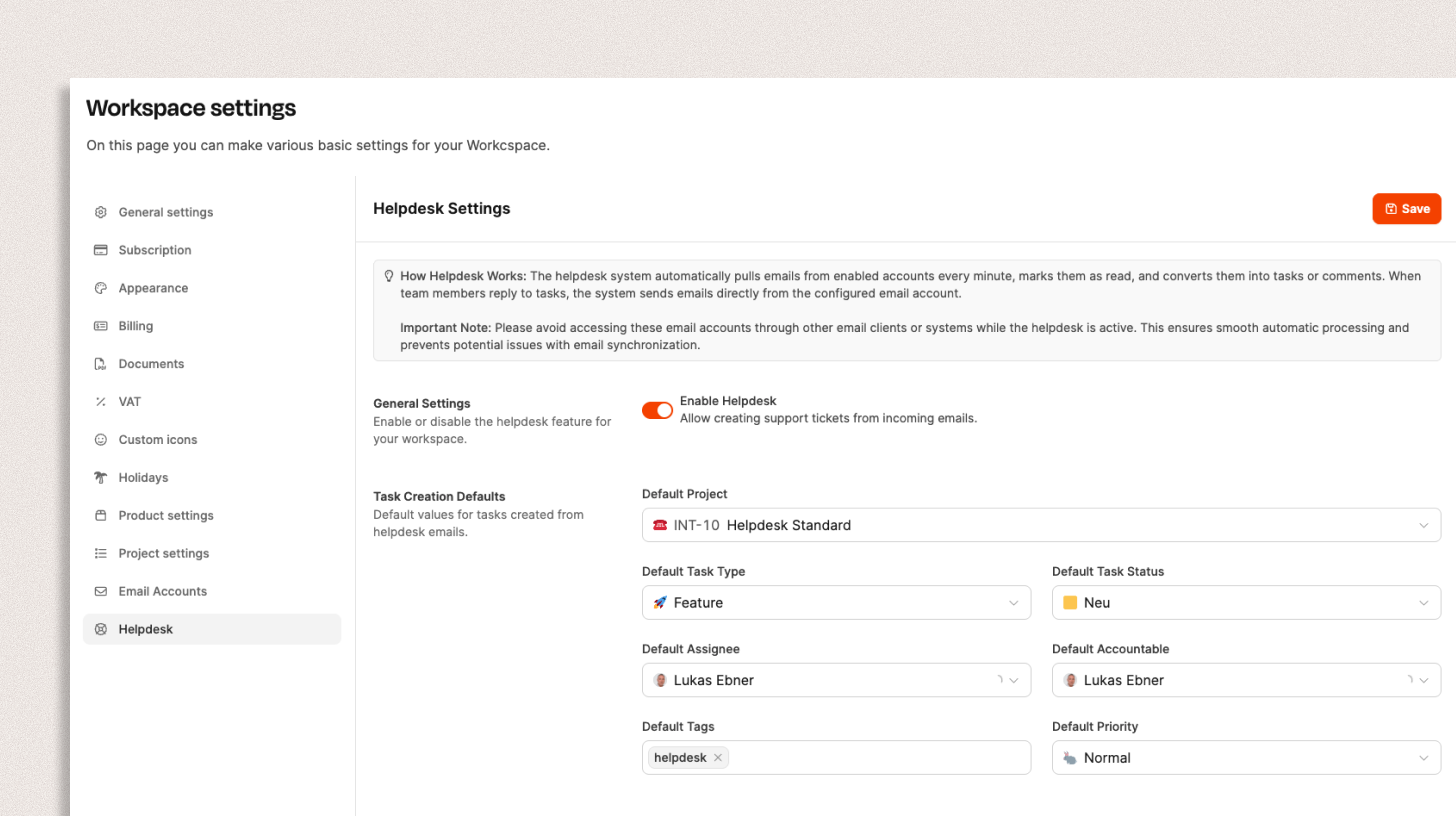
Leadtime’s Helpdesk section lets you convert incoming emails automatically into support tickets. The system regularly retrieves messages from connected email accounts, converts them into tasks, and assigns them to a project, type, status, and person responsible. Replies from Leadtime are sent directly through the linked mailbox.
How it works
Once the helpdesk is enabled, Leadtime checks the connected email accounts for new messages at short intervals. Each new email is converted into a task, including its subject, sender, and content.
Team members can reply directly in the ticket history, which automatically sends an email to the original sender.
[!WARNING] Note: While the helpdesk is active, you should not retrieve the same mailbox in other email applications at the same time. This prevents synchronization problems and ensures stable message processing.
Settings overview

Enable Helpdesk
Turn on Enable Helpdesk to activate the helpdesk for your workspace.
From that point on, Leadtime begins processing emails from the connected mailboxes.
Defaults for new tickets
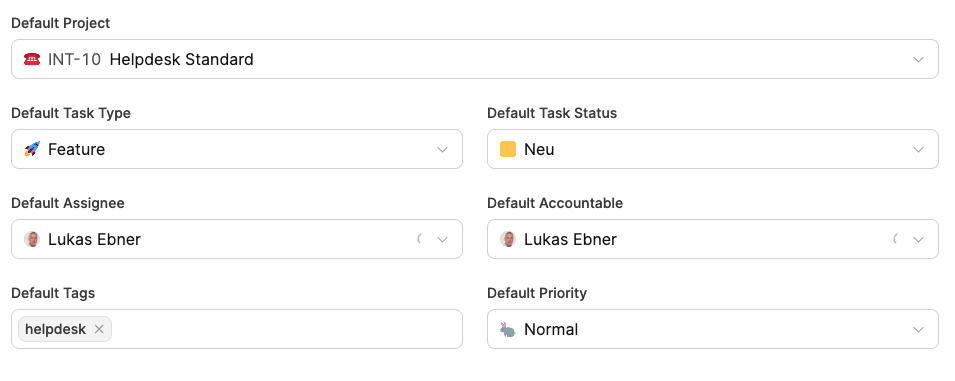
These defaults are applied when a new email is created as a ticket:
- Default project: Select the project where new tickets should be created (e.g. Helpdesk Default).
- Default task type: Defines which task type new tickets receive automatically (e.g. Feature, Bug, Support Request).
- Default status: Defines the status in which tickets start (e.g. New).
- Default assignee / accountable: Defines who is entered automatically as the assignee and accountable person.
- Default tags: Optional label for grouping tickets (e.g. “helpdesk”).
- Default priority: Defines the importance of the tickets (e.g. Normal, High).
Automatic reply
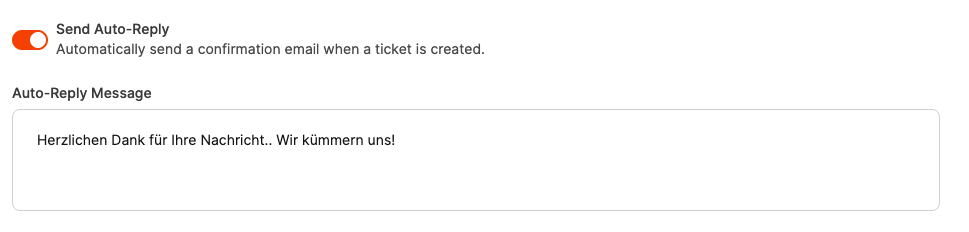
Use Send Auto-Reply to enable an automatic confirmation.
Each incoming message then receives a prepared reply, for example:
“Thank you very much for your message. We’ll take care of it!”
This feature is especially useful for letting senders know immediately that their request has been recorded in the system.
Practical tip
If you use the helpdesk with an email account that is also used manually, it is best to use a dedicated support address (e.g. support@unternehmen.de).
This prevents private or internal messages from being converted into tickets accidentally.
Organization-specific helpdesk settings
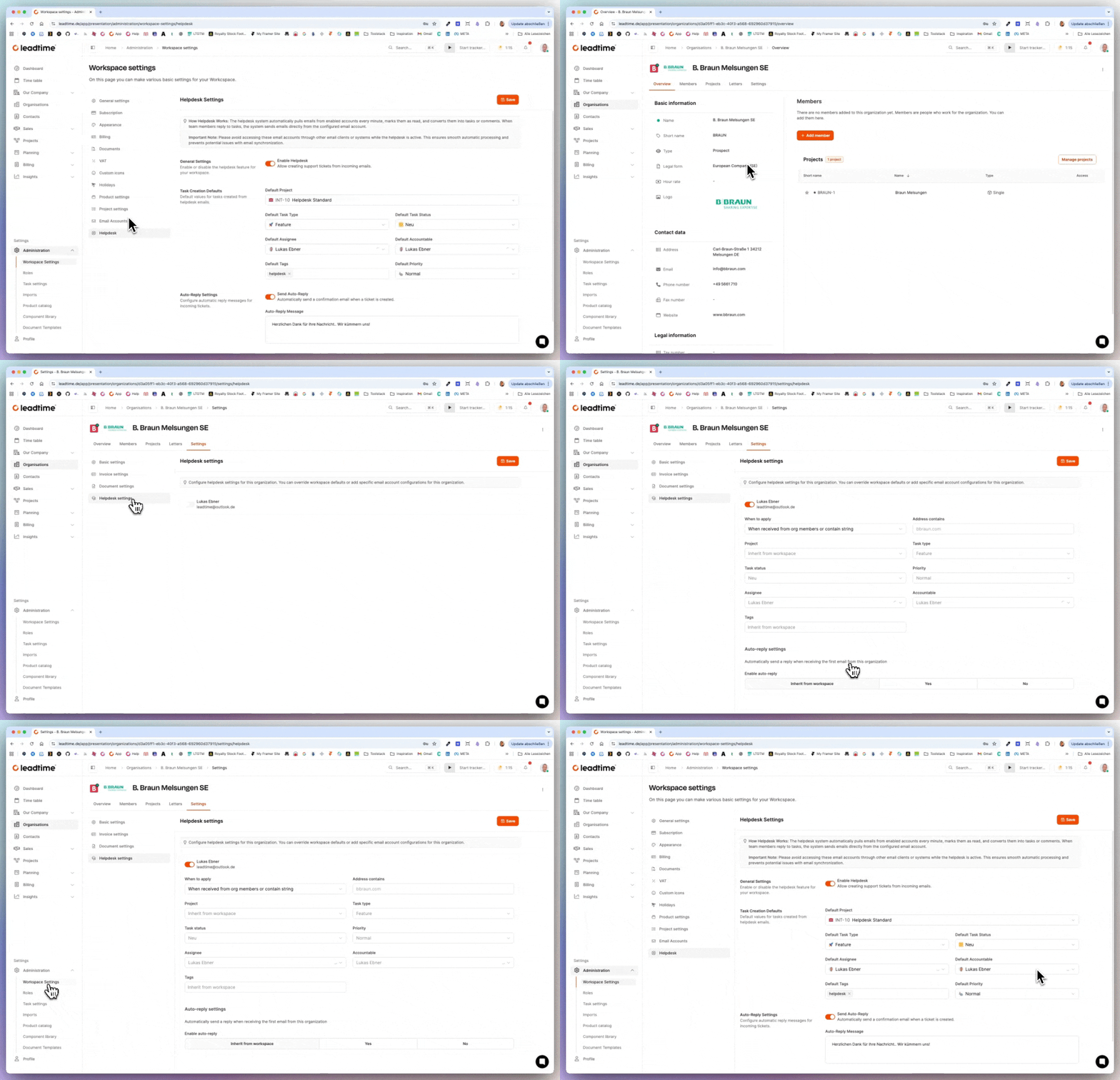
Found under Organizations → [Select organization] → Settings → Helpdesk Settings
In this section, you can customize the central helpdesk from the Workspace Settings for individual organizations.
This means that you can use separate helpdesk rules and mailboxes for specific customers or partners, independently of the workspace’s general default configuration.
Purpose
This feature lets you set up separate helpdesks for each customer.
For example, an agency can define different email addresses, assignees, or ticket types for different clients—such as a dedicated helpdesk for B. Braun Melsungen SE with its own email address and project.
This keeps communication clearly separated and lets support requests be assigned directly to the appropriate project or customer structures.
Settings overview
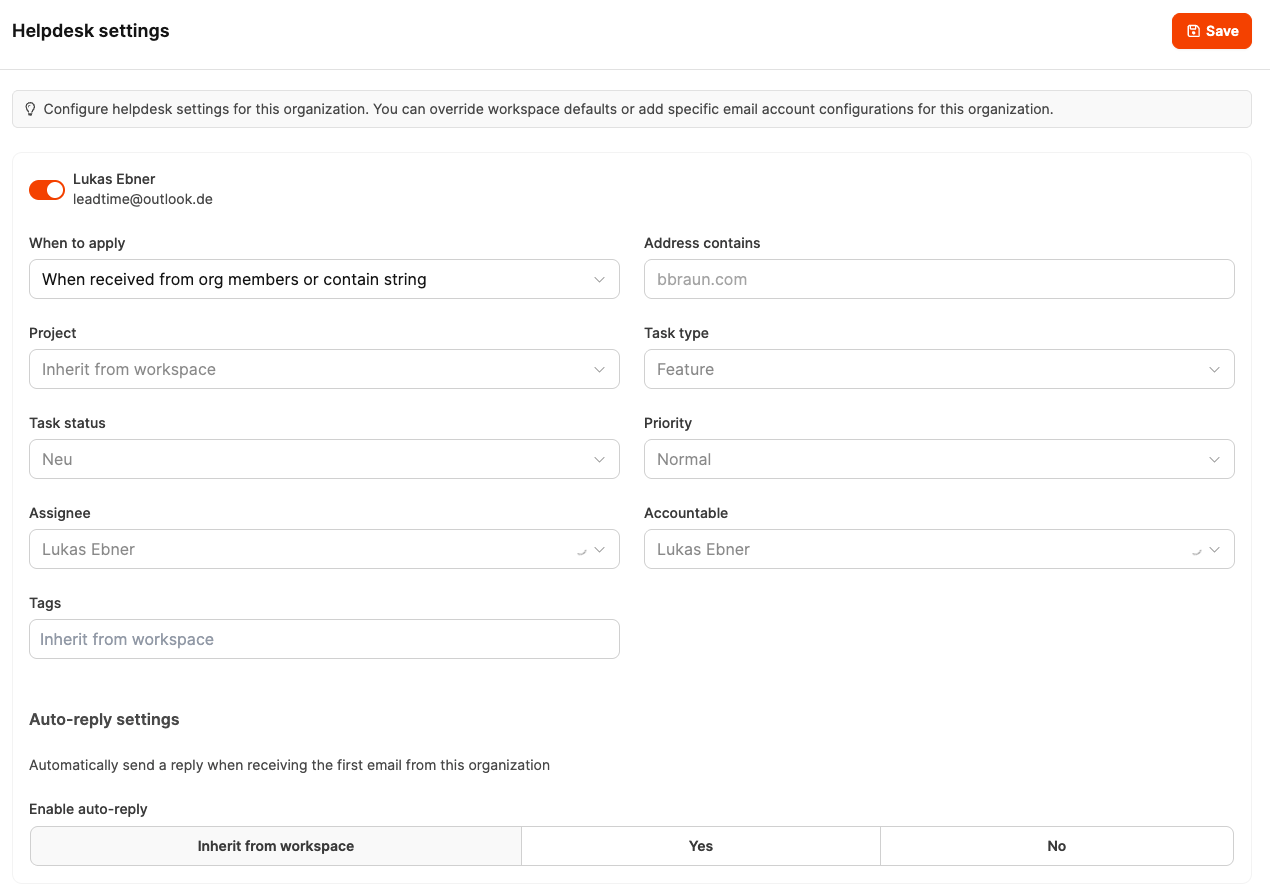
-
Activation:
Enable the helpdesk for the organization. Incoming emails (e.g. to support@unternehmen.de) can then be processed specifically for this customer.
-
When to apply:
Defines when these helpdesk rules should apply—for example, only to messages from organization members or from specific domains (e.g. **braun.com).
-
Project / Task Type / Status / Priority:
Define the project where new tickets are created and the default values they receive (e.g. status New, priority Normal).
-
Assignee / Accountable:
Define who is assigned automatically to new tickets from this organization.
-
Tags:
Lets you add keywords automatically for better request assignment.
-
Auto-Reply Settings:
If needed, enable an automatic reply for new emails from this organization.
This lets you send each customer their own confirmation message with custom text.
Practical example
A software provider supports several major customers with different requirements.
- For B. Braun Melsungen SE, every ticket should be routed automatically to a specific project with its own assignee and specific tag.
- The general workspace helpdesk rules continue to apply to other customers.
These organization settings therefore make it possible to operate multiple independent helpdesk structures within one workspace.