
Overview
What the Form Library does, where templates live, and how tasks use attached forms.
The Form Library gives your workspace reusable form templates—think inspections, handoffs, signatures, and file uploads—so everyone captures the same structured data. You maintain templates in workspace settings; on a task, you attach instances, fill them in the modal or inline blocks, and track progress from the sidebar.
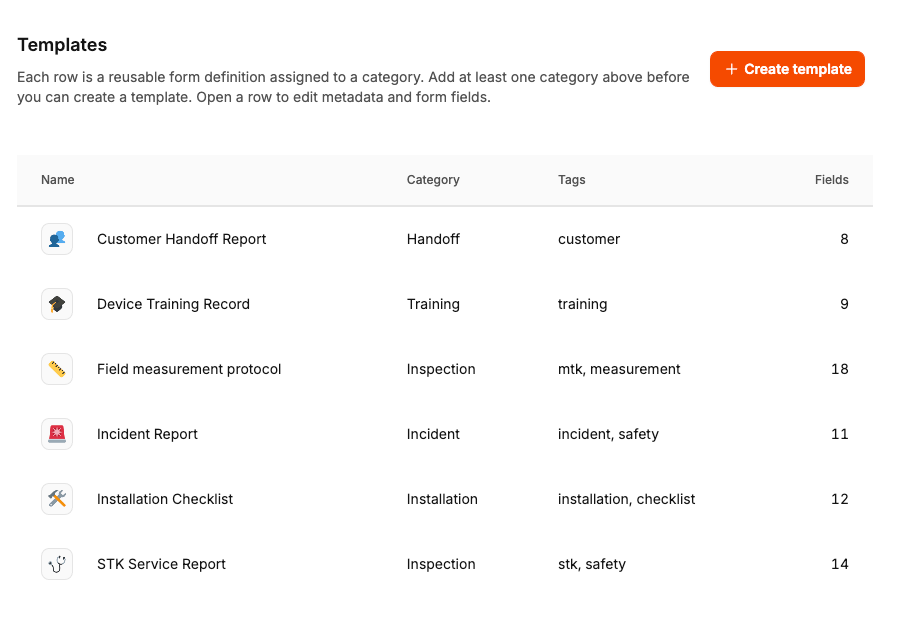
Two sides of the feature
There is an admin side and a task side:
- Admins (or anyone with the Manage form templates permission) build categories, templates, and fields under Administration → Workspace settings → Form templates.
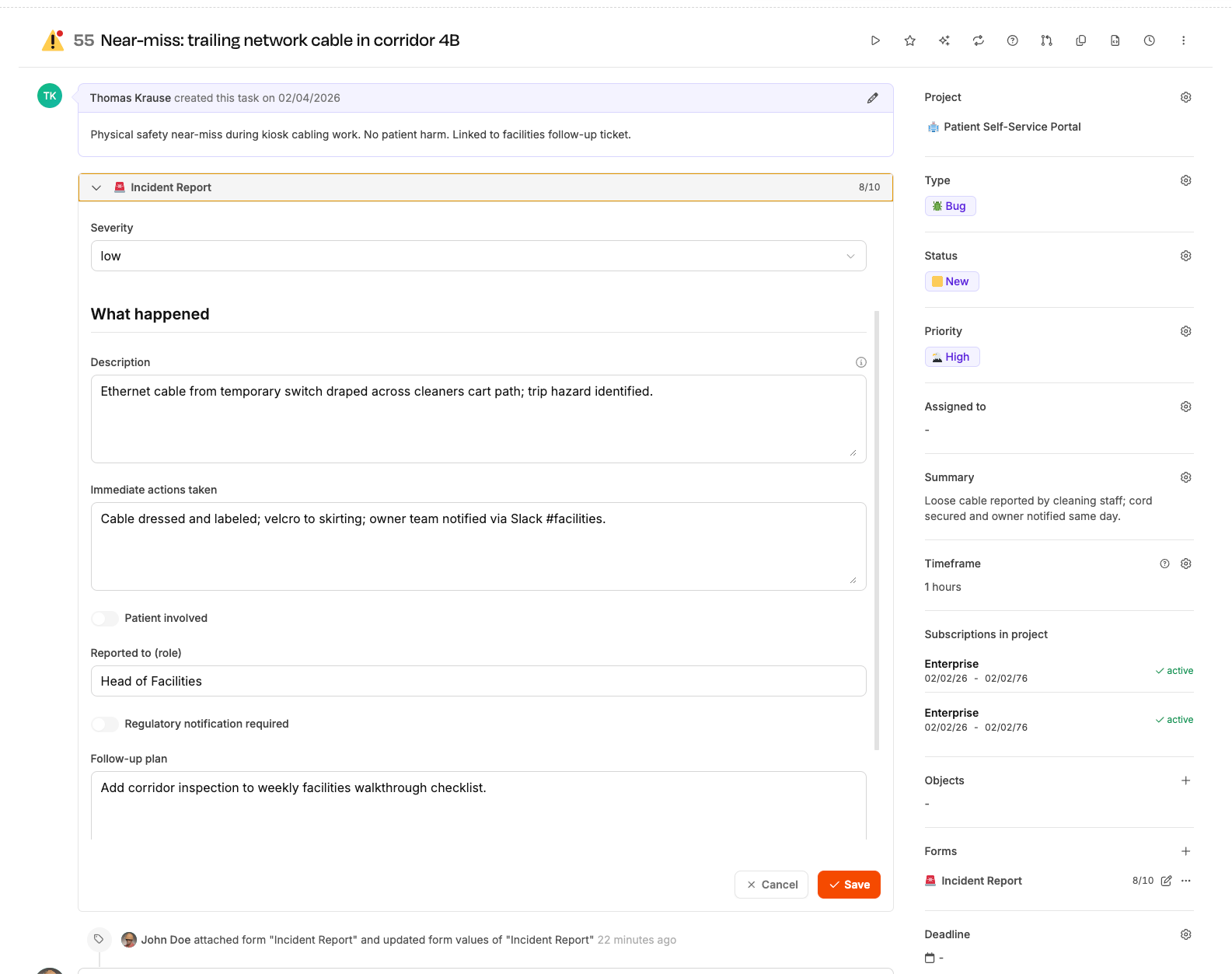
- On a task, people with the right permissions attach templates as form instances, then fill or view them from the Forms sidebar and from collapsible sections on the task page.
Below is how a form looks when it is expanded on the task itself—the same instance also appears in the sidebar list.
Field types you can use
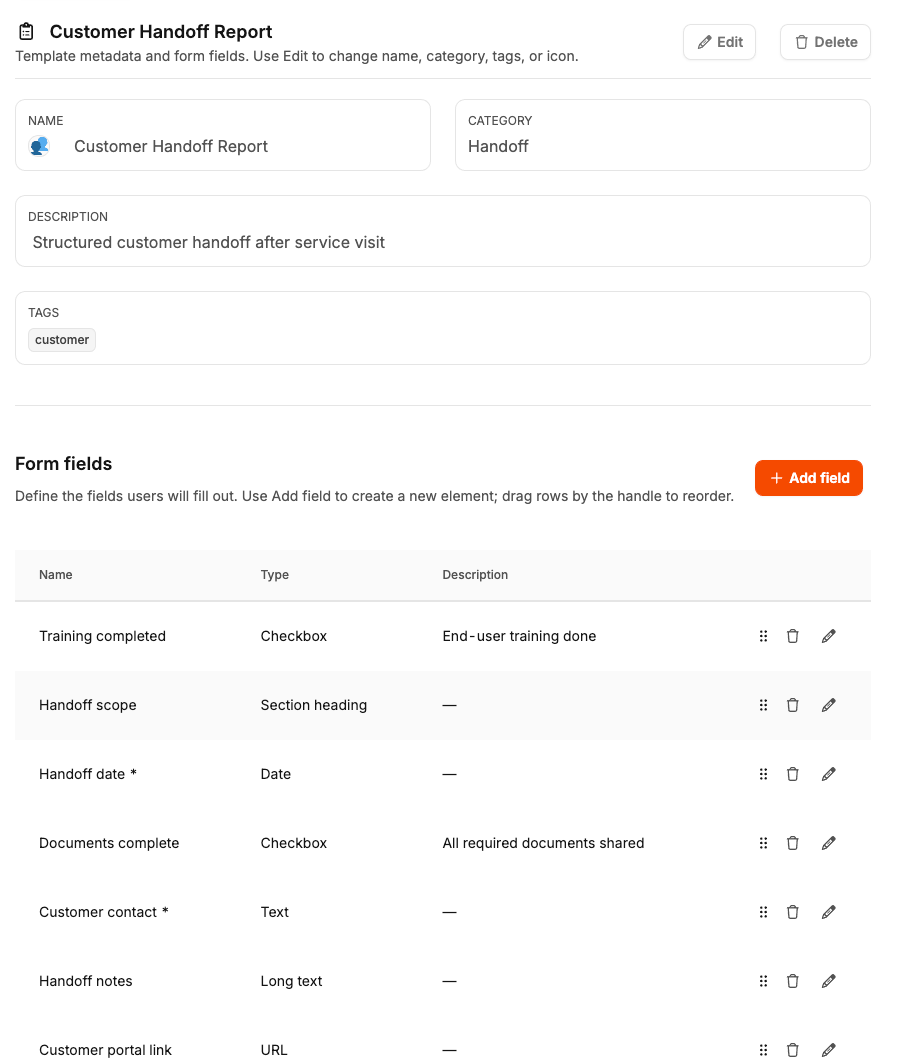
Templates support the same families as custom fields—Text, Textarea, Number, Date, Checkbox, Select, MultiSelect, Currency, Url—plus form-specific pieces such as Section headings, File upload, Signature, and Radio groups. Options for choice fields live in the field editor, similar to custom-field options.
Permissions at a glance
Template management uses the Manage form templates permission (under Form templates in the role editor). On tasks, attaching and removing instances requires Attach or remove forms on tasks; saving answers requires Fill in forms on tasks. If a task is already billed, further saves are blocked—plan your workflow accordingly.
Note: Need categories, fields, or template setup? Continue with Managing form templates in this help section.