
Create Organizations
The organizations section is used to manage all external business partners your company has contact with – like customers, suppliers, partners, or competitors.
The Organizations section is for managing all external business partners your company has contact with – like customers, suppliers, partners, or competitors. Here, all organizations are collected in one place so you can clearly structure and easily analyze projects, contacts, and relationships.
Learn more here Organizations – List and Detail View
Structure and Relationships
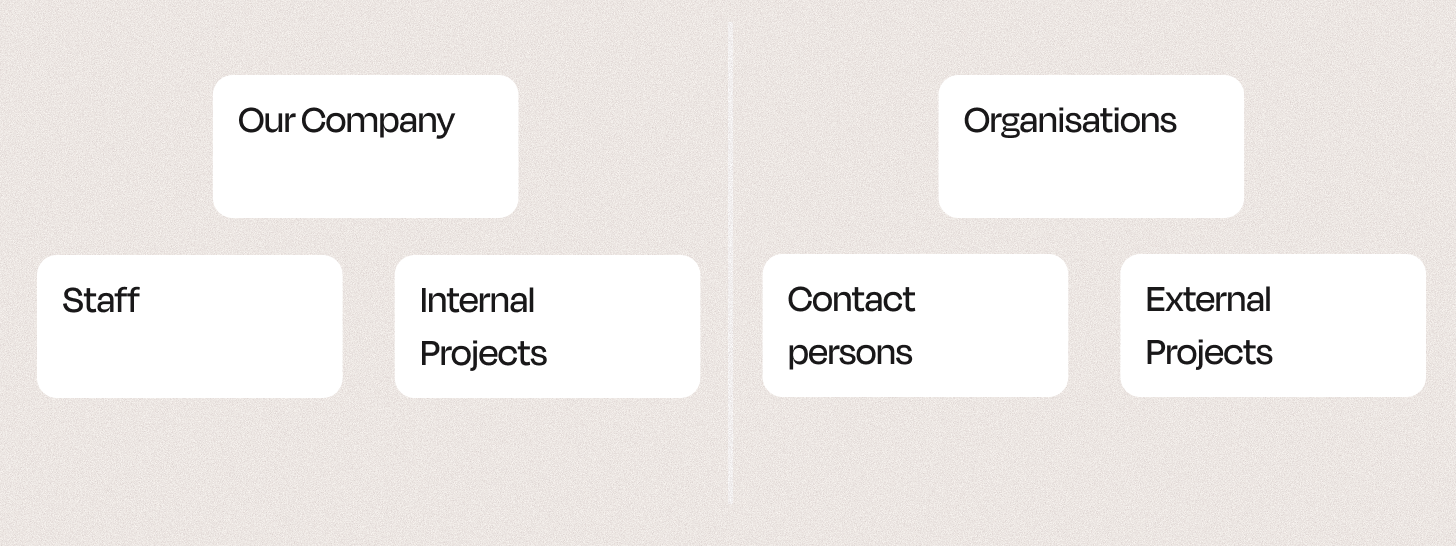
Leadtime makes a distinction between your company’s internal structure (Employees, internal projects) and the external structure (Organizations, contacts, external projects).
This way you always know which projects and people belong to your company – and which belong to external business partners.
Organizations Overview
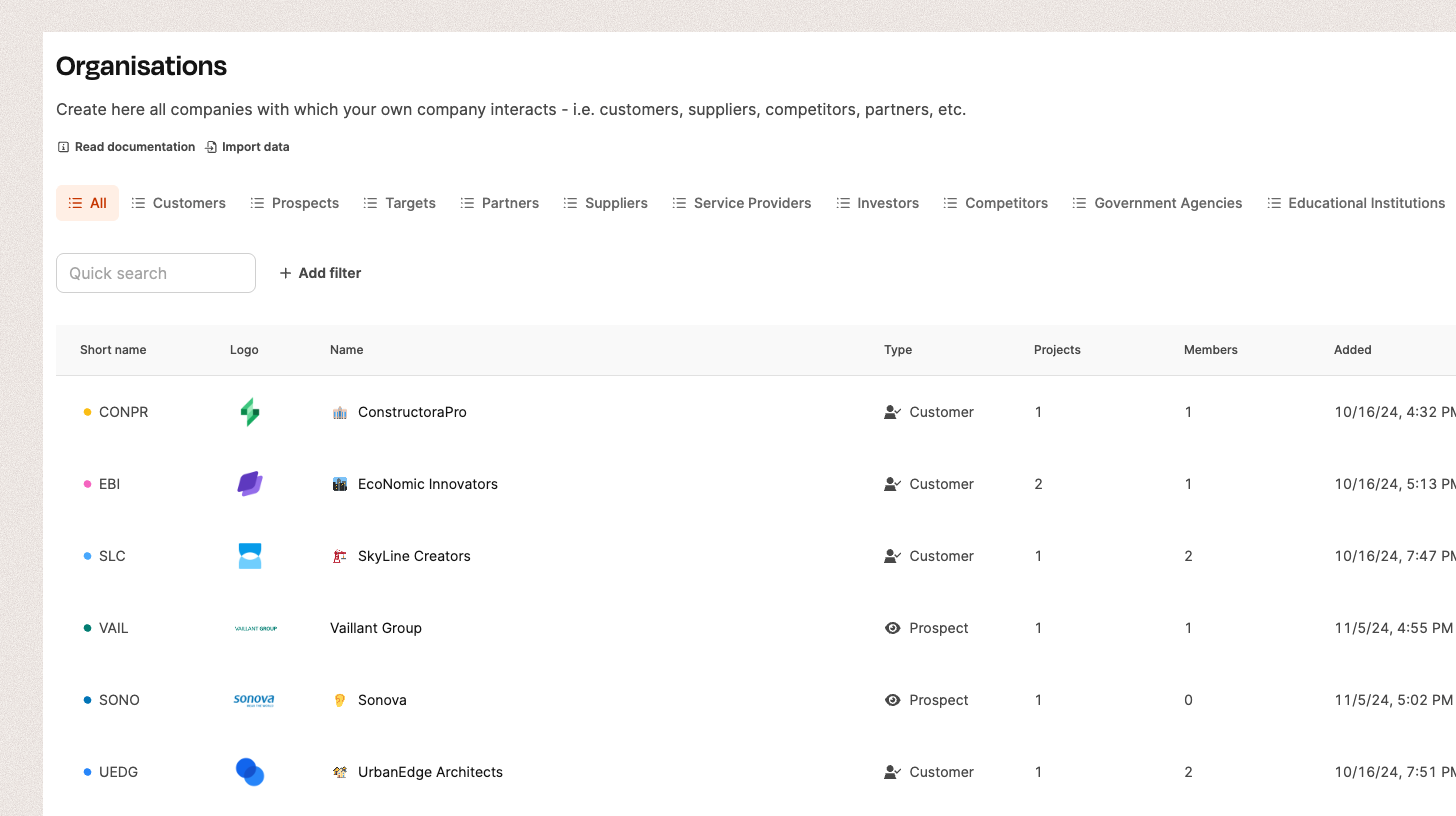
The organization list shows all recorded external companies in a table format:
- Short name: Organization abbreviation (e.g., “CONPR” for ConstructoraPro).
- Logo: Visual identifier for the organization.
- Name: Full company name.
- Type: Organization’s role, e.g. Customer, Supplier, Partner, Competitor.
- Projects: Number of linked projects.
- Members: Number of related contacts.
- Added: Creation date.
- Status: Shows if the organization is active.
With the filter bar, you can search for specific types (e.g. Customers, Suppliers, Prospects).
Organizations – List and detail view
Add organization
The “Add organization” dialog helps you capture new external companies or partners in Leadtime. Organizations are the basis for assigning external projects, contacts and business relationships.
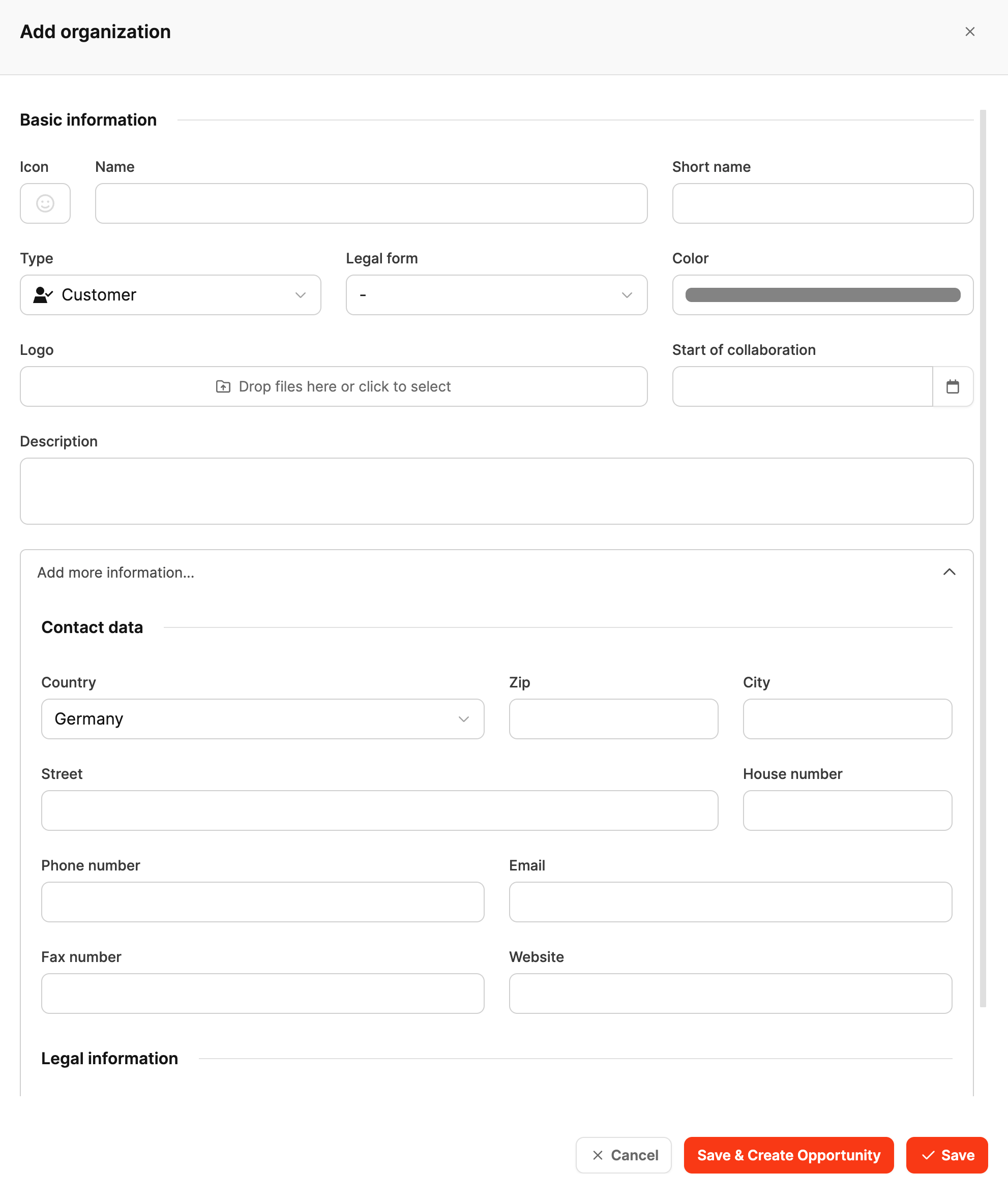
When creating a new organization, you enter the key master data:
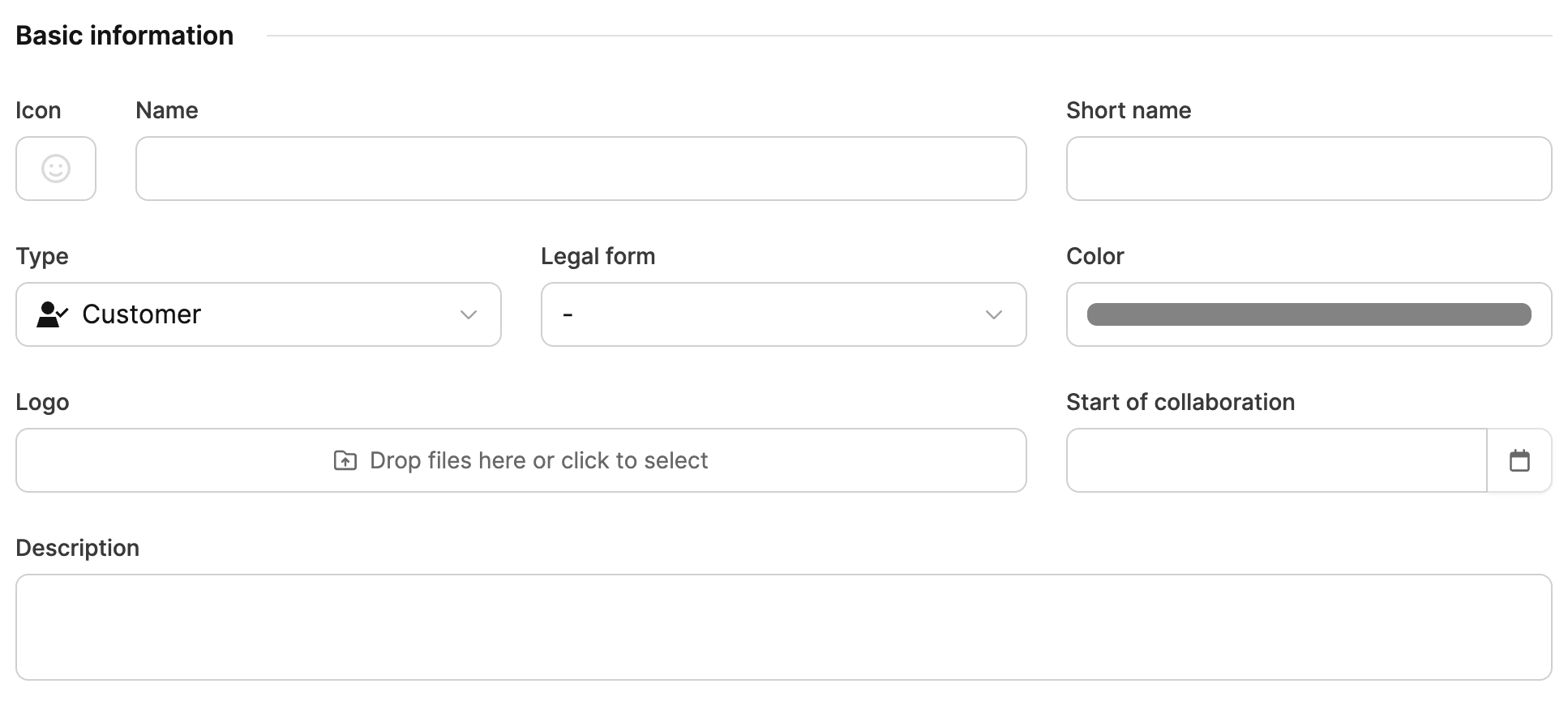
- Icon: Pick an icon that visually represents the organization.
- Name: Full company name.
- Short name: Abbreviation for quick ID (e.g. “LEAD” for Leadtime GmbH).
- Type: Defines the relationship with the organization (e.g. Customer, Supplier, Partner, Prospect).
- Legal form: Choose the legal company form (e.g. GmbH, AG, KG).
- Color: Used to visually distinguish in lists and projects.
- Logo: Optional file upload for the company logo.
- Start of cooperation: Date the cooperation started.
- Description: Short overview of industry, size or what the organization does.
Organization Types
| Type | Description |
|---|---|
| pink_heart Customer | Existing business partner with ongoing projects |
| hourglass_flowing_sand Prospect | Potential customer with first contact or active offer |
| bullseye Target group | Company that belongs to your target customer group |
| handshake Partner | Strategic partner or reseller |
| articulated_lorry Supplier | External provider of goods or services |
| hammer_and_wrench Service provider | Supporting external provider, e.g. for support |
| moneybag Investor | Financial or institutional investor |
| crossed_swords Competitor | Competitor in the same industry |
| classical_building Authority | Public institution or government agency |
| graduation_cap Educational institution | University, school, or research institute |
More information
By clicking on “Add more information” you can expand the form.
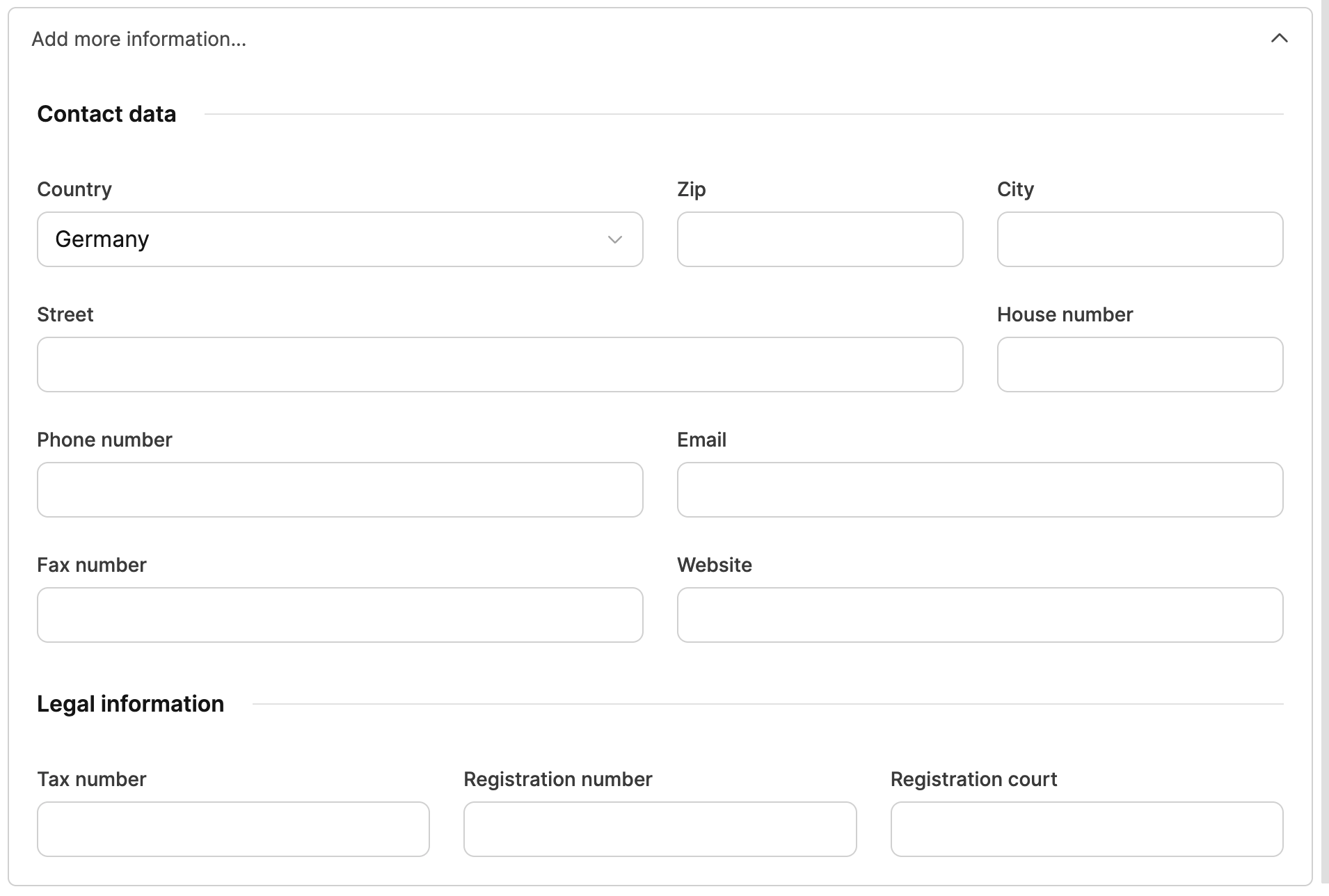
Contact information:
- Country, ZIP code, city, street, house number
- Phone number, email, fax number, website
Legal information:
- Tax number
- Registration number
- Registration court
Finish
Once all relevant info is filled in, you can create the organization with Save – or kick off your first sales project straight away with Save & Create Opportunity.
Purpose of the “Save & Create Sales Opportunity” button
More on this topic: Sales opportunities

With this feature, a sales project gets created along with the new organization. You’ll find it in the main area Sales → Sales opportunities.
- You can set up multiple sales opportunities as separate projects per organization.
- Every sales opportunity is treated like a regular project — with the same functions and options.
- Team members can create tasks, log hours, and document progress.
- This helps you see how much effort has already gone into a particular sales opportunity.
- Projects act as the main data objects where all info — from activities to files through to reports — gets collected.
This integration makes sure the whole sales process blends smoothly into day-to-day project work and all activities are shown consistently in Leadtime.
Set up organization settings: Organizations – Settings