
Objects
Manage long-lived objects, organize them by type, and connect them to projects and tasks.
Objects are long-lived entities that stay relevant beyond a single project. You can use them for things like rental units, medical devices, vehicles, servers, or any other item you want to manage over time. That way, you do not lose the connection between ongoing work, files, history, and the object itself when projects change.
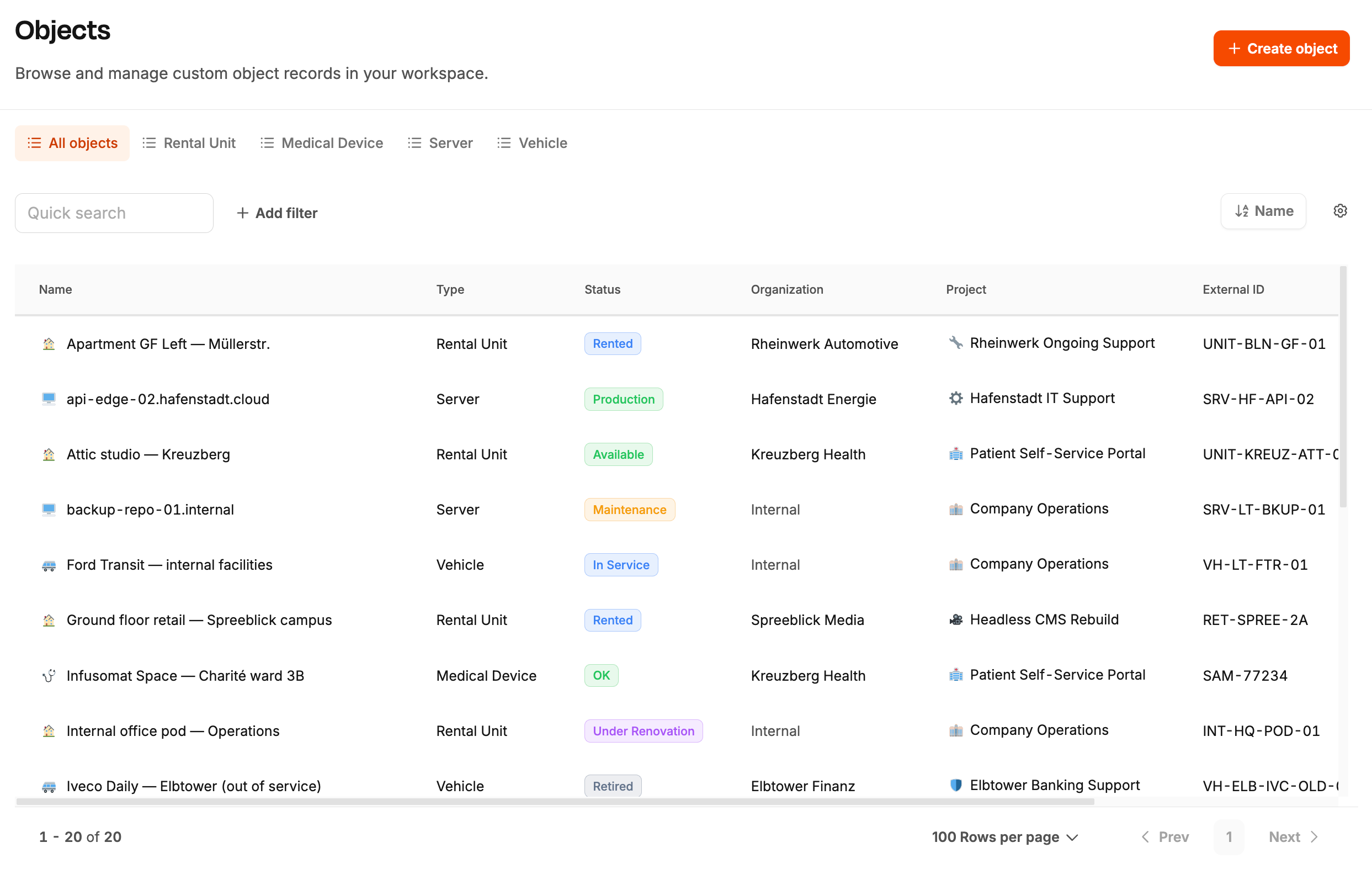
What objects are
In Leadtime, objects sit between your customer structure and your daily work. A project is usually time-bound. An object stays with you for its whole lifecycle.
Typical examples:
- Rental unit: an apartment that can be assigned to different lease projects over time
- Medical device: a device that moves between maintenance contracts
- Vehicle: a car that stays in the system while related projects change
- Server: an infrastructure asset that can be linked to support and implementation work
This makes objects useful whenever the thing you work on should outlive the project around it.
Objects list
Open the objects area from the main menu under “Objects”. The list gives you a central overview of all objects in your workspace.
The page helps you:
- Browse all objects: open the full list across all configured object types
- Switch views: use built-in views or saved views to focus on a specific type or workflow
- Scan status quickly: each object shows its current status directly in the list
- Open details: clicking a row opens the full object detail view
Depending on your workspace setup, visible columns can differ by object type. This is especially useful if different object types need different key data.
Filters and views
The objects list is designed to help you find the right objects fast, even in a large workspace.
Useful tools in this area:
- Type-based views: separate different object categories such as rental units or medical devices
- Saved views: store useful combinations of filters and columns
- Filters: narrow the list by status, organization, assigned project, or object type
- Visible columns: show the fields that matter most for that type
This keeps the list flexible without forcing every team to work with the same layout.
Create an object
Click “Create object” on the objects page. Editing uses the same dialog pattern as create (shown here as “Edit object”).
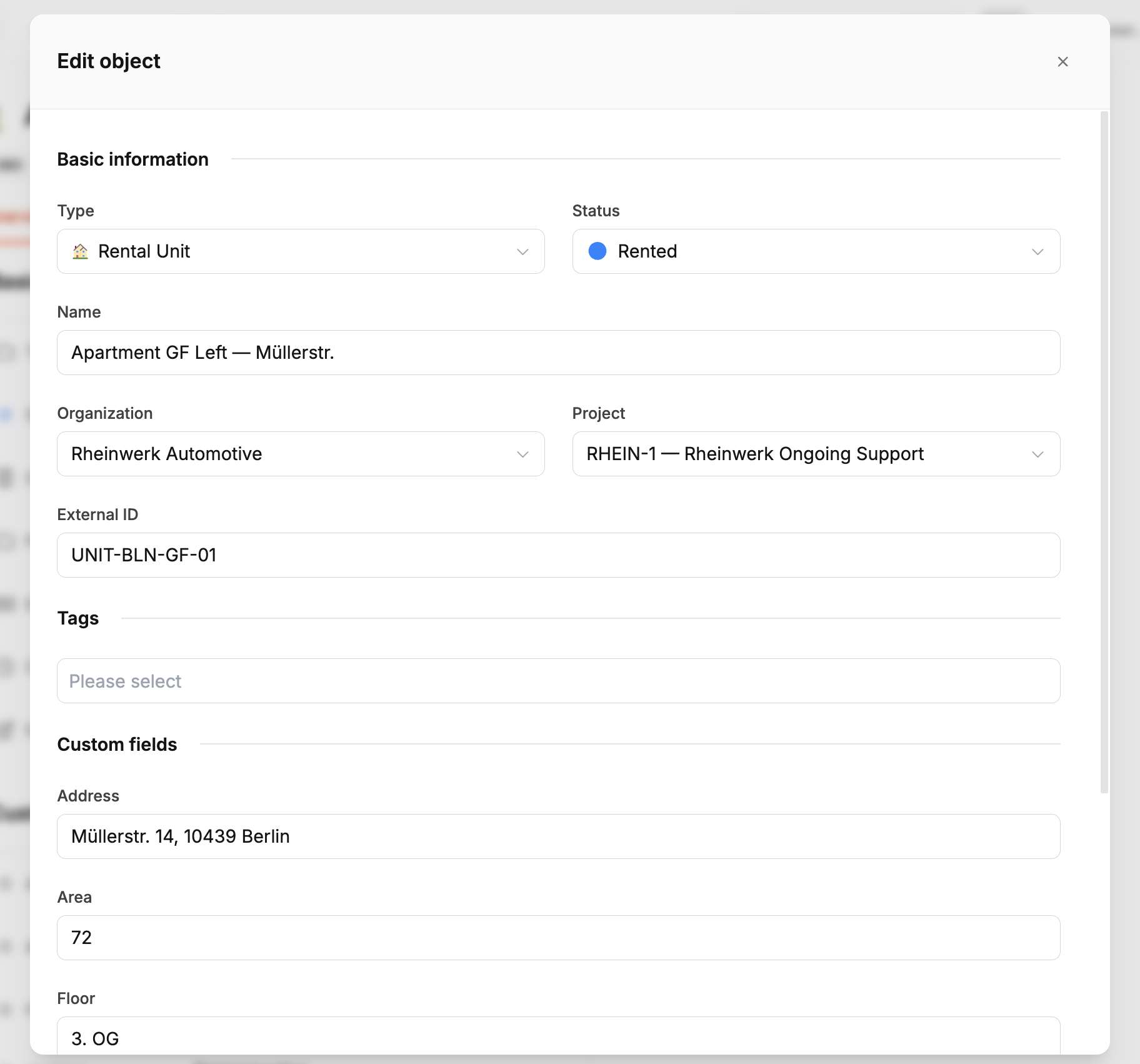
In the dialog, you usually define:
- Type: the object type this object belongs to
- Status: the current lifecycle status
- Name: the main label shown in the app
- Organization: the related customer, if the object belongs to one
- Project: the current project assignment, if there is one
- External ID: an optional ID from another system
- Custom fields: additional type-specific details
lf an object does not belong to a customer organization, it can also exist as an internal object inside your workspace.
Objects, projects, and tasks
Objects work best when you understand how they relate to the other main entities in Leadtime:
- Objects: the long-lived thing you manage
- Projects: the current contractual or operational context
- Tasks: the concrete work linked to the object
For example, an apartment can stay in Leadtime for years, while the related lease project changes. Maintenance and support tasks can still stay connected to the same object.
This gives you a stable place for object-specific information, while projects and tasks continue to reflect the current work situation.