
User Interface
An overview of the Leadtime app structure: navigation, header, and main workspace.
Leadtime’s user interface consists of three areas: the side navigation, the header, and the main area. This structure helps you find your way around and access every feature quickly.
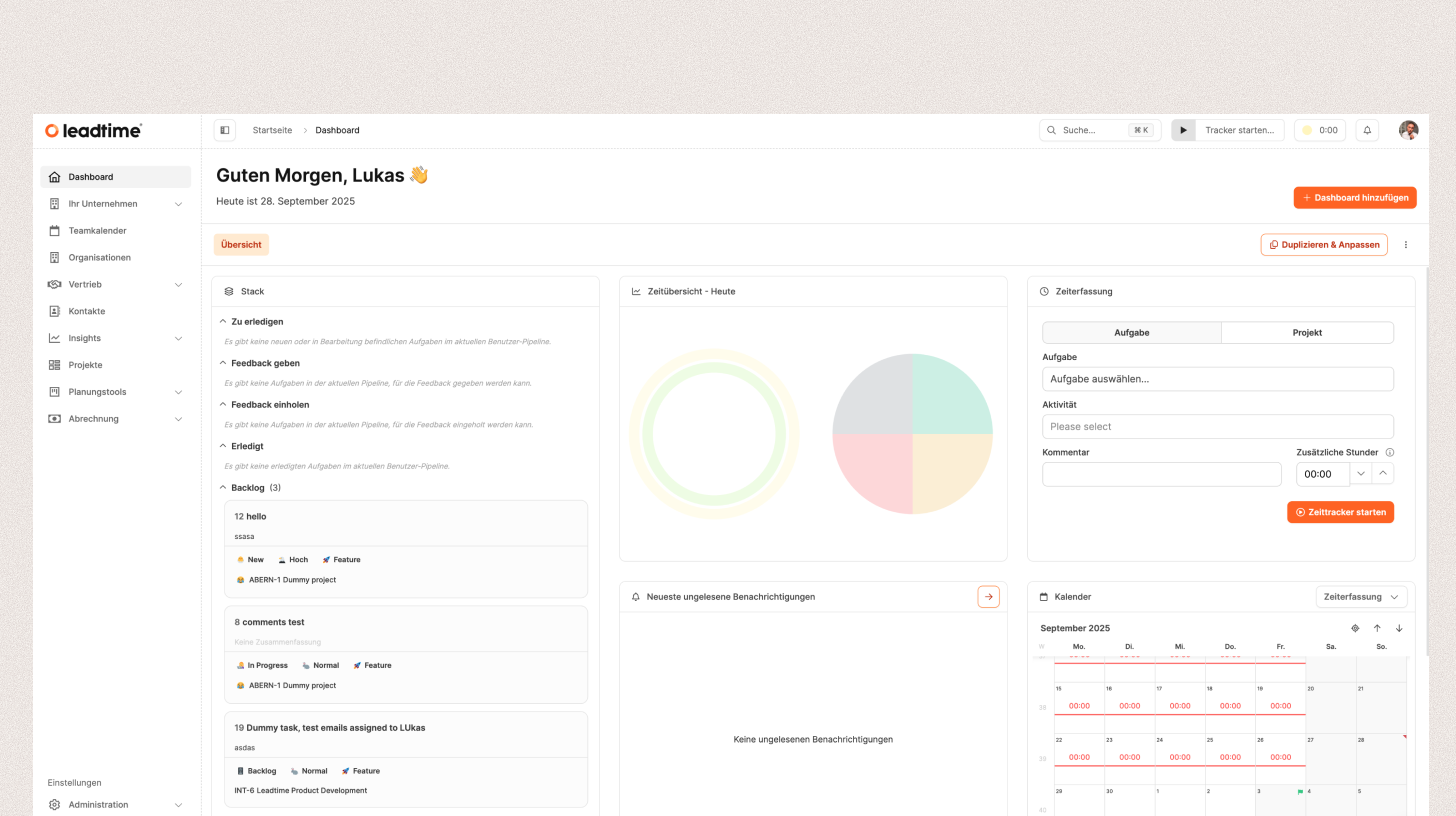
Side navigation
The navigation on the left provides access to every module.
- Main navigation: The upper section links to modules such as Organizations, Projects, Sales, Planning, and Insights.
- Settings: A separate section below contains options such as Administration, Profile, and Subscription.
You can expand and collapse menu items to save space or reveal more detail.
Header
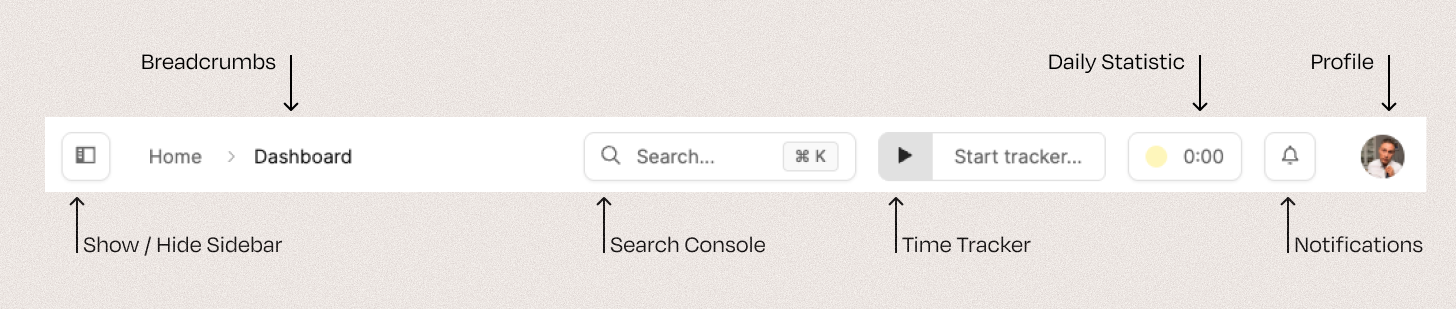
The header sits at the top of every page and always remains visible. It contains functions that work independently of the current module:
- Sidebar toggle: Shows or hides the side navigation.
Breadcrumbs: Show your current location in the app.
Command Console: Open it with CMD + K on Mac or CTRL + K on Windows to search data or run shortcuts.
Time Tracker: Starts and stops time tracking. You can assign tracked time to projects or tickets.
Time-booking targets: Shows your progress toward your personal daily time-tracking targets.
Messaging system: Open it with the bell icon to see system notifications.
Profile: Access your personal settings, language, theme, and sign-out action.
Main area
The main area is your workspace in Leadtime. It displays module content in several forms:
- Data overviews and grids: Lists of projects, organizations, or tasks.
- Forms and input fields: For entering and editing data.
- Interactive views: Filters, widgets, and tools for focused analysis and editing.