
List views and Kanban boards
Tasks can be displayed, customized, and saved as a list or Kanban board for better organization and transparency.
In Leadtime, tasks, projects, and offers can be shown in two different ways: as a list view or as a Kanban board. Both views are designed to help structure complex workflows clearly, make priorities visible, and support teams with daily organization.
The list view is especially handy for data-driven work—so whenever lots of entries need to be filtered, sorted, or searched at once. It shows all the important info in a clear, table-like layout.
The Kanban board is more visual and shows tasks, deals, or offers as they move through a process—from start to finish. Each column stands for a phase of the workflow like “New”, “In progress”, “Feedback”, or “Done”. You can easily move entries between phases with drag and drop, which makes working with it super intuitive.
These two views are available in several areas of Leadtime:
- Tasks: for managing internal and external tickets
- Sales → Deals: for organizing ongoing leads and sales processes
- Sales → Offers: for handling open, ongoing, and completed offers
This way, teams in every part of the company can flexibly switch between a structured data view and a visual process workflow—depending on what works best for the situation.
All about tickets: Projects – Tasks tab (ticket system)
List view
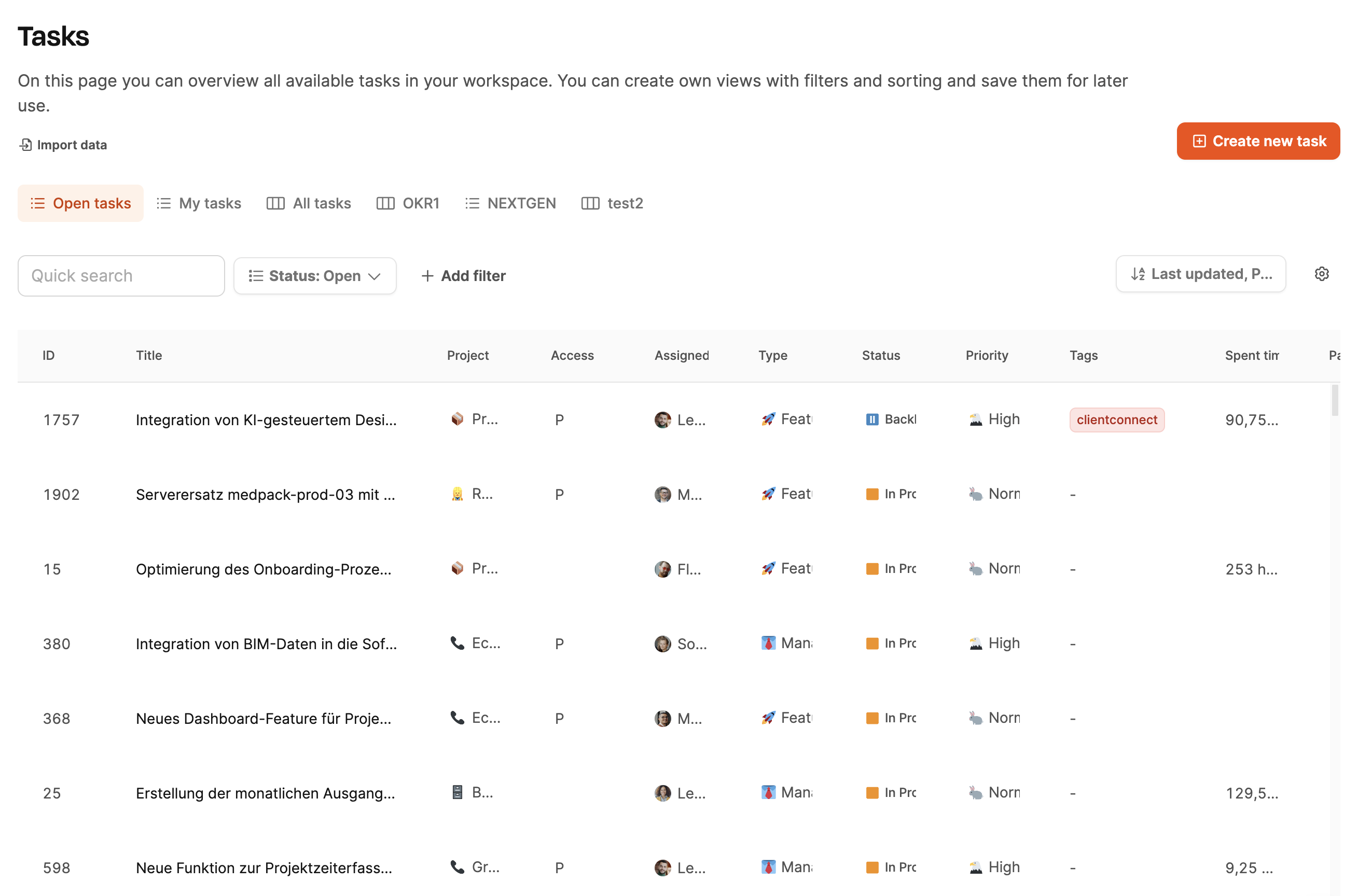
Overview
The list view shows tasks in a table-like format. It’s perfect for users who need to manage lots of tickets at once and filter them by certain criteria – like team leads or project managers with multiple projects.
Navigation
You can find the list view in two places:
- Within a project: Under the “Tasks” tab in a given project.
- Across projects: Under “Plan and Prioritize → All tasks”, to show all the tickets you have access to.
Main features
Quick Search: Scans the current list for keywords.

Filter: Freely combinable filters for columns (e.g. “Author”, “Status”, “Priority”).
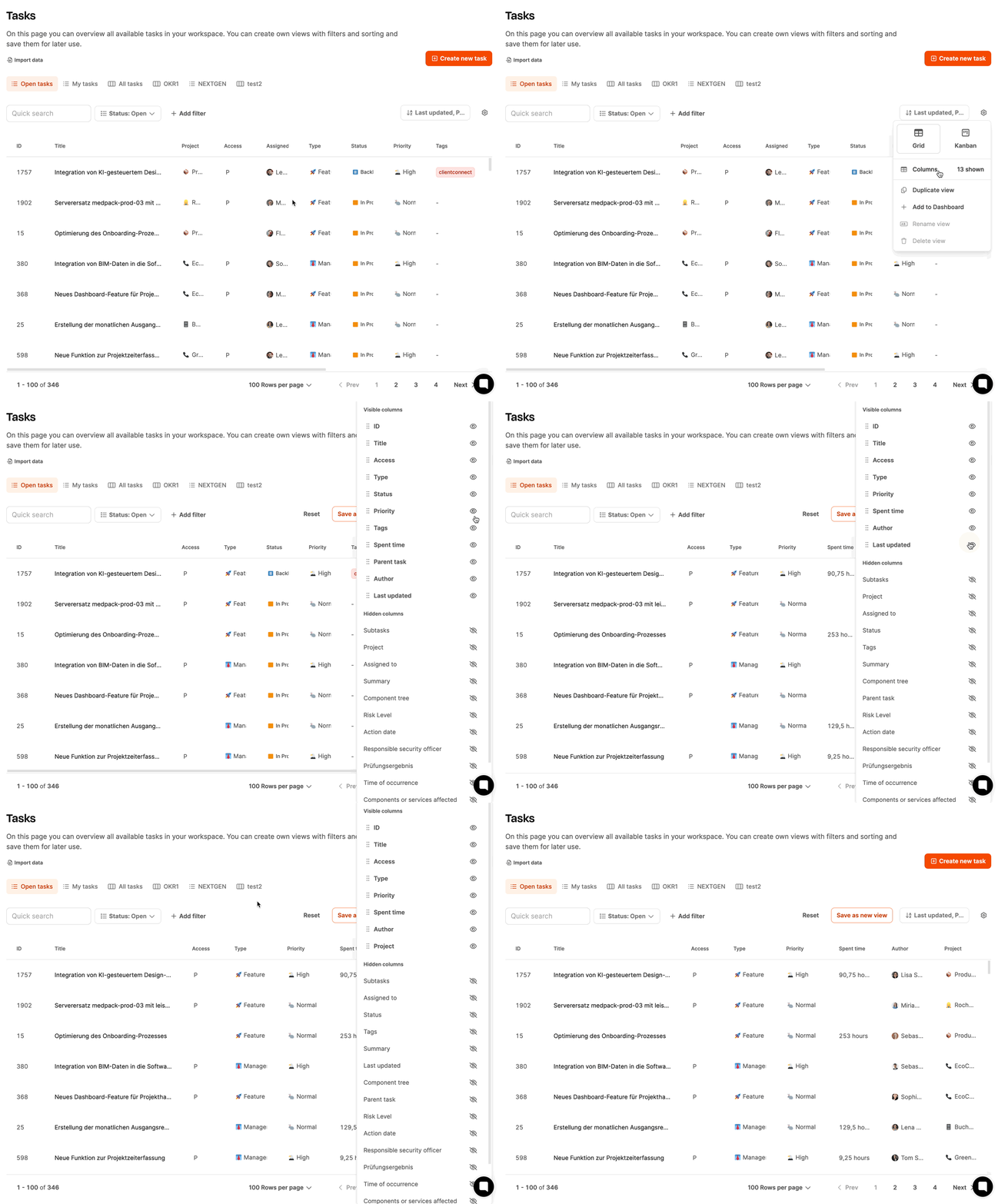
Column management: With the gear icon you can show or hide columns and rearrange them by drag & drop.
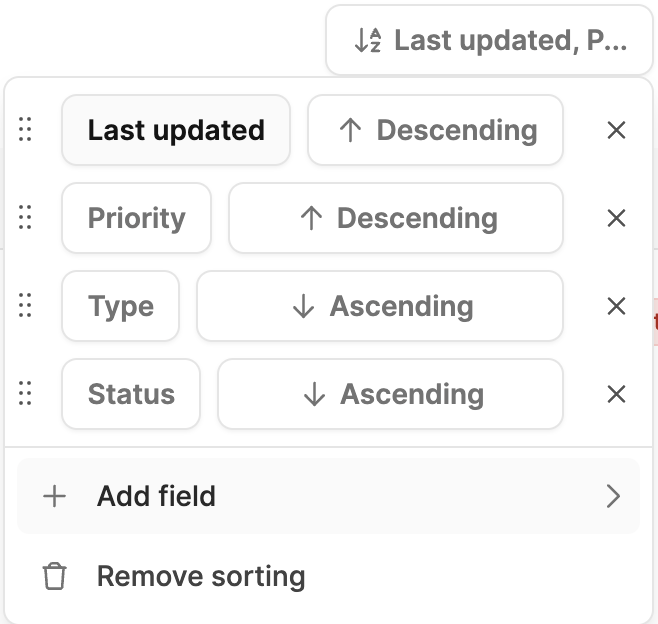
Sorting: You can sort tasks by one or more criteria – like “Due date” or “Priority”.
Save your own views

Customized list views can be saved via the “Save as new view” button.
When saving, you decide whether the view is visible private or team-wide.
Example:
A view showing all “open” tasks with “high priority” can be saved permanently so you can access it regularly.
[!INFO] You can display saved views on a dashboard.
Create tasks here: Create task
Kanban Boards
The Kanban board gives you a visual overview of all tasks and their processing status. Every column stands for a stage in the workflow (e.g. New, In progress, Feedback, Done).
The view comes from lean management and helps to reveal bottlenecks, minimize wait times, and optimize workflow.
General Kanban Workflow
Kanban boards in Leadtime give you a clearly structured workflow that’s designed to cut down waiting times and help you keep ongoing work on track. Every task moves through well-defined stages, and everyone involved can instantly see where each task stands.
The following example shows how the workflow between customer, account manager, and developer can be organized efficiently.
Step 1 – Initial Situation
At the start, there are several tasks in different stages:
- The customer submits new tasks, approves completed ones, and is available if there are any questions.
- The account manager checks out new tasks, adds any missing details, and gets them ready for implementation. They also test tasks the developer has marked as done.
- The developer works on a specific task in status In Progress and is available for technical questions if needed.
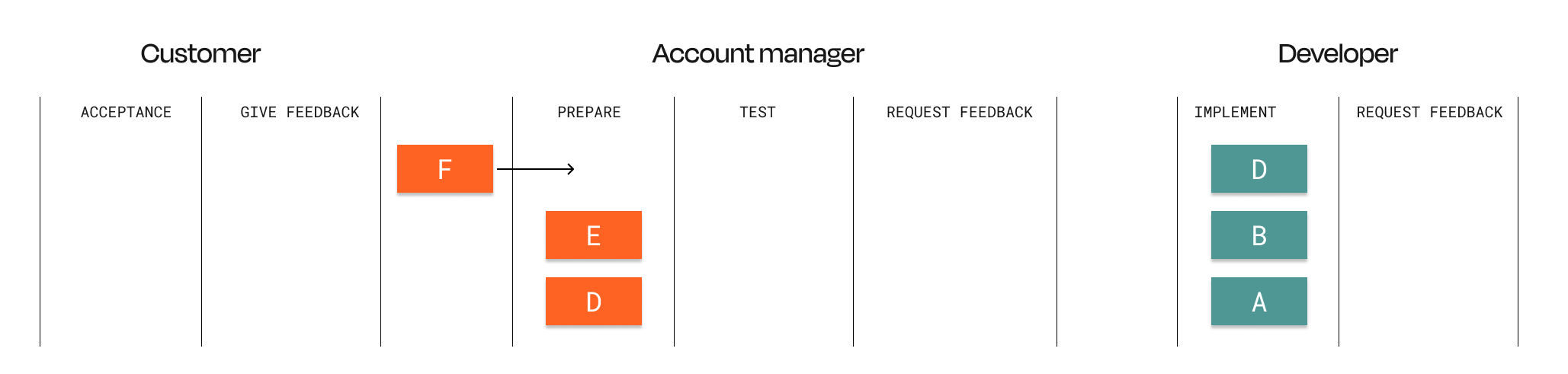
| Customer | Customer advisor | Developer |
|---|---|---|
| Creates the new task F. | Prepares task D for the developer. | Works on task A. |
Step 2 – Handover and Questions
- The account manager works on task D until it’s fully prepped and then hands it over to the developer.
- Meanwhile, the developer comes across a question for task A and moves it back to the account manager with status Feedback.
- After that, they immediately start on task B to avoid any idle time.
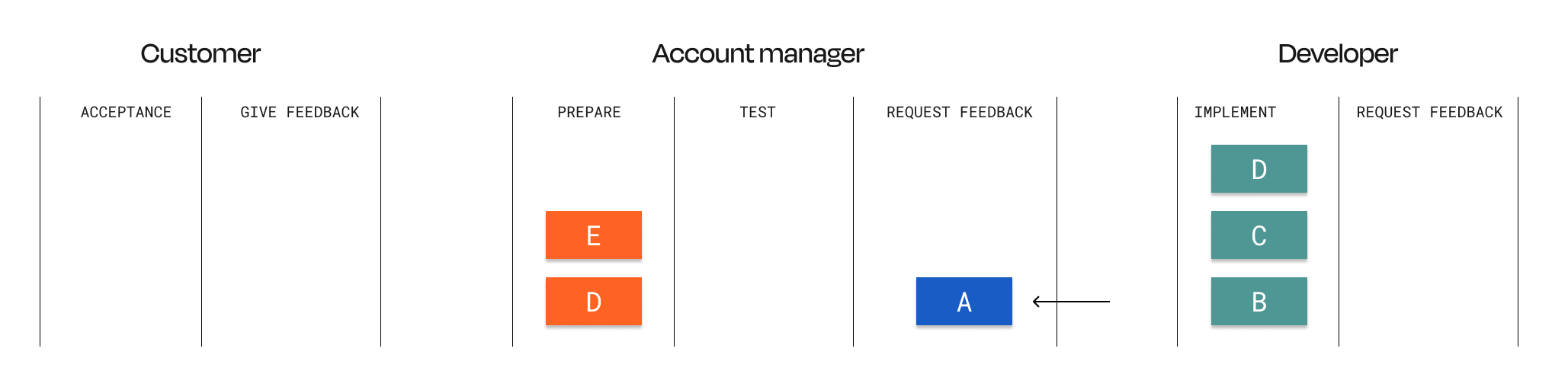
| Customer | Customer Support | Developer |
|---|---|---|
| Waits. | Passes task D on to the developer. | Marks task A as feedback and starts with task B. |
Step 3 – Testing and Coordination
- The account manager answers the question about task A.
- The developer has finished task B and hands it over to the account manager for testing.
- After getting the answer, the developer can continue with task A.
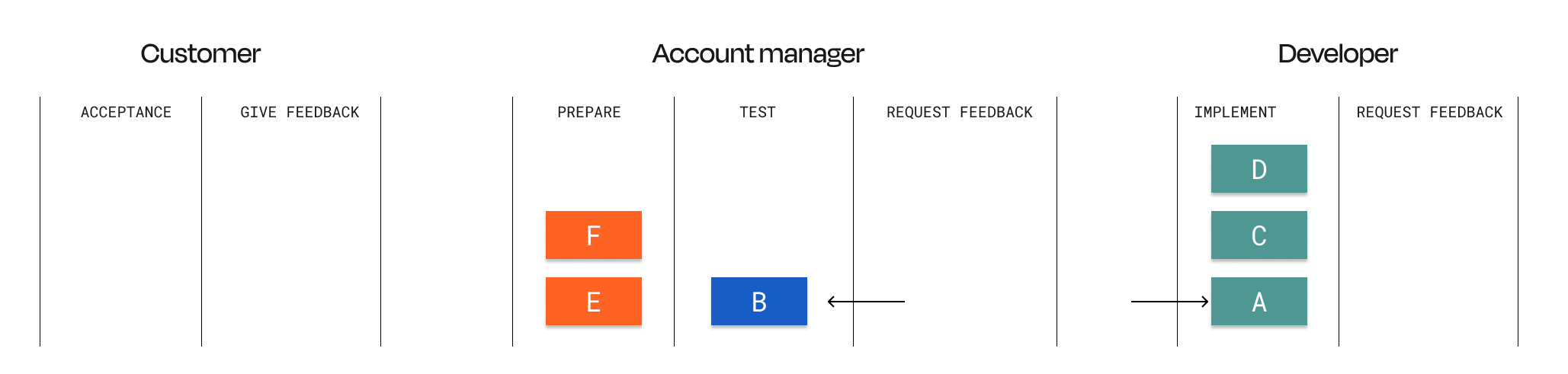
| Customer | Account manager | Developer |
|---|---|---|
| Waiting. | Testing task B and answering the question about A. | Keeps working on task A. |
Step 4 – Final phase
- The account manager has tested task B and makes it available to the customer to accept.
- The developer has completed task A and also hands it over for testing.
- Then he starts with task C, the next one in his stack.
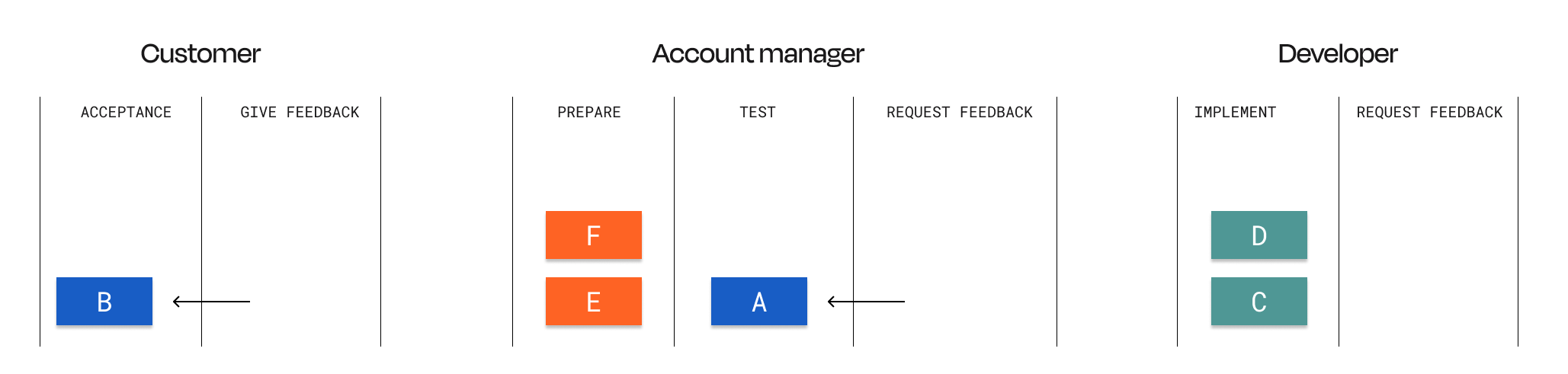
| Customer | Account manager | Developer |
|---|---|---|
| Checks and approves task B. | Tests task A. | Starts with task C. |
Result
This Kanban workflow makes for a steady, uninterrupted flow of work.
- Waiting times are reduced.
- Follow-up questions and testing are clearly built into the process.
- The number of tasks open at the same time (“Work in Progress”) stays minimal.
This way, you get a transparent, efficient workflow that’s perfect for teams that need to work on lots of tasks in parallel – from talking to customers to building the tech.
Switch view
You can turn an existing task list into a Kanban board using the gear icon.
Grouping options
By default, grouping is set to status. Alternatively, you can group tasks using other criteria, e.g.:
- Type: (Feature, Bug, Idea)
- Assigned to: great for team overviews
Drag and drop
Tasks can be moved between columns – for example, from In progress to Feedback. The new status is automatically updated in the ticket.
Customize cards
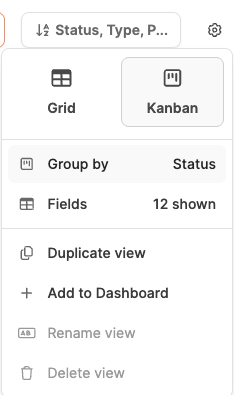
With the gear icon you can set up which fields show up on the cards, like:
- Ticket-ID
- Project title
- Summary
- Priority
- Type
You can hide info you don’t need to keep the view clean.
Save views
You can also save Kanban boards as your own views and share them with the team.
[!INFO] Saved Kanban boards can be shown on the dashboard
Create tasks here: Create task
Advantages of both views
| Function | List view | Kanban board |
|---|---|---|
| Display | Tabular, data-oriented | Visual, status-oriented |
| Area of use | Large amounts of data, filtering work | Agile processes, teamwork |
| Filter & search | Very detailed | Basic |
| Editing | Sort, filter, export | Drag-and-drop, visual work |
| Team focus | Control & monitoring | Collaboration & transparency |
All about tickets: Projects – Tasks Tab (Ticket System)