
List and Detail View
The list and detail view in the Organizations section lets you centrally manage external business partners – including contacts, projects, and legal information.
The Organizations section shows all your company’s external business partners – like customers, suppliers, or prospects – in a clearly structured list and detail view. This way, you always have an overview of relationships, contacts, and ongoing projects.
Note: You can create organizations via import: Data imports
List view
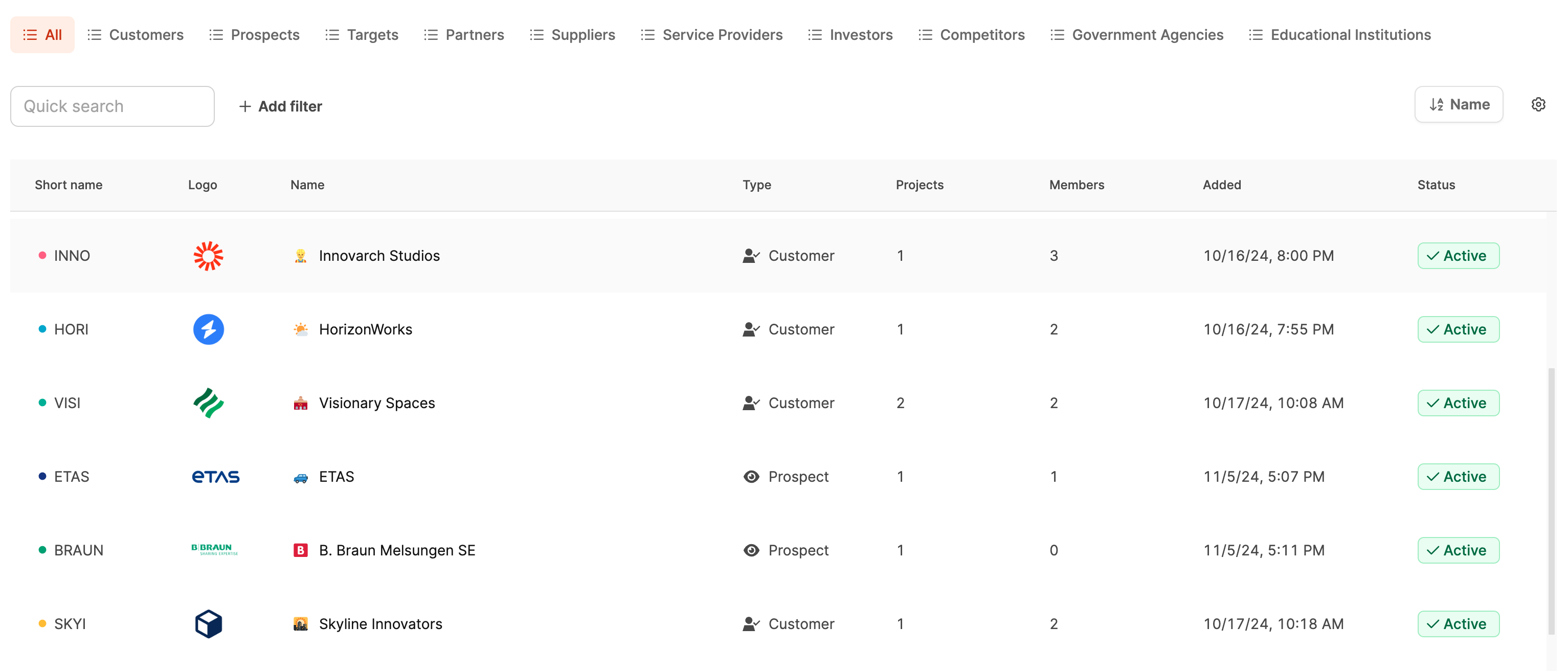
In the main view, all organizations are shown in a table. Each row has the most important key details:
- Short name: 3–5-character abbreviation of the organization (color coded)
- Name and logo: Full name and logo for quick visual orientation
- Type: Organization’s role (e.g. customer, supplier, partner)
- Projects: Number of assigned projects
- Members: Number of stored contacts
- Added on: Date it was created
- Status: Active or inactive
With + Add Organization you can create new companies right away. More about it here: Create organizations
Filters and saved views
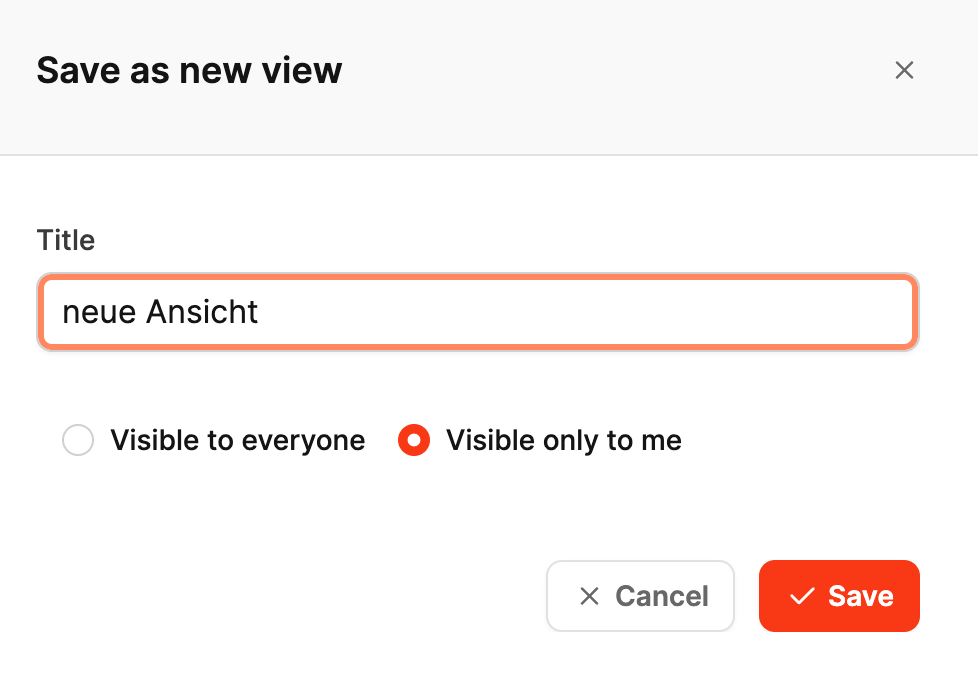
You can filter the list by organization type, status, or other criteria. You can save custom filters permanently with Save as new view. You decide if the view is only for you (Visible only to me) or visible for the whole team (Visible to everyone).
Example: A view “Active Prospects” automatically filters all potential customers to help you find current sales opportunities quicker.
Organization details view
When you click on an organization, the detail page opens showing all related information. It’s split into three main sections:
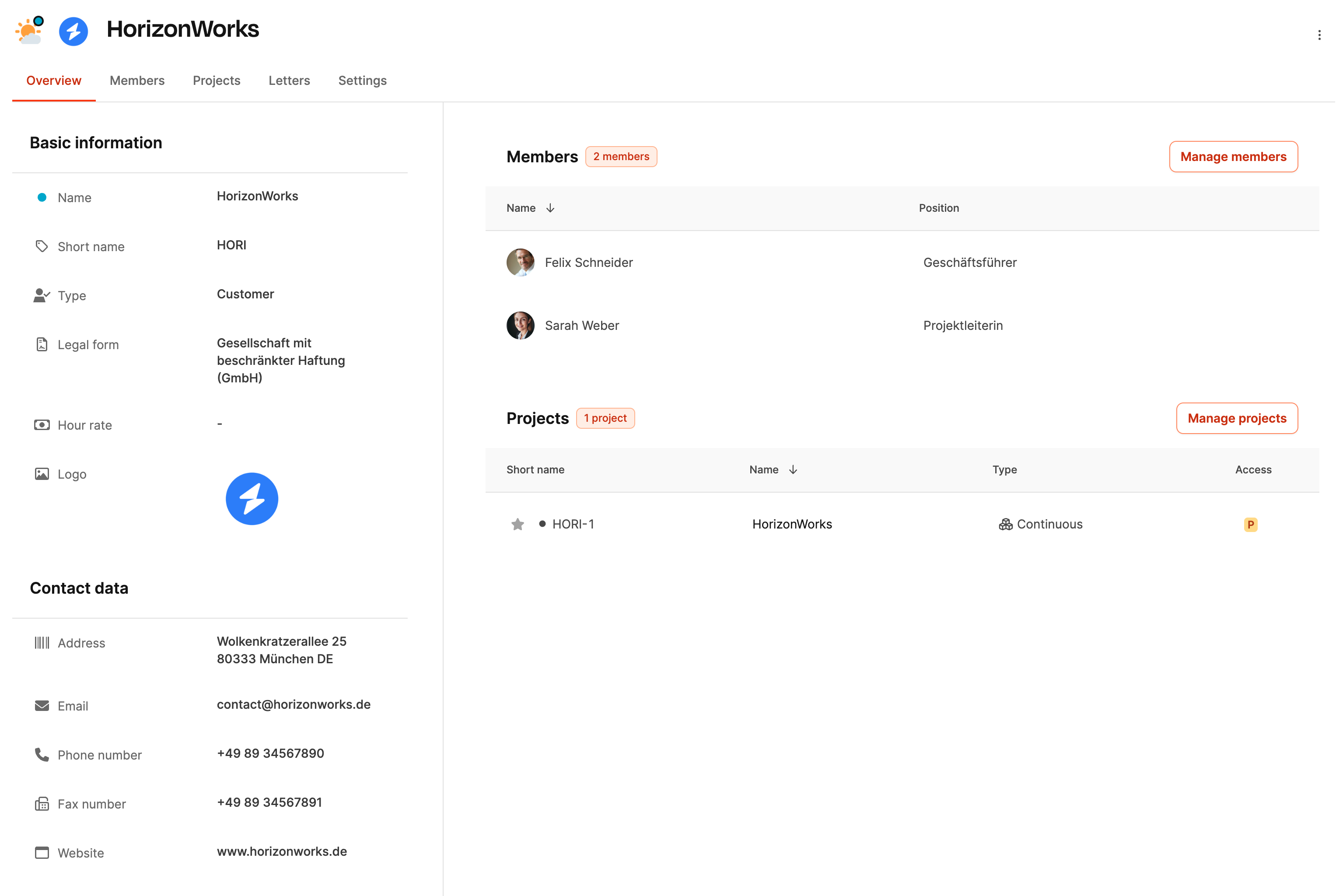
Basic information
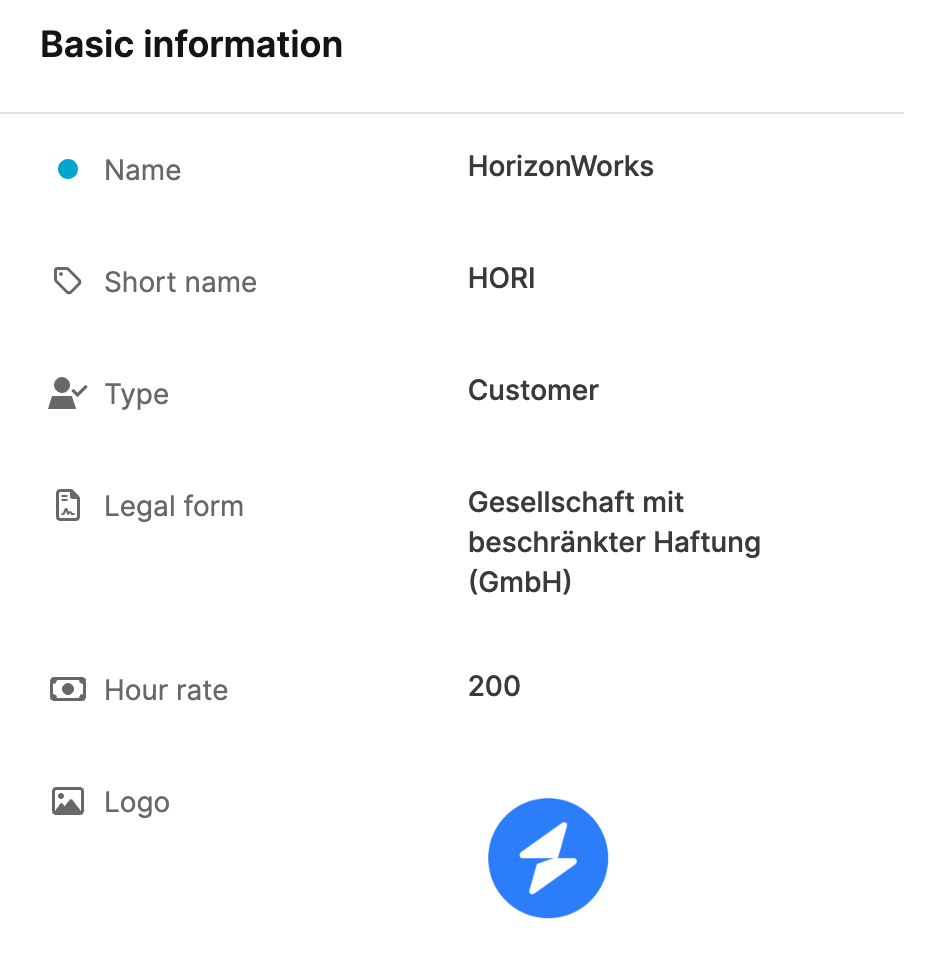
Here you’ll see the key master data of the organization:
- Name and Short name
- Type (e.g. client, vendor, partner)
- Legal form
- Logo
- Hourly rate (if different from Workspace default)
Contact details
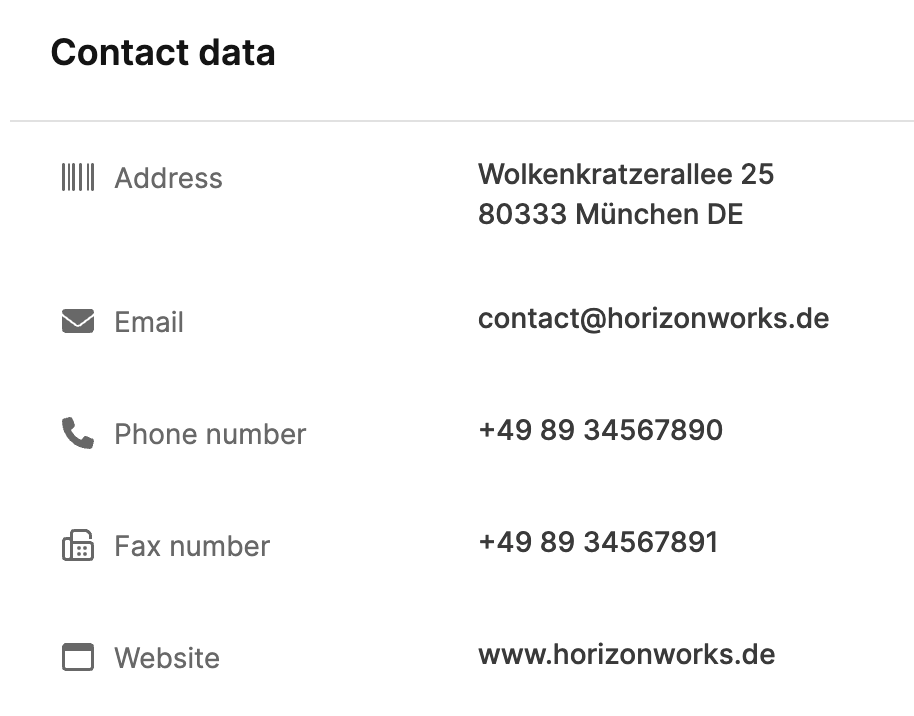
- Address
- Phone number and fax number
- Website
Legal information
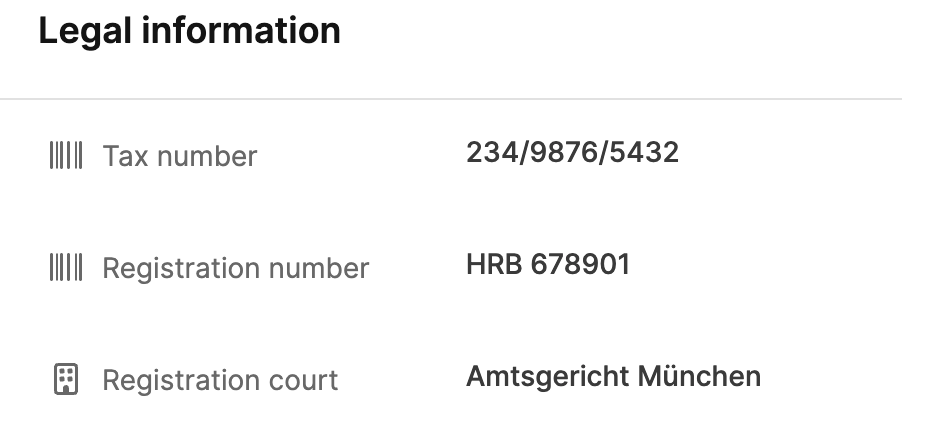
- Tax number
- Registration number
- Register court
These details are managed in the Organizations – Settings tab and automatically shown in the overview.
Members and projects
There are two main blocks in the main area of the page:
Members
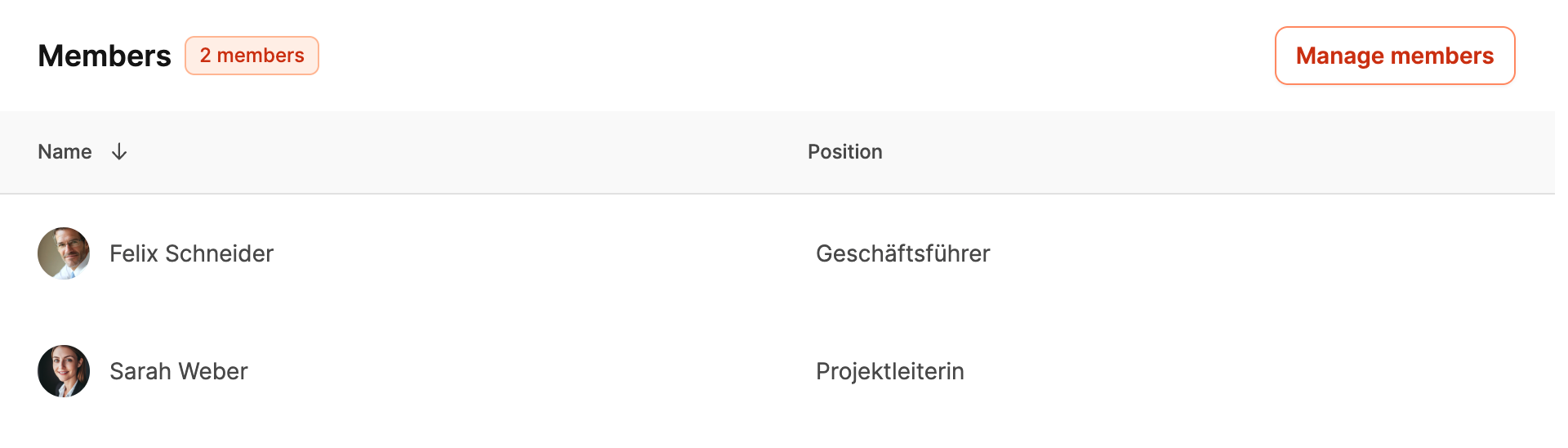
Shows all linked contacts with name and position.
Using Manage members you can add or remove people.
How to add members to organizations: Organizations – Members
Projects

Lists all projects that are linked to the organization.
Each entry includes:
- Short name
- Project name
- Type (e.g. ongoing, one-time, sales project)
- Access type (public or private)
With Manage projects you can create new projects or edit existing ones.
Jump into Projects