
Individual task statuses
Create and customize individual task statuses to match workflows and ticket phases exactly to internal processes.
The Administration → Workspace settings → Task settings → Task Status section is used to manage and customize the statuses that represent a task’s progress in the ticket system.
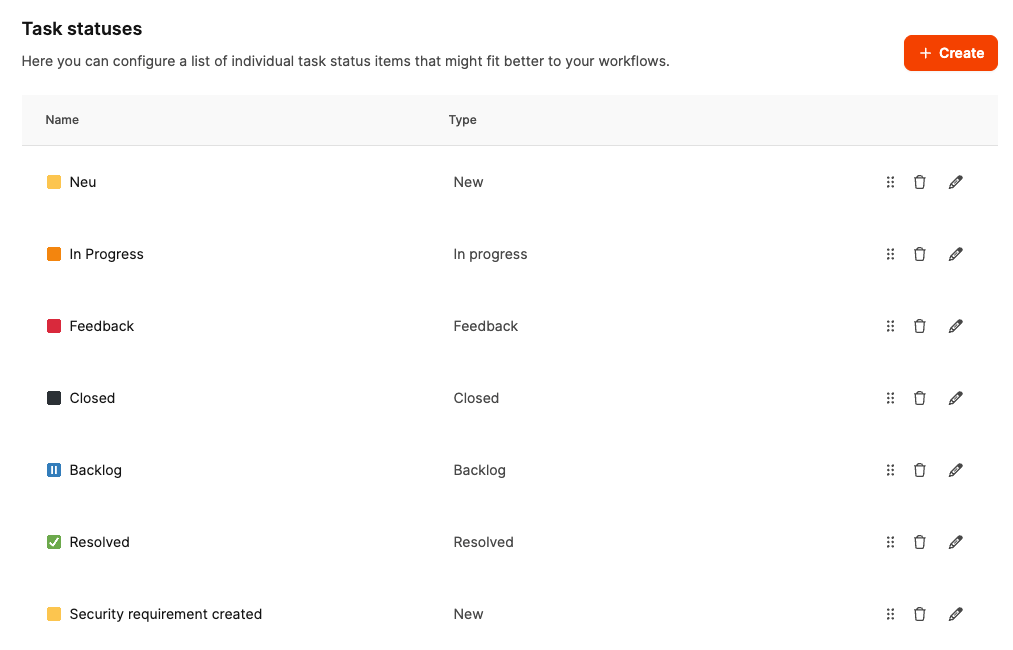
Here, you can modify existing statuses or add new statuses based on standard types, aligning workflows more precisely with internal processes or task types.
Benefits of custom task statuses
Custom task statuses allow you to
- tailor workflows to internal processes,
- separate responsibilities and phases more clearly,
- track project steps more precisely,
- and improve the overview in the Kanban or list board.
This makes the ticket system a flexible tool suitable for software projects, creative processes, and technical workflows.
Default configuration
Leadtime defines the following task statuses by default:
- New (New)
- In Progress (In progress)
- Feedback
- Resolved (Solved)
- Closed (Closed)
- Backlog (Backlog)
These standard statuses cover the typical phases of a software or service process, from creation and processing through feedback to completion or archiving.
Create custom statuses
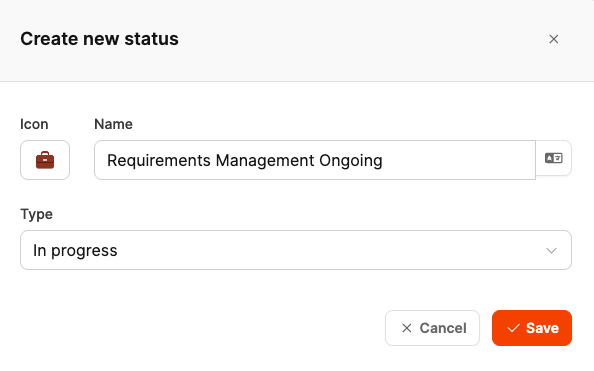
Companies can create custom task statuses to represent their processes more precisely.
Each new status is based on one of the standard types, such as In Progress or Closed, but can have its own name and icon.
Example:
For creative or agency workflows, you could create the following derived statuses:
- “Briefing created” → based on New
- “Design in progress” → based on In Progress
- “Draft available” → based on Feedback
- “Finalized” → based on Resolved
- “Completed” → based on Closed
- “Later” → based on Backlog
This allows task workflows to be tailored precisely to industry-specific or project-specific processes.
Create a new task status
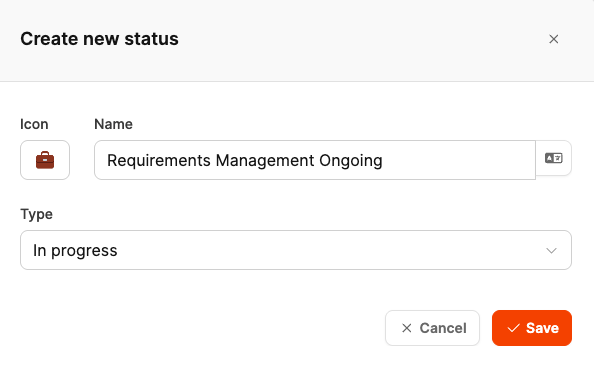
Create a new task status under Administration → Workspace settings → Task settings → Task Status.
The input form includes:
- Icon: Select an appropriate symbol, such as a briefcase, document, or checkmark
- Name: Enter any name for the new status
- Type: Assign the status to one of the existing standard statuses (New, In Progress, Feedback, Resolved, Closed, Backlog)
After saving, the new status is immediately available for use in the workflow of a specific task type.
Multilingual names for task statuses
When creating a task status, you can provide names in multiple languages.
This lets you display the status in different languages, for example, German and English.
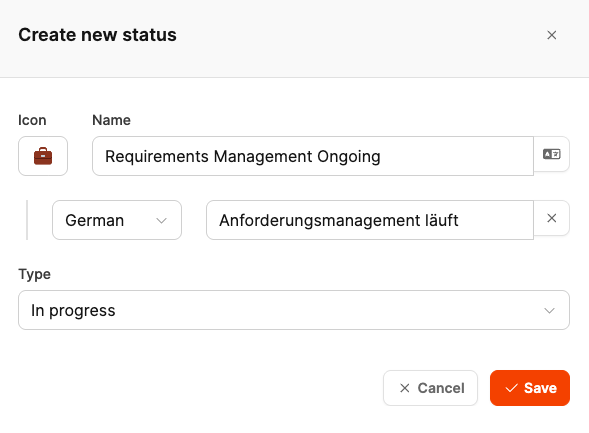
This is particularly useful for international companies or multilingual teams working in the same workspace.
Leadtime automatically displays the appropriate term in the interface language selected by the user. This keeps the system consistent and understandable, regardless of the language individual team members use.
Learn more about configuring the ticket system