
Invoicing Products
The article describes how standardized products and subscriptions are recorded in Leadtime, assigned to projects or tickets and then billed automatically via invoice verification.
A product is a clearly defined service package that can be sold in identical form to multiple customers. It is defined by repeatability and standardization. A product has a fixed name, a pricing model and a defined scope of services that can only be configured within limits. Products are aimed at a broad target group and are not fully individual services.
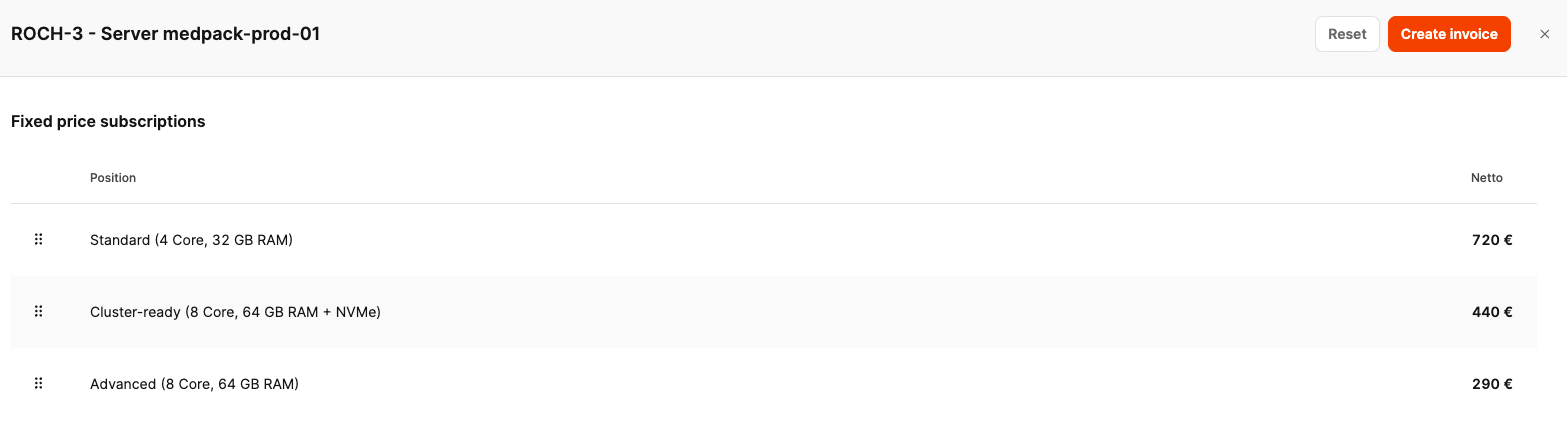
Typical examples are standardized workshops, hosting packages, mini web presences or licensing models. The customer can adapt the product to their needs, but the underlying service always stays the same.
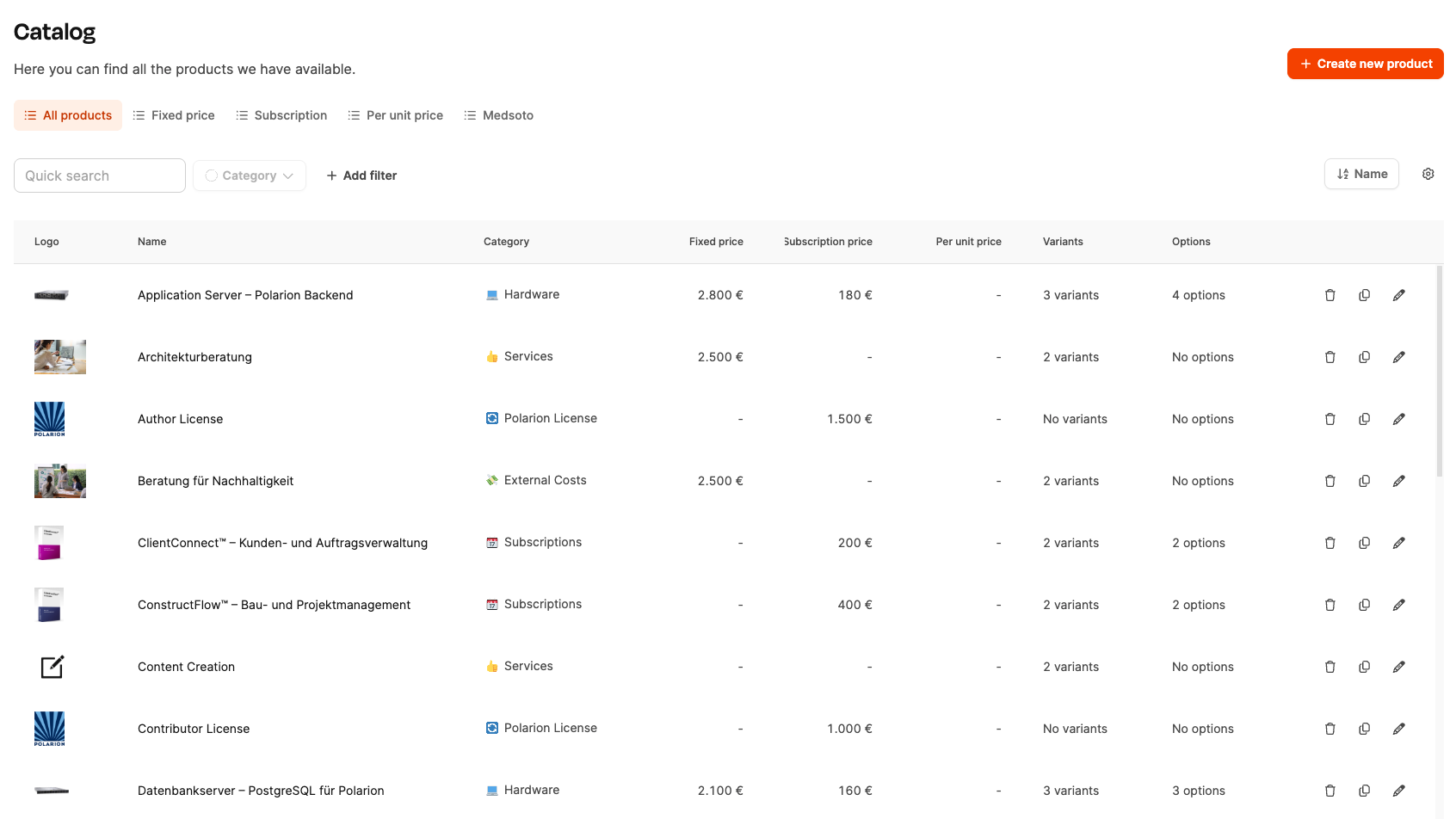
All recurring and standardized service packages are recorded in the product catalog. From here, products are assigned to projects.
To the product catalog
Price types
Products can be stored with three price types:
- Fixed price (one-off billing)
- Subscription price (recurring at a configurable frequency)
- Price per unit (variable multiplier, e.g. number of users)
Variants
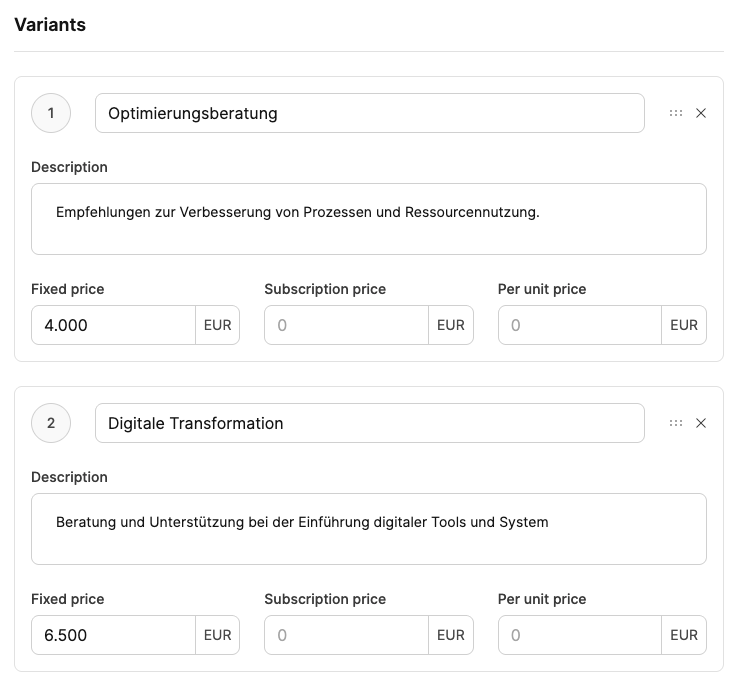
Variants allow alternative versions of the same product, for example different service levels of a SaaS package. Individual prices can be stored for each variant.
Options
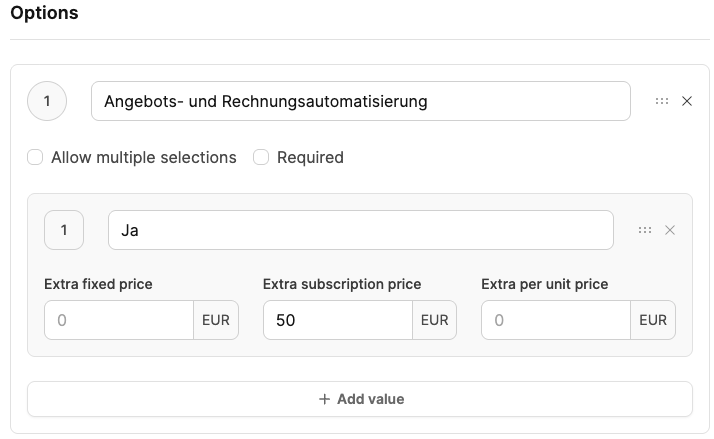
Options extend a product with additional features. Among other things, they are suitable for extra capacity, premium support or other functions. Options add a surcharge on top of the respective base price.
Storing products in individual projects
Products can be added to projects here: Projects – Project planning tab
In many projects, service providers want to offer standardized additional services alongside individual project work. These are stored as products directly in the project and then included in the billing.
Why store products in the project?
Products combine one-off project work with long-term services and create an ongoing customer relationship. Example: in addition to the website, a hosting and support package is offered.
Supported product types
You can add the following product types to projects:
- One-time product variants
- Subscription products
- Variants and options
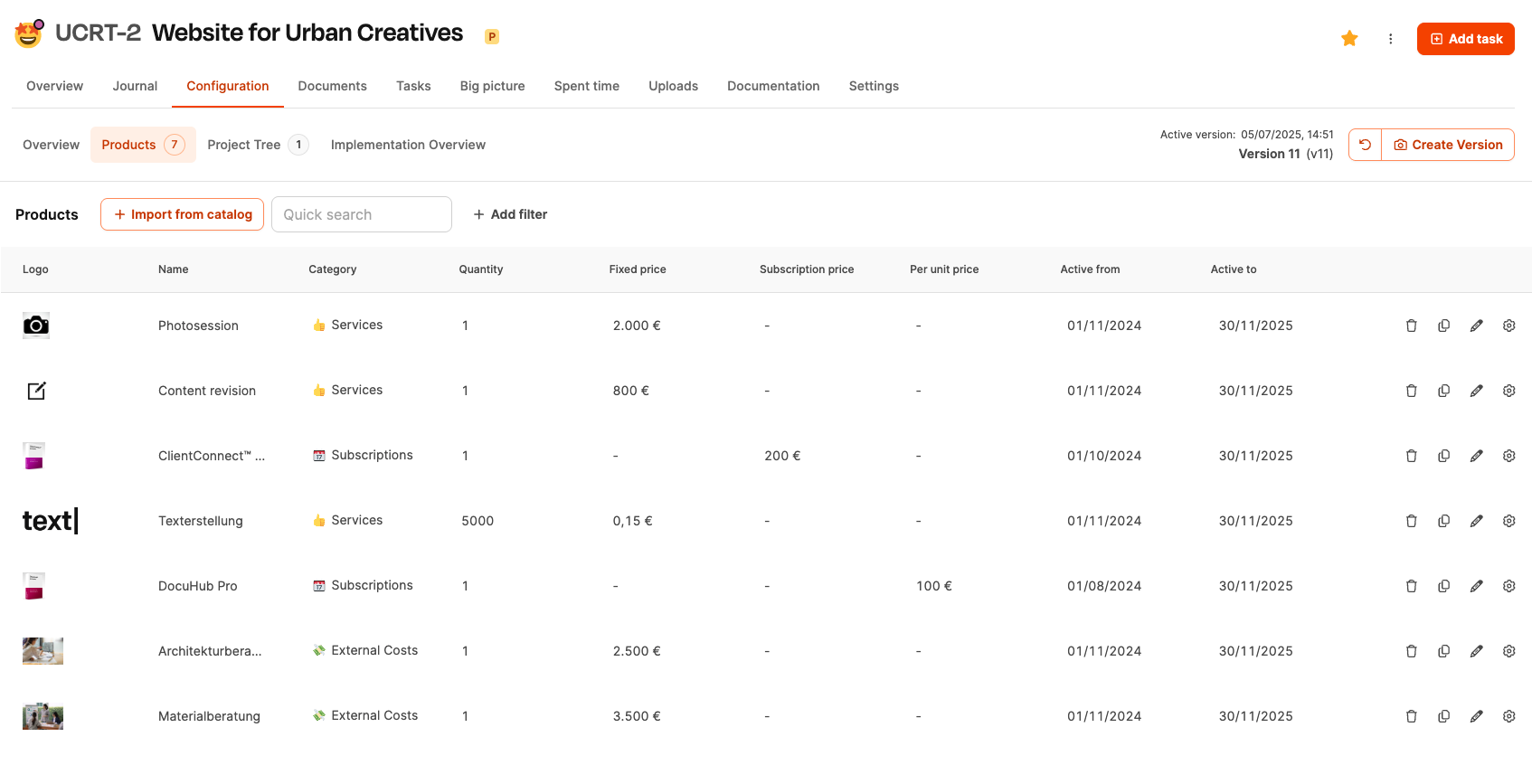
Products are added to a project in the Configuration tab and appear as a separate block in the project after saving.
Billing
For one-off products, billing starts from the point at which the project reaches the “Bill” status. Subscriptions are due monthly, quarterly or annually, depending on the configuration. For individual projects, subscriptions are only billed once the project is completed.
Adding products to tickets
Here’s how to add products to tickets: Add products to tickets
In many cases, product-like additional services arise within individual tickets, such as plugins, configurations or flat-rate extensions. These products can be stored directly on the ticket.
[!WARNING] Only products with a one-time fixed price can be added to a ticket.
Advantages
Assigning products directly to tickets has several advantages:
- Clear context: The product appears exactly where the service was provided.
- Automatic inclusion in billing: No duplicate entry required.
- Traceable invoices: Customers immediately see what they are paying for.
- Efficiency gain: No need to add individual items when releasing invoices.
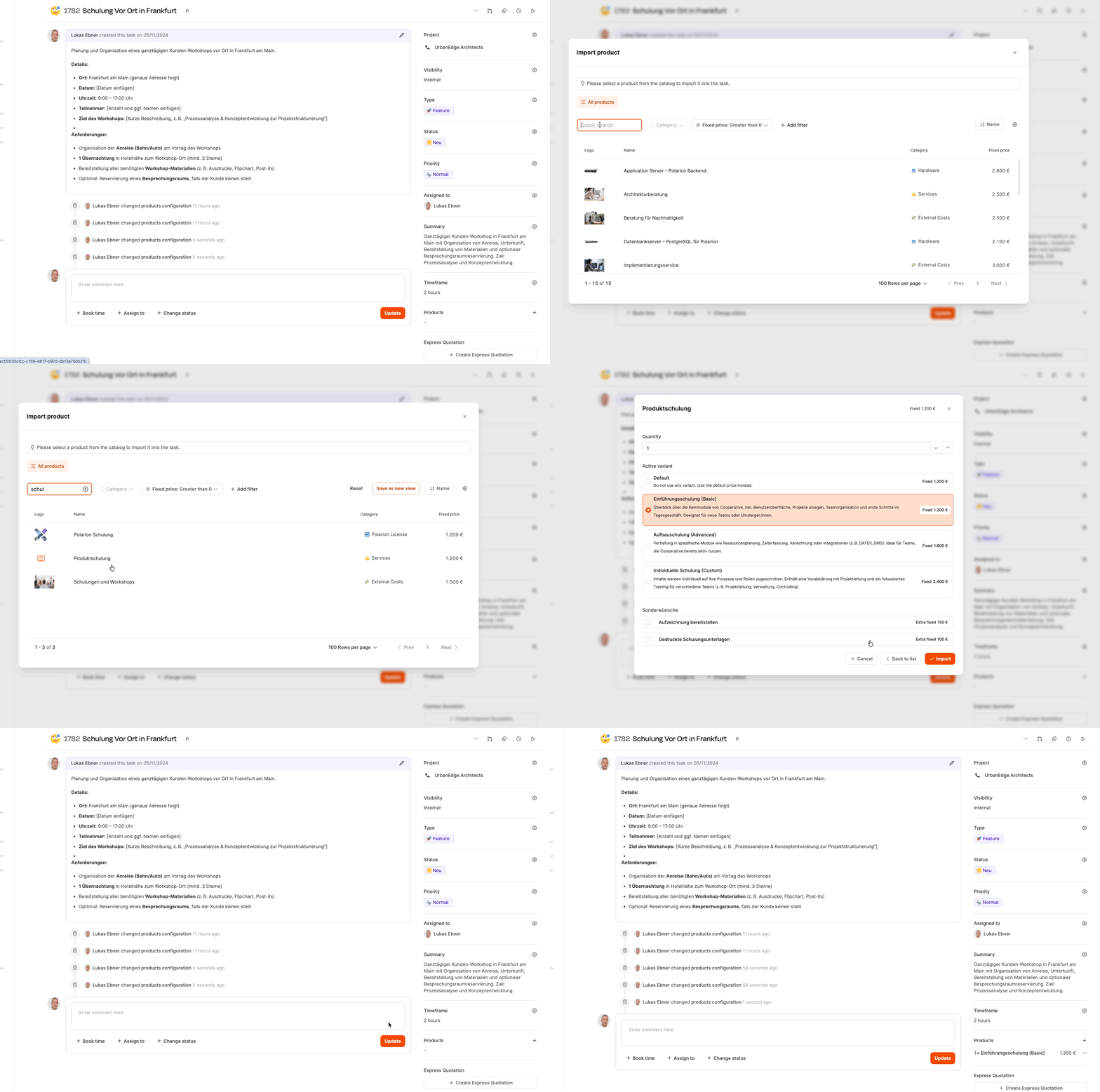
1. Open the ticket
Go to the ticket you want to assign a product to.
2. Add product
In the right-hand area of the ticket (or via the three-dot menu) you’ll find the “Add product” button.
3. Select product
A list of available fixed-price products from your product catalog opens. Select the appropriate product, adjust the quantity or name if necessary and save.
4. Product saved
The product is now listed in the ticket and appears on the next invoice once the ticket has been completed.
Creating express quotes for tickets with products
For products stored directly on the ticket, an express quote can optionally be created. Express quotes make it possible to send the customer an official quote for a single ticket quickly and without red tape. The express quote can be based on a working time estimate AND/OR the fixed prices of products added to the ticket.
See Express quotes
Free subscription models
In addition to the standardized pricing rules from the Leadtime product catalog, the system also offers the option of storing free subscription models directly in projects or mandates – regardless of whether a product catalog entry exists or not.
This function is particularly suitable for:
- customer-specific service packages
- individual agreements outside the catalog
- flexible pricing models in a transition or test phase
Free subscriptions are maintained in the project under Settings → Subscription billing.
Fixed-price subscriptions
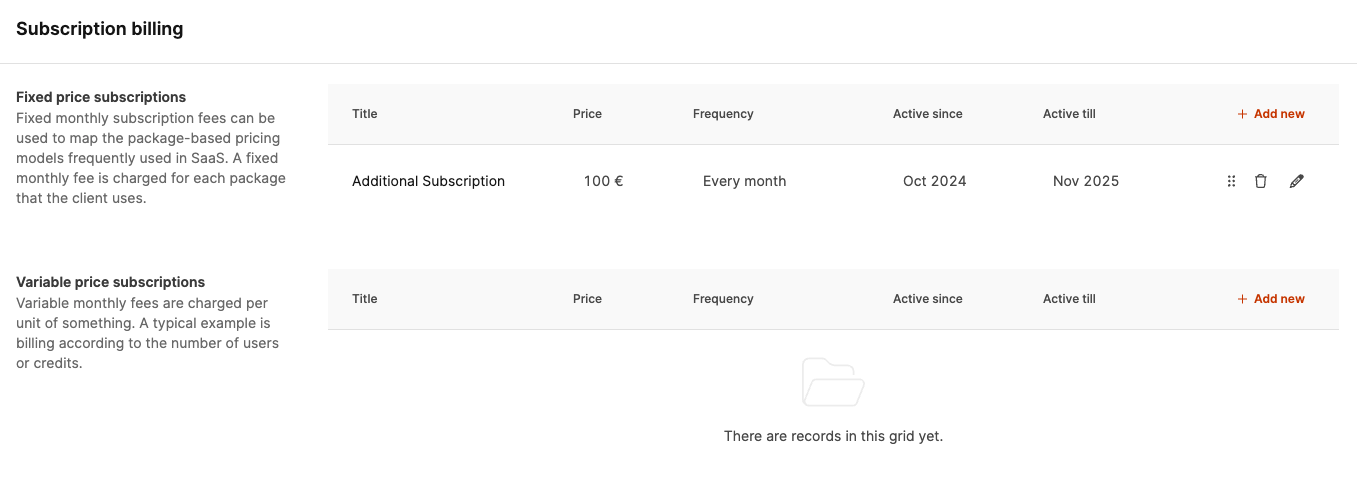
Fixed-price subscriptions represent flat-rate service packages. They are automatically suggested for billing according to their frequency.
Variable subscriptions
Variable subscriptions are based on multipliers, such as the number of users. The quantity has to be entered manually during billing.
Setup
- Open the project
- Navigate to Subscription billing
- Choose the type and frequency
- Save the subscription
Products in invoice verification
All due products are collected in invoice verification. The review is carried out via a layer that opens over the interface once the item is selected. The list remains on the left, and the detailed view appears in the layer on the right.
Fixed-price products
One-off products appear automatically as soon as the project is ready for billing. They contain:
- Product name
- Net amount
Fixed-price subscriptions
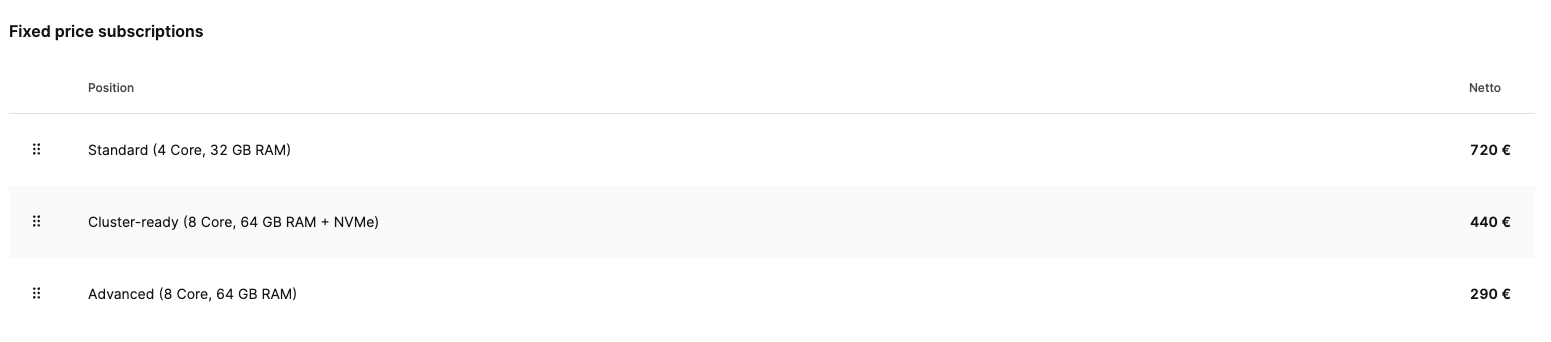
Recurring fixed-price products are suggested at a fixed frequency. The service period is stored automatically.
Variable subscriptions

Variable subscriptions require a manual quantity entry in the layer. The calculated net value results from the unit price and the multiplier.
Express quotes

An accepted express quote appears after its task reaches a status of the type Closed and the other express quote billing requirements are met. Its products are included in the quote’s fixed amount. The quote can appear as its own invoice or as part of a mixed invoice.
Completing the billing
After checking all product items, you can generate the invoice using the Bill button. The invoice is then moved to the Receivables section and considered released.