
Project Progress
The sub-area “Project Progress” (Implementation Overview) is used for the operational management and control of ongoing projects. It represents a condensed overview of all work packages and tasks that have been defined in the project tree and enables project managers to monitor the current status of implementation in terms of content clarification and time utilization. The page is closely linked to the project tree: every element that was modeled there and for which a ticket exists is continuously evaluated here.
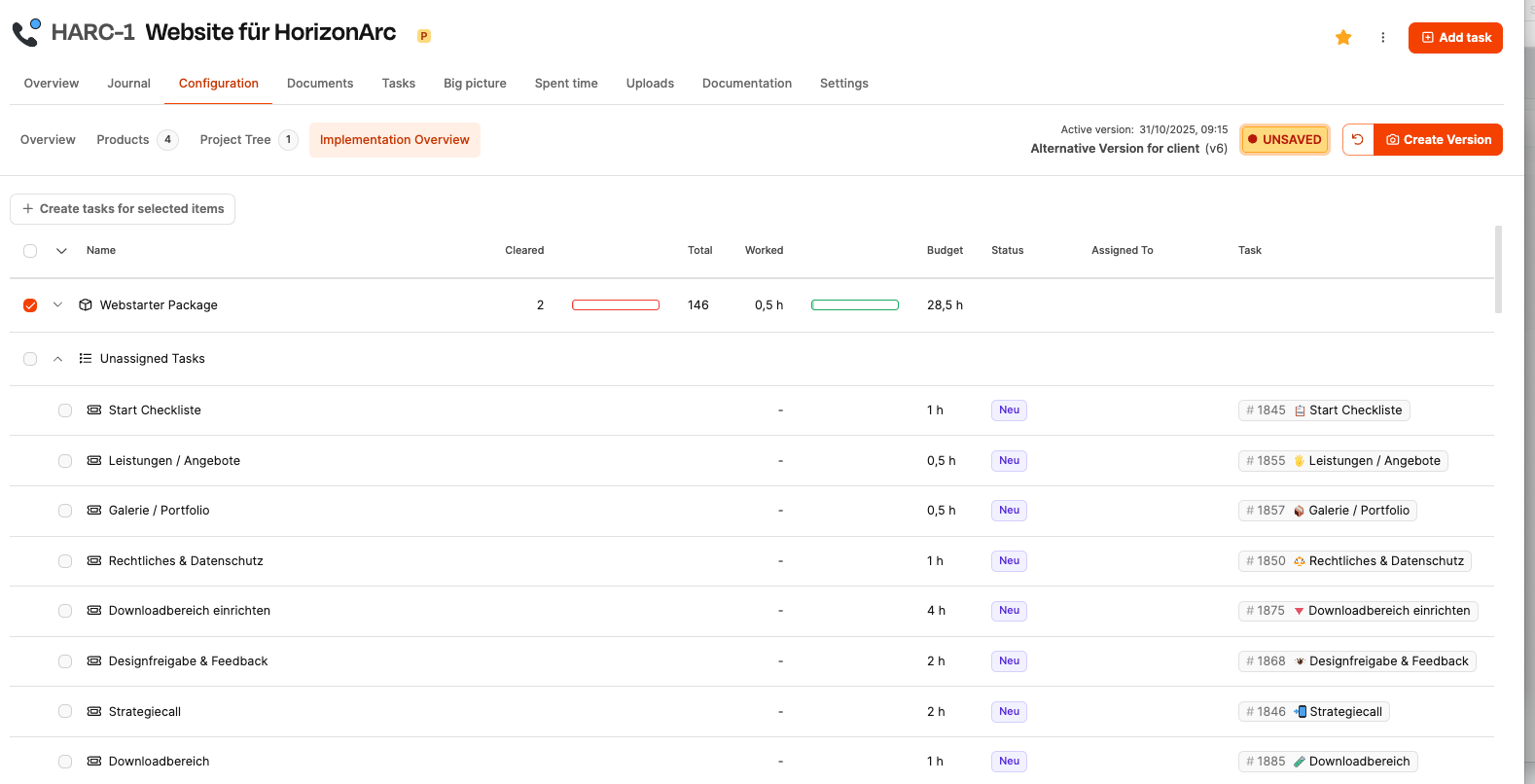
While the technical and content-related design and configuration of the project takes place in the project tree, the “project progress” explicitly serves to monitor implementation. It answers the question: How far has the processing of individual project components already progressed - both organizationally and in terms of the actual workload.
About the project tree: Projects – Project planning tab
Objective of the area
The “Implementation Overview” makes the transition from planning to implementation transparent and measurable. While the project tree models the project dimension, the project progress monitors the operational reality - cleanly, comprehensibly and efficiently.
In combination, both areas enable:
- scalable project implementation
- methodically clean planning
- clear responsibilities
- reliable offers
- transparent billing
Basic principle of measuring progress
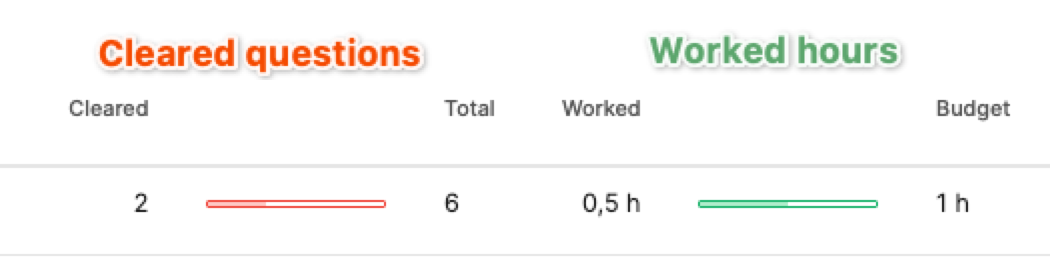
The progress of a work package is assessed based on two factors:
-
Content progress within the work package
The technical elements contained in a work package (e.g. questions, to-dos, test cases) are checked off as soon as they are fully clarified or completed.
Example: A work package contains 10 questions, 8 of which have been answered → 80% progress in content.
-
Implementation of the work package as a ticket
If a ticket was created for the work package, the actual working time worked is compared with the estimated time.
Example: The ticket has a budget of 8 hours; 4 hours were booked → 50% implementation.
Both dimensions are presented in parallel to make it clear whether a package has already been technically clarified but not yet implemented - or perhaps even vice versa.
Structure of the page
When you open the area, a tabular list of all elements of the project tree appears that need to be implemented as work packages, checklists or test objects. The list includes the following columns:
- Selection field (checkbox)
- Name of the element
- Number of completed technical entries (Cleared)
- Total number of technical entries (Total)
- Time already booked (Worked)
- Allocated time budget (budget)
- Status of the ticket
- Currently assigned person
- Direct link to the ticket
This allows individual packages to be quickly identified, prioritized and controlled.
Selection and collection campaigns
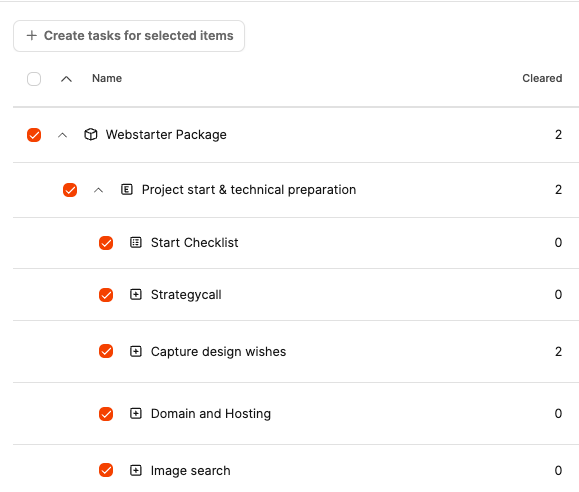
There is a button above the table:
Create tickets for selected work packages
This function creates tickets in the ticket system for selected elements. This is relevant when a project has been conceptually modeled and operational implementation begins.
It is also possible to select all subordinate work packages of a component with a single top-level checkbox. This allows dozens of tickets to be created with a single click.
[!WARNING] This function should only be used once the configuration is complete. Subsequent changes could otherwise lead to unnecessary tickets.
Presentation of the progress in terms of content
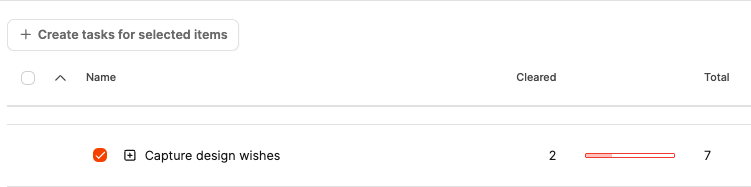
Each work package has a defined number of technical entries. These are processed in the project tree (e.g. in the customer appointment) and then mirrored here. The progress bar shows how much of the content clarification needs have already been fulfilled.
Example:
- “Capture design wishes” contains 7 questions
- 2 of them were answered
- The bar clearly shows incomplete preparation → need for action
Representation of progress over time
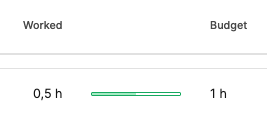
As soon as a ticket exists, the actual time spent is displayed. This is included in the budget assessment of the project. The bars visualize deviations:
- Green: within the frame
- Yellow: critical
- Red: budget overrun
Ticket status and assignment
Next to the progress you can see:
- whether a ticket is open, in progress or closed,
- who is currently responsible for it.
This allows project managers to assess at a glance whether tasks are stuck or have not been assigned.
Unassigned Tasks
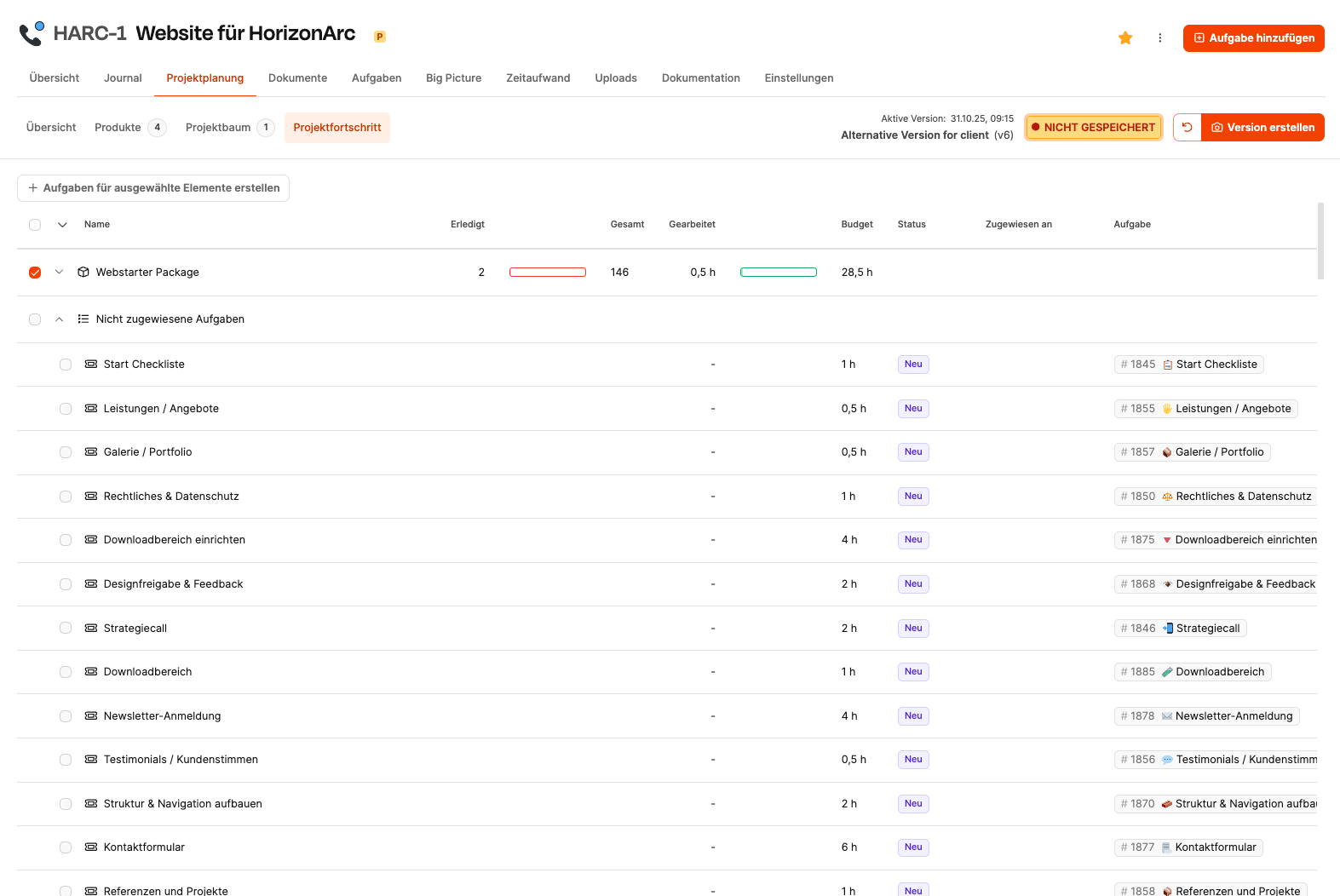
If there are tickets in the “Tasks” tab that are not assigned to a work package in the project tree, they appear in a separate group Unassigned tasks.
This is an important early warning signal:
- such tickets were created manually,
- they have no basis in the specifications,
- they were not modeled in the process.
This can make sense (e.g. support cases), but involves organizational risk because it happens outside the planned structure.
Recommendation: Additional tasks should be managed in a separate support project to keep the project clean.
Control-relevant insights
The project progress serves primarily to:
- identify bottlenecks,
- identify blocked work packages,
- to make the overload of individual employees visible,
- Identify risks in the budget at an early stage,
- Communicate additional effort in a comprehensible manner.
Project managers typically use this view regularly during implementation.
Relation to versions of the project
Content clarification and timely implementation create versions. Versions represent the documented state of a project at a specific point in time. As soon as a work package is changed by answers in the project tree, a new version should be saved. This makes it understandable:
- when the scope of services has changed,
- how the effort develops,
- what basis the later offer has.
The status “unsaved” above indicates that changes have not yet been versioned.