
Product Settings
Manage the categories of your product catalog
Manage product categories
Found under Administration → Workspace Settings → Product Settings
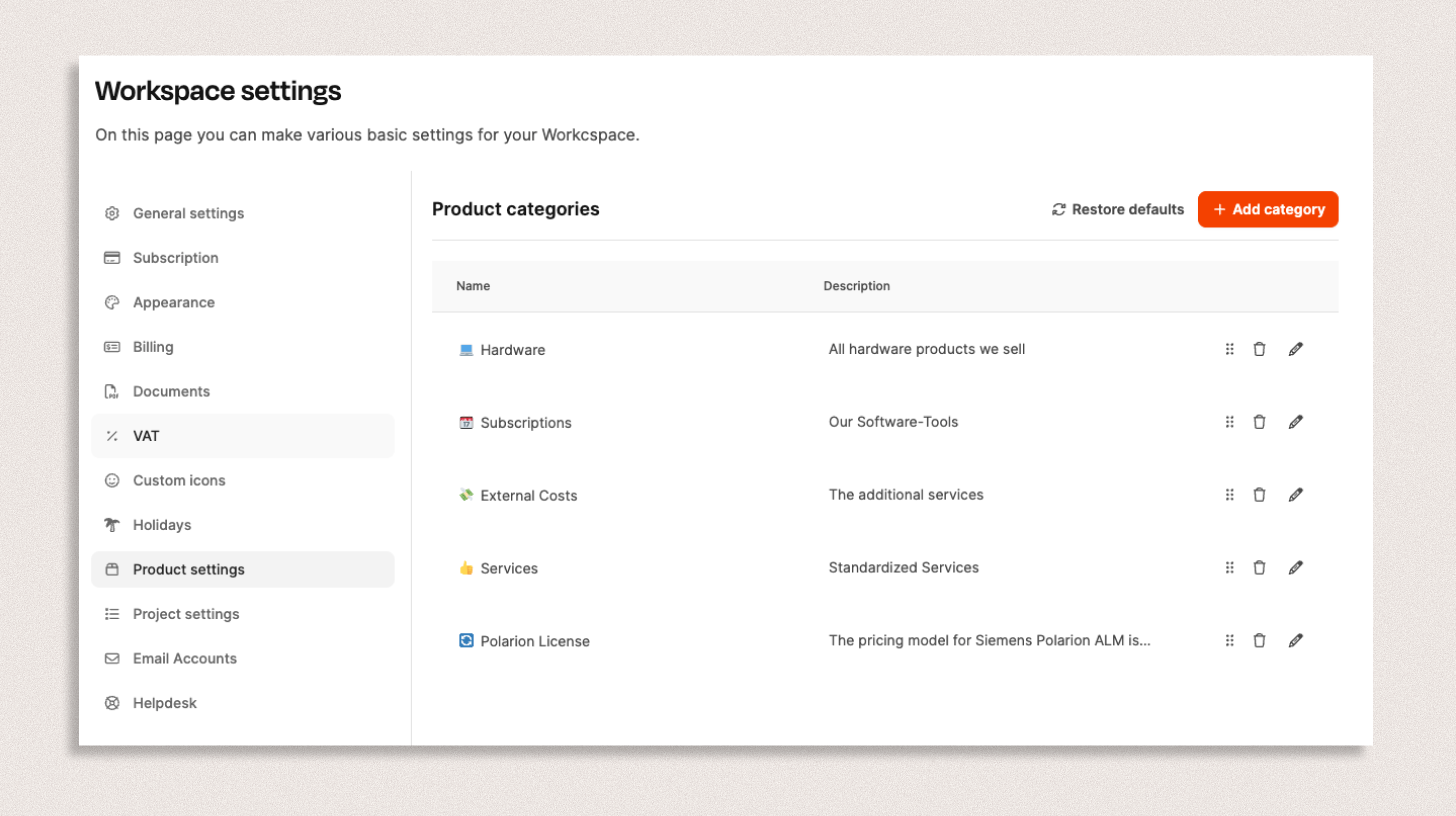
The Product Settings section is where you manage your company’s product categories. Here you define how your products and services are structured—for example, as Hardware, Software, Services, or Subscriptions. Clear categorization makes it easier to assign items in proposals, invoices, and projects.
Where are product categories used?
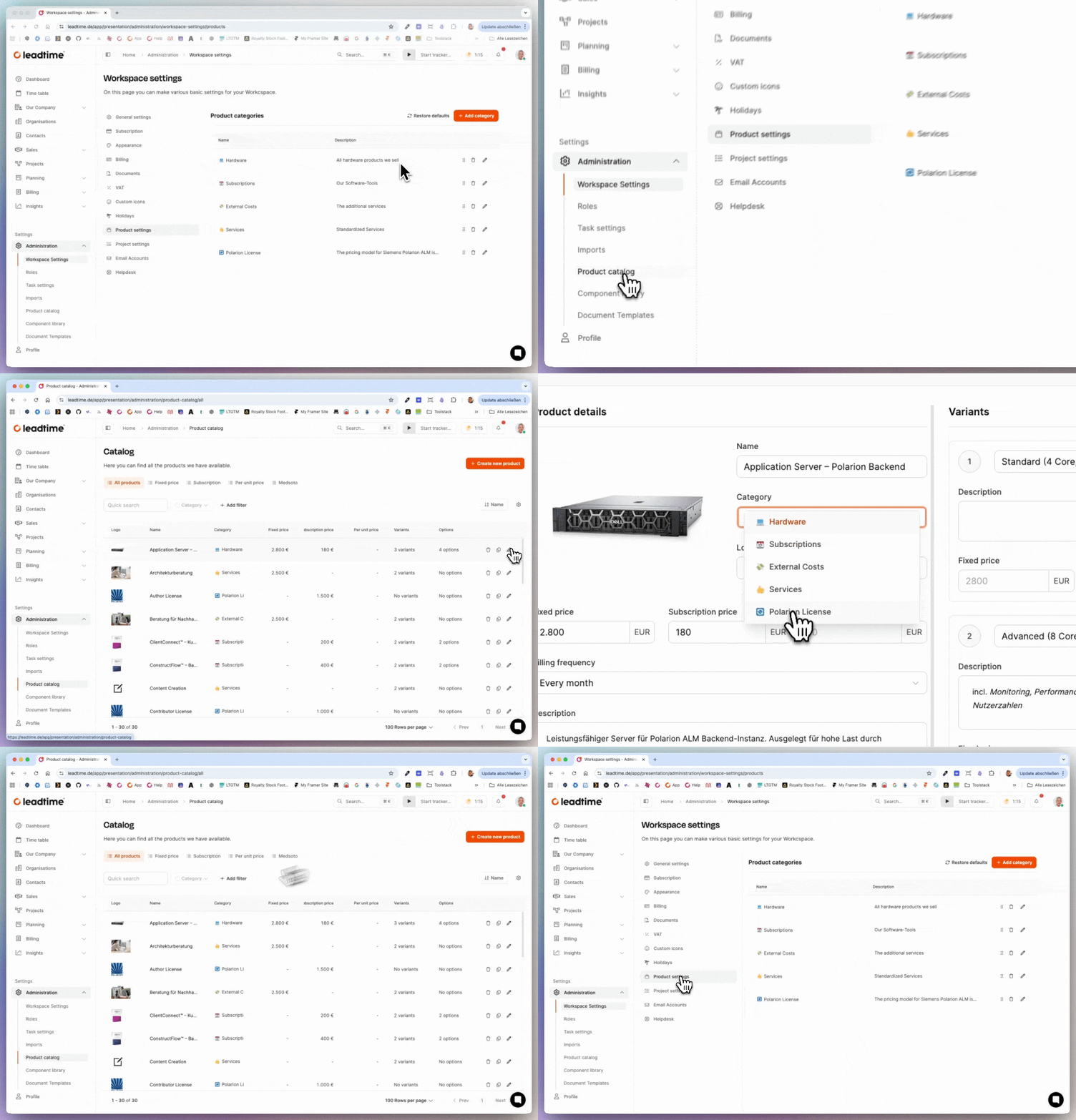
Navigate to Administration → Product Catalog.
The products created there can be assigned to the product categories.
Go to the Product Catalog
Add a product category
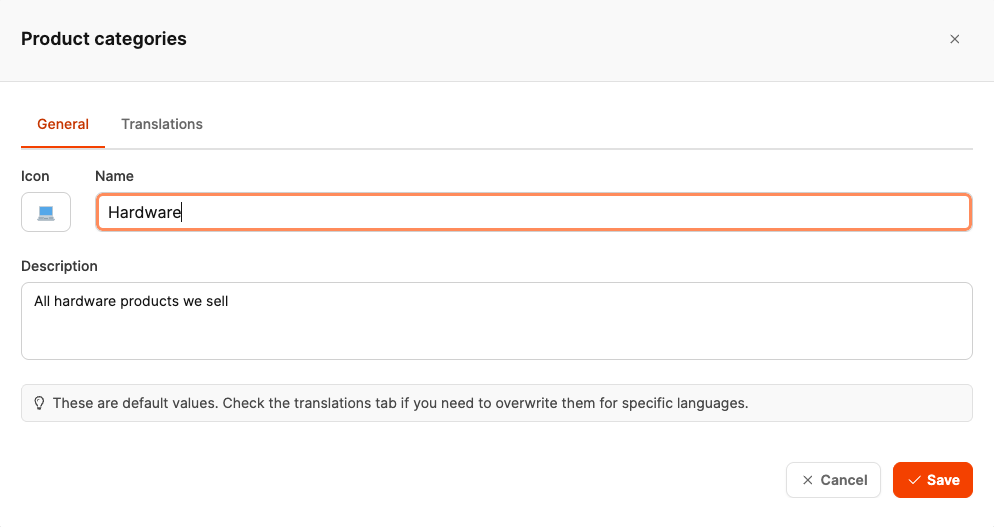
Use the “Add Category” button to create a new category.
- Select an icon to highlight the category visually.
- Enter a name and description.
- Click Save to create the category.
Example:
Name: Hardware
Description: All hardware products that we sell
Multilingual labels
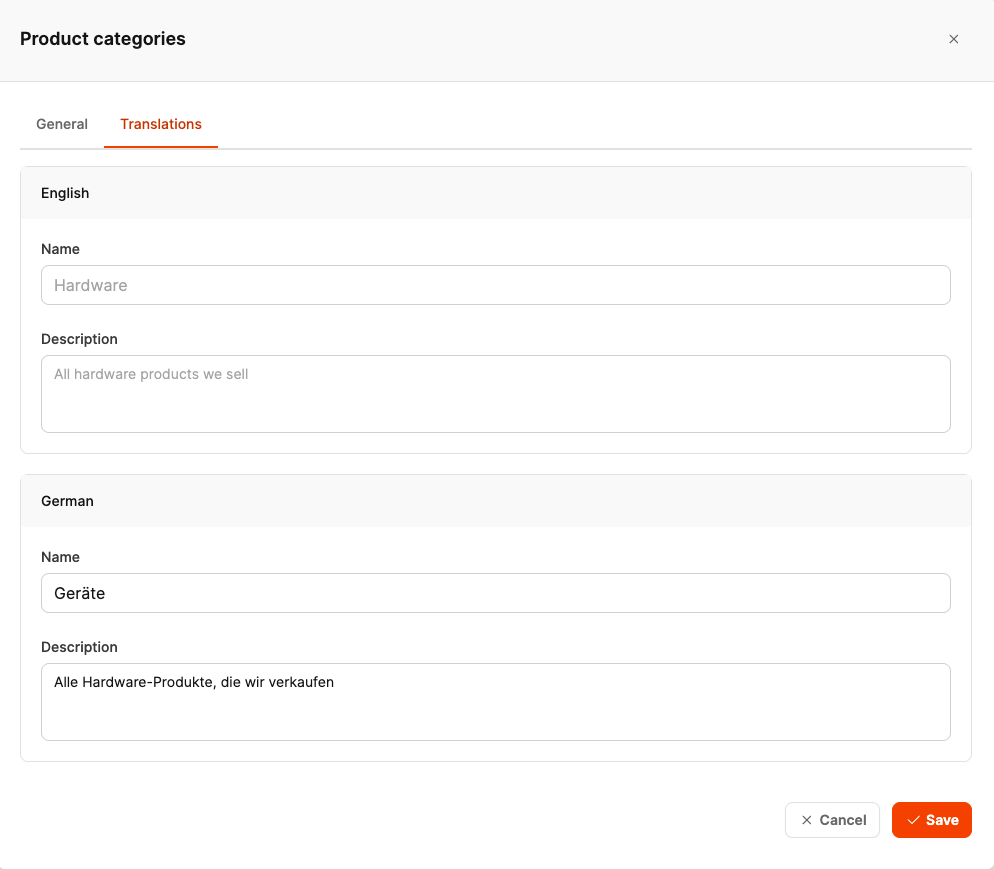
In Leadtime, categories can be maintained in multiple languages.
In the “Translations” tab, enter names and descriptions in additional languages, such as English and German.
These translations appear automatically wherever multilingual interfaces or documents are used.
Manage existing categories
Existing categories can be edited, deleted, or moved at any time:
- pencil Edit: Opens the dialog for changing the name, description, and icon.
- trashcan Delete: Permanently removes the category.
- ☰ Change order: Categories can be reordered using drag and drop.
Restore default categories
If you no longer need your customizations, use “Restore defaults” to reactivate the original categories provided by Leadtime. This quickly gives you a clean starting point again.