
Messaging System
Use Leadtime notifications to stay informed about events and activity in the app.
The notification system informs you about new tasks, comments, and other activity. You can open it with the bell icon in the top-right corner of the app.
Access
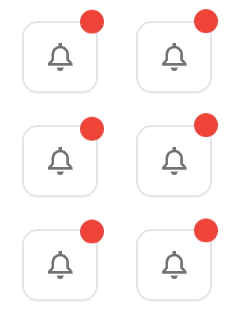
- Bell icon: Opens the notification panel.
- Red dot: Indicates unread notifications.
Panel
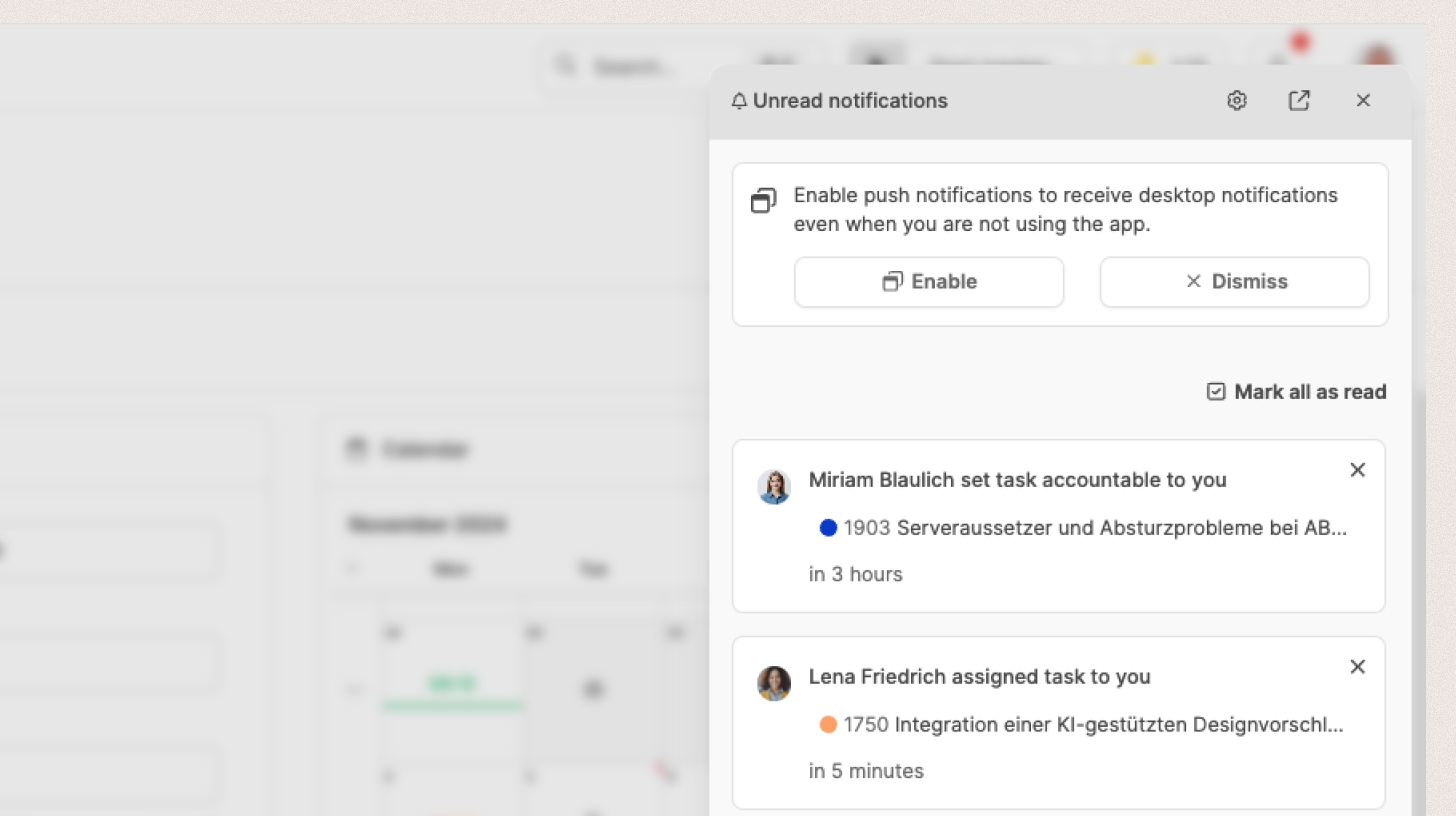
Selecting the bell opens a panel on the right.
It lists all unread notifications in chronological order.
Actions:

- Select a notification to go directly to its related task or page.
- Select “Mark all as read” to clear the unread list.
- Settings: Select the gear icon to open the notification settings in your profile.
- All notifications: Select the link icon to open the list of all notifications.
Notification settings in your profile
Open the settings under Profile – Account.
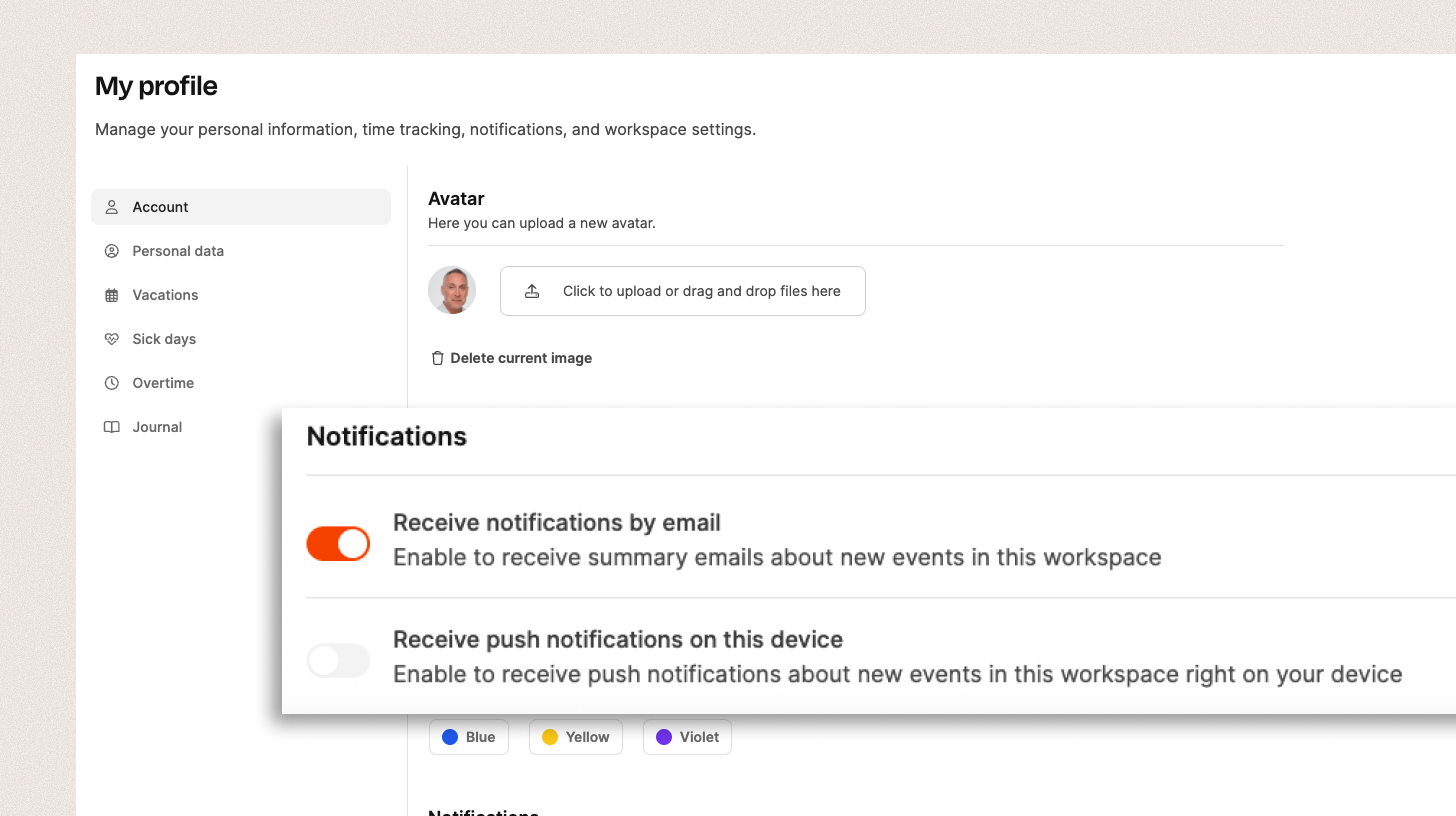
- Email notifications: Optional summaries delivered by email.
- Push notifications: Alerts sent directly through your browser. You must allow browser notifications for Leadtime first. Push notifications are helpful when you want to learn about new tasks, comments, or status changes immediately without keeping the app open.
All notifications
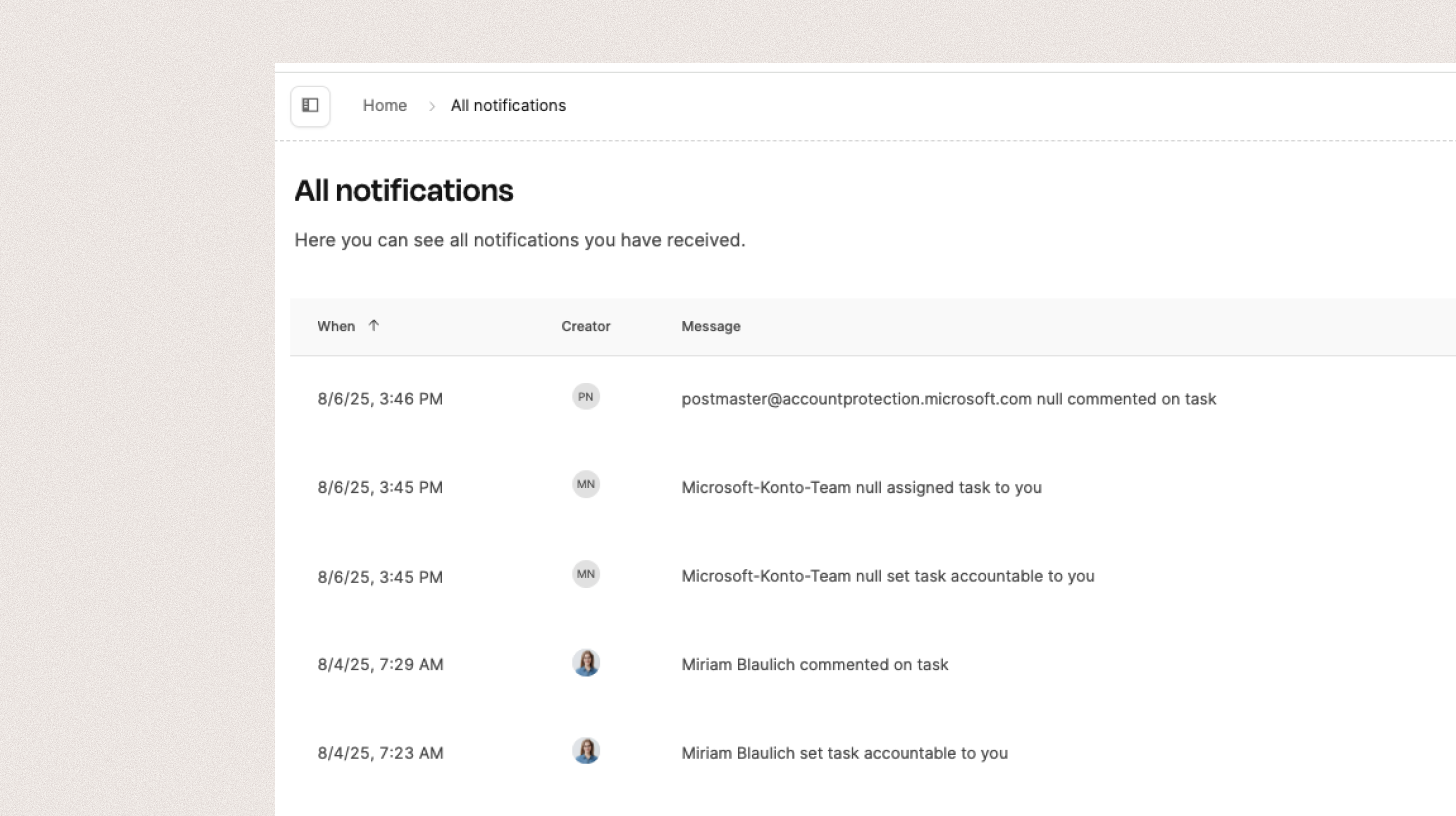
Select “Show all” to open every previous notification, not only unread ones.
The table shows the time, author, message, and linked entity.