
Paid
Displays paid invoices, archives payment details and provides correction functions such as cancellation or payment reversal.
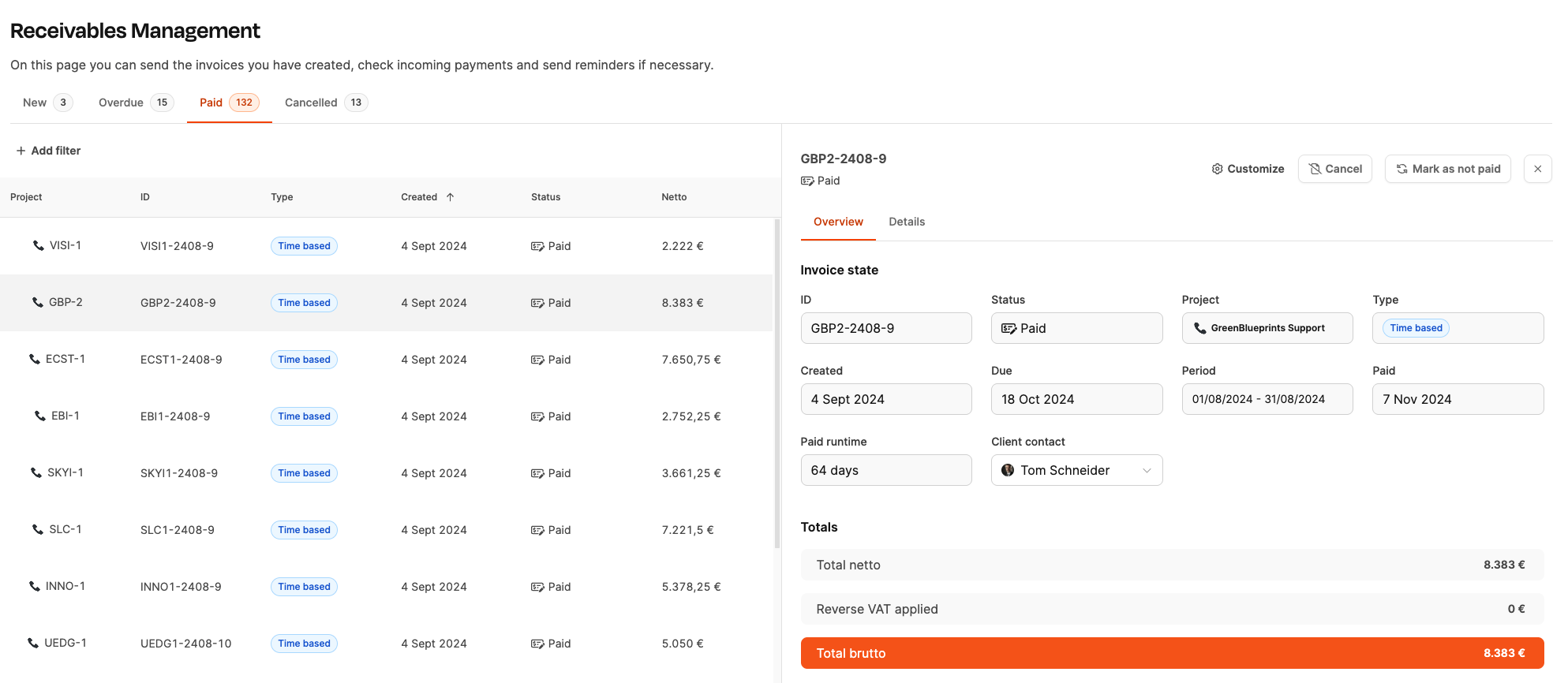
The “Paid” tab in the Receivables area shows all invoices that have already been paid in full. You’ll find it under Billing → Receivables → Paid. This area is used to track completed invoices and provides a transparent view of payment histories. Changes to the invoice items are no longer possible here.
How it works
A list of all paid invoices is displayed in the left pane. The following information is visible per entry:
- Project (project name or project key)
- Invoice ID
- Type of billing (e.g. working hours, subscription, mixed)
- Created (date the invoice was created)
- Status (“Paid”)
- Net amount (excluding taxes and fees)
The list can be searched and filtered to quickly find specific transactions.
Detail view
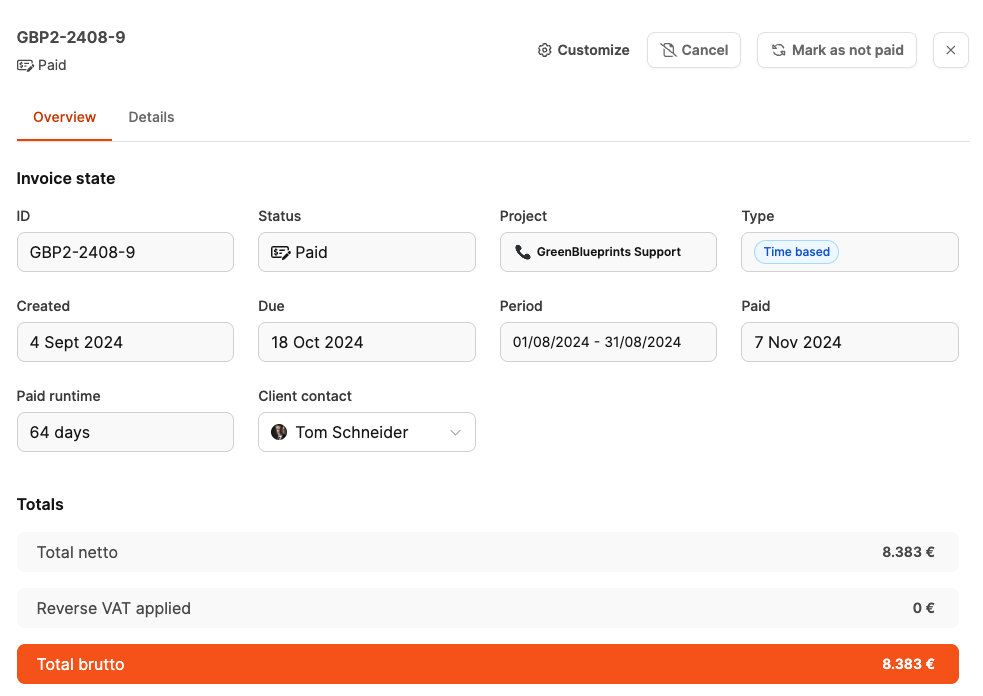
Clicking on an invoice opens the detail view on the right with the tabs Overview and Details.
Overview
- Invoice status (“Paid”)
- Project name
- billing period
- Customer and contact person
- Payment date
- Period between creation and payment
- Amount overview (net, tax, total amount, Leadtime fee if applicable)
Details
-
List of all billed items (e.g. tickets, services, products)
-
Information on hours, unit prices and totals
These items can no longer be edited.
Actions

Two actions are available in the top bar:
Cancel
- Generates a cancellation invoice (credit note)
- Resets the amount
- Returns the underlying items to invoice verification
Mark as unpaid
- Corrects erroneous payment markings
- Moves the invoice back to “New” or “Overdue”, depending on the payment term
These functions help with corrections or cases that need clarification.