
Role and Permission Management
Role and permission management in Leadtime lets you precisely control access rights. Through inheritance, custom roles, and special guest permissions, admins can decide exactly who can see and edit what in the workspace.
Find this section under Administration → Workspace settings → Roles.
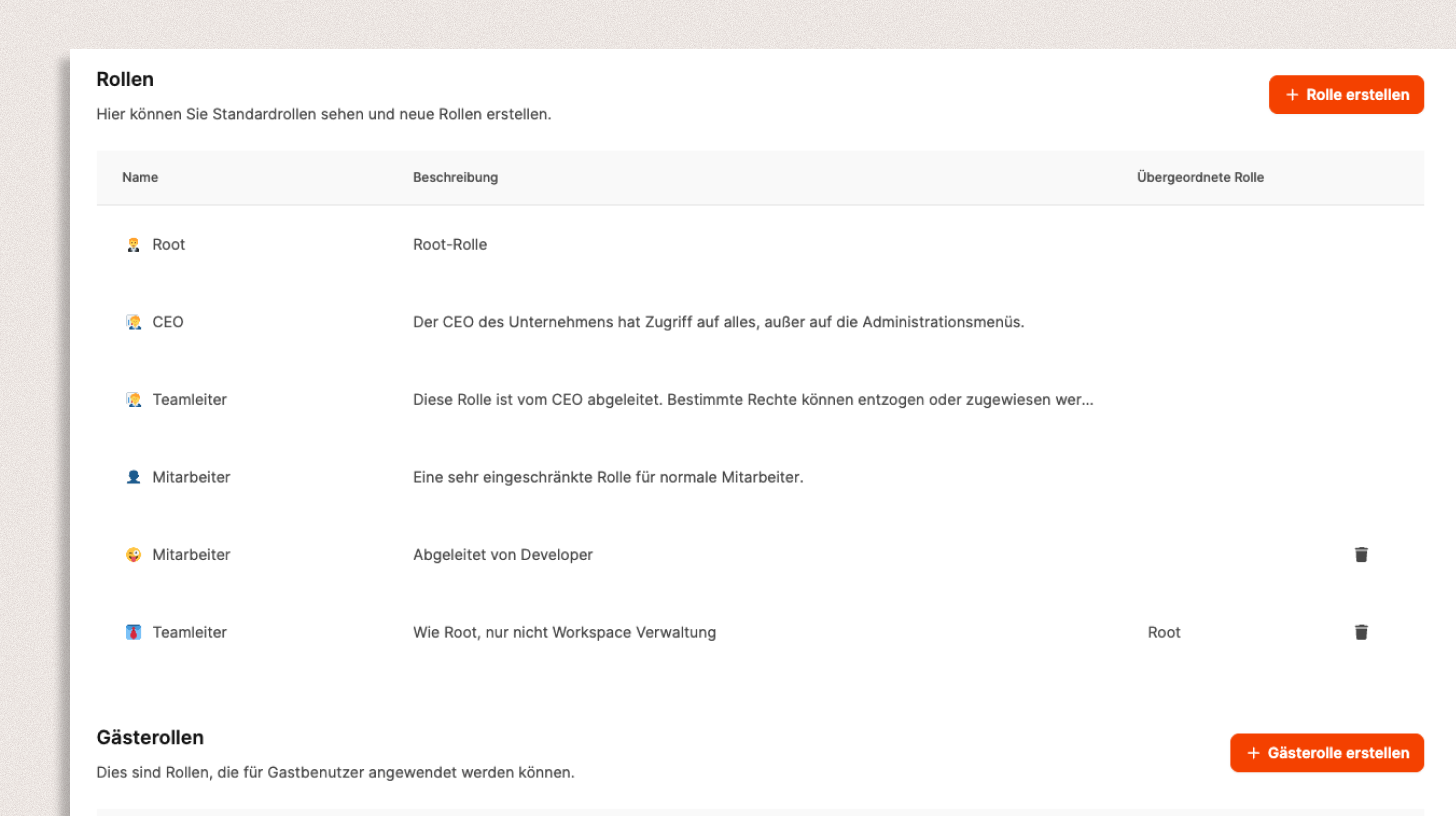
Leadtime’s role and permission management lets administrators control access to data and features at a granular level. Each user receives exactly the permissions required for their work, while sensitive information remains protected.
How role management works
Under Administration → Workspace settings → Roles, you can create both standard and custom roles for your workspace.
Leadtime distinguishes between internal roles for team members and guest roles for external users such as customers or partners.
Learn more about guest users
Role overview
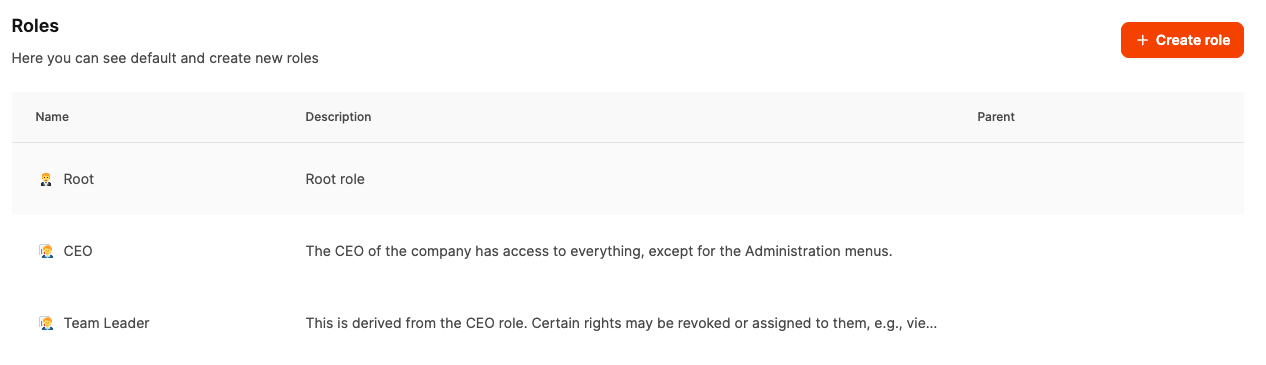
The overview lists every existing role with its name, description, and parent role, if applicable.
A parent role allows permissions to be inherited, saving time and keeping permission assignments consistent.
Examples:
- brain Root – Full access to all features
- crown CEO – Access to all content, except admin menus
- jigsaw Team Lead – Derived from the CEO role, with adjusted permissions
- man_construction_worker Employee – Basic limited role for internal team members
- technologist Guest – Highly restricted role for external users
Create a new role
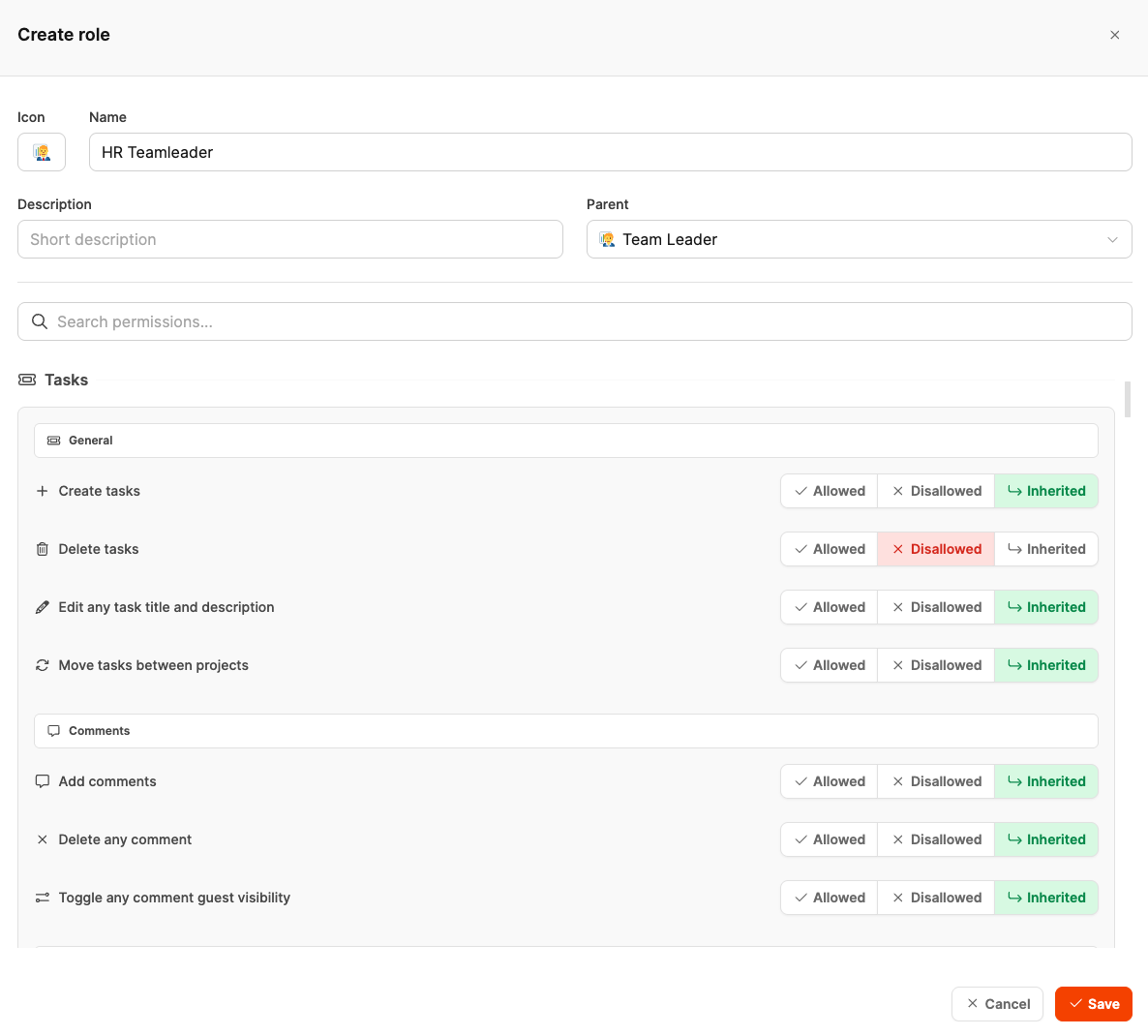
Click + Create Role to define a custom role.
The dialog contains the following fields:
- Icon: A symbol for quick visual identification
- Name: The role name (for example, HR Teamleader)
- Description: A brief description of the responsibilities
- Parent role: Optional – permissions are inherited
You can then configure the permissions in detail in the lower section.
Define permissions
Each permission can be configured individually:
- check_mark_button Allowed – The action is permitted
- cross_mark Disallowed – The action is prohibited
- arrow_left_hook Inherited – The setting is inherited from the parent role
Permissions are grouped by topic, for example:
- Tasks: Create, edit, delete, or move tasks
- Comments: Add, delete, or change visibility of comments
- Projects: Create, manage, or archive projects
- Users: Assign roles, invite teammates, change permissions
This lets you align roles precisely with responsibilities—for example, an HR team lead who can manage tasks and comments but cannot delete projects.
Inheritance and customization
When a role defines another role as its parent (parent role), it automatically inherits that role’s permissions.
You can override individual permissions to create variants of an existing role quickly without configuring everything from scratch.
Example:
An HR team lead can inherit from the general team lead role while receiving specific restrictions for project management.
Guest roles
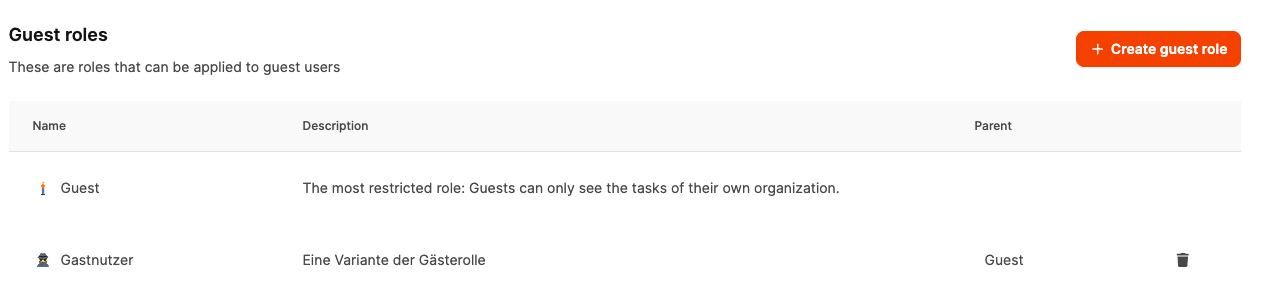
Guest roles are intended specifically for external users, such as customers who should be able to view project progress without changing data.
They are managed separately in the lower section and can be created in the same way as regular roles (+ Create guest role).
Guest roles can inherit only from other guest roles. They expose an explicit set of collaboration permissions; internal and administrative permissions remain unavailable even through inheritance. New permissions are unavailable to guests until their guest data scope has been reviewed.
Typical examples:
- receipt Guest: Access to shared tasks, comments, forms, and customer approvals. The standard Guest role does not chat with agents. Custom guest roles can enable Chat with agents.
- bust_in_silhouette Guest reviewer: A custom guest role with fewer collaboration permissions
Learn more about guest users