
Pools
The pool view shows all tasks of a responsible person across projects in order to centrally control priorities and prepare planning efficiently.
Unlike “Big Picture”, the Pool view in Leadtime offers a cross-project overview of all the tasks an employee is responsible for.
It is used for prioritizing, weekly planning and managing tasks that are spread across several customer projects.
You can find it under Planning → Pool.
The pool view brings together all of an employee’s tasks that are entered in the Accountable field. This lets team leaders and account managers plan together which tickets should be handled and in what order.
About Big Picture: Big Picture
Example use
In the weekly planning meeting between an account manager and their team leader, the pool is reviewed together:
- Review: Check completed tasks, discuss open tickets.
- Reprioritization: Move blocked or waiting tickets to the right.
- Goal planning: Place new tasks on the left so they are completed first this week.
- Coordination with developers: Flag important tickets to specifically trigger their implementation.
Responsibility (“Accountable”)
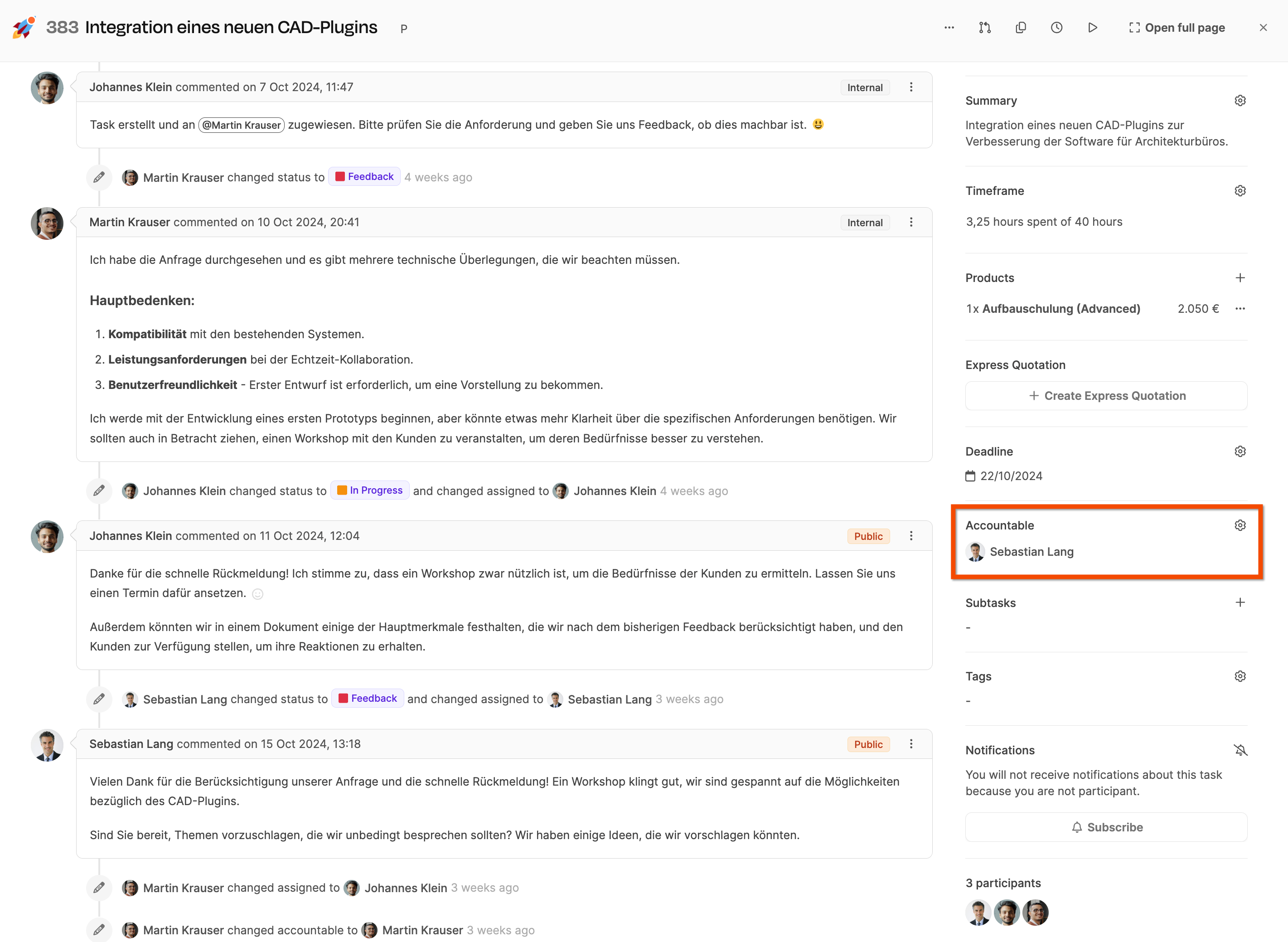
The Accountable field in the right ticket sidebar defines in whose pool a task is displayed.
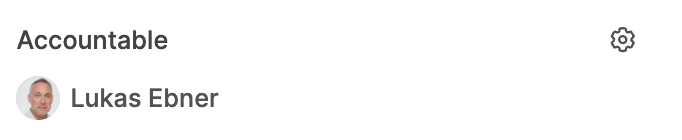
By default, the ticket’s creator is entered as the person responsible.
Responsibility can be adjusted at any time, e.g. when a customer or project is handed over internally.
Interaction and control
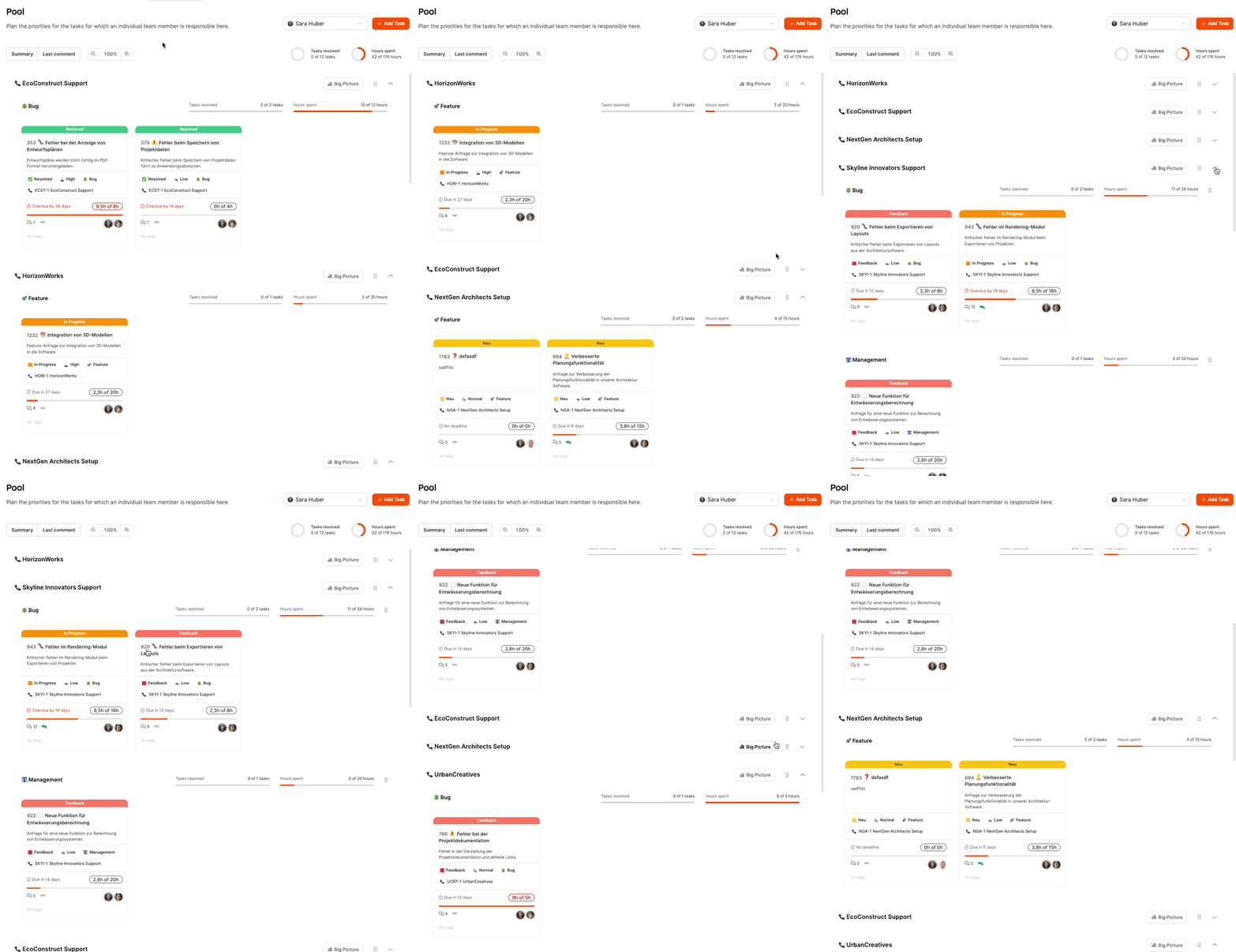
Sorting projects
The projects within your own area of responsibility can be sorted vertically.
Prioritization
Tasks can be rearranged horizontally within a row using drag & drop. The order reflects the priority – the most important is always on the left.
Planning view
The pool is often used in planning meetings to prioritize tasks together with the team leader or to define weekly goals.
Blockers and open questions can be quickly identified using the progress bar and the comment view.
Combination with Big Picture
For a deeper project view, you can open a project’s Big Picture directly from each project row.
Structure of the view
Employee selection
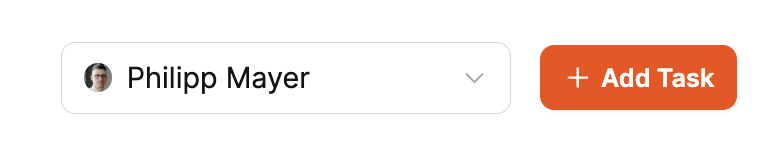
The dropdown at the top right lets you select which person the pool is displayed for.
Only users with the appropriate permissions can open other people’s pools.
View options

- Summary / Last comment: Toggle button for switching between the ticket summary and the last comment.
- Zoom: Scaling between 50% and 150% (default 100%) to display more or fewer cards at once.
- Add Task: Creates a new ticket that is automatically assigned to the currently selected person.
Progress indicators

Two rings at the top right show:
- Tasks resolved → Number of completed tasks.
- Hours spent → Ratio of booked hours to estimated hours.
Project and tracker structure
Each project row shows the tasks by tracker type (e.g. Feature, Bug, Task).
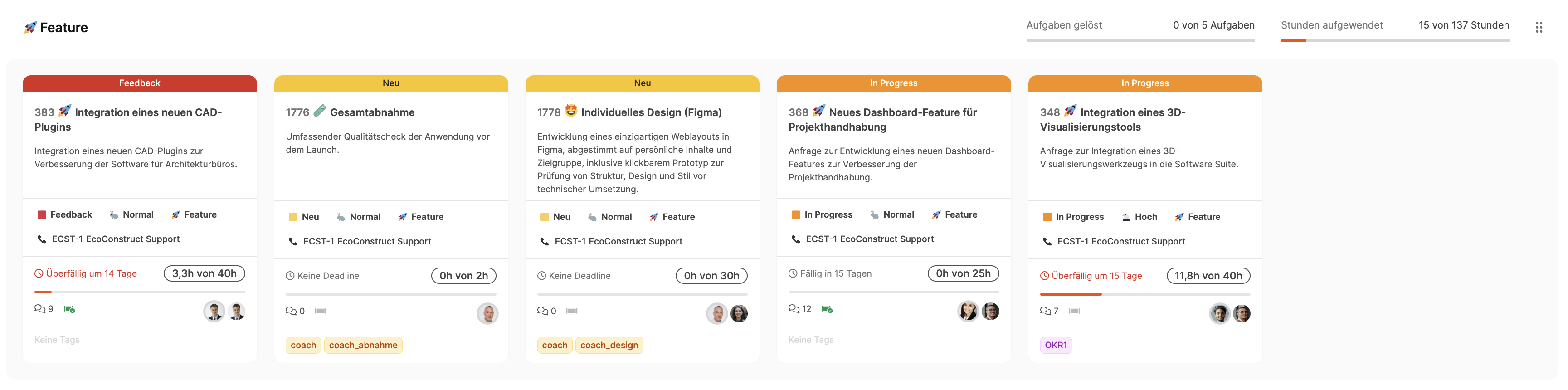
- Projects can be sorted using drag & drop.
- Within projects, trackers can also be rearranged.
- The Big Picture button takes you directly to the project’s card view.
Card structure
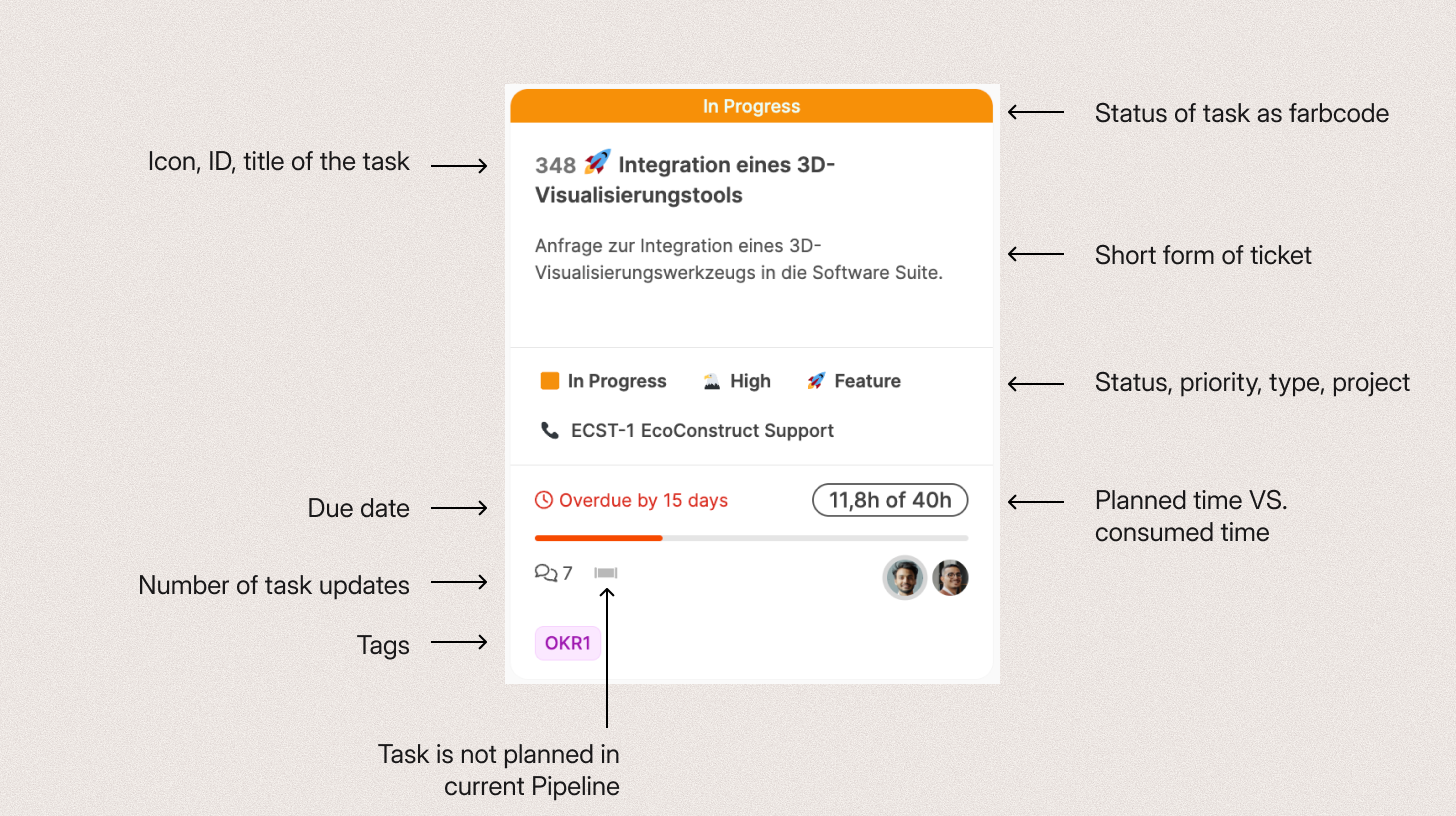
Each card represents a ticket and shows the most important information in a compact format:
- Title, ID and description
- Status, Priority, Task type and Project name
- Deadline and Time status (e.g. 11.8 h of 40 h)
- Comment count and Pipeline status
- People involved (right: those currently responsible, left: stakeholders)
- Tags (e.g. OKR, internal labeling)
Color codes for status:
- yellow_circle New
- orange_circle In Progress
- red_square Feedback
- green_circle Resolved
- white_circle Backlog
Cards can be moved horizontally – left = higher priority.
Clicking a card opens the ticket detail view.
Compare the elements of the cards with the elements of a ticket Editing tasks