
Documents
Here you can modify the appearance of the documents generated by Leadtime
Found under Administration → Workspace Settings → Documents.
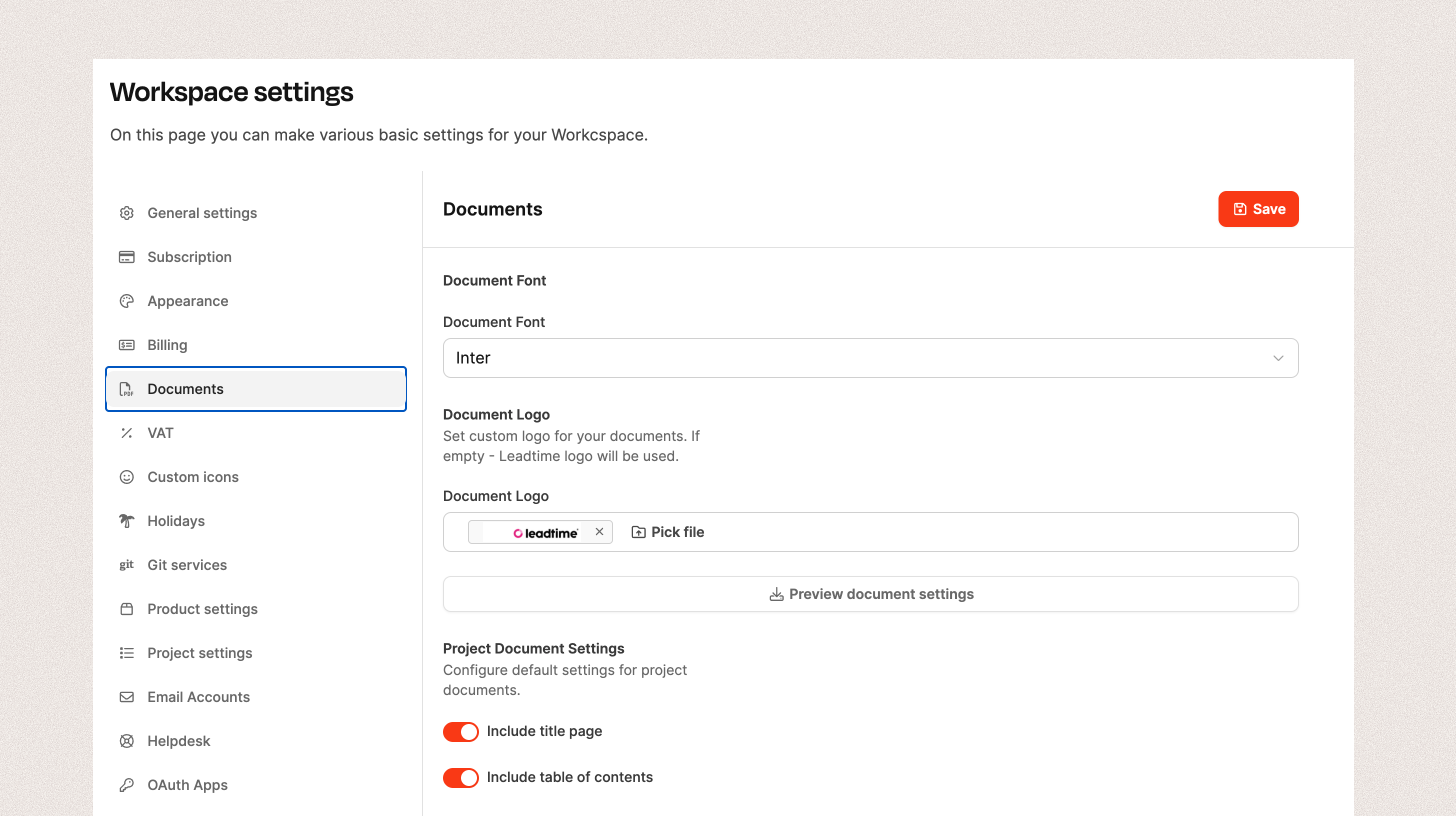
In this section, you define the appearance and basic behavior of all documents generated by Leadtime. This includes the font, logo, and default options for project documents such as estimates or specifications.
Document types
Leadtime automatically generates various documents, such as:
- Letters
- Invoices and payment reminders
- Estimates
- Specifications
- General documents based on templates
→ About letters: Organizations – Letters
→ About project documents: Projects – Documents tab (single projects only)
Font

You can set the font for all documents centrally. The following options are available:
- Inter: Leadtime’s default font, modern and neutral
- Roboto: Clear, geometric form
- Arimo: Professional and easy to read
- Open Sans: Web-friendly and neutral
- PT Sans: Balanced and versatile
- Oswald: Distinctive and suitable for headings
- EB Garamond: Classic and elegant
Logo
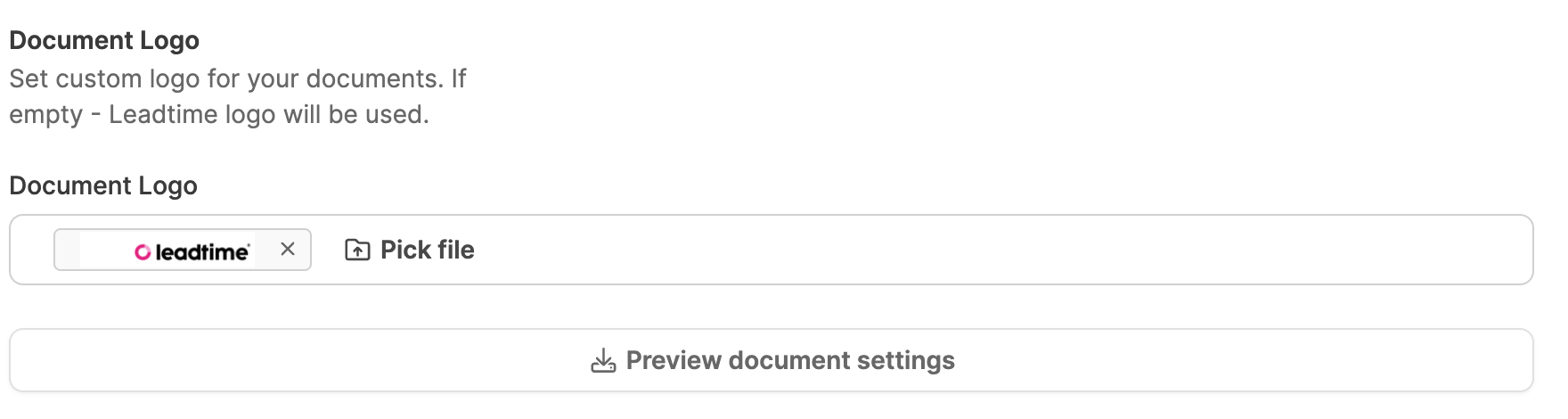
You can upload your company logo here.
If no custom logo is stored, the Leadtime logo is used automatically.
With Preview document settings, you can download a test document to check its appearance.
Project document settings
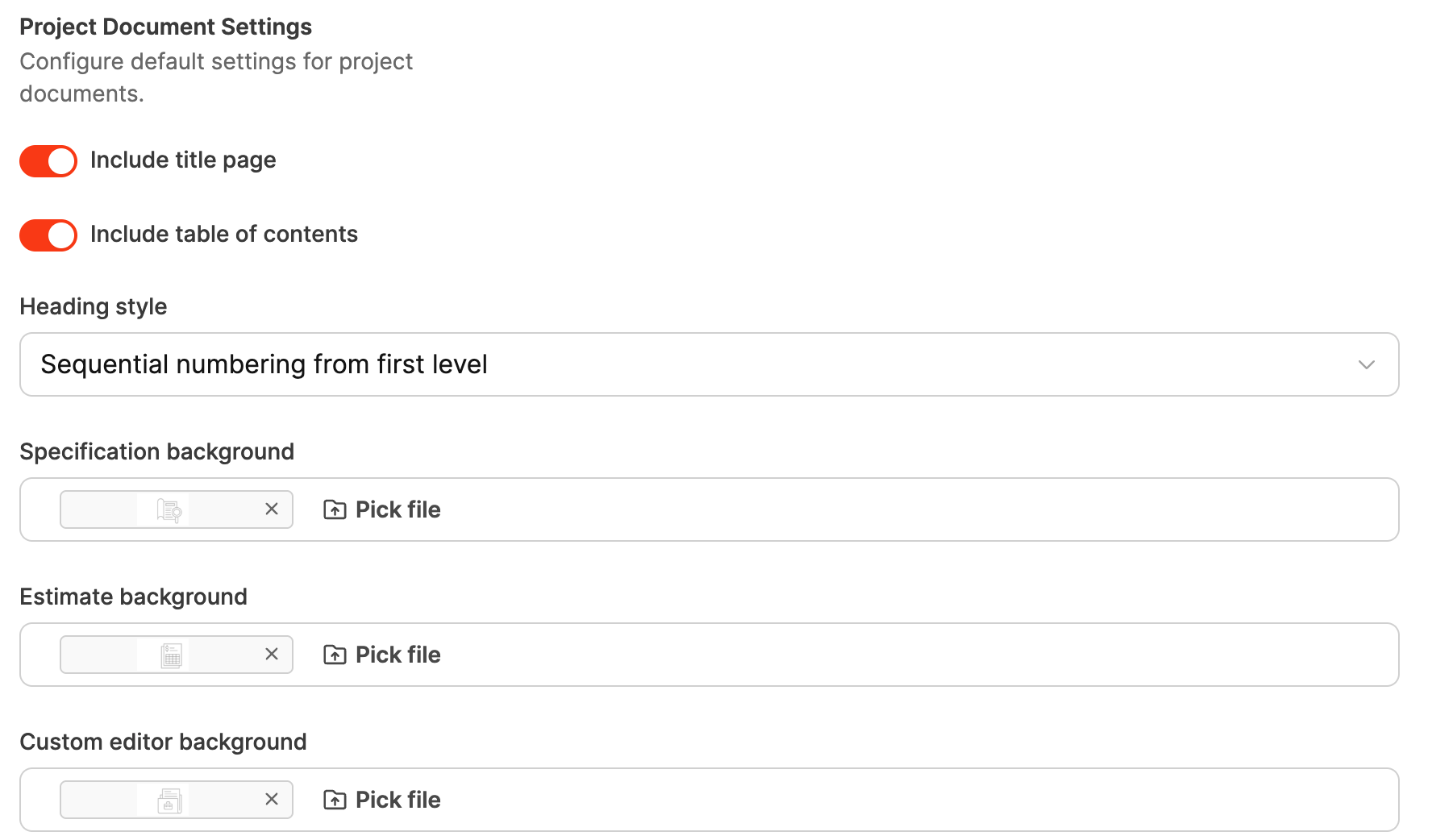
These settings apply to all documents assigned to projects (e.g. estimates or specifications):
| Option | Description |
|---|---|
| Include title page | Automatically adds a title page |
| Include table of contents | Creates a table of contents at the beginning of the document |
Heading style
This option controls how headings in document templates are formatted and numbered. This is particularly relevant for contracts or project documents that require a clear and traceable structure.
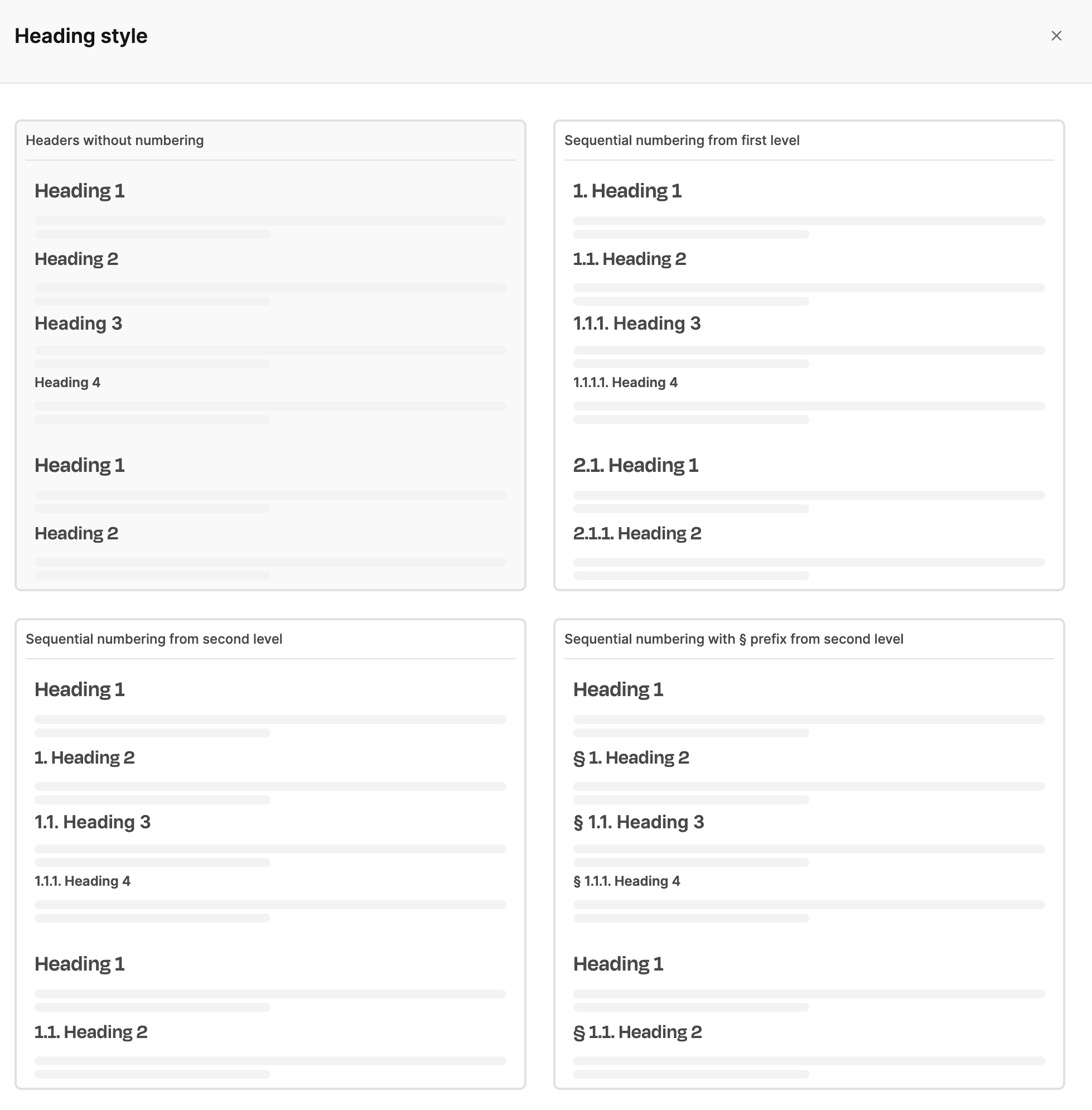
Leadtime offers four variants:
-
No numbering
Headings are displayed without numbers—suitable for simple documents or creative texts where numbers would be distracting.
-
Continuous numbering from level 1
Every heading level is numbered automatically (e.g. 1., 1.1., 1.1.1.). Ideal for contracts, manuals, or specifications where a logical structure is important.
-
Continuous numbering from level 2
The top-level heading remains unnumbered, while subchapters are numbered (e.g. 1. Heading 2, 1.1. Heading 3). This variant is suitable for documents where the main title should remain unnumbered.
-
Numbering with a § prefix from level 2
Subchapters are prefixed with the section symbol (e.g. § 1., § 1.1.). This option is particularly suitable for contracts where legal sections need to be numbered.
Background images
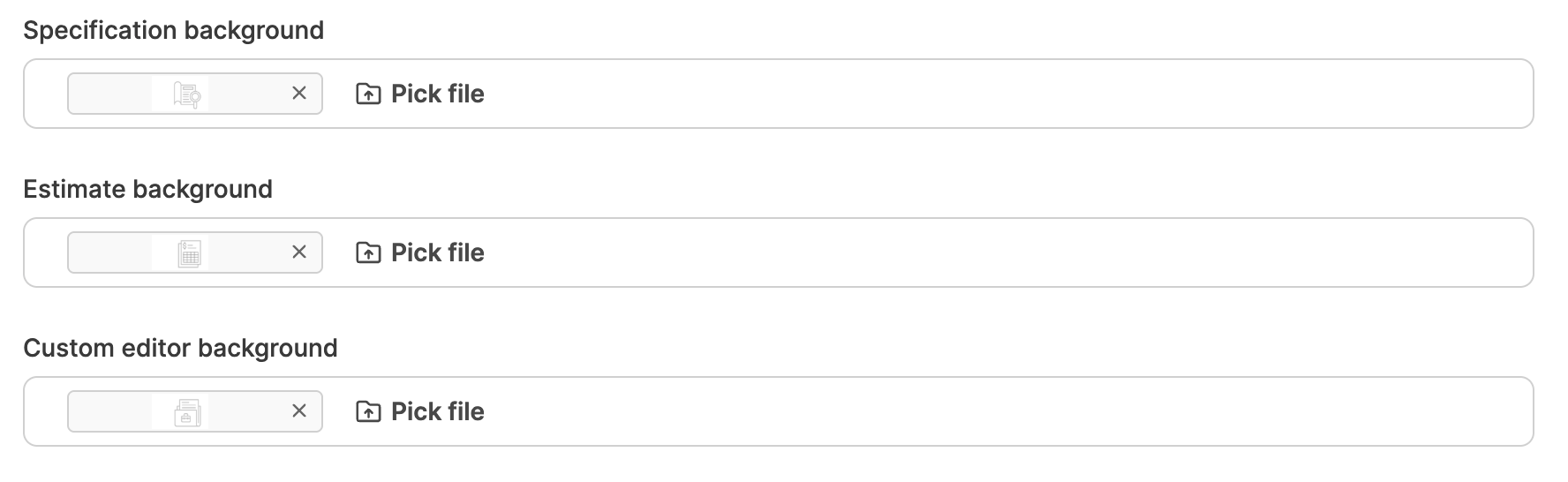
Background images can be uploaded for title pages.
Recommended size: 820 × 600 pixels
- Specification background: Displayed on the specification title page.
- Estimate background: Used on estimate title pages.
- Editor background: For documents created with the template system.