
Document Settings
Configure project-specific formatting options and contact persons for automatically generated documents.
You can find this area in a project under Projects → [Select project] → Settings tab → Document settings. Here you configure project-specific standard options for automatically generated documents. If necessary, these settings overwrite the organizational defaults and influence the format, structure and contact details in offers, contracts, specifications and other generated documents.
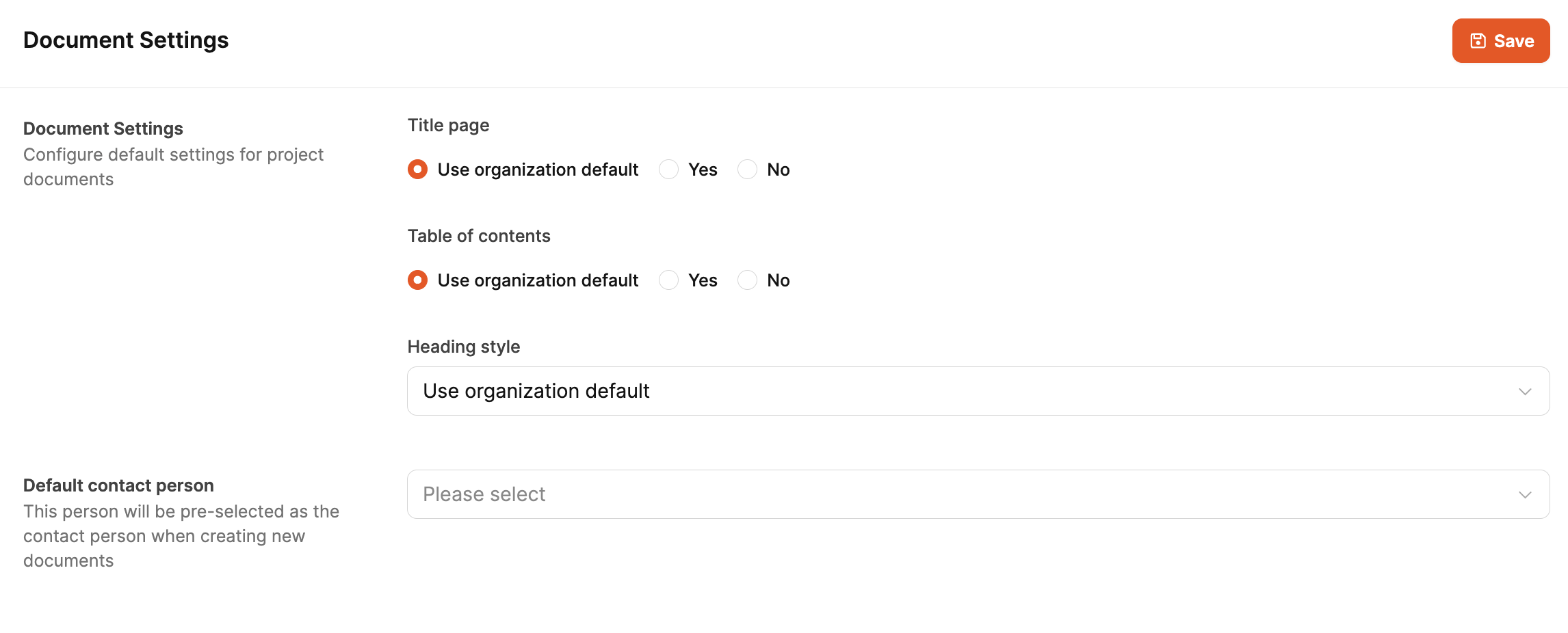
The basic settings for documents are defined for the workspace here: Documents
Elements
Front page
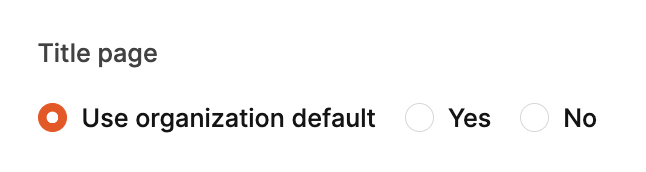
Determines whether generated documents receive a title page.
Options:
- Use organizational standard – takes over the central specification
- Yes – forces activation
- No – disables the front page for this project
Table of contents
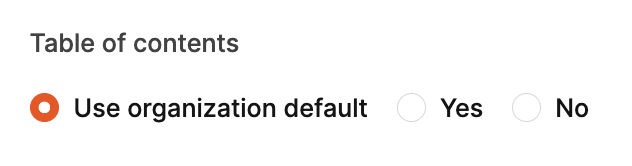
Determines whether an automatically generated table of contents is embedded.
Options:
- Use organizational standard – takes over the central specification
- Yes – forces activation
- No – disables the table of contents for this project
This setting is particularly relevant for long documents and improves clarity.
Heading style
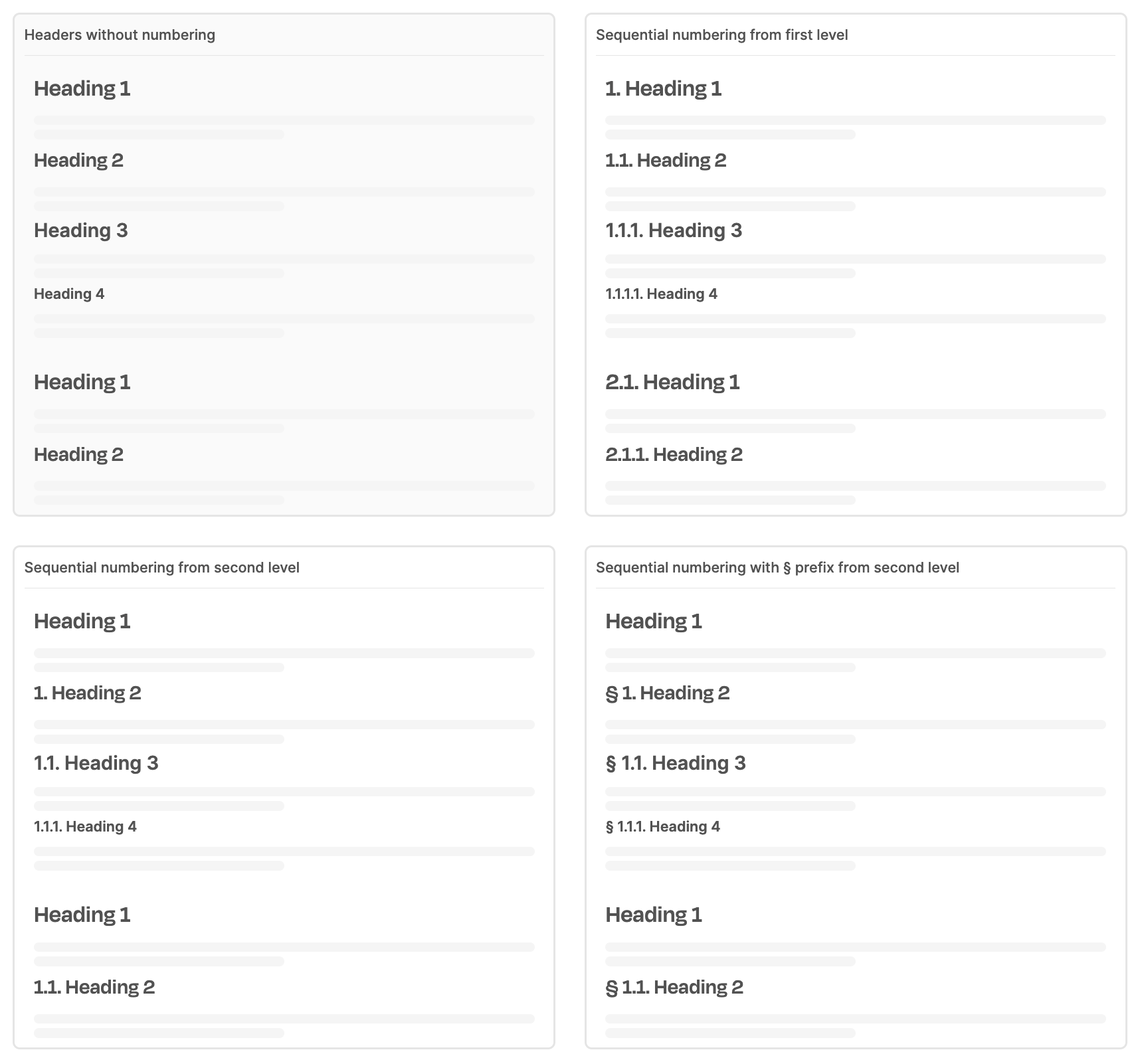
Controls the numbering and formatting of headings.
Typical options include:
- No numbering
- Numbering from level 1
- Numbering from level 2
- Variants preceded by a symbol (e.g. §)
This function ensures consistent structures - for example in contract documents, especially when dynamic sections appear or are omitted depending on form parameters. Selection is made via a dropdown.
Default contact person: A person can be stored here who will automatically be preselected as a contact person when new documents are created.
This makes it easier:
- recurring offer processes,
- automated preambles,
- binding addresses on the customer side.
The selection is made via a dropdown that lists all available contacts.
Changes will be made via Save saved at the top right.