
Letters
Create and manage formal letters directly in Leadtime – centralized, traceable, and organization-related.
The “Letters” tab inside an organization is for creating, managing, and storing formal letters for organization members or contacts. Thanks to central letter management in Leadtime, all customer communication stays traceable, organized, and linked to each organization.
That reduces media discontinuity and makes it easier to document business correspondence.
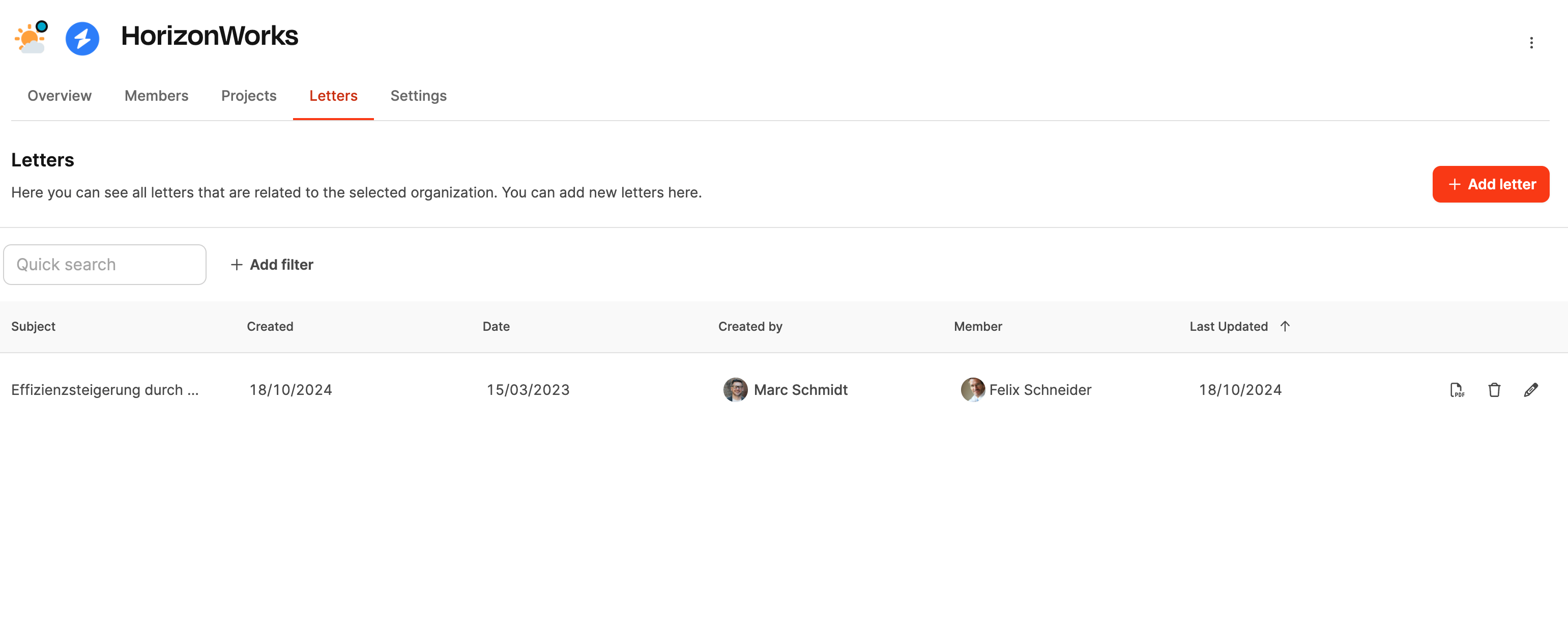
This area shows an overview of all letters assigned to an organization. Every letter is kept in the right spot and can be viewed, edited, or downloaded again at any time.
A lot of other documents can also be automated in the context of projects:
Projects – Documents tab (Single projects only)
Overview of previous letters
The letter overview includes the following columns:
- Subject – Title or topic of the letter.
- Created – Date the letter was created.
- Date – The date shown on the letter (e.g. if backdated).
- Created by – Author of the letter.
- Member – Recipient within the organization.
- Last updated – Time of the last change.
Actions at a glance:
- pencil Edit – Opens the letter for further adjustments.
- trashcan Delete – Removes the letter from the overview.
- page_facing_up Download PDF – Exports the letter as a PDF file.
About + Add letter you can create a new letter.
Create letter
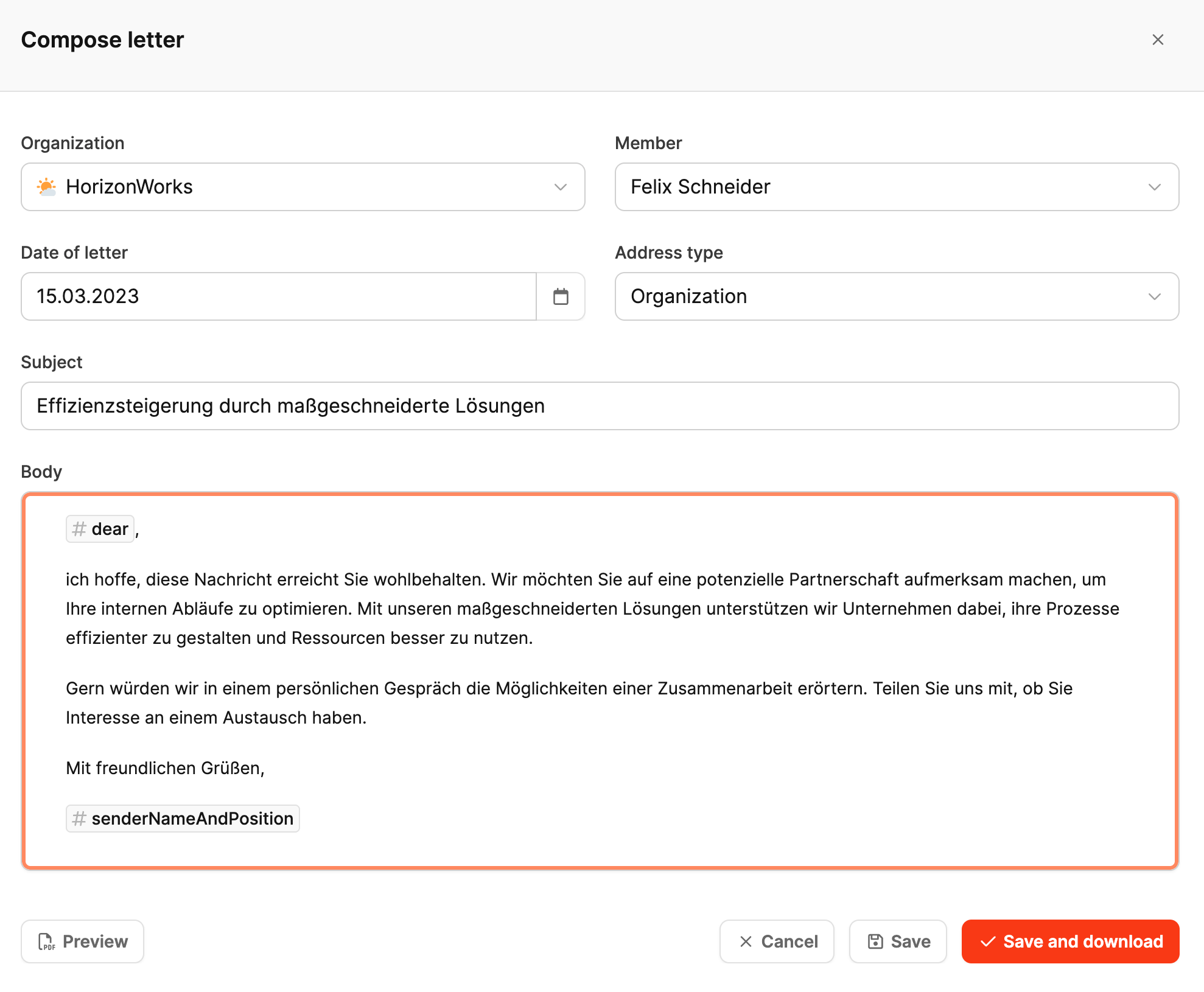
When you click on “Add letter” a dialog opens with these input fields:
- Organization – Is preselected automatically.
- Member – Select the recipient.
- Letter date – Can be changed or backdated if needed.
- Address type – Choose between the organization address or a member’s private address.
- Subject – Topic of the letter.
- Content (Body) – Field to enter the letter’s content.
In the text you can use macros to automatically insert personalized data:
Available macros:
You can use macros to personalize letters and fill them with the right data automatically. Here’s a full overview of all available macros in German and English version:
| German macro name | English macro name | Description |
|---|---|---|
| #KundenUnternehmensName | #clientCompanyName | Inserts the customer’s organization name. |
| #Ansprechpartner | #contactPerson | Inserts the organization’s primary contact person that the letter is addressed to. |
| #NameUndPositionDesAbsenders | #senderNameAndPosition | Inserts both the sender’s name and position (like “Thomas Tester, Managing Director”). |
| #NameDesAbsenders | #senderName | Inserts only the sender’s name. |
| #PositionDesAbsenders | #senderPosition | Inserts only the sender’s position. |
| #HeutigesDatum | #todayDate | Inserts the current date. |
| #SehrGeehrterKunde | #dear | Inserts a personalized greeting that automatically adds “Dear Mr./Ms.” depending on the recipient’s gender. |
| #Signature | #signature | Inserts the current user’s digital signature (saved in their profile settings). |
Actions after creation
Below the letter content, you’ll find four buttons:
- PDF preview – Shows a preview of the document without saving it.
- Cancel – Closes the window without saving changes.
- Save – Puts the letter in the overview.
- Save and download – Saves the letter and immediately downloads the PDF version.