
Helpdesk
Controls how support emails are converted into tickets for each organization and handled with automatic replies.
In the Settings → Helpdesk Settings area within an organization, you can define how incoming support emails for this organization are handled. The settings allowindividual control of ticket behavior, independent from the workspace’s global helpdesk defaults.
For the global helpdesk defaults of the workspace: Helpdesk
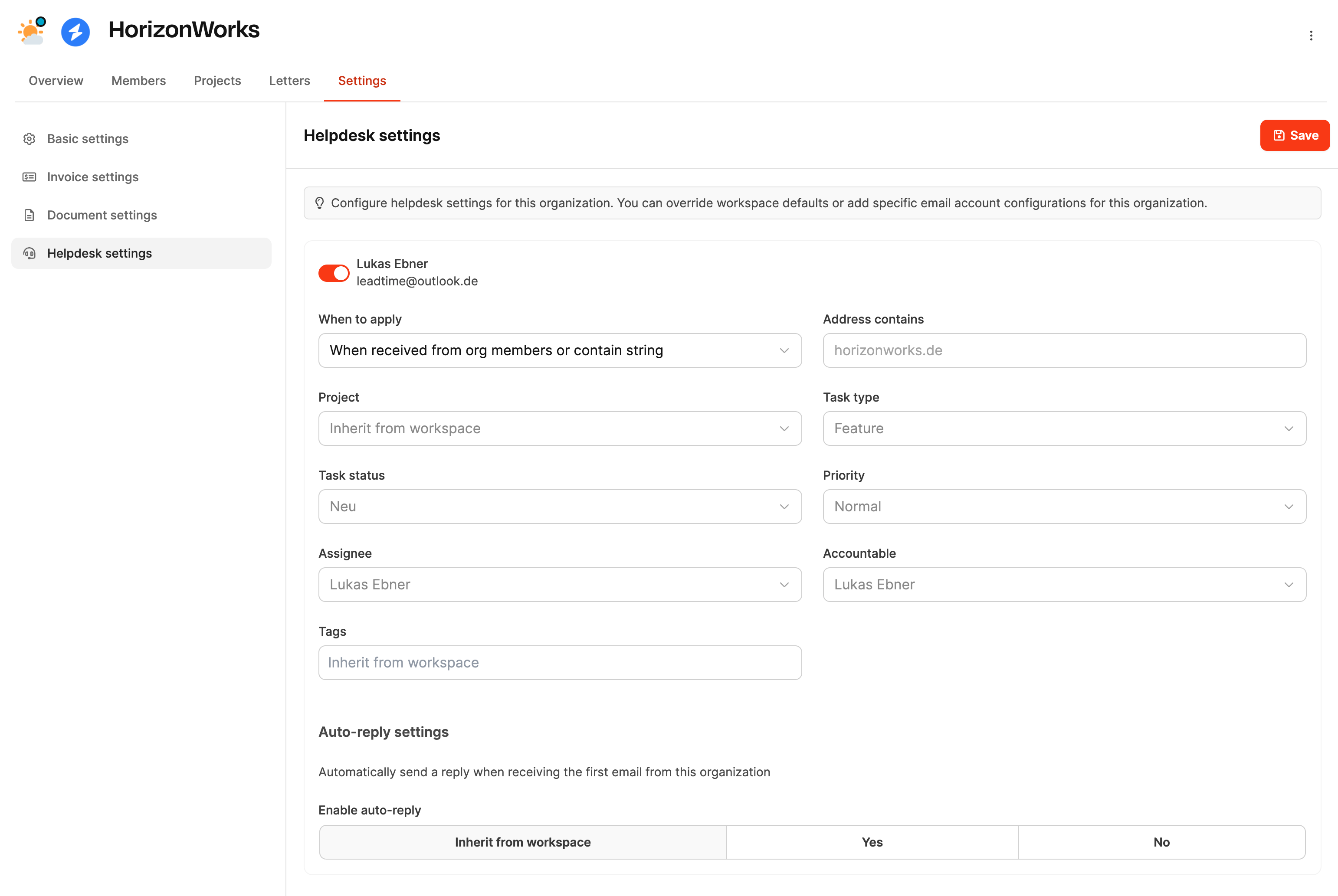
The helpdesk settings define how emails from customers are automatically turned into tickets, which fields are pre-filled and if automatic replies should be sent.
Use Case
Organization-specific helpdesk rules make sense if you want to provide a customer with a dedicated helpdesk mailbox or define your own contacts or processes for certain customers.
General Fields
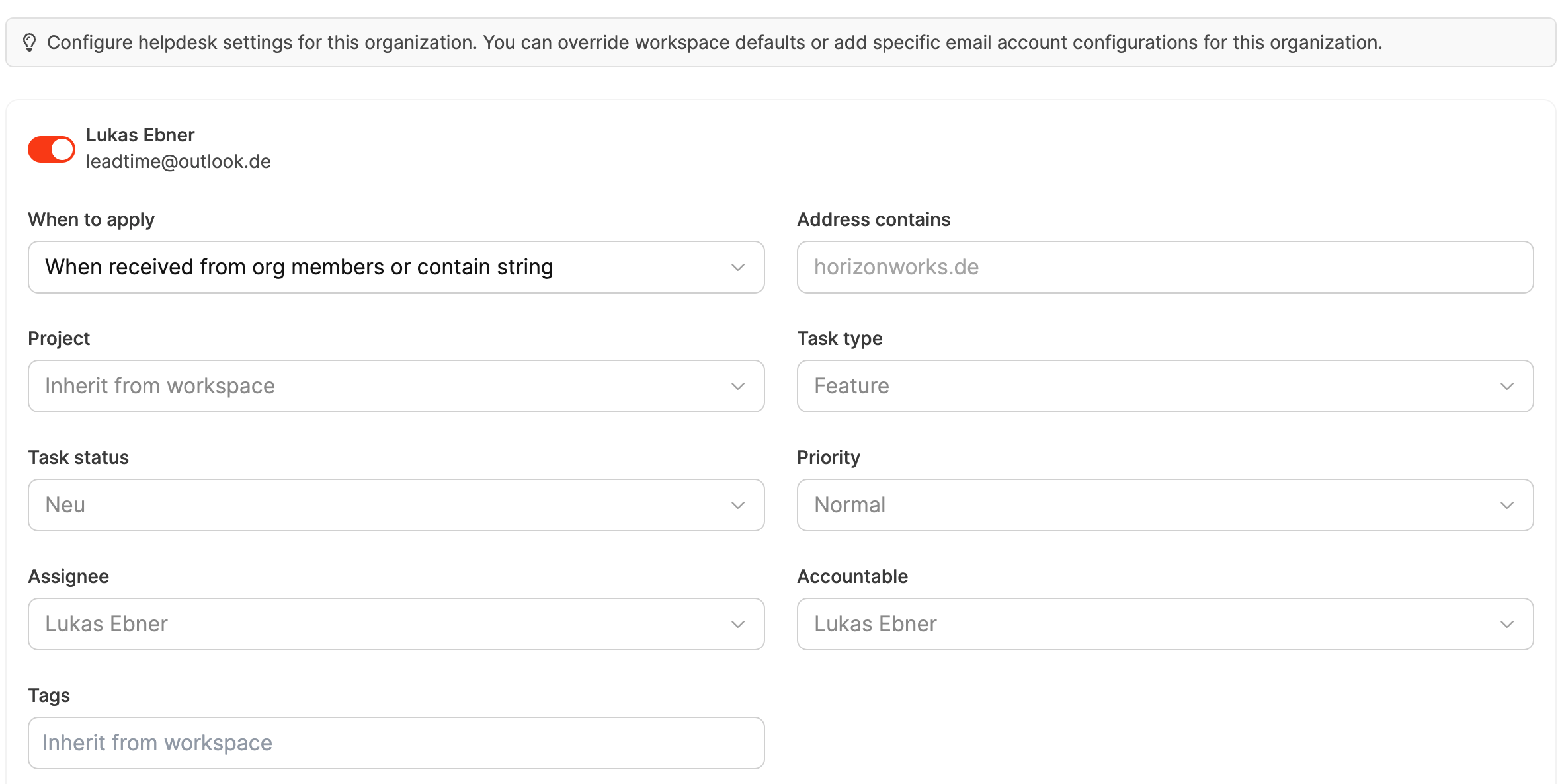
When to apply
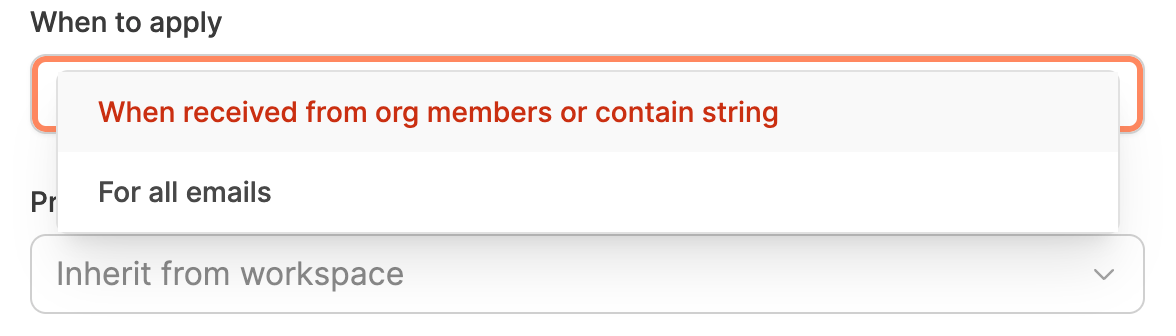
With this setting, you decide when the defined helpdesk rules of an organization should be applied. There are two options you can choose from:
- When received from org members or contain string The rule is only applied if the incoming email is from an organization member or if the specified domain (e.g. horizonworks.de) is included in the sender address. → Perfect if you want to automatically assign emails from certain customers to their own project or ticket workflow.
- For all emails The rule applies to all incoming emails, no matter who sent them. → This option is handy if the organization uses a dedicated support address (e.g. support@kunde.de) and wants all emails to be automatically assigned to this customer.
Automatic Ticket Settings
- Project Choose which project the new tickets should automatically be assigned to. By default, the workspace settings are used.
- Task status Decides which status new tickets are created with, e.g. New or In progress.
- Task type Classifies incoming requests by type, e.g. Feature Request, Bug or Support request.
- Priority Defines the default priority for new tickets (for example Normal, High, Critical).
- Assigned user The default agent who will automatically be set for new incoming tickets for this organization.
- Accountable Sets who is ultimately responsible for managing and following up the tickets.
- Tags Optional tags that are automatically added to group or filter tickets by topic.
Automatic reply settings
In the section Automatic reply settings you can set whether your customers get a confirmation message and customize the text, as soon as their first email comes in.
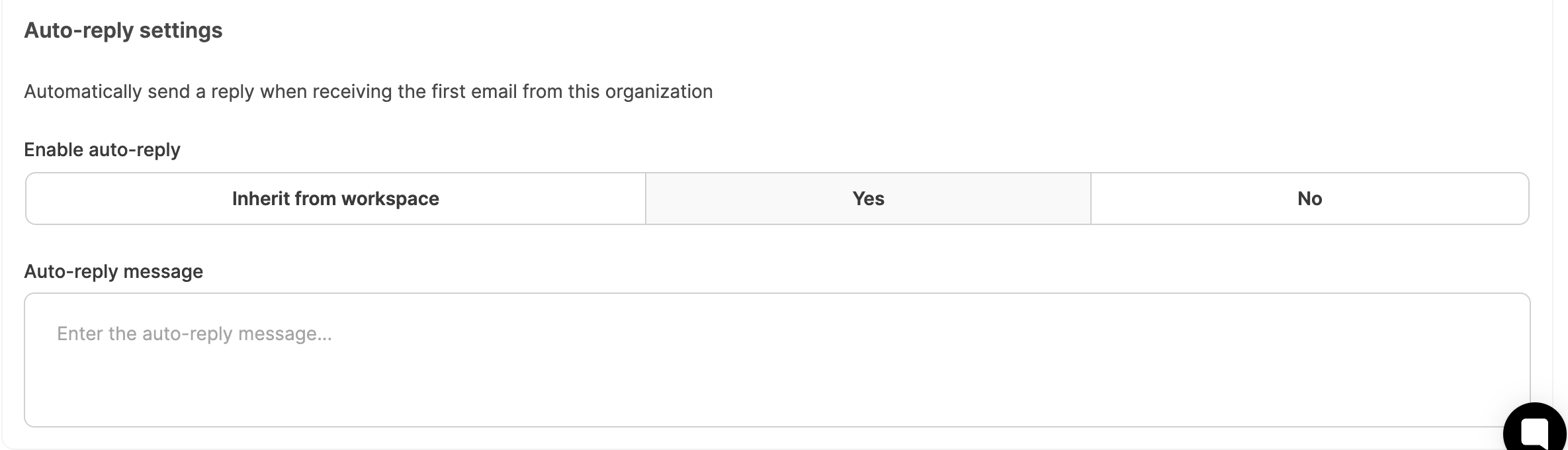
- Enable automatic reply Turns the automatic confirmation email on or off. Options: Use workspace default, Yes, No
- Automatic reply message Defines the content of the automatic email sent to the sender once a ticket has been created. You can personalize this message (for example, with placeholders for the customer name or ticket number).
For the global workspace helpdesk settings: Helpdesk