
Agents
Create and manage agents that chat, take tasks, run automations, or call Leadtime through API tokens and MCP.
An agent is a bot user in your workspace. It can chat, take tasks, be mentioned, and run automations. For each agent you choose a runtime: a Custom Agent that Leadtime runs, a self-hosted runtime, Cursor Cloud, Claude Agent, or Devin.
You can also use an agent as a service account. Issue a personal access token (PAT) or authorize MCP so scripts, n8n, Zapier, Make, or AI coding assistants call Leadtime as that agent. See Use API Tokens as an Agent, Self-hosted Agents, Cursor Cloud Agents, and Claude Agents.
Each agent has its own identity, role, and access tokens. This lets you trace which agent performed an action and control what it is permitted to do.
When to use agents
- Chat, tasks, and automations: Talk to the agent in chat, assign or mention it on a task, or let it run automations.
- Workflow automation: Connect n8n, Zapier, or custom scripts that create tasks, update projects, or synchronize data with external systems.
- AI assistants / MCP: Allow an AI coding assistant (for example, Cursor with MCP) to read and write tasks and projects as an agent instead of through a personal account.
- CI/CD pipelines: Let your deployment pipeline create or update tasks automatically.
- Clear audit trail: Actions performed by an agent are attributed to that agent’s name, so the activity log clearly distinguishes human actions from automated ones.
Where to find agent management
Agents are managed under Workspace Settings → Agents. This page is visible only when the API feature is enabled for the workspace and the user has the Manage agents permission.
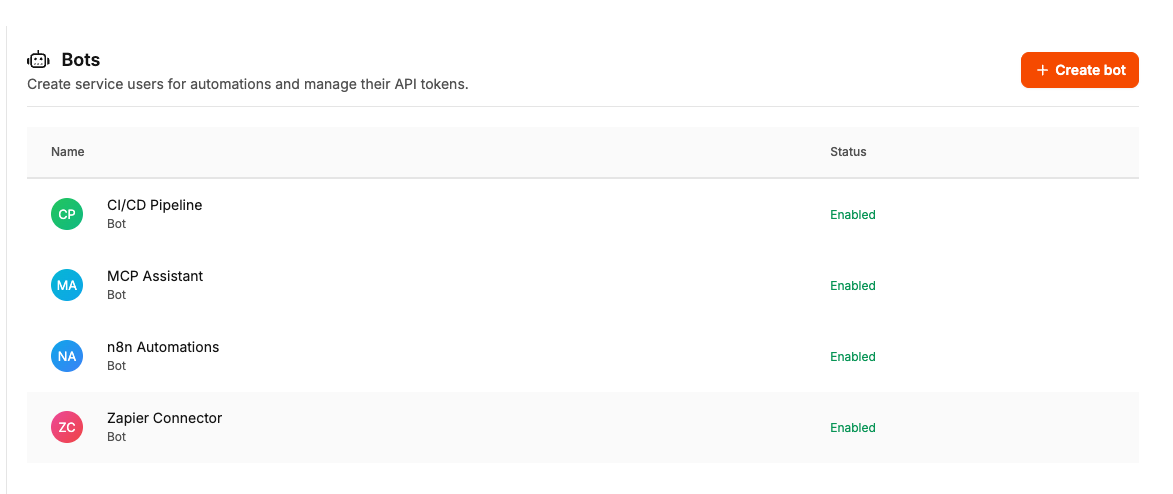
Create an agent
- Go to Workspace Settings → Agents.
- Click Create agent.
- Enter a name (must be unique within the workspace).
- Choose a role that defines what the agent is allowed to do (see Roles below).
- Optionally upload an avatar to make the agent easy to identify visually.
- Click Save.
The agent is created with the Enabled status and is ready to use.
Manage an agent
On the agent detail page you can:
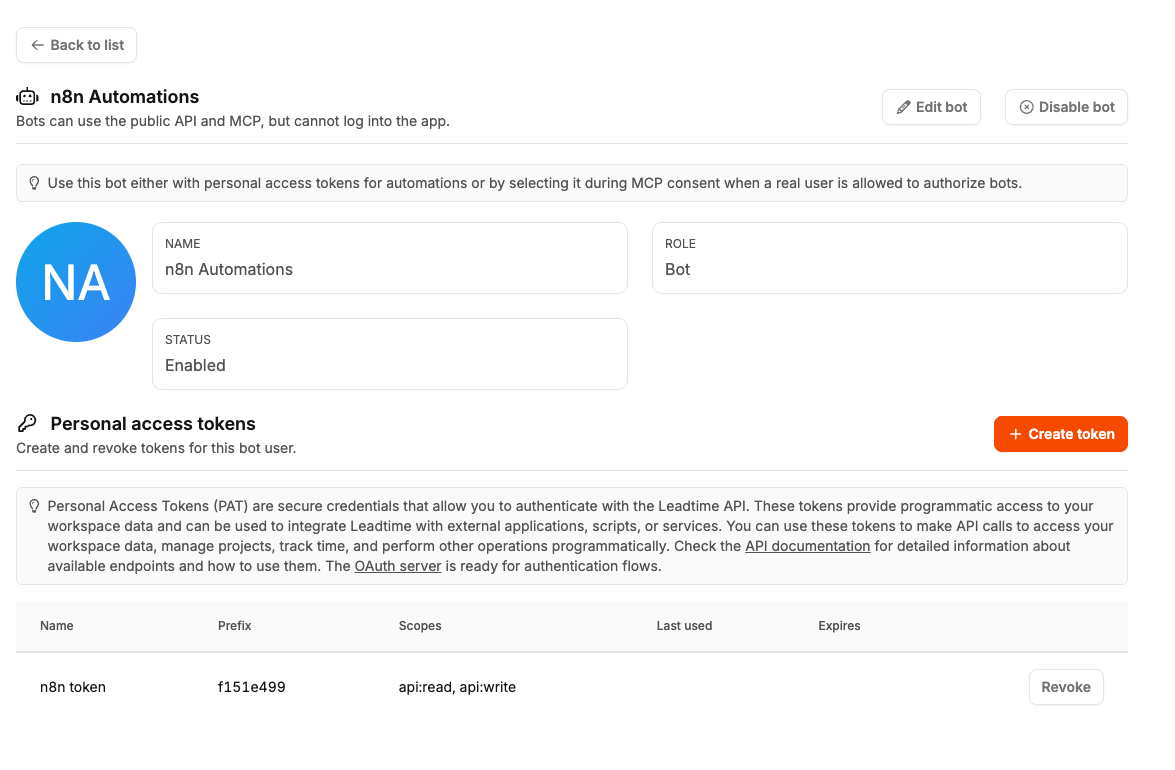
| Action | Description |
|---|---|
| Edit | Change the agent’s name, role, or avatar. |
| Enable / Disable | Change the agent’s status. A disabled agent cannot authenticate. Its tokens and MCP sessions work again only after it has been re-enabled. |
| Create token | Issue a new Personal Access Token (PAT) for API access. |
| Revoke token | Permanently invalidate an existing token. |
Personal Access Tokens (PAT)
Each agent can have one or more Personal Access Tokens. When calling the Leadtime Public API, use a token as Authorization: Bearer <token>.
When you create a token you choose:
- Name — a label that reminds you what the token is used for (for example, “n8n production”).
- Expiration date — the date on which the token stops working.
- Scopes —
api:read(read-only) and/orapi:write(read and write).
[!WARNING] The complete token value is shown only once, immediately after it is created. Copy it right away because it cannot be retrieved later. If you lose it, you can create a new token at any time.
Use an agent with MCP (AI assistants)
Instead of using a PAT, you can authorize an AI assistant as an agent through the OAuth/MCP consent flow:
- When an MCP client (for example, Cursor) starts the OAuth consent flow, the consent page displays a list of accounts available for authorization.
- If you have the Authenticate MCP as agents permission, this list also includes enabled agents from your workspace.
- Select the agent you want and confirm. The MCP session now uses that agent’s identity and role.
This is useful when an AI assistant should work through a controlled service account rather than your personal account.
Roles
Each agent is assigned a role that determines its permissions. Leadtime provides a predefined Agent role with the following properties:
- Broad operational access to tasks, projects, organizations, time tracking, invoices, insights, dashboards, and more.
- No access to workspace administration (the agent cannot change settings, manage employees, etc.).
- API and MCP usage permissions are included.
- The Agent role is a system role and cannot be edited.
You can also assign any other workspace role to an agent if you require a different permission level—for example, a more restrictive role for an agent that should only read data.
Permissions overview
Two permissions control agent-related functionality:
| Permission | Who has it by default | What it does |
|---|---|---|
| Manage agents | Admin | Create, edit, enable, or disable agents and manage their PATs in the workspace settings. |
| Authenticate MCP as agents | Admin | Allow the MCP consent page to display enabled agents as selectable identities. |
Both permissions belong to the Public API permission group and require the API feature to be enabled for the workspace.