
Individual work activities
Work activities define types of tasks for precise time tracking and flexible, useful resource recording.
The Administration → Workspace settings → Task settings → Work Activities section lets you align time entries in Leadtime precisely with the work performed in your company.
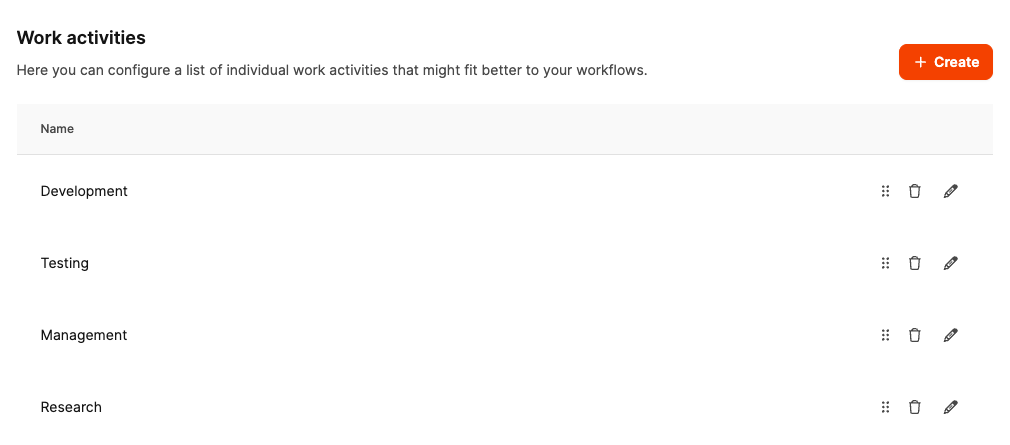
Each activity describes a type of work, such as development, management, or testing, and helps you track resource use transparently throughout a project.
Purpose
Work activities are used in time tracking to assign recorded hours to a clearly defined activity.
In addition to the standard activities, you can create your own or adapt existing activities to reflect your company’s internal processes accurately.
Benefits
- Transparent time tracking: Every entry is assigned to a clear activity, making reports easy to understand.
- Flexible customization: Companies can add activities that represent specific processes or roles.
- Better reporting: Time reports show exactly which types of work account for the effort.
Standard activities
Leadtime includes several predefined activities:
- Development: Time spent on programming, implementation, or technical work.
- Testing: Quality assurance activities.
- Management: Project management, communication, and coordination.
- Research: Preparatory or analytical work.
You can extend or replace them to record company-specific work more precisely.
Create a new activity
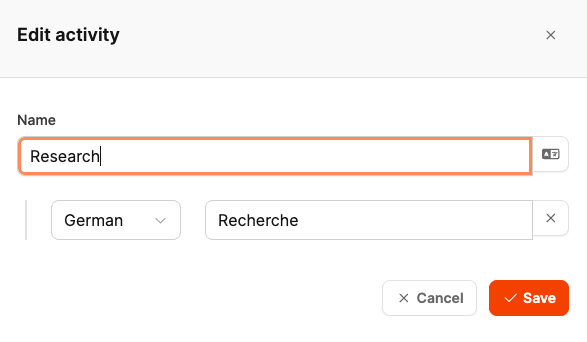
- Navigate to Administration → Work Activities.
- Click Create to add a new activity.
- Enter a suitable name, for example, Risk Assessment.
- Optionally add a translation, such as Risk Assessment.
- Click Save to add the activity.
The activity is then available as an option in time tracking.
Edit an existing activity
- Open Administration → Work Activities.
- Click the pencil icon next to the activity you want to edit.
- Change the name, icon, or translation as needed.
- Save the changes.
Multilingual labels
You can maintain each activity in multiple languages.
This is useful when international teams work together in Leadtime.
The user interface automatically displays the label in the language selected by each user.
Learn more about configuring the ticket system