
New
In the “New” tab you manage all invoices that have been generated but not yet sent – including shipping, checking and actions.
The Billing → Receivables area in Leadtime is used to manage and track all invoices.
In the “New” tab you’ll find all invoices that have already been generated but not yet sent.
From here, invoices are reviewed, sent to customers or manually marked as sent.
How it works
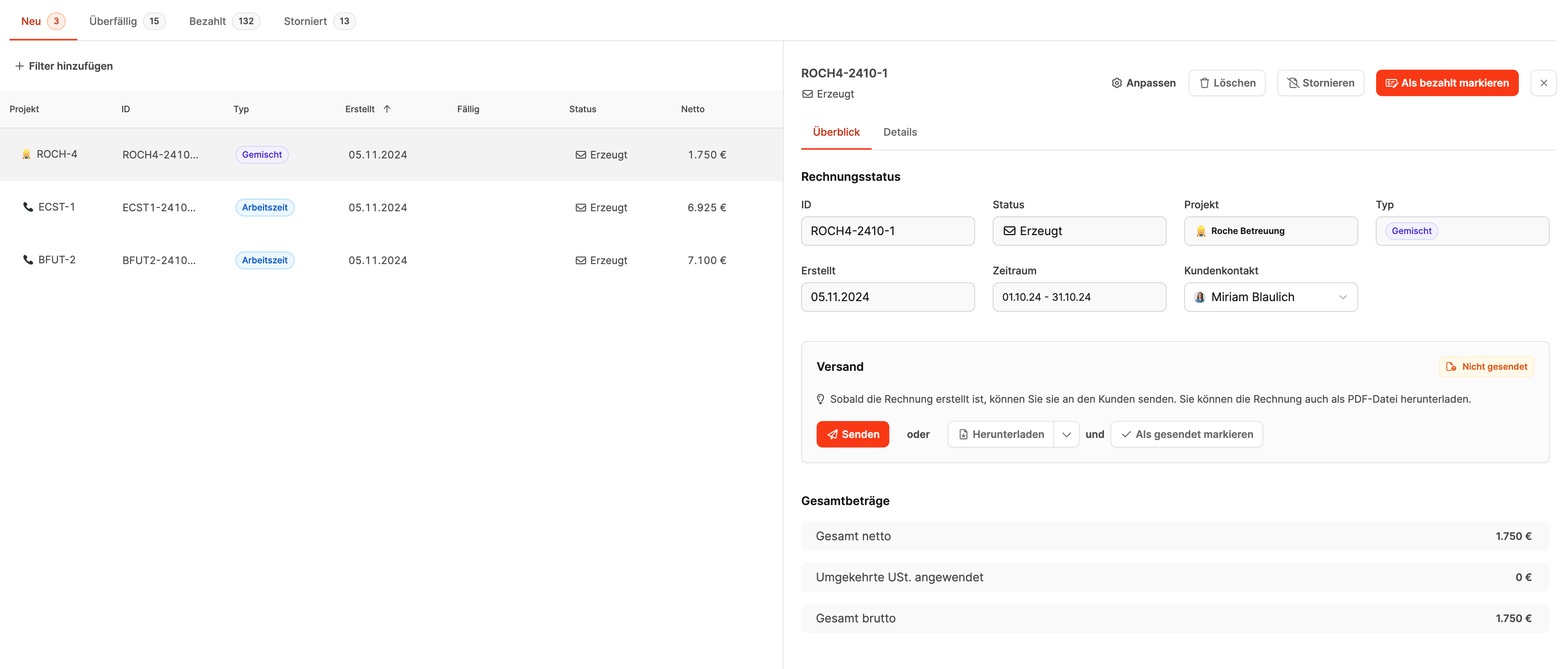
The interface is split in two:
On the left is the invoice list, on the right the detail view for the selected invoice.
Use the tabs at the top to filter invoices by their status – starting with “New”.
The number after the tab name (e.g. New (3)) shows how many invoices are currently waiting to be sent.
Columns in the invoice list
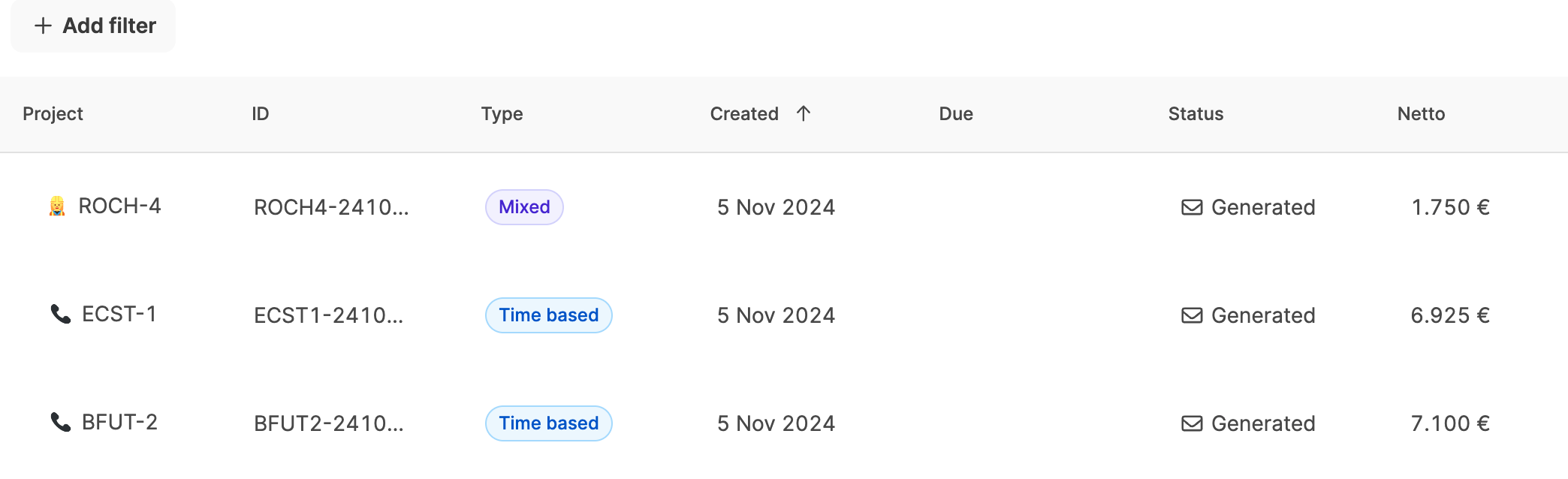
Each row in the overview contains the most important invoice data:
| Column | Meaning |
|---|---|
| Project | Associated project or project number |
| ID | Automatically generated invoice number |
| Type | Type of billing (e.g. project, working hours, express quote) |
| Created | Date the invoice was created |
| Due | Calculated automatically after sending |
| Status | “Created” = new, “Sent” = after sending |
| Net | Net amount before taxes and fees |
Detail view of an invoice
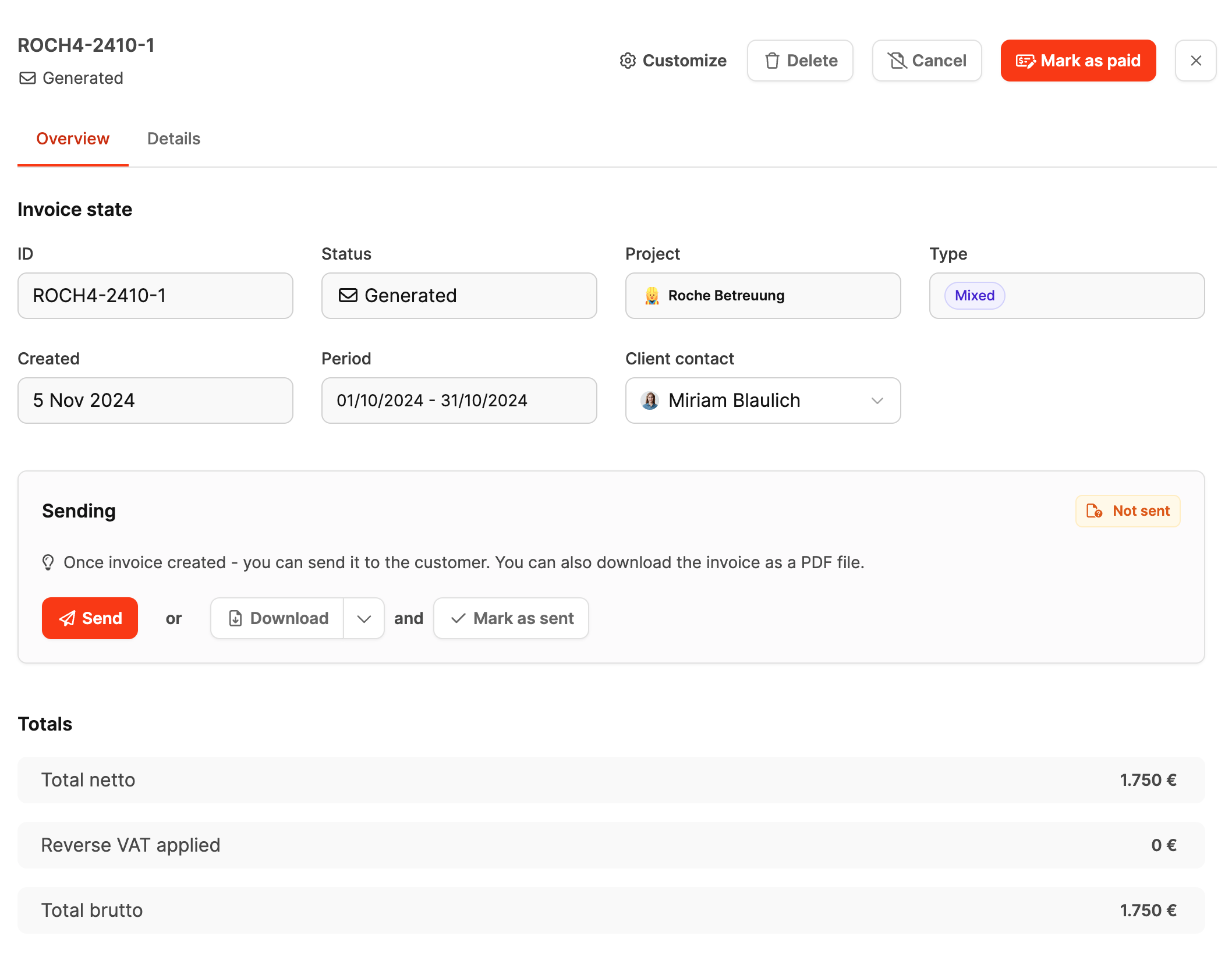
Clicking on an invoice opens the detail view on the right with two tabs: Overview and Details.
Overview tab
Here you’ll find:
- Invoice ID, status and project assignment
- Creation and service period
- Customer contact person
Sending options

- Send – Sends the invoice directly by email and starts the payment term.
- Download & mark as sent – For postal delivery; the due date also runs from this point onwards.
Amounts
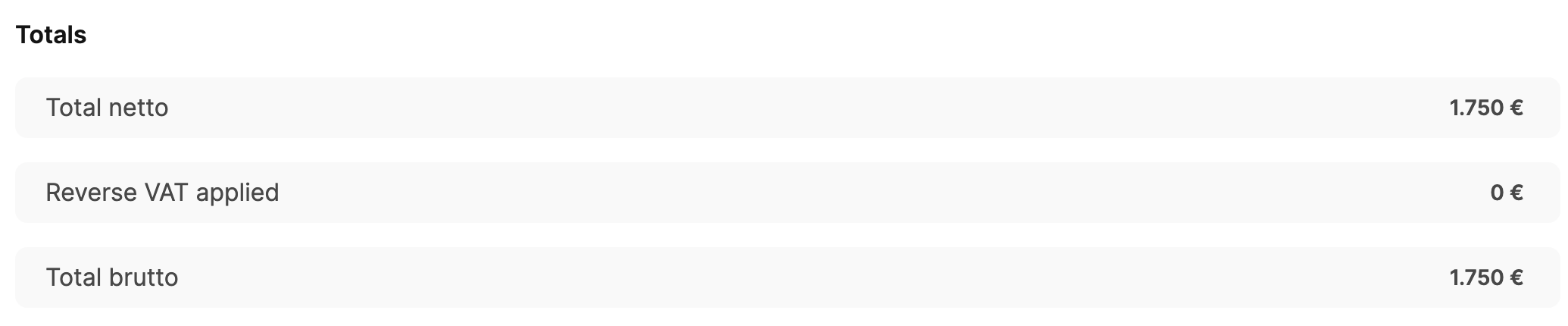
- Total net
- Automatic Leadtime fee
- VAT
- Total gross
Details tab
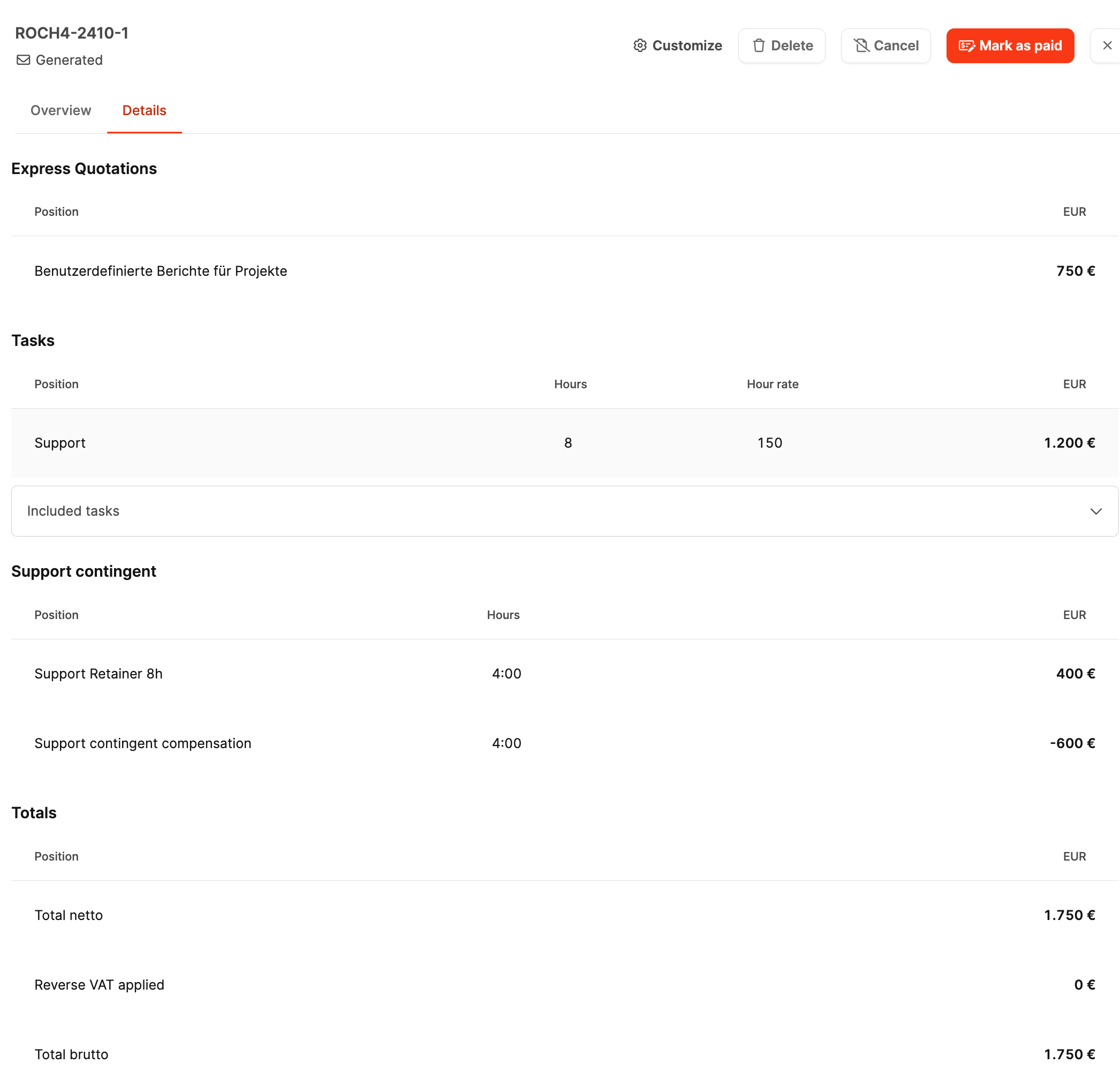
The “Details” tab shows all billed items:
- Name of the service
- Hours, hourly rates, individual and total amounts
The entries can no longer be changed. To make adjustments, the invoice must be deleted and recreated.
Actions in the invoice menu

Several actions are available at the top of the detail view:
- Adjust – allows text or format changes within the document.
- Delete – resets an invoice that has not been sent; the items return to invoice verification.
- Cancel – creates a negative invoice (credit note) to neutralize an invoice that has already been sent.
- Mark as paid – moves the invoice to the “Paid” tab once payment has been received.
Adjust invoice settings
Workspace-wide settings for invoice documents: Billing
Organization-wide settings for invoice documents: Organization – Billing Settings
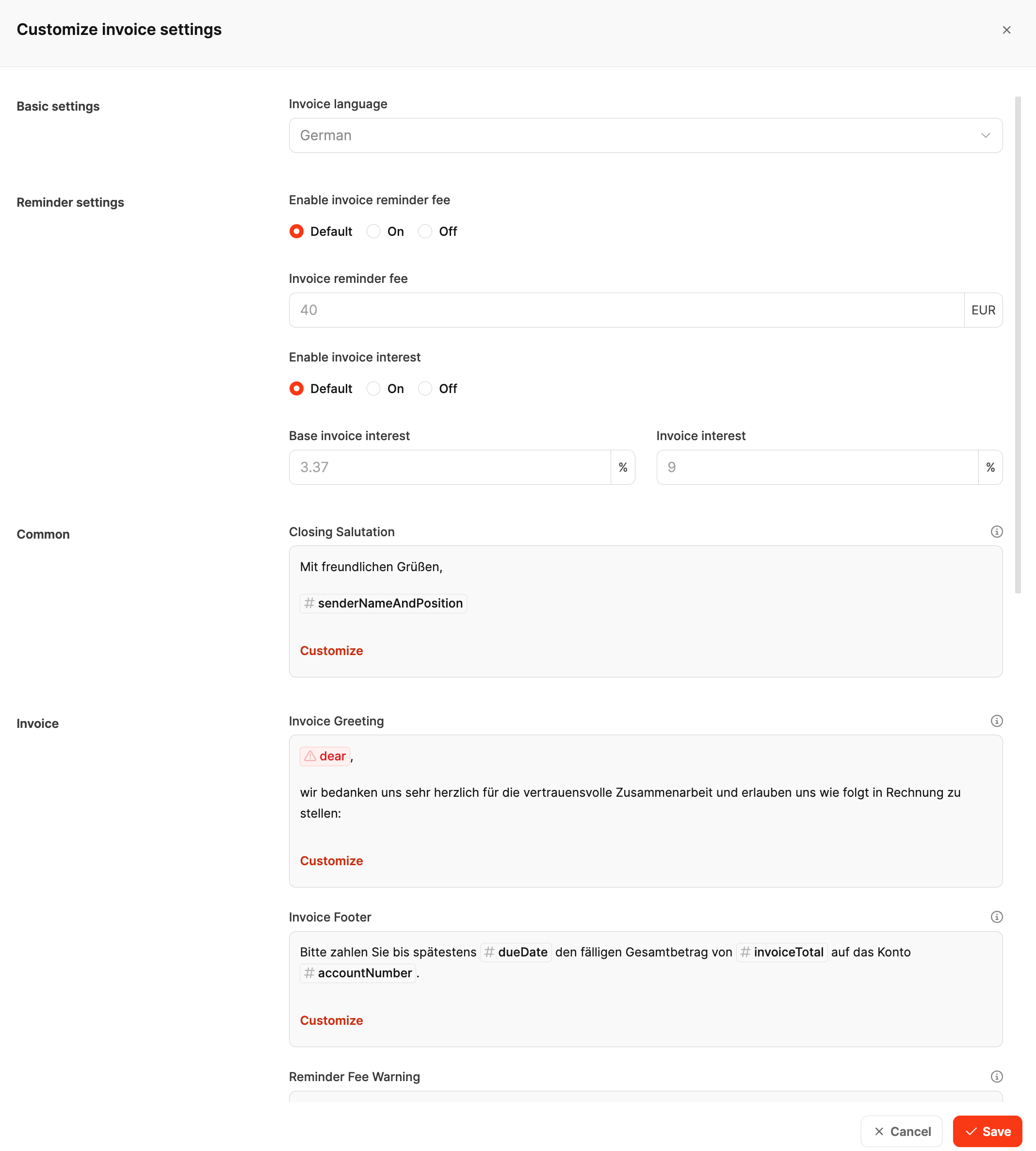
Setting options in the “Adjust invoice settings” dialog
| Area | Option | Description / Entry |
|---|---|---|
| Basic settings | Invoice language | Selection of the language for the invoice document |
| Reminder settings | Enable overdue fee | Default / Enabled / Disabled |
| Overdue fee | Amount in EUR | |
| Enable interest on invoices | Default / Enabled / Disabled | |
| Base interest rate for invoices | Interest value in % | |
| Interest on invoices | Additional interest value in % | |
| General | Closing formula | Free text including placeholders (e.g. signature block) |
| Invoice | Invoice greeting | Free text including placeholders (intro text for the invoice) |
| Invoice footer | Free text including placeholders (payment information) | |
| Reminder fee notice | Free text for the payment reminder notice | |
| (Buttons) Adjust | Opens the editor for the respective text block | |
| Save / Cancel | Accept or discard changes |
What happens after sending?
After sending, the invoice status changes from “Created” to “Sent”.
It remains in the “New” tab until it is paid or becomes overdue.
Leadtime automatically documents the time of sending, the sender and the recipient.
The “Resend” option remains available in case the document needs to be sent again.
Structure of a Leadtime invoice
Logo and fonts can be customized here: Documents
An invoice in Leadtime consists of two parts:
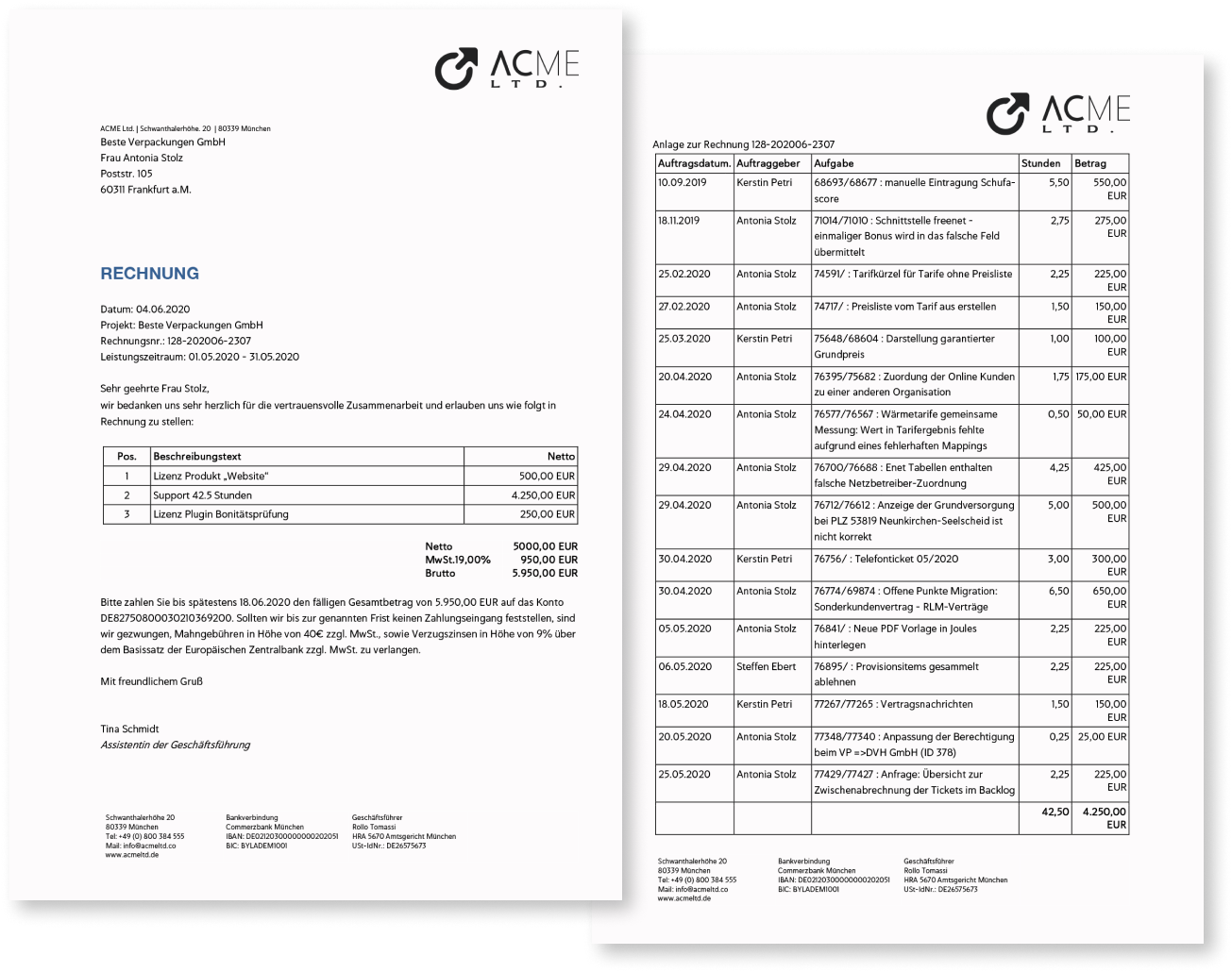
1. Cover page
- Invoice number, date, period
- Customer data and contact persons
- Project name and short description
- Main items (products, hours, fixed prices)
- Net, tax and gross amounts
- Payment term, bank details, legal information
2. Proof of performance
- Date and responsible person
- Ticket ID and title
- Hours billed
- Individual and total amount per item
This structure creates transparency for internal and external audits.
Notes
- Once generated, an invoice can no longer be changed.
- Corrections are made exclusively via a cancellation invoice.
- All original invoice items remain documented.
- Overdue invoices automatically appear in the “Overdue” tab.