
Calendar Sync
Subscribe to your Leadtime plan through ICS and import external busy time without storing event titles.
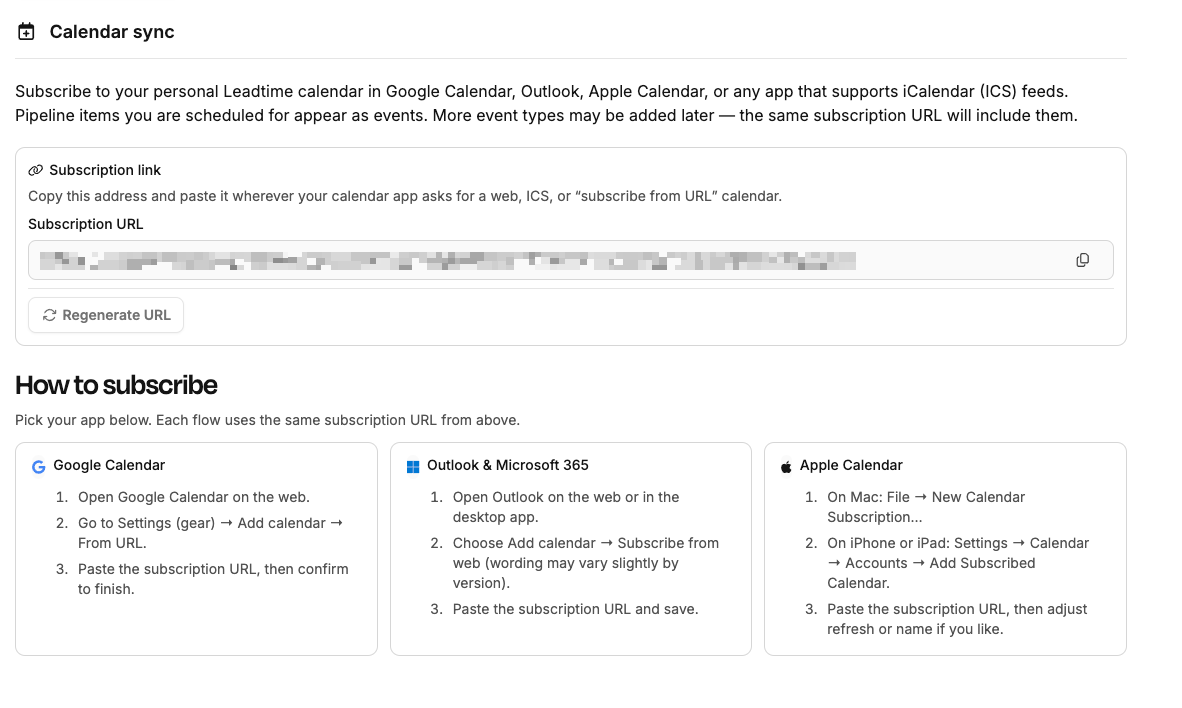
Use Calendar Sync to subscribe to your personal Leadtime calendar in Google Calendar, Outlook, Apple Calendar, or any app that supports an iCalendar ICS web feed. Pipeline items assigned to you appear as events.
Where to find it
Open My Profile from your profile picture or the sidebar, then choose Calendar Sync.
What is synchronized
The feed shows your Leadtime Pipeline assignments as external calendar events. If Leadtime adds more event types later, the same subscription URL will include them automatically.
- Works with “Subscribe from URL,” “From the internet,” and comparable ICS subscription features.
- Each calendar provider refreshes the feed on its own schedule.
Subscription link
Copy the address under Subscription link and paste it where your calendar app requests a web, ICS, or calendar-by-URL subscription.
Use the Copy button to avoid typing errors.
Regenerate the URL
If the link was shared accidentally or you want to revoke previous subscriptions, select Regenerate URL. The old address stops working, so update every calendar that still uses it.
Set up the subscription
Leadtime provides short instructions for Google Calendar, Outlook / Microsoft 365, and Apple Calendar. Each uses the same subscription URL.
Google Calendar
- Open Google Calendar in a browser.
- Go to Settings → Add calendar → From URL.
- Paste the subscription URL and confirm.
Outlook and Microsoft 365
- Open Outlook on the web or desktop.
- Choose Add calendar → Subscribe from the internet. The wording varies by version.
- Paste the URL and save.
Apple Calendar
- On Mac: File → New Calendar Subscription.
- On iPhone or iPad: Settings → Calendar → Accounts → Add Subscribed Calendar.
- Paste the URL and adjust the refresh interval or display name if needed.
Import busy time from other calendars
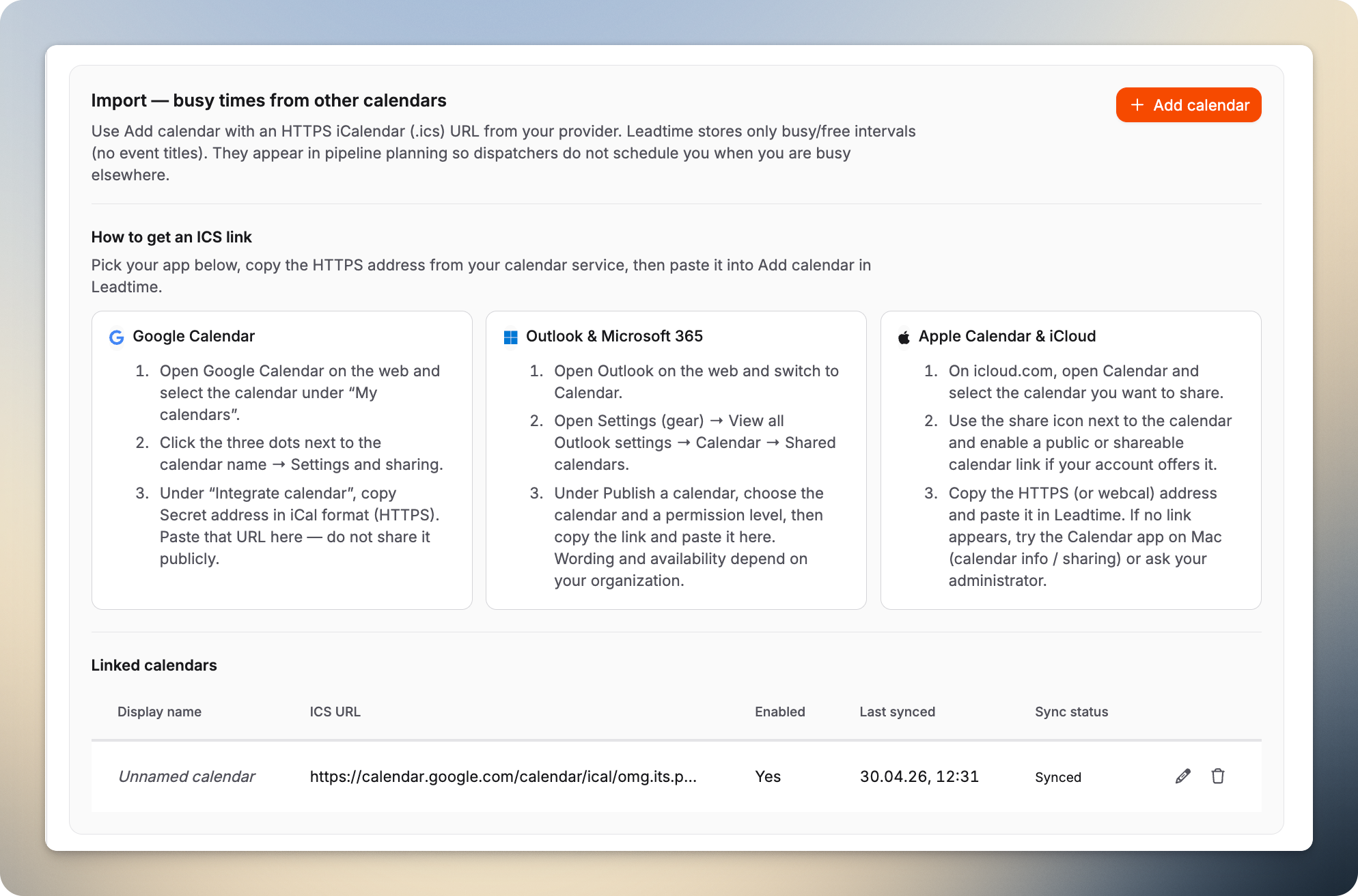
Under Import, add one or more HTTPS iCalendar URLs (.ics) from Google Calendar, Outlook, Apple / iCloud, or another provider. Leadtime stores only free/busy information, not event titles, so subjects remain private. Busy blocks appear in Planning → Pipeline and related views, helping planners avoid booking you twice.
Get an ICS link
The cards in Leadtime show where each provider exposes the address. Paste it under Add calendar.
Google Calendar
- Open Google Calendar in a browser and choose a calendar under “My calendars.”
- Select its three-dot menu → Settings and sharing.
- Under “Integrate calendar,” copy the secret address in iCal format over HTTPS. Treat it like a password.
Outlook and Microsoft 365
- Open Outlook on the web and go to Calendar.
- Open Settings → View all Outlook settings → Calendar → Shared calendars.
- Under “Publish a calendar,” choose the calendar and visibility, then copy the link. Availability depends on your organization.
Apple Calendar and iCloud
- Open the calendar on icloud.com and select the relevant calendar.
- Use the sharing icon and enable a public or shareable link if necessary.
- Copy the HTTPS or
webcaladdress. If no link is available, check Calendar sharing on a Mac or ask your administrator.
The Linked calendars table shows every feed, its latest synchronization, and status. Edit a name or URL, or remove a feed when its busy time should no longer appear in Leadtime.