
Employee Overtime
Manage, analyze, and compensate an employee's overtime.
Open Your Company → Employees, select an employee, then open the Overtime tab on the right.
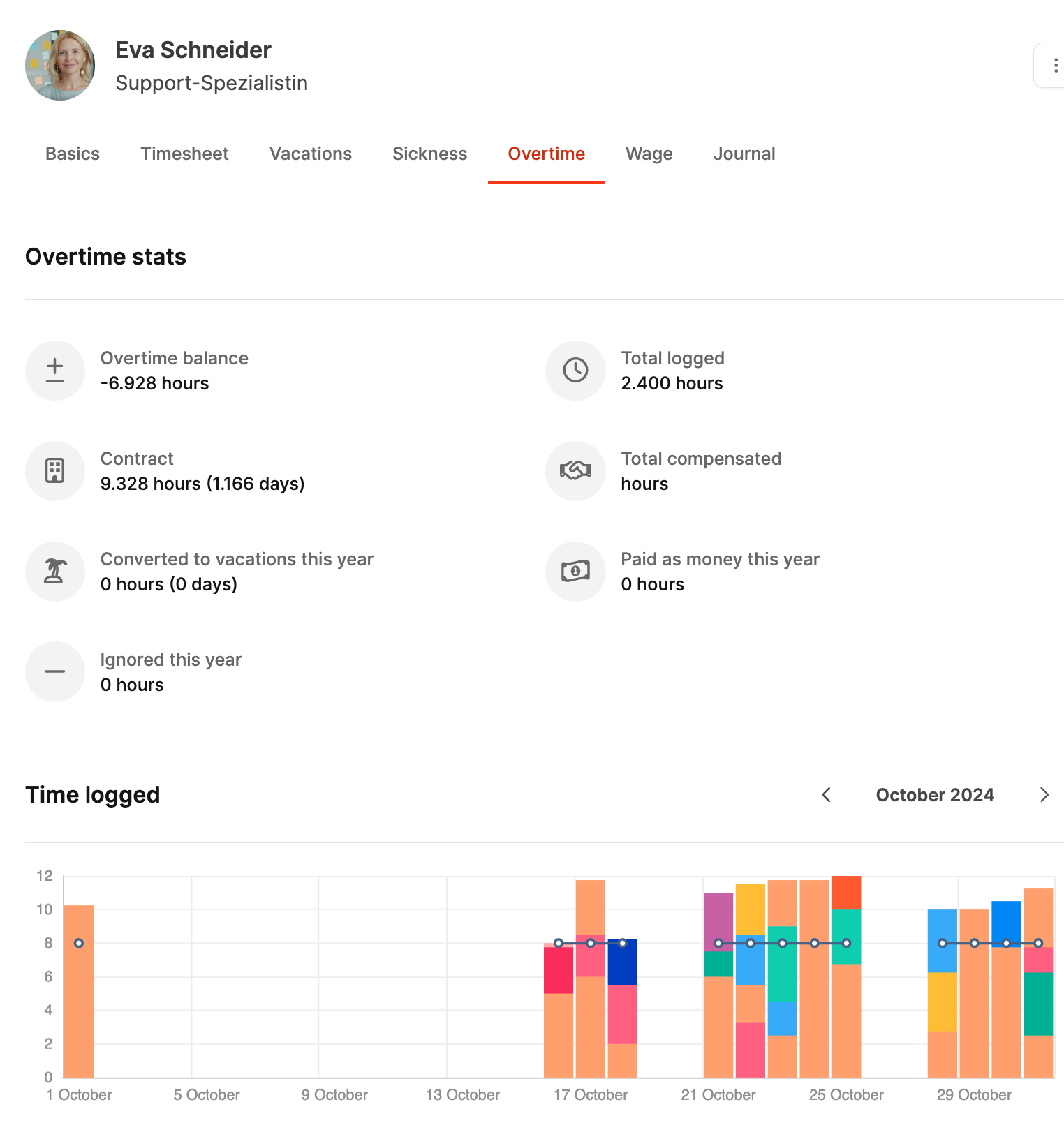
Managers and team leads use this tab to review and compensate individual overtime. It shows how far the employee is above or below their contractual working time.
Employees can see their own balance under Profile – Overtime.
Recording overtime
Leadtime calculates overtime automatically from daily time tracking.
Recording more than the contractual working time creates a positive balance; recording less creates a negative balance. Leadtime recalculates the value daily.
Overtime statistics
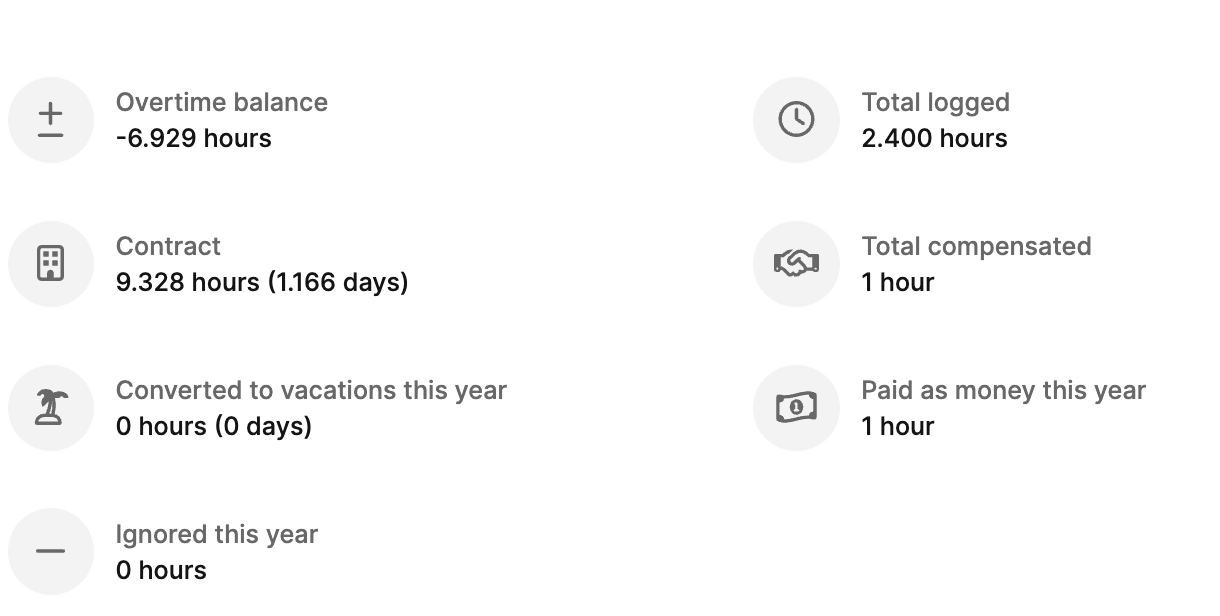
The top of the view displays key figures:
- Overtime balance – current overtime or deficit
- Total recorded – all recorded working hours
- Contract – contractual weekly or daily working time
- Total compensated – hours already settled
- Converted to vacation – hours converted into additional days off
- Paid in cash – overtime paid out
- Ignored – overtime marked as expired or removed without compensation
Time log
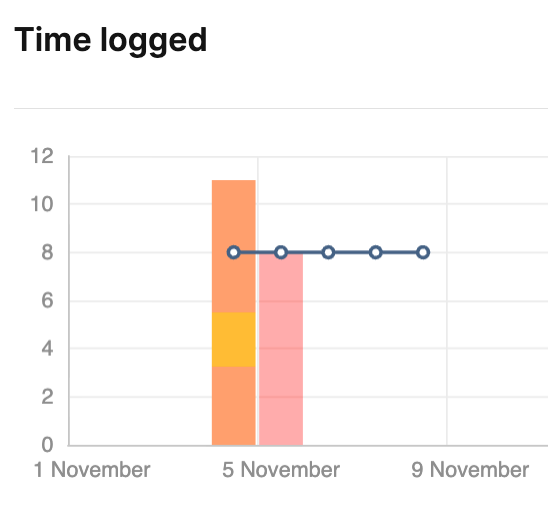
The chart compares recorded hours per day with expected working time.
-
Colored bars show recorded time. Their colors match the organization for which the project work was performed.
-
The continuous line shows contractual working time.
This makes overtime and deficits easy to identify.
Compensation history
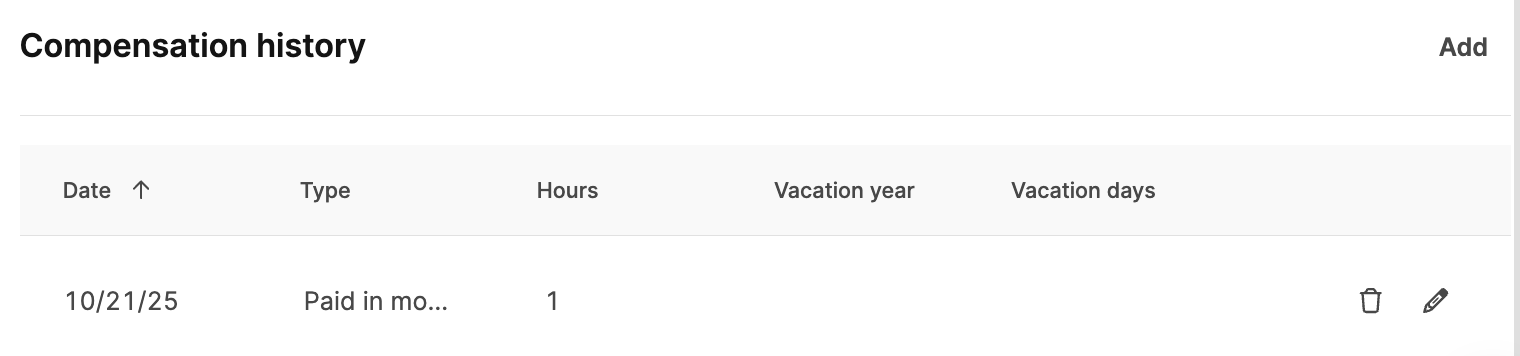
The history records the date, type, and number of hours for every adjustment. Overtime can be:
- Paid in cash
- Converted into vacation days
- Ignored and removed without compensation