
Detail View
See object details, review history, manage files, and work with linked tasks from one place.
The object detail view brings everything about one object together in a single place. From here, you can review the current setup, read journal entries, manage files, see change history, and work with linked tasks.
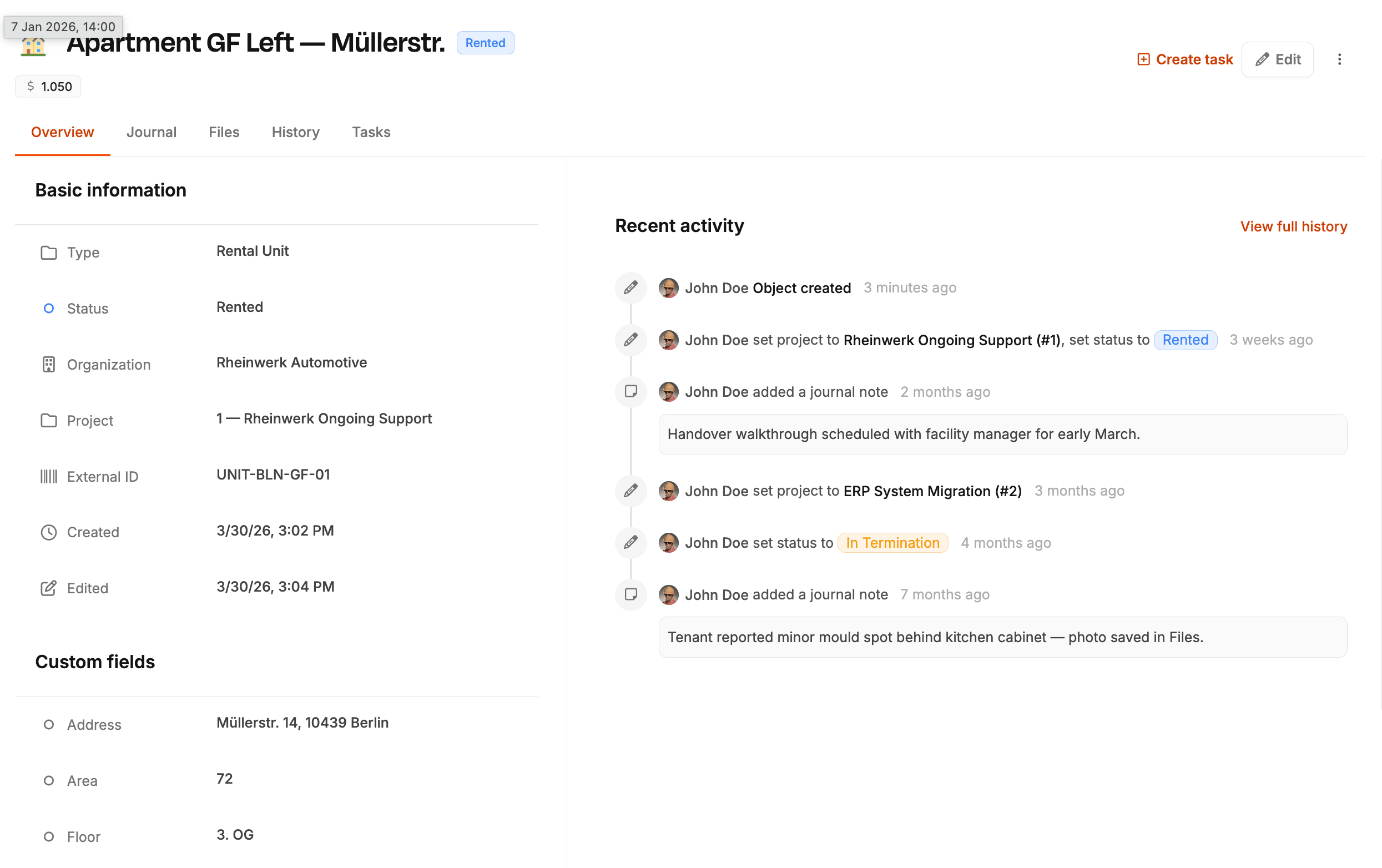
This is the best place to understand the current state of an object and everything that has happened around it.
Overview
The Overview tab shows the most important information about the selected object.
Here you typically see:
- Name and status: the main object label and current lifecycle state
- Organization: the related customer, if the object belongs to one
- Project: the currently assigned project, if there is one
- Header fields: important custom fields highlighted at the top
- Additional details: all other relevant fields in a structured read-only layout
This gives you a fast summary before you move into more specific tabs.
Journal
The Journal tab is the place for ongoing object-specific notes and communication.
Use it for entries such as:
- Operational notes: important updates or observations
- Reminders: follow-ups that should not get lost
- Shared context: information the team should see directly on the object
This is especially helpful when the object stays relevant longer than a single task or project.
Files
The Files tab stores documents and attachments directly on the object.
Typical examples:
- Photos
- Protocols
- Floor plans
- Device documents
- Other reference files
This keeps object-related documentation in a stable location instead of scattering it across multiple tasks or projects.
History
The History tab shows the field-level change history of the object.
This helps you understand changes over time, for example:
- Status changes
- Project reassignment
- Organization updates
- Edited fields
- Task link changes
If you need to understand how an object reached its current state, this is usually the best tab to check first.
Tasks
The Tasks tab lists all tasks linked to the object.
This makes it easy to answer questions like:
- Which work items are currently connected to this object?
- What has already been done?
- Which open tasks still need attention?
You can use this area to move directly from the object into the related work.
Create a task from an object
If no task exists yet, you can create one directly from the object context.
This is useful because the new task already starts with the correct object context. That saves clicks and keeps the connection between work and object consistent from the beginning.
Edit and delete actions
Depending on your permissions, you can also edit or delete the object from the detail view.
- Edit: updates the main object data in a dialog (same pattern as in the Objects article)
- Delete: removes the object when it is no longer needed
The detail page is therefore not only the best place to review an object, but also the main place to maintain it.