
Address Book
Management, filtering, and synchronization of all internal and external contacts with CardDAV and vCard support.
The Address Book section is located in the main menu under Address Book and serves as the central place to manage all contacts in the workspace. Here, you’ll find both internal employees and external contacts from organizations. You can add, filter, and get them ready for export or sync.
For internal employees: Employee Overview
For members from external organizations: Organizations – Members
How it works
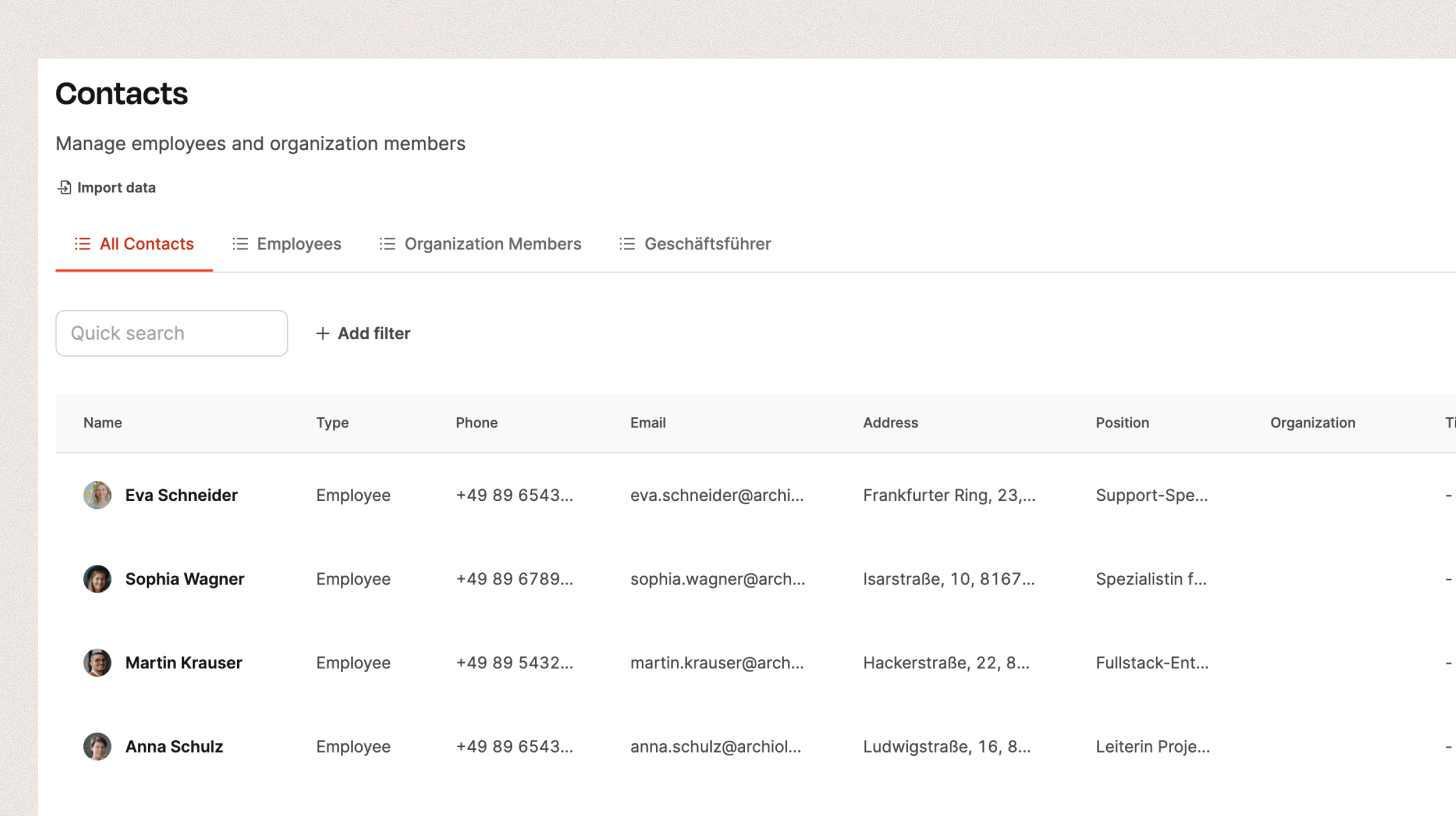
When you open the address book, you’ll see a table with all available contacts. Each row stands for a person with their main contact info.
Available columns include:
- Name
- Organization
- Email address
- Phone number
- Address
- Position and title
- Academic degree
- Date of birth
You can adjust filters and views using the top navigation:
- All contacts – shows all contacts in the workspace
- Employees – shows only the people in your own company
- Organization members – shows external contacts from partner or customer organizations
- You can also save your own filters and views (e.g., “managing director”, “customer contacts Berlin”).
A quick search lets you specifically look for names, email addresses, or organizations.
Columns can be shown or hidden individually, sorted, and filtered.
CardDAV sync
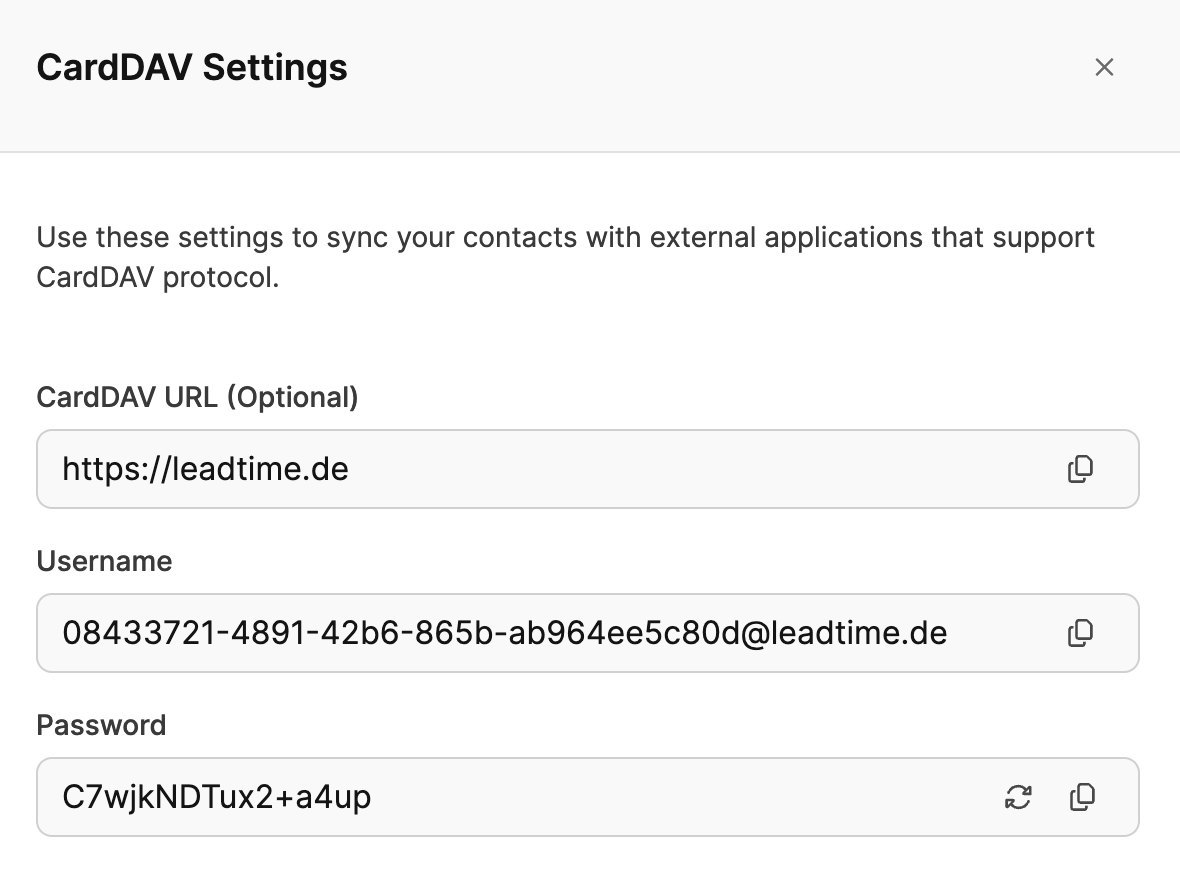
Using the “Sync via CardDAV” button, you can sync the address book with external apps that support the CardDAV protocol (like Apple Contacts, iOS, Thunderbird).
When you click, a dialog opens with your individual login details:
- CardDAV URL: https://leadtime.de
- Username: a system-generated ID in the form of an email address (like 0843…@leadtime.de)
- Password: generated automatically, can be recreated with the arrows_counterclockwise icon
This data is used to connect the Leadtime address book to an external address book client.
The connection is encrypted using HTTPS.
vCard export
Alternatively, you can export contacts using the “Download as vCard” button. This creates a .vcf file with all currently visible contacts.
The file can be imported into local address books or CRM systems.
Detail view
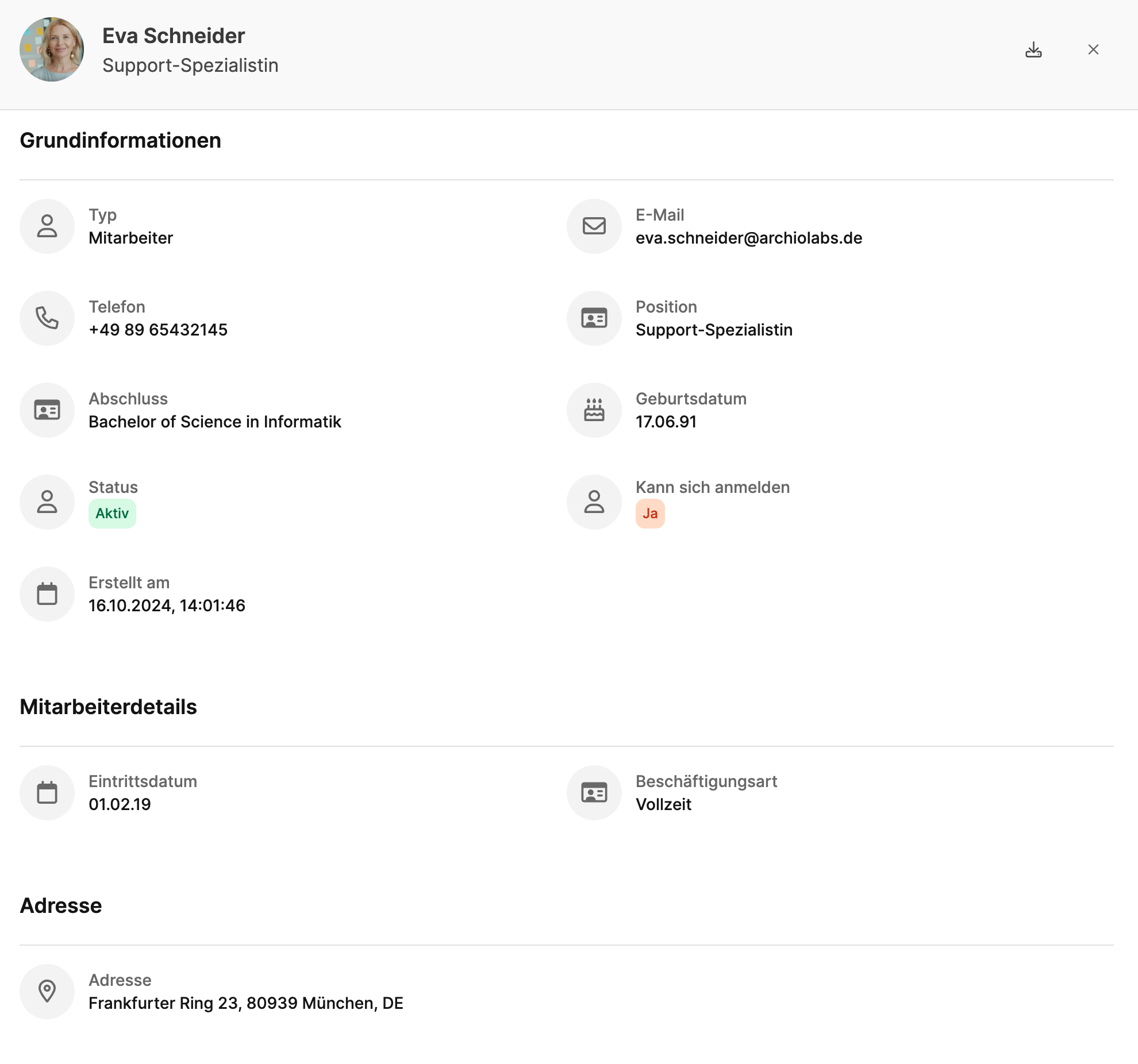
Clicking a contact’s name opens the detail view in a dialog.
There you’ll see more info, like organization, position, personal data, or team assignments.